How to Reduce Input Lag While Gaming: The Complete 2026 Guide
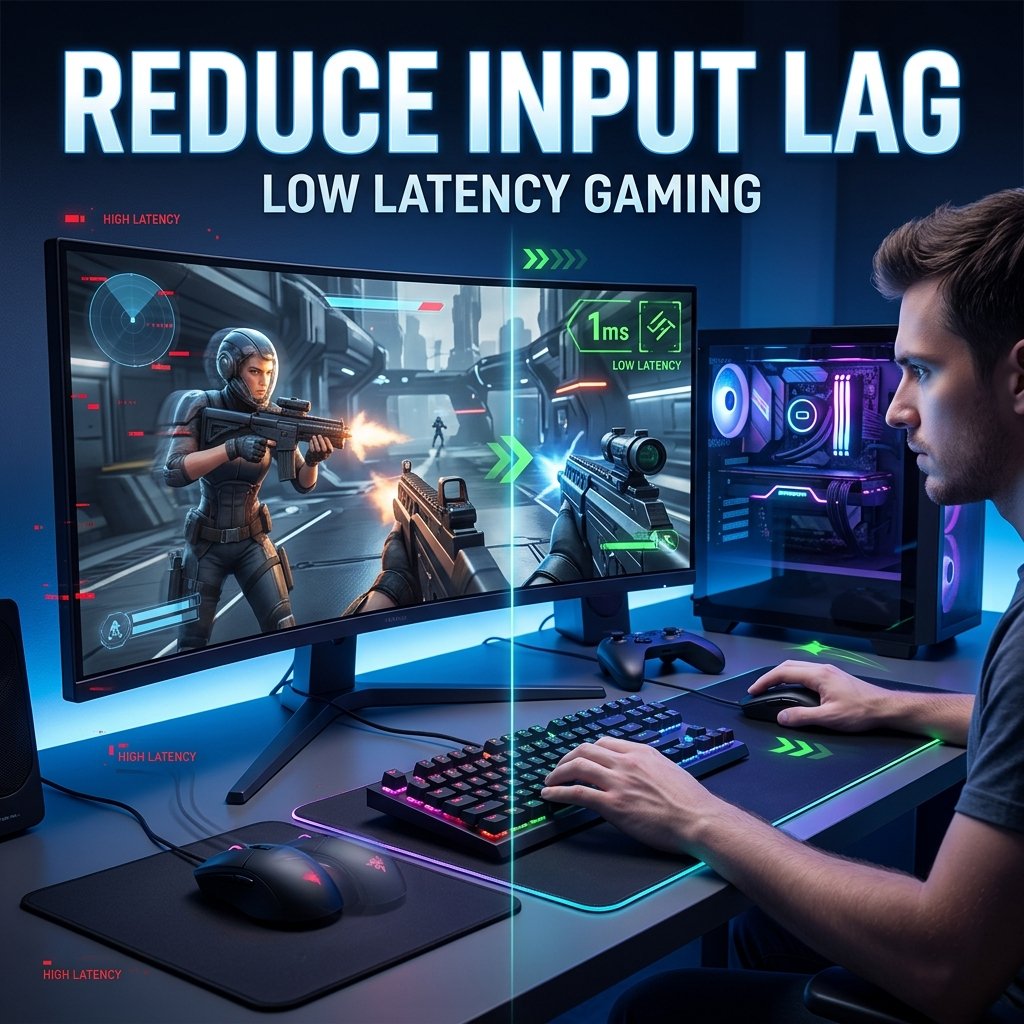
You click first. You flick your aim cleanly. And you still lose the duel, like the screen answered a half-second too late. That gap between what your hands do and what shows up on screen is input lag, and it’s one of the most misunderstood problems in gaming — partly because so much advice about it is outdated, partly because it gets confused with a completely different problem (high ping).
This guide walks through how to reduce input lag while gaming on PC, console, and TV, starting with how to figure out where your delay is actually coming from before you start changing settings. That order matters. Input lag isn’t one thing — it’s the sum of several delays stacked on top of each other, from your mouse or controller all the way to the pixels on your screen. Chasing the wrong one wastes time and can even make things worse.
Before anything else, it helps to separate two problems people often lump together: input lag (a local delay between your action and the screen) and ping (a network delay between your PC and a game server). They can feel similar in the moment, but they need completely different fixes. This guide focuses on local input lag; if your symptom is more about rubber-banding or lag that only shows up in online matches, our guide to fixing high ping while gaming is the better starting point.
What Is Input Lag? (And What It Isn’t)
Input lag is the total delay between a physical action — a mouse click, a key press, a controller input — and that action becoming visible on your screen. It’s a chain, not a single number: your input device has to register the action, your PC has to process it, your GPU has to render it, and your display has to show it.
Input Lag vs. Response Time vs. Refresh Rate
These three terms get used interchangeably, but they measure different things:
- Input lag is the full action-to-screen delay — everything from your hand to the pixel.
- Response time (often listed as GtG, or gray-to-gray) measures how quickly a monitor’s pixels physically change color. It’s a clarity and motion-blur spec, not a full latency spec.
- Refresh rate is how many times per second your display redraws the image (measured in Hz).
A monitor can have an extremely fast response time and still feel laggy if there’s heavy image processing happening behind the scenes. Response time tells you about motion clarity; input lag tells you about responsiveness. They’re related but not the same measurement.
Input Lag vs. Network Latency (Ping)
This is the distinction that trips up the most people. Input lag is local — it happens entirely on your side, between your input device and your screen, regardless of whether you’re online. Ping is the round-trip time it takes data to travel between your PC and a game server.
You can have excellent local responsiveness and still feel delayed in an online match because of a bad connection. You can also have a rock-solid connection and still feel a step behind because your local input chain — mouse, PC, display — is poorly configured. If you’ve already ruled out your connection and things still feel sluggish, keep reading. If you suspect the opposite, our guide to fixing high ping while gaming or troubleshooting packet loss in online games will get you further faster.
How Much Input Lag Can You Actually Feel?
There’s no single number where input lag suddenly becomes noticeable — it depends heavily on the player and the game. Most people struggle to consciously detect input lag once it’s under roughly 10 milliseconds, though highly practiced competitive players can sometimes notice smaller changes once their aim and timing are already dialed in. The practical takeaway: you don’t need to chase every last millisecond, but if something feels consistently “heavy” or delayed, it’s usually a real, fixable issue rather than something in your head.
What Causes Input Lag: The Full Signal Chain
Every source of input lag falls somewhere in this chain:
- Peripheral — how fast your mouse, keyboard, or controller registers and reports your input
- Connection type — wired, 2.4GHz wireless, or Bluetooth, and the OS/driver overhead each adds
- Game engine / CPU — how long the game takes to process that input into game logic
- GPU render queue — how many frames are backed up waiting to be rendered
- Sync method — V-Sync, VRR (G-SYNC/FreeSync), or no sync at all, which controls how frames are handed off to the display
- Display processing — scaling, HDR tone mapping, motion interpolation, and other image processing inside your monitor or TV
- Panel response time — how quickly the physical pixels change
The rest of this guide moves through that chain roughly in order, because that’s usually the most efficient way to actually find your bottleneck instead of guessing.
Quick Checks Before You Start
A few things are worth checking immediately, since they take minutes and account for a surprising share of “why does this suddenly feel laggy” complaints:
- Update your GPU drivers — both NVIDIA and AMD regularly patch latency-related bugs alongside game updates.
- Confirm your mouse/keyboard/controller is plugged into a rear motherboard USB port rather than a front-panel port or hub, which can add inconsistent delay.
- If you’re on a TV, confirm you’re using the correct HDMI port and that Game Mode is actually enabled (more on this below).
- Close background apps and overlays you don’t need open during play.
If none of that fixes it, move on to the sections below that match your setup.
Peripheral Fixes: Mouse and Keyboard
Polling Rate: What Actually Matters
Polling rate is how often your mouse or keyboard reports its position or state to your PC, measured in Hz. At 125Hz, your device reports once every 8 milliseconds; at 1000Hz, once every millisecond.
The jump that actually matters is 125Hz to 1000Hz — that alone removes up to about 7ms of reporting delay, which is a real, perceptible improvement. Going further, from 1000Hz to 4000Hz or 8000Hz, saves well under a millisecond and mostly benefits players on 240Hz+ monitors paired with strong CPUs, since those ultra-high polling rates generate more USB interrupts and can add CPU overhead on weaker systems. For the large majority of setups, 1000Hz remains the sensible default — it’s the point where the big latency win has already happened and further gains are marginal.
| Polling Rate | Reporting Interval | Practical Recommendation |
|---|---|---|
| 125Hz | 8ms | Upgrade if this is your current rate |
| 500–1000Hz | 1–2ms | Solid default for most monitors and setups |
| 2000–4000Hz | 0.25–0.5ms | Worthwhile on 240Hz+ displays with a capable CPU |
| 8000Hz | 0.125ms | Marginal gain; mostly relevant for already-optimized high-end systems |
Wired vs. Wireless Mice
This is where a lot of advice oversimplifies things by treating “wireless” as one category. In reality:
- A good 2.4GHz wireless connection (a dedicated USB dongle) typically lands within about 1–4 milliseconds of a wired connection — a gap small enough that most players can’t reliably tell the difference.
- Bluetooth is the real outlier, both in average latency (often in the 10–30ms range) and, more importantly, in consistency. Bluetooth shares a crowded radio band with other devices, so it’s prone to interference spikes that a stable wired or 2.4GHz connection doesn’t have.
If your mouse or keyboard supports both, use the 2.4GHz dongle over Bluetooth for gaming, and reserve Bluetooth for casual or multi-device use.
USB Ports, Hubs, and Power Management
Front-panel USB ports and passive hubs can introduce inconsistent latency, especially under load. Plug performance-sensitive devices — mouse, keyboard, controller dongle — directly into a rear motherboard USB port when possible. It’s also worth checking Windows’ USB power management settings (Device Manager → USB Root Hub → Power Management) to make sure Windows isn’t allowed to selectively suspend the port your device is on, which can cause small but noticeable input delays after idle periods.
Controller Fixes (PC and Console)
Wired vs. 2.4GHz vs. Bluetooth Controllers
The same hierarchy from mice applies to controllers, and the numbers are similar: wired controllers typically deliver the lowest and most consistent latency, a quality 2.4GHz wireless connection sits close behind, and Bluetooth trails both — again mostly because of interference-driven inconsistency rather than just a higher average. For competitive shooters, fighting games, or rhythm games where frame-perfect timing matters, wired or 2.4GHz is worth prioritizing. For casual, story-driven, or couch co-op play, the difference is unlikely to matter.
If your controller keeps dropping its Bluetooth connection on top of feeling delayed, that’s a separate but related problem — see our guide to Bluetooth controllers disconnecting while gaming for troubleshooting steps.
Controller Firmware and Drivers
Manufacturers periodically release firmware updates that specifically address latency behavior, not just bug fixes. If your controller software offers a firmware update, it’s worth installing — especially after switching connection modes or noticing new input delay that wasn’t there before.
PC-Specific Controller Setup
Getting a console controller working properly on PC is its own occasional headache, and a controller that isn’t connecting cleanly will often feel laggy even before you consider polling rate or wireless type. If you’re setting up an Xbox controller on PC, see our Xbox controller connection guide; for a PS5 DualSense controller on Windows, see our guide to getting a PS5 controller working on Windows.
Monitor and Display Fixes
Refresh Rate Isn’t the Whole Story
A higher refresh rate shortens the display stage of the latency chain — more refreshes per second means less time between when a frame is ready and when it can actually appear. But refresh rate says nothing about what happens before that: peripheral delay, CPU processing, GPU render queue, or sync method. A 240Hz monitor paired with a poorly configured sync setup can still feel worse than a well-tuned 144Hz setup. Treat refresh rate as one lever among several, not a fix on its own.
A “Gaming Monitor” Label Doesn’t Guarantee Low Input Lag
Marketing terms like “gaming monitor” or “esports monitor” don’t come with a standardized input-lag guarantee. Actual input lag depends on that specific panel’s internal processing pipeline, and it varies significantly between models — even within the same brand’s lineup. If input lag matters to you, look for independently measured input-lag figures from testing labs rather than relying on the product name alone.
V-Sync, G-SYNC/FreeSync, and the Correct Pipeline
Traditional V-Sync forces your GPU to wait for your display’s refresh cycle before sending the next frame, which eliminates screen tearing but can add noticeable delay — at 60Hz, that can mean up to roughly 16ms of added lag, since a frame effectively has to wait for the actual display and hold at the ready.
Variable refresh rate technology — NVIDIA’s G-SYNC and AMD’s FreeSync, both built on the same underlying VRR concept — solves this differently. Instead of the GPU waiting for the display, the display waits for the GPU and refreshes exactly when a new frame is ready. That removes tearing without V-Sync’s fixed-interval latency penalty.
The setup most commonly recommended for a tear-free, low-latency experience in 2026 is:
- Enable G-SYNC or FreeSync (VRR) in your monitor’s on-screen menu and your GPU’s driver settings.
- Cap your frame rate a few frames below your monitor’s maximum refresh rate, either in-game or through your GPU driver.
- Leave in-game V-Sync off.
One nuance worth flagging: some NVIDIA-specific guidance recommends leaving V-Sync enabled at the driver level (NVIDIA Control Panel) rather than in-game when running G-SYNC, as a backstop for frames that exceed your refresh rate. This isn’t universal advice — the right combination can vary by game and GPU — so if you’re chasing the last few milliseconds, it’s worth testing both ways in your specific games.
HDMI and DisplayPort Considerations
For most PC setups, DisplayPort or a modern HDMI cable won’t be your latency bottleneck. Where cable/port choice matters more is on consoles and TVs: HDMI 2.1 is required for 4K/120Hz output and VRR support on PS5 and Xbox Series X, and plugging into the wrong port on a TV (one without full HDMI 2.1 bandwidth) can silently reintroduce lag even with Game Mode enabled.
TV Gamers: A Different Set of Fixes
If you’re gaming on a TV rather than a monitor, the biggest lever isn’t refresh rate or VRR — it’s picture processing.
TV Game Mode
Most TVs ship with cinema-oriented picture modes that run extensive image processing: motion interpolation, noise reduction, dynamic contrast adjustment, and more. That processing looks good for movies and sports but adds significant delay for gaming — commonly pushing total input lag from somewhere in the 40–100ms range down to roughly 10–20ms once Game Mode is switched on, since Game Mode disables most of that processing chain. If you haven’t explicitly turned on Game Mode in your TV’s picture settings, this is very likely your single biggest fix.
ALLM, VRR, and Correct HDMI Port Selection
Auto Low Latency Mode (ALLM) lets a connected console automatically switch your TV into Game Mode without you digging through menus — but it requires HDMI 2.1 on both the TV and the source device. Not every HDMI port on a given TV supports the full HDMI 2.1 feature set; manufacturers often label only one or two ports as “Game” or full-bandwidth ports. Plugging your console into the wrong port can quietly reintroduce 10–20ms of lag even if Game Mode is technically on.
What to Turn Off in Picture Settings
Beyond enabling Game Mode itself, look for and disable these settings specifically, since they’re often left on even within a “Game” picture preset:
- Motion smoothing / motion interpolation (sometimes labeled Motionflow, TruMotion, or Auto Motion Plus)
- Noise reduction / MPEG noise reduction
- Dynamic contrast
Each of these performs extra frame-by-frame processing that adds latency, and none of them meaningfully improve a fast-paced game’s image quality the way they do for film content.
GPU and Driver-Level Fixes
NVIDIA Reflex and Reflex 2
NVIDIA Reflex reduces system latency by synchronizing CPU and GPU work more tightly, which shrinks the render queue that normally builds up when your GPU is the bottleneck. In GPU-bound scenarios, Reflex has been shown in NVIDIA’s own testing to roughly halve total system latency in supported titles.
Reflex 2 builds on this with a feature called Frame Warp, which updates the already-rendered frame using your latest mouse input immediately before it’s sent to the display — a meaningfully different mechanism from queue reduction alone. NVIDIA’s published benchmarks on titles like THE FINALS showed Reflex 2 with Frame Warp reducing total latency by around 75% compared to having no latency technology enabled at all, though real-world results vary by game, hardware, and whether you’re CPU- or GPU-bound.
The important caveat: Reflex requires both a compatible GeForce GPU (GTX 900-series or newer) and per-game developer integration. It doesn’t work in every game, and its impact is most noticeable when your system is GPU-bound to begin with.
AMD Anti-Lag and Anti-Lag 2
AMD’s equivalent technology works similarly in spirit but has evolved through two distinct implementations. The original Radeon Anti-Lag operates at the driver level and works across a broad range of DirectX games without needing individual game support. Anti-Lag 2 integrates directly at the game-engine level — closer to where your input is actually sampled — which allows for more precise timing, but it requires each game to add SDK-level support, so it’s currently available only in a growing but limited list of titles rather than universally.
Worth noting for anyone confused by recent naming: through 2025 and 2026, AMD has folded Anti-Lag 2 more tightly into its FSR branding in some official materials, which has led to some understandable confusion in the community about whether “Anti-Lag 2” and newer FSR-labeled latency features are the same thing. Functionally, they refer to the same game-integrated latency-reduction approach — if your AMD control panel shows a standalone Anti-Lag toggle separate from any FSR-branded option, that’s the driver-level Anti-Lag 1, and it’s still worth enabling.
Frame Generation (DLSS/FSR/XeSS) and Its Latency Trade-off
Frame generation is genuinely useful for boosting displayed frame rate, but it’s important to understand what it does and doesn’t do for latency. Every mainstream implementation in 2026 — NVIDIA’s DLSS Frame Generation, AMD’s FSR Frame Generation, and Intel’s XeSS — works by interpolation: the system holds a completed frame, waits for the next completed frame, and generates a synthetic frame in between. Because that generated frame is built from two frames that already happened, it contains no new input data and physically cannot reduce input-to-display latency. In fact, the buffering required to build the interpolated frame adds a small amount of latency on top of your base render time.
This doesn’t make frame generation “bad” — it’s simply solving a different problem (smoothness and displayed frame rate) than input lag. The practical guidance:
- Frame generation works best when your base frame rate (before frame gen) is already reasonably high — many guides suggest at least 45–60fps as a starting point, since the latency cost is far more noticeable when frame generation is trying to compensate for genuinely low performance.
- It’s a good fit for single-player and visually demanding games where smoothness matters more than split-second reaction time.
- For competitive shooters and anything latency-sensitive, it’s generally better left off, or at minimum paired with Reflex or Anti-Lag to partially offset the added delay.
Hardware-Accelerated GPU Scheduling (HAGS)
HAGS shifts part of the GPU work-scheduling job from your CPU to your GPU directly. On modern hardware (GTX 1000-series/RX 5000-series or newer, running Windows 11), this typically produces a small but real latency improvement — commonly cited in the range of 1–3ms — along with more consistent frame times, and it’s required for some frame-generation features to function at all.
It’s not universally beneficial, though: a minority of systems, particularly older GPUs or certain game/driver combinations, have reported stutter or instability with HAGS enabled. The practical approach is to enable it (Settings → System → Display → Graphics → Change default graphics settings), test your usual games, and revert if you notice new stutter or input issues specific to that change.
Windows and System-Level Settings
Game Mode: Current Guidance
Older advice frequently recommended disabling Windows Game Mode to reduce input lag. That advice is outdated. Since Windows 11 22H2, Game Mode has generally been stable and beneficial — it deprioritizes background processes like Windows Update during play and helps ensure your game gets scheduling priority. Current guidance is to leave it on rather than disable it by default.
Power Plan
On both laptops and desktops, a Balanced power plan can throttle CPU clock speed during brief idle gaps between inputs, which introduces small, inconsistent latency spikes. Switching to a High Performance (or, on some systems, Ultimate Performance) power plan in Windows removes this variable. The effect is usually more noticeable on laptops, but it’s worth checking on desktops with aggressive BIOS power-saving defaults too.
Fullscreen Optimizations
Windows’ fullscreen optimizations run games in a borderless-window-style mode with a compositor layer. For most modern games and GPUs, the added latency from this is negligible. It’s mainly older DirectX 9/11 titles, or competitive games where every millisecond is being chased, where disabling it (right-click the game’s .exe → Properties → Compatibility → “Disable fullscreen optimizations”) is worth testing.
Background Applications and Overlays
Heavy background apps and overlays (recording software, chat overlays, browser tabs with video playing) can compete for CPU and GPU resources in ways that add inconsistent latency spikes, especially during CPU-bound moments. Closing what you don’t need during a session is a reasonable, low-risk step.
What’s not recommended here: registry-level tweaks, disabling core Windows services wholesale, or installing third-party “latency optimizer” tools that promise dramatic gains through undocumented system changes. These carry real risk to system stability with little verified latency benefit, and are best avoided.
FPS, Frame Time, and Bottlenecks
Does Higher FPS Reduce Input Lag?
Indirectly, yes — but it’s not the complete picture some advice suggests. Higher FPS means shorter frame time, which reduces one contributor to overall latency, and it also tends to work better alongside technologies like Reflex and Anti-Lag. But FPS alone doesn’t address sync-method latency, display processing, or peripheral delay. A game running at 200fps with poorly configured V-Sync can still feel worse than a well-tuned 100fps setup. If your FPS itself is the core issue, our dedicated guide to fixing low FPS in PC games covers that in depth.
CPU Bottlenecks vs. GPU Bottlenecks
When your CPU can’t feed your GPU fast enough, frames queue up waiting to be processed, and that queue adds to input lag independent of your raw FPS number. When your GPU is the limiting factor instead, technologies like Reflex and Anti-Lag are specifically designed to help by trimming that render queue. Figuring out which one is holding you back matters for choosing the right fix — see our guide to diagnosing high CPU usage while gaming if you suspect a CPU-side bottleneck.
In-Game Graphics Settings That Actually Affect Latency
Not every graphics setting affects latency the same way. Settings that reduce how much work your GPU does per frame (resolution scale, shadow quality, ray tracing) can reduce render time and therefore latency, especially if you’re GPU-bound. Purely visual settings with minimal render cost (texture quality, on many modern GPUs with sufficient VRAM) won’t move the needle much. If you’re running into scaling or resolution-related display issues while tuning these settings, our guide to fixing resolution problems in PC games can help.
Input Lag in Cloud Gaming and Remote Play
Cloud gaming and remote play (GeForce NOW, Xbox Cloud Gaming, Steam Remote Play, and similar services) add an entirely different layer on top of everything above: your input has to travel to a remote server, get processed and rendered there, get encoded into video, stream back to you, and get decoded and displayed — all before the local input-lag chain even applies.
Current 2026 guidance generally targets under 40ms round-trip latency to the service’s nearest server for a responsive experience, with latency above roughly 80ms becoming clearly noticeable in fast-paced games. Just as important as the raw number is jitter — how consistent that connection is. An unstable connection forces the client to buffer more video to smooth out arrival timing, which quietly adds input delay on top of the network latency itself. A steady 60ms connection often feels better in practice than a 30ms connection that swings wildly.
If cloud gaming or remote play feels delayed, the fix is almost always network-focused rather than local-setting-focused: use a wired Ethernet connection instead of Wi-Fi where possible, prioritize gaming traffic through your router’s QoS settings if available, and avoid running large downloads or uploads on your network during a session.
How to Measure Your Own Input Lag
You don’t need lab equipment to get a useful sense of whether a change actually helped — you do need a consistent method:
- Pick one repeatable test (a specific aim-training range, a consistent in-game action).
- Lock every other setting before you start comparing.
- Change exactly one variable at a time — Game Mode, VRR, Reflex, a polling rate — and nothing else.
- Repeat several times and look for a consistent, reproducible difference, not a one-off impression.
This kind of A/B comparison won’t give you a precise millisecond figure, but it will reliably tell you whether a change is actually helping. For genuinely precise, isolated measurements (separating peripheral latency from display latency, for instance), you’d need dedicated hardware like a photodiode-based latency tester or high-speed camera — well beyond what most home setups need.
If your goal is specifically to check whether network latency is contributing to what feels like delay, GamesGuider’s ping and latency calculator can help you check your connection to a server. It’s worth being clear about what that tool does and doesn’t measure: it checks network latency (ping) to a server, not your local input lag from mouse, keyboard, controller, or display. If the calculator shows a clean connection but things still feel delayed, the cause is more likely somewhere in the local chain covered throughout this guide.
Common Mistakes to Avoid
- Chasing an 8000Hz mouse before fixing a Bluetooth connection. The polling-rate gains above 1000Hz are tiny compared to the gap between Bluetooth and wired/2.4GHz.
- Assuming a “gaming monitor” label guarantees low input lag. Check independently tested figures instead of trusting the name alone.
- Leaving frame generation on for competitive shooters. It’s a smoothness tool, not a latency-reduction tool, and it adds a small amount of delay by design.
- Confusing high ping with input lag. They need different fixes; treating one as the other wastes time.
- Disabling Windows Game Mode based on outdated advice. Current guidance is to leave it on.
- Installing unverified “latency optimizer” software or registry tweaks. These carry real stability risk for unproven benefit.
FAQ
Why does my game feel delayed?
It’s usually one or more stages in the input-lag chain — your peripheral’s connection type, GPU render queue, sync settings, or display processing — rather than a single cause. Work through the sections above roughly in order to isolate which stage is the problem.
How do I reduce input lag on PC?
Start with your sync setup (VRR on, capped frame rate, V-Sync off), enable NVIDIA Reflex or AMD Anti-Lag in supported games, confirm HAGS and Game Mode are on, and check that your mouse/keyboard/controller is on a wired or 2.4GHz connection rather than Bluetooth.
Does higher FPS reduce input lag?
Partially. Higher FPS shortens frame time, which helps, but it doesn’t address sync-method latency or display processing on its own — it’s one piece of the picture, not the whole fix.
Does V-Sync increase input lag?
Traditional V-Sync can add noticeable latency, especially at lower refresh rates, because it makes the GPU wait for the display’s refresh cycle. Pairing VRR (G-SYNC/FreeSync) with a frame-rate cap generally avoids that penalty while still preventing screen tearing.
Does a 144Hz or 240Hz monitor reduce input lag?
It reduces the display stage of the latency chain, but it doesn’t fix peripheral, CPU, or GPU-side delay. A high-refresh monitor helps most when the rest of your setup is already reasonably well-tuned.
Does Bluetooth cause controller input lag?
Bluetooth generally has higher and less consistent latency than wired or 2.4GHz wireless connections, mainly due to interference on a shared radio band. For competitive play, wired or 2.4GHz is the better choice; for casual play, the difference is unlikely to matter.
Is wired better than wireless for gaming latency?
Wired is marginally faster than a good 2.4GHz wireless connection — typically by only a few milliseconds — which is close to imperceptible for most players. The bigger gap is specifically with Bluetooth, not wireless technology as a whole.
Does NVIDIA Reflex reduce input lag?
Yes, in supported games, by reducing the GPU render queue and, with Reflex 2, updating frames with your latest input just before display. It requires a compatible GeForce GPU and per-game support — it doesn’t work universally.
Does AMD Anti-Lag reduce input lag?
Yes. The original Anti-Lag works at the driver level across many DirectX games, while Anti-Lag 2 integrates directly into supported game engines for more precise timing, though it’s currently available in a smaller, growing list of titles.
Is input lag the same as high ping?
No. Input lag is a local delay between your input and your screen; ping is a network delay between your PC and a game server. You can have one problem without the other.
How can I test input lag at home?
Use a consistent A/B method: change one setting at a time, repeat a fixed test several times, and look for a reproducible difference. This won’t give you a lab-precise number, but it reliably tells you whether a change actually helped.
Conclusion
If you take away just three things from this guide: get your sync setup right (VRR enabled, frame rate capped a few frames below your refresh rate, V-Sync off), turn on NVIDIA Reflex or AMD Anti-Lag in the games that support it, and fix whichever single device is your weakest link — a controller stuck on Bluetooth, a TV still in Cinema mode, or GPU drivers that haven’t been updated in months — before spending money on new hardware. Change one thing at a time, and use the comparison method above to confirm it actually helped before moving to the next fix. Most input lag problems turn out to be a configuration issue somewhere in that chain, not a hardware limitation.