How to Fix Visual C++ Runtime Errors in Games
A Visual C++ runtime error usually shows up at the worst possible time — right as a game is trying to load. Sometimes it’s a small pop-up saying a component is missing. Other times it’s a full “Runtime Error!” dialog claiming the application has been terminated in an unusual way. Both look alarming, but neither means your PC is broken, and neither always has the same cause.
This guide walks through how to fix Visual C++ runtime errors in games step by step, starting with the safest, easiest fixes and moving toward more advanced Windows troubleshooting only if needed. Before trying anything, it helps to understand what these errors actually mean and why they show up in so many unrelated games.
What a Visual C++ Runtime Error Actually Means
Many Windows games are built using Microsoft’s Visual C++ tools. Instead of packaging every piece of code they need directly into the game, developers rely on shared library files — called the Visual C++ Redistributable — that Windows installs separately. When a game launches, it checks for these shared files. If they’re missing, outdated, or damaged, the game can’t start correctly, and Windows shows a runtime error instead.
Almost every game built with Visual Studio 2015 through the current 2026 tools now shares the same continuously updated redistributable, generally referred to as the Visual C++ v14 Redistributable. Older games, though, may still depend on separate, older redistributable families going back to Visual Studio 2005, 2008, 2010, 2012, or 2013 — installing the newest version doesn’t automatically cover those older dependencies. That’s an important distinction: assuming “the latest redistributable fixes everything” is one of the most common troubleshooting mistakes.
One naming quirk worth knowing about: the current shared redistributable package may still display “2015–2022” in its file properties, even though it’s the actively updated version that also supports Visual Studio 2026. That’s expected behavior, not a sign you downloaded an outdated file.
The Two Error Messages You Might See — And Why the Difference Matters
Before trying any fix, it’s worth figuring out which of these two messages you’re actually looking at, because they point to different problems.
“The following component(s) are required to run this program: Microsoft Visual C++ Runtime” This is a missing-component message. It means Windows can’t find a redistributable the game needs. This is the scenario where installing or repairing the Visual C++ Redistributable is the correct first step.
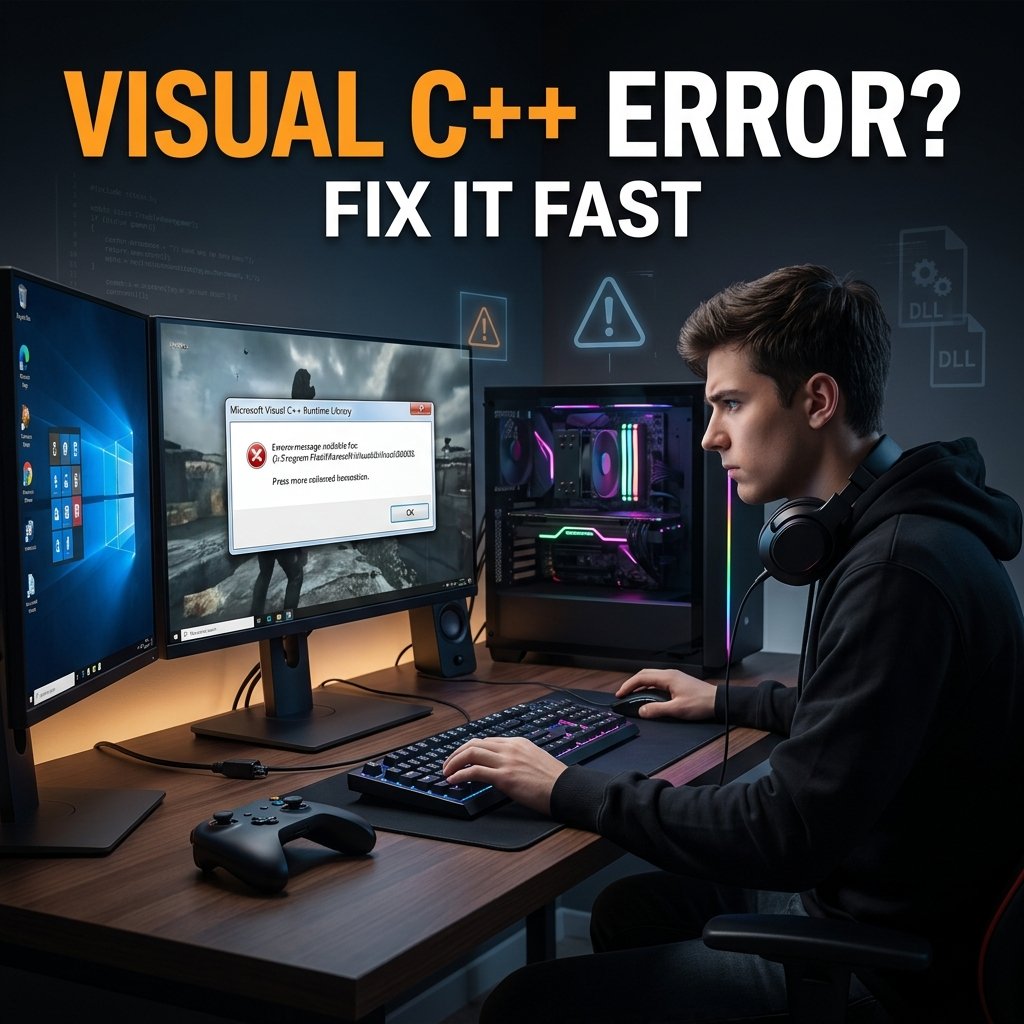
“Microsoft Visual C++ Runtime Library — Runtime Error! … This application has requested the Runtime to terminate it in an unusual way.” This is a different kind of message entirely. According to Microsoft’s own documentation on C Runtime errors, this type of message reflects a problem in the application — a bug in the game’s code, or a condition the runtime can’t handle, such as running out of memory — not a broken or missing redistributable. Reinstalling Visual C++ over and over often does nothing for this error, because the runtime library itself usually isn’t at fault. Corrupted game files, driver conflicts, or third-party software interference are more likely causes here.
Keeping this distinction in mind will save you from repeating the same ineffective fix multiple times.
Quick Checks Before You Start Troubleshooting
A few low-risk steps can rule out simple causes before you touch any installers:
- Restart your PC and try launching the game again. A stuck background process can sometimes trigger a false runtime error.
- Note the exact wording of the error and which game executable it names — this tells you which of the two message types above you’re dealing with.
- Think about what changed recently. Did the error start right after a Windows update, a graphics driver update, or installing a mod? That timing is often the biggest clue to the actual cause.
Fix 1: Install or Repair the Visual C++ Redistributable
This is the right first move if you’re seeing the “missing component” message.
Steps
- Go to Microsoft’s official Visual C++ Redistributable downloads page.
- Download both the x86 and x64 versions of the latest supported Visual C++ Redistributable. Many games need both, even on a 64-bit system, because some components are still 32-bit.
- If you already have a Visual C++ Redistributable installed, don’t uninstall it first. Open Settings > Apps > Installed apps (or Control Panel’s Programs and Features), find the relevant Microsoft Visual C++ entry, and choose Modify > Repair instead. Repairing fixes a damaged install without disturbing other software that may depend on it.
- Restart your PC after installing or repairing, even if it isn’t strictly required — several fixes only take effect after a reboot.
Why this works
If a game can’t find or load its required runtime library, installing the correct version resolves that dependency directly. Repairing an existing install fixes corruption without the side effects of a full uninstall, which can sometimes remove files that other installed programs are still using.
If it doesn’t work
If the redistributable installs cleanly and the error still appears — especially if it’s the “Runtime Error!” abort message rather than the missing-component message — move on to the next fixes rather than repeating this step.
Fix 2: Verify the Integrity of Your Game Files
Corrupted or missing game files are a frequent, often overlooked cause of runtime-style errors, and this fix is worth trying early because it’s quick and doesn’t touch system files at all.
On Steam
- Right-click the game in your Steam library and select Properties.
- Go to the Local Files (or Installed Files) tab.
- Click Verify integrity of game files.
- Let Steam compare your local files against its servers and repair any mismatches.
If you want more detail on this process, Steam has a dedicated guide to verify and repair corrupted Steam game files.
On Epic Games Launcher
- Open the Epic Games Launcher and go to your Library.
- Click the three-dot menu next to the game and select Manage.
- Click Verify.
- Wait for the process to finish, then try launching the game again.
Why this works
Both platforms keep a reference copy of every file your game needs. Verification checks your local installation against that reference and re-downloads anything that’s missing or doesn’t match — often without you needing to reinstall the entire game.
If it doesn’t work
If verification completes with no issues found and the error persists, the cause likely sits outside the game’s own files — check drivers or run a clean boot next.
Fix 3: Rule Out a Graphics Driver Conflict
A number of users report runtime errors appearing shortly after updating (or failing to properly update) their graphics driver. If your error started around the same time as a driver change, this is worth checking before anything more advanced.
Steps
- Update your graphics driver using the official tool for your hardware — NVIDIA’s app, AMD’s software, or Intel’s driver assistant — rather than a generic third-party “driver updater.”
- If the error began right after a recent driver update, consider rolling back to the previous driver version or doing a clean reinstall of the current one.
- Restart your PC and relaunch the game.
Why this works
Games rely on both the Visual C++ runtime and your graphics driver to initialize correctly. A corrupted or mismatched driver install can produce a crash that displays as a generic runtime error, even though the actual fault is in the driver, not in Visual C++.
If it doesn’t work
Move on to checking for third-party software interference with a clean boot.
Fix 4: Run a Clean Boot to Check for Software Conflicts
If the error only happens with certain background software running, a clean boot can help you find it.
Steps
- Press Windows + R, type
msconfig, and press Enter. - On the Services tab, check Hide all Microsoft services, then click Disable all.
- Switch to the Startup tab and open Task Manager to disable all startup items.
- Restart your PC and try launching the game again.
- If the error is gone, re-enable the disabled items one at a time, restarting between each, until the error returns — the last item you enabled is the likely culprit.
Why this works
Some third-party applications — overlays, recording software, or older utilities — can conflict with a game’s runtime environment in ways that produce a Visual C++–style crash even though Visual C++ itself is fine.
If it doesn’t work
Return your PC to a normal startup configuration (uncheck Hide all Microsoft services, re-enable everything, and switch back to Normal startup in msconfig), then move on to checking the game launcher itself.
Fix 5: Repair the Game Launcher
Occasionally, the issue isn’t the game or Visual C++ at all — it’s the launcher failing to register its own required components correctly.
- If you’re on Epic Games and the launcher itself is misbehaving, see the guide on what to do when the Epic Games Launcher won’t open.
- If you’re seeing installation-related errors alongside the runtime message on Epic, the Epic Games installation failed error guide covers launcher-specific fixes that are easy to overlook.
This step is only relevant if launcher-level symptoms are present — don’t spend time here if the launcher itself is working fine and only one specific game is affected.
Fix 6: Repair Windows System Files (DISM and SFC)
This is a later-stage fix, best reserved for cases where the runtime error appeared after a failed or interrupted Windows update, or when multiple unrelated applications are affected, not just one game.
Steps
- Open an elevated Command Prompt (search “cmd,” right-click, choose Run as administrator).
- Run the following command first:
DISM /Online /Cleanup-Image /RestoreHealth
- Let this finish — it can take 10 to 30 minutes, and it’s normal for it to appear to pause at certain percentages.
- Once it completes, run:
sfc /scannow
- Restart your PC once both commands finish.
Why this works
DISM repairs the underlying Windows component store, while SFC scans and replaces damaged system files using that same component store as its source. Running DISM first matters — if the component store itself is corrupted, SFC can fail or report that it found problems it couldn’t fix. Microsoft’s own guidance for using System File Checker in Windows follows this same DISM-then-SFC order.
If it doesn’t work
If system files come back clean and the error continues, the cause is more likely tied to the specific game rather than Windows itself. At this point, verifying game files again or reaching out to the game’s support team is a better use of time than repeating system repairs. If your issue is specifically tied to a recent Windows update, the guide on game crashes after a Windows update covers related causes.
What to Avoid
A few commonly suggested “fixes” create more risk than benefit and aren’t necessary given the safer options above:
- Don’t download individual DLL files (like a standalone MSVCP140.dll or VCRUNTIME140.dll) from third-party “DLL fixer” websites. These files can be outdated, mismatched, or bundled with unwanted software. Installing the official Visual C++ Redistributable puts the correct files in the correct place safely.
- Don’t use unofficial “all-in-one” redistributable repack tools from unverified sources, even if they claim to install every version at once.
- Don’t rely on registry cleaners as a runtime-error fix — there’s no reliable evidence they resolve this type of issue, and they carry their own risk of unintended changes.
- Don’t uninstall Visual C++ versions you don’t recognize just to “clean up” your installed programs list. Other software on your system may depend on those exact versions, and removing them can break unrelated applications.
When to Reinstall the Game
Reinstalling should be a later step, not an early one. Try it only after the redistributable repair, game file verification, and driver checks above haven’t resolved the issue.
If you do reinstall, back up any save data that’s stored locally rather than synced to the cloud first. If your saves have gone missing at some point, the guide on how to recover lost game save files may help before you start over.
When to Contact Support
If the error message names a specific game executable and none of the steps above resolve it, contacting that game’s developer or publisher support team is the next reasonable step — they may be aware of a version-specific bug or a patch in progress. If the runtime error is affecting multiple unrelated applications across your system rather than just one game, that points toward a broader Windows issue worth raising with Microsoft support directly.
Frequently Asked Questions
Why do games need the Visual C++ Redistributable at all?
Developers use shared code libraries instead of bundling everything into the game itself. The Visual C++ Redistributable provides those shared libraries at the system level, so multiple games and applications can use the same components rather than each one shipping its own copy.
Which Visual C++ Redistributable should I install?
For most current games, the latest Visual C++ v14 Redistributable in both x86 and x64 covers what’s needed. Some older games may also require a specific legacy version (2005–2013); check the game’s own installation folder, often in a _CommonRedist or similar subfolder, if you’re unsure.
Do I need both the x86 and x64 versions?
Usually, yes. Even on a 64-bit version of Windows, many games still include some 32-bit components, so installing only the x64 package can leave a dependency unmet.
Will reinstalling Visual C++ fix every runtime error?
No. It resolves the “missing component” type of error effectively, but the generic “Runtime Error! … terminate it in an unusual way” message usually points to something else — corrupted game files, a driver conflict, or third-party software interference.
Why does the redistributable still say “2015–2022” in 2026?
Microsoft’s shared v14 redistributable keeps that label in its file properties even though it’s the current, frequently updated version that also supports newer Visual Studio releases. It doesn’t mean you’ve downloaded an outdated file.
Can verifying game files on Steam or Epic actually fix a runtime error?
Yes, when the underlying cause is a corrupted or missing local file rather than the redistributable itself. Verification compares your installed files against the platform’s reference copies and restores anything that doesn’t match.
Should I download a missing DLL file directly from a website?
No. Individual DLL files from unofficial sites can be outdated, mismatched to your system, or bundled with unwanted software. Installing the official redistributable puts the correct files in place safely.
Why does this error show up right after a Windows update or driver update?
Both are documented triggers. A failed or incomplete Windows update can leave system files in a bad state (worth checking with DISM and SFC), while a driver update can introduce a conflict that shows up as a runtime-style crash.
Is it safe to uninstall old Visual C++ versions I don’t recognize?
Generally, no — other software you have installed may depend on them. Only remove a specific version if you’re certain nothing else on your system requires it.
What should I do if the error keeps happening after trying everything here?
Reach out to the specific game’s support team, especially if the error names their executable directly, or contact Microsoft support if the problem is affecting several unrelated programs rather than one game.
Conclusion
Most Visual C++ runtime errors in games come down to one of two situations: a genuinely missing or outdated redistributable, or an application-level crash that only looks like a runtime problem. Starting with the safest steps — installing or repairing the official redistributable, verifying game files, and checking for driver or software conflicts — resolves the large majority of cases without needing to touch Windows system files or reinstall anything. If the error continues after working through these steps, the game’s own support team or Microsoft support are the right next stop.