How to Fix GTA V Not Launching on PC (2026 Guide)
You hit Play, the Rockstar Games Launcher flickers for a second, and then… nothing. No window, no Los Santos, just your desktop staring back at you. If you’re dealing with GTA V not launching on PC, you’re not alone, and the good news is that this problem is almost always fixable without a full Windows reinstall. This guide walks through every verified fix for both the Legacy and Enhanced editions of GTA V, covering Windows 10 and 11, Steam, Epic Games, and the Rockstar Games Launcher. Work through the fixes in order, since they’re arranged from quickest to most involved, and you’ll usually be back in Los Santos before you reach the advanced section.
Quick Answer: GTA V usually fails to launch because of outdated GPU drivers, a corrupted game file, an antivirus block, or a launcher permissions issue. Start by running the game and launcher as administrator, verifying your game files through Steam, Epic, or the Rockstar Games Launcher, and updating your graphics driver. If you’re on GTA V Enhanced, confirm your GPU actually supports DirectX 12, since older cards can’t run it at all.
Important Notes Before You Start
A few things worth knowing before you dive into troubleshooting:
- Legacy and Enhanced Edition are not the same animal. GTA V Enhanced, which arrived on PC in March 2025, uses DirectX 12 and a different rendering pipeline than the original Legacy version. Some fixes only apply to one or the other, and this guide flags those clearly.
- Never download loose
.dllfiles from random forums or file-sharing sites. You’ll see this “fix” recommended in a lot of older threads, and it’s a real security risk. If a fix calls for a missing DLL, get it through the official Microsoft Visual C++ Redistributable or DirectX installers instead — both are covered below. - Disabling your antivirus is a diagnostic step, not a permanent solution. Use it to confirm the cause, then re-enable protection and add an exclusion instead.
- Keep the Rockstar Games Customer Support troubleshooting page bookmarked as your official reference point. It’s a good idea to check it directly for anything that looks like a brand-new issue, since Rockstar updates it after major patches.
Which GTA V Are You Running? Legacy vs. Enhanced
Before you troubleshoot anything, figure out which version is installed. It changes which fixes actually apply to you.
How to Tell Which Version You Have
Open the Rockstar Games Launcher and check your library. If you see two separate entries — “Grand Theft Auto V” and “Grand Theft Auto V Enhanced” — you likely have both available and need to check which one you last launched. On Steam and Epic, the Enhanced Edition shows as its own listing, separate from the original. If you bought the game before March 2025 and never manually upgraded, you’re probably still running Legacy.
Why Enhanced Requires DirectX 12
GTA V Enhanced was rebuilt to take advantage of modern rendering features like ray tracing, DLSS, and FSR, all of which depend on DirectX 12. That’s a hardware requirement, not just a software setting. If your GPU predates DirectX 12 support, or your drivers haven’t been updated in a long time, Enhanced simply will not start, no matter what else you try. This is one of the most common and most misunderstood reasons GTA V Enhanced won’t launch. If that’s your situation, the Rockstar Games Launcher still lets you install and play the Legacy version instead, which runs fine on DirectX 11 hardware.
Identify Your Symptom First
Troubleshooting goes faster when you match your specific symptom to the right section instead of working through every fix blindly. Here’s a quick map:
| Symptom | Likely Cause | Jump To |
|---|---|---|
| Rockstar Launcher itself won’t open | Launcher corruption, permissions, or connectivity | Rockstar Games Launcher Won’t Open |
| Launcher opens, but the game never starts | Corrupted files, outdated drivers, admin permissions | Quick Fixes |
| Black screen, then crash to desktop | GPU driver issue, DirectX problem, or overlay conflict | Antivirus, Firewall & Overlay Conflicts |
| Stuck on the loading screen | Corrupted save, settings file, or mod conflict | File & Settings Corruption Fixes |
| A specific error code appears | Varies — see the reference table | Error Code Reference Table |
Quick Fixes (Try These First)
These five steps resolve the majority of GTA V launch failures. Start here even if you’re tempted to skip ahead to something more specific.
Run as Administrator
Why this happens: Windows 11 in particular is strict about file and registry permissions. GTA V sometimes needs elevated access to write configuration files or communicate with the launcher, and without it, the game can fail to start with no error message at all.
How to fix it: Locate your GTA V install folder. On Steam, that’s typically C:\Program Files (x86)\Steam\steamapps\common\Grand Theft Auto V. On a standalone Rockstar install, it’s usually C:\Program Files\Rockstar Games\Grand Theft Auto V. Right-click PlayGTAV.exe (or GTA5.exe), choose Properties, go to the Compatibility tab, and check Run this program as an administrator. Repeat the same process for your Steam, Epic Games, or Rockstar Games Launcher shortcut, since the launcher needs matching permissions.
Why this fix works: It removes Windows’ permission barrier as a variable, which is often the actual root cause even when it looks like a totally different problem.
What to do next if it fails: Move on to verifying your game files.
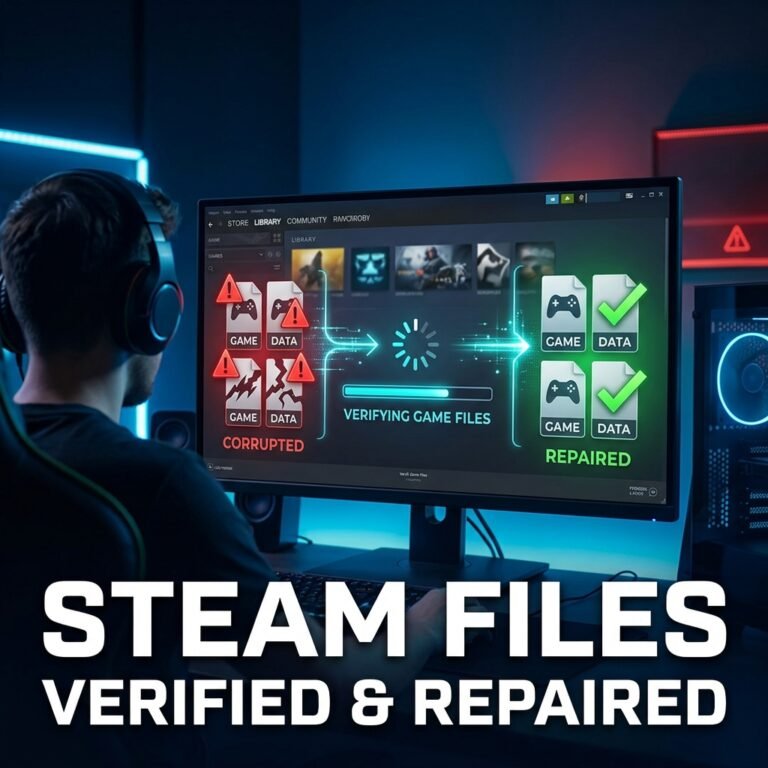
Verify or Repair Game Files
Why this happens: An interrupted update, a failed download, or a power outage mid-install can leave one or more game files corrupted or missing. GTA V won’t always tell you which file is broken — it just refuses to start.
How to fix it:
- Steam: Right-click Grand Theft Auto V in your Library, select Properties > Local Files, and click Verify integrity of game files.
- Epic Games Launcher: Go to your Library, click the three-dot menu on GTA V, and choose Verify.
- Rockstar Games Launcher: Open Settings > My Installed Games, select Grand Theft Auto V (or Enhanced), and click Verify Integrity.
Why this fix works: Each platform compares your local files against the official versions on Rockstar’s servers and automatically re-downloads anything that doesn’t match.
What to do next if it fails: Update your GPU drivers next, especially if the game update that preceded the problem was a major one.
Important note: This process can take a while on a slow connection, since it may need to redownload several gigabytes if a lot of files are flagged.
Update Your GPU Drivers
Why this happens: Rockstar regularly pushes updates to GTA V, and new updates sometimes require a GPU driver version that’s newer than what you have installed. This is one of the highest-value fixes you can apply, and it’s a big reason launch failures spike right after a game patch.
How to fix it: NVIDIA users should grab the latest driver through the NVIDIA app or driver download page. AMD users should use AMD Software. Intel Arc owners can get drivers directly from Intel’s download center. For the cleanest result, use the “clean install” option in the driver installer if it’s offered.
Why this fix works: GTA V Enhanced in particular relies on newer DirectX 12 rendering paths that older driver versions may not support correctly, causing the game to fail during initialization instead of launching normally.
What to do next if it fails: Restart your PC after the driver installs — this step gets skipped more often than you’d think, and it genuinely matters, since some driver components don’t finish loading until reboot.
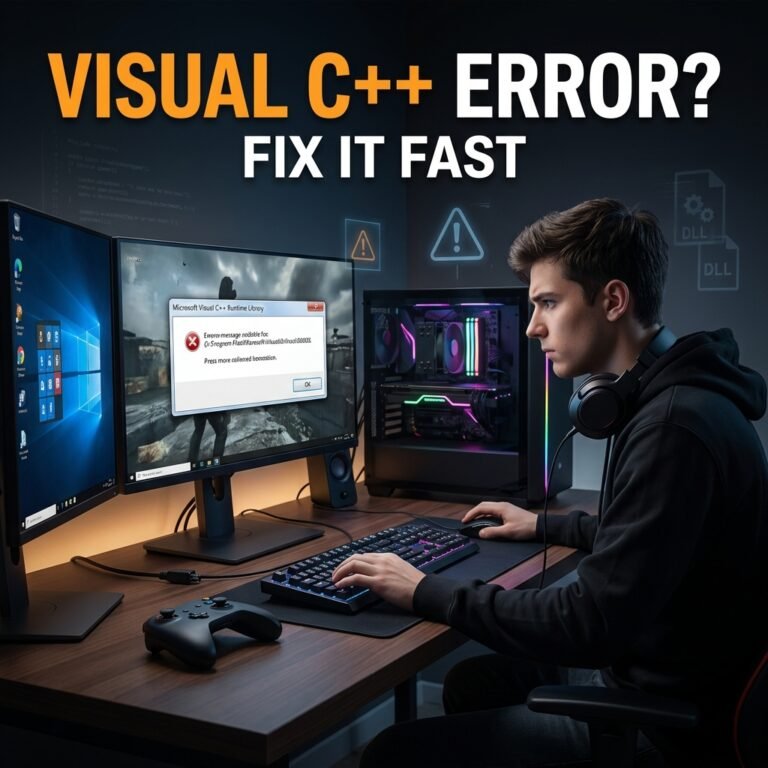
Install or Repair Microsoft Visual C++ and DirectX
Why this happens: GTA V depends on Microsoft Visual C++ Redistributables and DirectX components to run. If either is missing, outdated, or was damaged by another program’s installer, the game can crash immediately or throw an error before the main menu even loads.
How to fix it: Navigate to your GTA V installation folder, then open the Redistributables subfolder (default path: C:\Program Files\Rockstar Games\Grand Theft Auto V\Redistributables). Run the DirectX and Visual C++ installers found there. This is Rockstar’s own recommended method, and it installs the exact versions the game expects.
Why this fix works: It repairs the specific runtime components GTA V was built against, rather than relying on whatever version happens to already be on your system.
Warning: Avoid pasting standalone .dll files into your game folder as a shortcut. It’s a common piece of outdated advice that can actually cause new errors, including the very 0xc000007b error it claims to fix.
Restart and Relaunch
Simple, but easy to skip. A full restart clears out any half-loaded background processes from your last attempt and gives Windows a clean slate to launch the game against.
Rockstar Games Launcher Won’t Open Fixes
If the problem isn’t GTA V itself but the Rockstar Games Launcher refusing to open at all, these fixes target the launcher specifically.
Run the Launcher in Compatibility Mode
Right-click the Rockstar Games Launcher shortcut, select Properties > Compatibility, and check both Run this program in compatibility mode for (try Windows 8 or 10) and Run this program as an administrator. This resolves a chunk of launcher freezes tied to how it initializes on newer Windows builds.
Reinstall the Launcher and Social Club
If the launcher opens but hangs indefinitely or crashes immediately, a corrupted installation is a likely culprit. Uninstall both the Rockstar Games Launcher and the Social Club component through Windows’ Apps & Features settings, restart your PC, then download a fresh copy from Rockstar’s official launcher page and reinstall.
Check Your Connection and Flush DNS
The launcher needs to authenticate online even for offline story mode play in some cases. If you’re seeing a connectivity-related failure, try flushing your DNS cache: open Command Prompt as administrator and run ipconfig /flushdns. Rockstar’s own connectivity troubleshooting article also covers checking open network ports and resetting your router if the problem persists.
Clear the Launcher Cache
Corrupted cache files can cause the launcher to hang on the loading screen. Close the launcher completely (check Task Manager to make sure it’s not still running in the background), then clear its cache folder before relaunching.
GTA V Enhanced Specific Fixes
The Enhanced Edition introduces a handful of launch issues that simply didn’t exist in Legacy, mostly tied to its newer rendering engine and stricter mod protections.
“No DirectX 12 Adapter or Runtime Found” (ERR_GFX_D3D_NOD3D12)
This error message means the game checked for a DirectX 12-capable GPU and driver and couldn’t find one. It’s specific to Enhanced Edition, since Legacy doesn’t require DirectX 12 at all.
How to fix it: First, confirm your DirectX version by pressing Win + R, typing dxdiag, and checking System Information for the DirectX version listed. If it’s not showing DirectX 12, install the latest DirectX End-User Runtime from Microsoft. If your DirectX version is already current but the error persists, your GPU itself may not support DirectX 12, in which case switching to Legacy Edition is the practical fix rather than trying to force compatibility.
Important note: Some users have found success by installing the Graphics Tools optional feature in Windows (Settings > System > Optional Features > Add a feature), but this addresses a narrower set of cases than a genuine driver or hardware gap.
Switching to GTA V Legacy
If your GPU genuinely can’t run Enhanced, open the Rockstar Games Launcher, go to your library, and look for the option to install or launch “Grand Theft Auto V” (Legacy) separately from “Grand Theft Auto V Enhanced.” They install as distinct entries, so you don’t lose your Enhanced install by doing this — you’re simply adding an alternative that runs on DirectX 11 hardware.
Shader Cache Corruption
Why this happens: Enhanced Edition builds a local shader cache to speed up load times. If that cache becomes corrupted, usually after a driver update or an interrupted game update, it can prevent the game from getting past its initial loading stage.
How to fix it: Open %localappdata%\Rockstar Games\GTA V, delete the contents of the cache folder there, and restart your PC before launching again.
Mod and Anti-Tamper Conflicts (ScriptHookV, OpenIV, BattleEye)
Why this happens: Enhanced Edition ships with a more aggressive anti-tamper system than Legacy. Mods that rely on ScriptHookV, OpenIV, or ASI loaders can trigger it, which sometimes prevents the game from launching at all rather than just blocking online play.
How to fix it: Temporarily move your mods folder out of the GTA V directory, then try launching. If the game starts cleanly, the issue is mod-related, and you’ll need to confirm your mod versions are actually updated for the current game build before reinstalling them. Note that installed mods, even ones that work fine in Story Mode, will typically be flagged by the anti-tamper system if you try to go online, so keep separate installs if you want to do both.
Warning: Only install mods from reputable, well-known sources, and never disable BattleEye permanently just to run a mod — that setting exists for a reason if you plan on playing GTA Online.
Antivirus, Firewall, and Overlay Conflicts
Antivirus and Windows Defender Exclusions
Why this happens: GTA V’s executable files have been flagged by overzealous antivirus scanners for years, including in 2026. It’s a false positive issue, but it’s a persistent one, and it can quietly quarantine a file or block the launcher without any obvious error message.
How to fix it: Temporarily disable your antivirus and try launching the game. If it starts, that confirms the cause. Add your entire GTA V install folder and your Rockstar Games Launcher folder to your antivirus’s exclusion list, then turn protection back on. For Windows Defender specifically, go to Windows Security > Virus & threat protection > Manage settings > Add or remove exclusions, and add both folders.
Warning: Leaving your antivirus permanently disabled is not a real fix and isn’t worth the risk. Use exclusions instead.
Firewall Blocks
A restrictive firewall can prevent the launcher or game from completing its required authentication check. If you suspect this, temporarily disable Windows Defender Firewall for testing purposes only, confirm whether the game launches, and if it does, create a specific firewall exception for GTA V and the Rockstar Games Launcher instead of leaving the firewall off.
Overlay Conflicts
Why this happens: Overlays from Discord, Steam, NVIDIA GeForce Experience (or the NVIDIA app), and the Xbox Game Bar hook into the game’s rendering process. Occasionally, one of these hooks fails in a way that stops GTA V from launching entirely rather than just causing an in-game glitch.
How to fix it: Disable overlays one at a time, starting with Discord’s in-game overlay, then GeForce Experience or the Xbox Game Bar. Also close tools like MSI Afterburner and RivaTuner while testing, since they inject into games in a similar way. Once GTA V launches successfully, re-enable overlays one by one to identify which one was actually causing the conflict.
File and Settings Corruption Fixes
Deleting settings.xml
Why this happens: If GTA V tries to load with a display or graphics configuration your system can no longer support — say, after a monitor change or driver update — a corrupted settings.xml file can cause the game to hang or crash before it fully opens.
How to fix it: Navigate to Documents\Rockstar Games\GTA V, find settings.xml, and delete it. The game will automatically regenerate it with default values on your next launch.
What to do next if it fails: If you’re on Enhanced Edition, also clear the shader cache described earlier, since both issues can produce similar symptoms.
Clearing Steam’s Download Cache
Steam’s own cache can occasionally cause a game to fail to start correctly. Open Steam, go to Settings > Downloads, and click Clear Download Cache. Steam will restart and prompt you to log in again.
OneDrive Sync Interference
Why this happens: If your Documents folder is synced through OneDrive, it can occasionally lock or delay access to the Rockstar Games\GTA V settings and save folders, which can look like a launch failure or a stuck loading screen.
How to fix it: Check whether your Documents folder is being backed up through OneDrive (Settings > Accounts > Windows Backup on Windows 11, or the OneDrive settings app). If it is, and you’re experiencing intermittent launch issues, try pausing OneDrive sync temporarily and relaunching the game to see if that resolves it.
Error Code Reference Table
| Error Code | What It Means | Recommended Fix |
|---|---|---|
| 0xc000007b | A DLL or dependency mismatch, often tied to a corrupted Visual C++ or DirectX install | Reinstall Visual C++ Redistributables and DirectX from the game’s Redistributables folder; avoid manually placed DLL files |
| LS-0013 | A launcher or activation communication error, often tied to a connectivity or account issue | Restart the Rockstar Games Launcher, confirm you’re signed in, and check your internet connection |
| ERR_GFX_D3D_NOD3D12 | No DirectX 12-capable GPU or driver detected (Enhanced Edition only) | Update your GPU driver and DirectX runtime, or switch to GTA V Legacy if your hardware doesn’t support DirectX 12 |
| ERR_GFX_D3D_INIT | The game couldn’t initialize its graphics device, often after a botched DirectX repair | Reinstall DirectX fully, then verify game files |
Advanced Troubleshooting
Try these only if the fixes above haven’t resolved the issue. They take more time and, in the case of a full reinstall, more bandwidth.
Clean Boot to Isolate Background Conflicts
Why this happens: A background application you don’t immediately suspect — RGB lighting software, a VPN client, or another game overlay — can sometimes interfere with GTA V’s launch process.
How to fix it: Press Win + R, type msconfig, and open System Configuration. Under the Services tab, check Hide all Microsoft services, then click Disable all. Under the Startup tab, open Task Manager and disable all startup items. Restart your PC and try launching GTA V. If it works, re-enable services and startup items in small batches to identify the culprit.
Checking launcher.log and Generating DxDiag/MSInfo Files
Why this happens: When nothing else points to an obvious cause, GTA V’s own log file can tell you exactly what failed.
How to fix it: Open launcher.log, located in My Documents\Rockstar Games\GTAV, and look for error entries near the bottom, which usually correspond to your most recent launch attempt. For a deeper system-level check, generate a DxDiag file (Win + R, type dxdiag, then Save All Information) to review your system specs, and check MSInfo (Win + R, type msinfo32) for a Windows Error Reporting section that can point to what’s failing when the game crashes. This is also exactly what Rockstar Support will ask for if you end up filing a ticket.
Disk Check and Virtual Memory Adjustments
File system errors on the drive where GTA V is installed can occasionally contribute to launch failures. Right-click your install drive in File Explorer, go to Properties > Tools > Error checking, and run a check. Separately, if you’re on a system with limited RAM, confirming your virtual memory (page file) is set to a reasonable size, rather than disabled, can help with some initialization crashes.
Full Clean Reinstall (Last Resort)
Why this happens: Occasionally, file corruption runs deep enough that verifying game files can’t catch everything, particularly if the corruption is in configuration or registry-adjacent data rather than the core game files themselves.
How to fix it: Uninstall GTA V through Steam, Epic, or the Rockstar Games Launcher. Manually delete any remaining files in the install folder, since uninstallers don’t always clear everything. Restart your PC, then reinstall the game fresh.
Important note: This step doesn’t fix the problem any more reliably than a proper file verification in most cases — it’s more of a guaranteed reset than a targeted fix. Try it after the steps above, not instead of them.
Common Mistakes to Avoid
- Downloading DLLs from unofficial sites. It’s one of the most repeated pieces of advice online for the 0xc000007b error, and it’s genuinely risky. Use the official Redistributables installer instead.
- Leaving antivirus disabled long-term. It solves the symptom temporarily but leaves your system exposed. Use exclusions.
- Skipping the Legacy vs. Enhanced distinction. Applying a Legacy-only fix to an Enhanced Edition problem (or vice versa) wastes time and can lead you to conclude a fix “doesn’t work” when it was never meant for your situation.
- Jumping straight to a full reinstall. It’s rarely necessary and costs you the most time. Work through the quicker fixes first.
Expert Tips to Prevent Future Launch Issues
- Update your GPU driver shortly after any major GTA V title update — this is when driver-related launch failures spike the most.
- Add your GTA V and Rockstar Games Launcher folders to your antivirus exclusions proactively, rather than waiting for a problem.
- If you use mods, keep track of which build they’re compatible with, and avoid mixing Legacy-era mods with an Enhanced Edition install.
- Don’t sync your GTA V settings or save folders through OneDrive or similar cloud backup tools if you can avoid it, since it introduces a possible source of file-lock conflicts.
Frequently Asked Questions
Why does GTA 5 not open when I click play?
The most common causes are outdated GPU drivers, corrupted game files, missing administrator permissions, or an antivirus program quietly blocking the executable. Start with verifying your game files and running the game as administrator, since those two steps resolve the majority of cases.
How do I fix Rockstar Games Launcher not opening?
Run the launcher in compatibility mode with administrator privileges first. If that doesn’t work, uninstall and reinstall both the Rockstar Games Launcher and the Social Club component, then restart your PC before trying again.
Does GTA V Enhanced work on Windows 11?
Yes, GTA V Enhanced runs on both Windows 10 and 11. The more common blocker isn’t the Windows version — it’s whether your GPU and drivers support DirectX 12, which Enhanced Edition requires.
What is error 0xc000007b in GTA 5 and how do I fix it?
It typically indicates a mismatched or corrupted DirectX or Visual C++ component. Reinstall both using the installers found in your GTA V Redistributables folder, and avoid manually adding DLL files from third-party sites, since that can make the error worse.
Why does GTA V Enhanced say no DirectX 12 adapter found?
This means your system either doesn’t have DirectX 12 installed or your GPU doesn’t support it. Update your DirectX runtime and GPU driver first; if the error continues, your hardware likely can’t run Enhanced, and switching to GTA V Legacy is the practical option.
How do I verify GTA V game files on Steam?
Right-click Grand Theft Auto V in your Steam Library, select Properties, go to the Local Files tab, and click Verify integrity of game files. Steam will scan your installation and redownload anything that’s missing or corrupted.
Can antivirus block GTA V from launching?
Yes. Antivirus software, including Windows Defender, has flagged GTA V files as false positives for years. Add your GTA V and Rockstar Games Launcher folders to your antivirus exclusion list rather than disabling protection entirely.
How do I switch from GTA V Enhanced back to Legacy?
Open the Rockstar Games Launcher and check your library for a separate “Grand Theft Auto V” (Legacy) entry alongside “Grand Theft Auto V Enhanced.” You can install and run Legacy independently without removing your Enhanced installation.
Why does GTA V crash immediately after the Rockstar logo?
This pattern often points to a graphics initialization failure, commonly caused by an outdated GPU driver or a damaged DirectX installation. Update your driver first, then reinstall DirectX from the game’s Redistributables folder if the crash continues.
Do I need to reinstall GTA V to fix launch issues?
Rarely. A full reinstall should be a last resort after verifying game files, updating drivers, checking antivirus exclusions, and clearing corrupted settings files. Most launch problems resolve without ever needing to reinstall.
Is it safe to disable BattleEye to fix a launch issue in GTA V Enhanced?
Only if you don’t intend to play GTA Online, and only temporarily for troubleshooting purposes. Permanently disabling it will block online play, and mods that require disabling it are not safe to use if you plan to go online with that same install.
What should I do if none of these fixes work?
Generate a DxDiag file and check your launcher.log for specific error entries, then reach out to Rockstar Games Support directly with that information. Having the exact log details ready significantly speeds up getting a resolution.
Conclusion
Most cases of GTA V not launching on PC come down to one of a handful of causes: missing administrator permissions, corrupted or outdated files, an antivirus block, or — for Enhanced Edition specifically — a GPU that doesn’t support DirectX 12. Working through the quick fixes first (admin permissions, file verification, and driver updates) resolves the large majority of launch failures without needing to touch anything more advanced. If you’re still stuck after that, the symptom-based sections above should point you toward the specific cause, whether that’s a launcher-only issue, a mod conflict, or a corrupted settings file.
Bookmark this guide before you close the tab. GTA V gets frequent updates, and it’s common to hit a new driver requirement or a fresh launch hiccup the next time Rockstar pushes a patch. Having this reference ready means you won’t need to start troubleshooting from scratch.