Use our free ping and latency calculator for gaming to check if your internet is fast enough for online games. Get instant ratings, game recommendations, and tips to lower your ping.
Enter a value between 0 and 999
Choose the closest server to your location for accurate results
How it works: We'll ping the selected server 3 times and calculate your average latency.
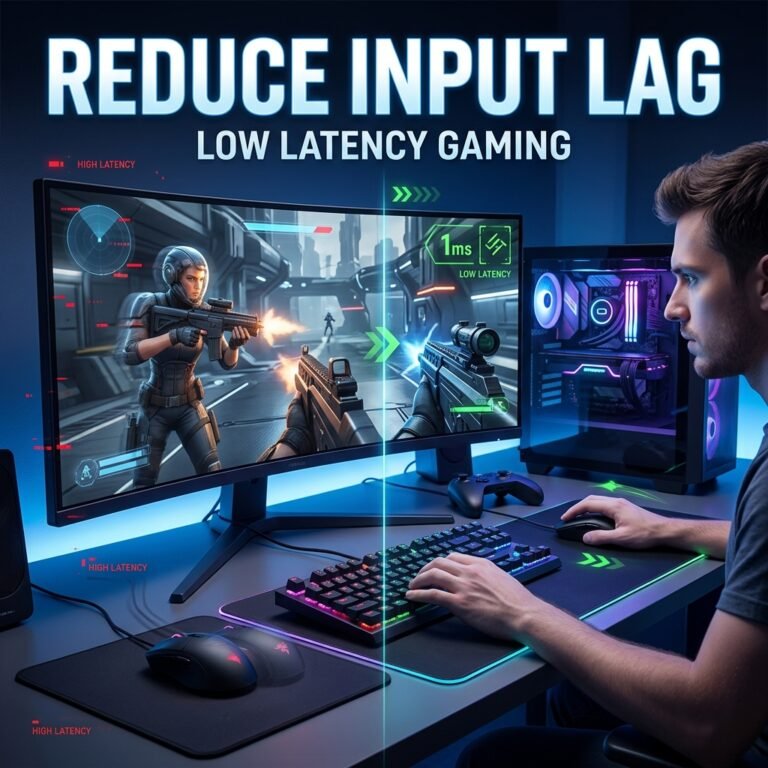
Have you ever been in the middle of an online match when your character suddenly teleports across the screen, your shots refuse to register, or you get kicked from the server entirely? That frustrating delay between what you do and what happens on screen almost always comes down to one thing — your ping.
The problem is, most gamers know high ping is bad, but they don’t have a quick, straightforward way to figure out whether their ping is actually the issue, which games it affects the most, or what they can realistically do about it. That’s exactly why we built the ping and latency calculator for gaming right here on GamesGuider — a free, instant tool that takes the guesswork out of your connection quality.
No accounts. No downloads. No confusing technical data you need a networking degree to understand. Just type in your current ping, and get a clear, useful answer in seconds.

What Does the Ping & Latency Calculator Actually Do?
Think of it as a translator between a raw number and what that number means for your gaming experience.
Here’s how it works in practice:
- You enter your current ping value — the one you see in your game’s network stats, from a speed test, or from Command Prompt.
- The calculator instantly rates your connection — from “Excellent” all the way to “Very Poor,” with a clear color-coded badge so you know where you stand at a glance.
- You get a detailed breakdown — including your one-way delay, round-trip latency, and what kind of real-world gaming experience to expect.
- The tool recommends which games suit your ping — so you know whether you’re good to jump into a competitive FPS or should stick to something less latency-sensitive.
- If your ping is high, you get specific tips to improve it — not generic “buy better internet” advice, but actionable steps you can try right now.
It also includes a live test option that measures your actual internet latency in real time — no separate speed test site needed.
Why Should You Use a Ping Calculator Before Gaming?
Most gamers only think about their connection after something goes wrong. They lose a gunfight they should have won, their character rubberbands into a wall, or their teammates start complaining about disconnects. By that point, the damage is already done — you’ve lost the match, the rank points, and probably some patience.
Checking your ping before you queue up takes about five seconds and can save you from all of that. Here’s why it matters:
You’ll Know If It’s Your Connection or the Game
When things feel “off” during gameplay, it’s not always obvious whether the game server is having issues, your PC is struggling, or your internet is the bottleneck. A quick ping check isolates the connection variable immediately. If your ping is sitting at 15ms and you’re still lagging, the problem is somewhere else entirely — maybe your FPS is too low or you’re dealing with a black screen on launch.
You’ll Pick the Right Game for Your Connection
Not every game demands the same connection quality. A 90ms ping is perfectly fine for an MMORPG or a turn-based strategy game, but it will put you at a serious disadvantage in a competitive FPS like Valorant or Counter-Strike. The calculator tells you exactly which game genres match your current latency, so you’re not setting yourself up for a frustrating session.
You Can Fix Problems Before They Ruin Your Session
If your ping is higher than usual, the tool gives you targeted improvement tips — like switching from Wi-Fi to Ethernet, closing background downloads, or restarting your router. These are the same fixes that help with packet loss in online games, and they take a minute to try before you launch your game instead of troubleshooting mid-match.
Understanding Your Ping Rating: What the Numbers Actually Mean
One of the biggest problems with raw ping values is that most gamers don’t have a clear reference point. Is 45ms good? Is 90ms terrible? It depends entirely on what you’re playing and what you’re trying to do.
Here’s how the calculator breaks it down:
| Ping (ms) | Rating | What It Means for You |
|---|---|---|
| 0 – 20 | Excellent | Virtually no delay. Perfect for competitive FPS, esports, and cloud gaming. Every input feels instant. |
| 21 – 50 | Very Good | Smooth gameplay across almost every genre. You won’t notice any meaningful delay. |
| 51 – 80 | Good | Solid for most games. Occasional minor delays possible in twitch-reaction games, but generally comfortable. |
| 81 – 120 | Fair | Noticeable delay in fast-paced games. Fine for casual multiplayer, RPGs, and strategy. |
| 121 – 180 | Poor | Significant lag that impacts most real-time games. Better for turn-based or slower-paced titles. |
| 180+ | Very Poor | Severe delay. Online multiplayer will be frustrating. Frequent disconnections likely. |
The tool doesn’t just give you a label, though. It shows you the actual gaming experience you can expect — whether your shots will register on time, whether you’ll notice rubber-banding, and whether your session is likely to be smooth or frustrating.
Real Ping vs. Speed Test Ping: Why They’re Different
Here’s something that catches a lot of gamers off guard: the ping you see on Speedtest.net and the ping you experience in-game are often two very different numbers.
Your speed test pings a server that’s geographically close to you and optimized for testing. Your game connects to a specific game server that might be in a completely different region, and it’s handling thousands of players simultaneously.
That’s why it’s more useful to:
- Use your in-game ping display (most games show this in settings or with a console command)
- Or run a ping test from Command Prompt to the actual game server
- Or use the live test feature in our calculator, which measures latency against multiple real-world servers including Cloudflare and AWS endpoints
The calculator accepts any of these values and gives you an honest assessment based on what that number actually means during gameplay — not during an ideal test scenario.
How Ping Affects Different Types of Games
Not all games are created equal when it comes to latency sensitivity. A 70ms ping that feels perfectly fine in one game can feel terrible in another. Here’s the breakdown:
Fast-Paced Competitive Games (FPS, Battle Royale, Fighting Games)
Ideal ping: Under 50ms
These games demand near-instant response. Every millisecond matters when you’re peeking a corner in Valorant, building in Fortnite, or timing a combo in a fighting game. At 80ms+, you’ll notice hit registration delays and that frustrating feeling of dying “behind cover.”
MOBA Games (League of Legends, Dota 2)
Ideal ping: Under 80ms
MOBAs are slightly more forgiving than pure FPS games, but ability timing and last-hitting still benefit enormously from low latency. Most competitive MOBA players start noticing issues above 60-70ms.
MMORPGs (World of Warcraft, Final Fantasy XIV)
Ideal ping: Under 120ms
These games handle latency much more gracefully because they’re designed with network prediction in mind. You can raid, quest, and PvP comfortably at pings that would be unplayable in a shooter.
Racing and Sports Games
Ideal ping: Under 100ms
Online racing and sports are somewhere in the middle. The gameplay is real-time, but the interactions are less “twitch” than an FPS. You’ll be fine up to about 80-90ms before you start noticing input delays on steering or passes.
Turn-Based and Strategy Games
Ideal ping: Under 200ms
If you’re playing chess, Civilization, or any turn-based game online, ping barely matters at all. Even high latency won’t affect the core gameplay because there’s no real-time pressure.
7 Proven Ways to Lower Your Ping Right Now
If the calculator shows your ping isn’t where you want it, here are practical steps that actually work — no hardware purchases required:
1. Switch from Wi-Fi to Ethernet
This is the single most impactful change most gamers can make. Wi-Fi adds latency through signal interference, distance from the router, and packet retransmissions. A direct Ethernet cable eliminates all of that. Even if your Wi-Fi ping seems “fine,” Ethernet is more consistent, which is equally important for gaming.
2. Close Background Applications
Streaming services, cloud sync apps (OneDrive, Google Drive, Dropbox), Windows updates downloading in the background, browser tabs — all of these compete for your bandwidth and can spike your ping unpredictably. Close everything you’re not actively using before you play.
3. Restart Your Router
It sounds basic, but routers accumulate memory leaks and congestion over time. A fresh restart clears the device’s cache and can noticeably improve both latency and stability. If your game was failing to install or downloading slowly before, a router restart often helps with that too.
4. Choose the Nearest Game Server
Most multiplayer games let you select your server region. Always pick the one geographically closest to you. Connecting to a server across the continent (or across an ocean) adds real, unavoidable latency that no amount of optimization can fix.
5. Update Your Network Drivers
Outdated network adapter drivers can cause suboptimal routing and connection handling. Check your motherboard or laptop manufacturer’s website for the latest LAN and Wi-Fi drivers. This is similar to how updating GPU drivers helps fix missing DLL errors and other system-level issues.
6. Disable Bandwidth-Heavy Features
Windows has several features that consume bandwidth in the background:
- Delivery Optimization (shares updates with other PCs on your network)
- Background Intelligent Transfer Service
- Automatic Windows Updates during gaming hours
Temporarily disabling these while gaming can make a measurable difference.
7. Check for Network Congestion
If multiple people in your household are streaming, downloading, or video calling at the same time, your gaming traffic has to compete for the same pipe. If your router supports QoS (Quality of Service), you can prioritize gaming traffic over other uses. If not, timing your gaming sessions for off-peak household usage helps.
Pro Tip: After trying these fixes, run the calculator again to see your new ping. Even a 15-20ms improvement can make a real difference in competitive games.
What Is Ping, and Why Should Gamers Care?
If you’re newer to PC gaming, the term “ping” might feel like something only technical people worry about. Here’s the simple version:
Ping is the time (measured in milliseconds) it takes for a tiny packet of data to travel from your computer to a game server and back. It’s called “round-trip time” because the data makes a full journey — your input goes out, the server processes it, and the response comes back.
Latency is the broader term for any delay in that communication. When gamers say “I’m lagging,” they almost always mean their latency (ping) is too high.
Lower ping = faster communication = smoother gameplay. It’s that straightforward.
What Affects Your Ping?
Several factors determine your latency, and not all of them are within your control:
- Physical distance to the server — Data travels at the speed of light through fiber optic cables, but distance still adds delay. A server 500 miles away will always have higher latency than one 50 miles away.
- Your internet connection type — Fiber optic provides the lowest latency, followed by cable. DSL and satellite connections typically have higher base latency.
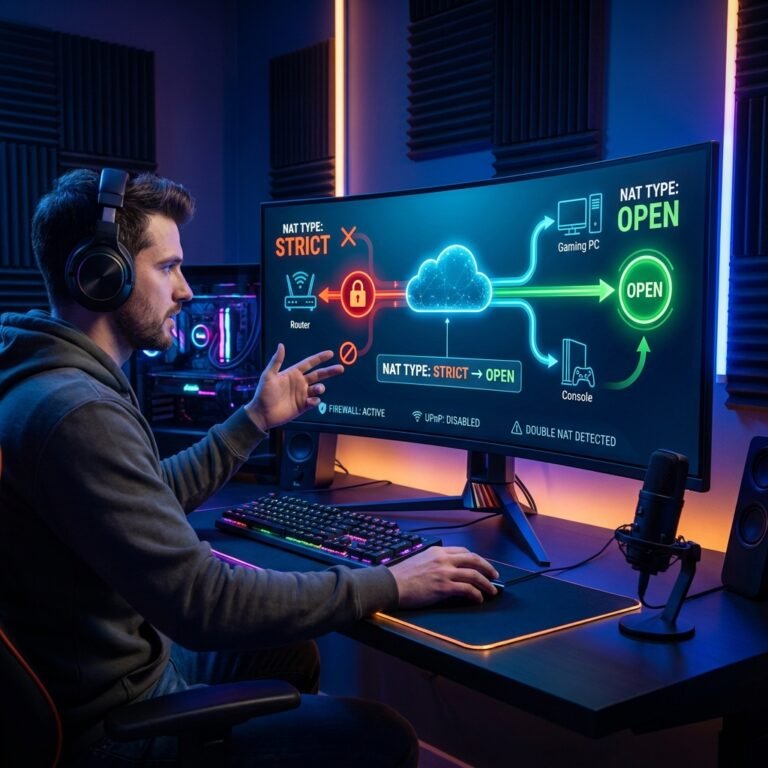
- Network congestion — Both on your local network and your ISP’s network. Peak evening hours often mean higher ping.
- Router quality and age — Older or budget routers can add latency through slower packet processing.
- Background applications — Anything using your internet connection adds potential for latency spikes.
Live Test vs. Manual Entry: Which Should You Use?
The calculator offers two ways to check your latency:
Manual Entry is best when:
- You already know your in-game ping and want to understand what it means
- You want to check whether a specific ping value is good enough for a particular game type
- You’re comparing ping values from different games or servers
Live Test is best when:
- You don’t know your current ping and want to measure it right now
- You want to test your connection before launching a game
- You’re troubleshooting connection issues and need a baseline measurement
The live test measures latency against multiple servers (including Cloudflare and AWS endpoints) and shows you the average, minimum, maximum, and jitter — giving you a complete picture of your connection stability, not just a single number.
Frequently Asked Questions
Is this ping calculator free to use?
Yes, completely free. No sign-up, no email required, no limitations. Use it as many times as you need.
Does the calculator collect my data?
No. All calculations happen in your browser. We don’t store your ping values, IP address, or any personal information. Your privacy is fully respected.
Where do I find my ping in-game?
Most games display ping in the settings or through a console command:
- Fortnite: Settings → HUD → Net Debug Stats
- Valorant: Settings → Video → Client FPS & Network Stats
- CS2: Enable console, type
net_graph 1 - League of Legends: Press Ctrl+F during a match
- Apex Legends: Settings → Gameplay → Performance Display
If your game doesn’t show ping, you can use the live test feature in our calculator instead.
What’s the difference between ping and jitter?
Ping is your average latency — how long data takes to make the round trip. Jitter is the variation in that latency. High jitter means your ping is fluctuating wildly (20ms one moment, 150ms the next), which causes stuttering and inconsistency even if your average ping looks acceptable. The live test feature in our calculator measures both.
Can I use this tool on my phone?
Absolutely. The calculator is fully responsive and works on any device — phone, tablet, laptop, or desktop. If you’re checking your ping on your gaming PC, though, that will give you the most relevant result since that’s the device you’ll be gaming on.
My ping is fine but I’m still lagging — what’s wrong?
If the calculator confirms your ping is good but you’re still experiencing lag, the issue is likely somewhere else:
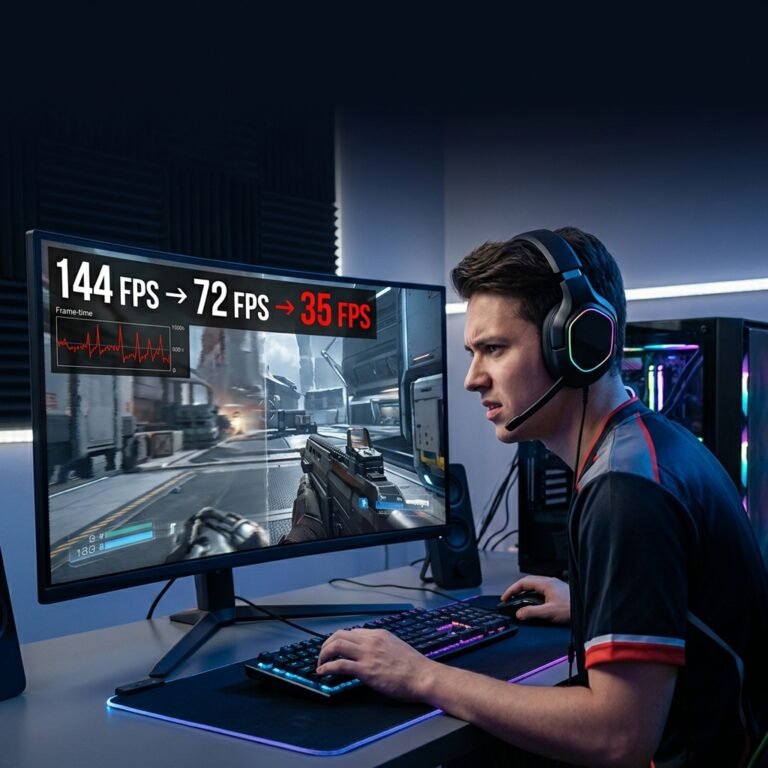
- Low FPS can feel like lag even when your connection is solid — check our guide on how to fix low FPS in PC games
- Packet loss causes intermittent stuttering without necessarily raising your ping — here’s how to fix packet loss in online games
- Game launch issues like Steam games not launching or the Epic Games Launcher not opening can cause instability even after you get in-game
What is a good ping for gaming?
For most gamers, anything under 50ms provides an excellent experience across all game types. Under 80ms is still comfortable for the majority of games. Competitive FPS players typically aim for under 30ms to minimize any perceivable disadvantage. Check out Cloudflare’s explanation of latency if you want a deeper technical understanding.
Why We Built This Tool
At GamesGuider, every guide we write comes from the same place — real problems gamers actually run into. We’ve written about fixing game installation failures, recovering lost save files, and troubleshooting controllers that won’t connect. But we kept getting variations of the same question: “Is my ping good enough for this game?”
Rather than answering that question in a paragraph buried inside an article, we built a dedicated tool that gives you a personalized, instant answer. No googling “what is good ping for Fortnite,” no scrolling through forum threads with conflicting advice, no running three different speed tests to figure out what your numbers mean.
You enter your ping. You get your answer. And if that answer isn’t great, you get the steps to make it better.
Try the Ping & Latency Calculator now →
Wrapping Up
Your internet connection isn’t something you should have to think about during a match — it should just work. But when it doesn’t, knowing exactly where you stand and what you can do about it makes the difference between rage-quitting and actually enjoying your session.
The ping and latency calculator for gaming gives you that clarity in under ten seconds. Check it before you queue, especially if you’re on a new network, after a router change, or before a competitive session where every millisecond counts.
And if your connection checks out fine but something still isn’t right, explore our troubleshooting guides — chances are, we’ve already written the fix.