How to Fix Missing DLL Errors in PC Games
If you’ve just tried to launch a game and got hit with a pop-up saying a .dll file is missing, you’re probably wondering whether something is seriously wrong with your PC. It usually isn’t. Learning how to fix missing DLL errors in PC games is one of the most common troubleshooting skills any PC gamer eventually needs, and the good news is that almost every case can be solved without downloading anything sketchy or reinstalling Windows from scratch.
This guide walks through what these errors actually mean, why they happen, and a complete step-by-step fix path — starting with the safest, fastest solutions and only moving to more involved ones if needed. We’ll also cover what not to do, because a lot of “quick fix” advice floating around for DLL errors does more harm than good.
Quick answer: A missing DLL error happens when a game tries to load a shared code file (a Dynamic Link Library) that Windows can’t find, either because it was never installed, got deleted, or became corrupted. Most of the time, it’s fixed by reinstalling the Microsoft Visual C++ Redistributable, repairing DirectX, or using your game launcher’s “verify files” tool — not by downloading a replacement DLL.
What Is a Missing DLL Error? (And Why It Happens)
A DLL, or Dynamic Link Library, is a file that holds code multiple programs can share instead of each one bundling its own copy. Think of it like a toolbox that several apps borrow from — your operating system, your graphics drivers, and your games can all reach into the same toolbox rather than each carrying a duplicate set of tools. This is what keeps individual programs smaller and lets Microsoft or a hardware vendor update one shared file instead of patching every app that depends on it.
Games lean on DLLs constantly. Graphics rendering, audio playback, controller input, and physics simulation are all commonly handed off to shared libraries rather than written from scratch inside the game itself. When Windows reports that a DLL is “missing,” it means the game tried to reach into that toolbox and came up empty — the file isn’t where it’s supposed to be, or the copy that is there doesn’t match what the game expects.
Common Missing DLL Error Messages
You’ve likely seen one of these:
- “The program can’t start because [filename].dll is missing from your computer. Try reinstalling the program to fix this problem.”
- “This application failed to start because [filename].dll was not found. Re-installing the application may fix this problem.”
- Error code 0xc000007b (often a mismatch between 32-bit and 64-bit components)
- Error code 0xc0000135 (typically a missing .NET Framework dependency)
Most Common Missing DLL Files in PC Games
| DLL File | What It Belongs To | Typical Fix |
|---|---|---|
msvcp140.dll, msvcp120.dll | Visual C++ runtime library | Reinstall Visual C++ Redistributable |
vcruntime140.dll, vcruntime140_1.dll | Visual C++ runtime library | Reinstall Visual C++ Redistributable |
d3dx9_43.dll, d3dx11_43.dll | Legacy DirectX components | Repair the DirectX End-User Runtime |
xinput1_3.dll, xinput1_4.dll | Controller input handling | Repair DirectX / update controller drivers |
x3daudio1_7.dll | Spatial audio in DirectX titles | Repair the DirectX End-User Runtime |
d3dcompiler_43.dll, d3dcompiler_47.dll | Shader compilation | Repair the DirectX End-User Runtime |
api-ms-win-*.dll | Windows Universal CRT components | Windows Update / SFC scan |
openal32.dll | Cross-platform audio library | Verify game files / reinstall OpenAL |
| PhysX loader/core DLLs | NVIDIA PhysX physics engine (common in older titles) | Reinstall the game’s bundled PhysX package |
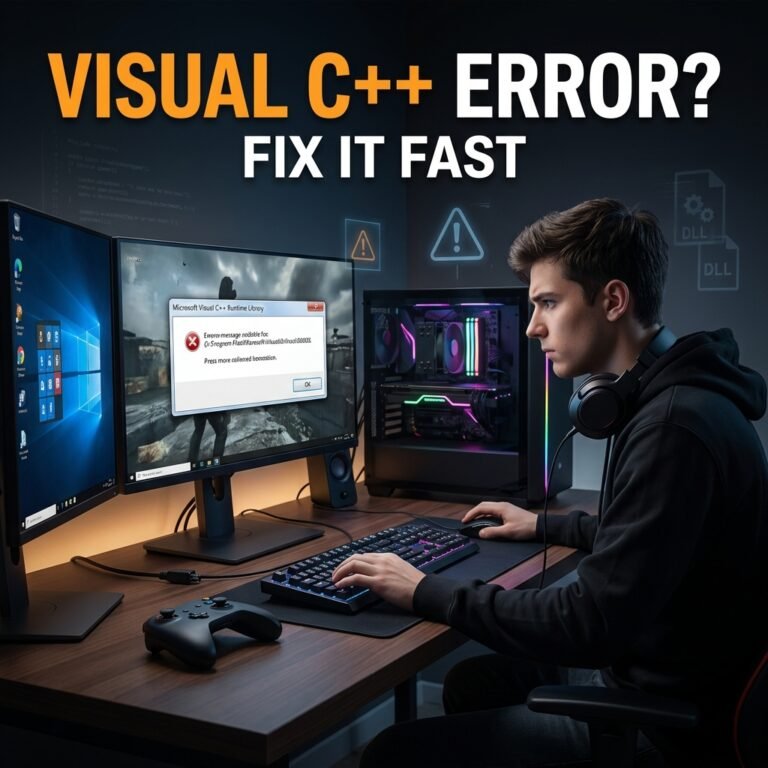
Image: Missing DLL error popup in Windows
What Causes Missing DLL Errors in Games?
There isn’t usually a single culprit — it’s more often one of these:
- Corrupted or incomplete game installation, often from an interrupted download or a patch that didn’t finish applying
- Missing or outdated Visual C++ Redistributable — by far the most common cause
- Missing DirectX runtime components, especially for older titles built on legacy DirectX
- Missing .NET Framework or .NET Desktop Runtime
- Windows system file corruption
- Antivirus false-positive quarantine — your security software mistakenly flagged and removed a legitimate game DLL
- Manual deletion, whether by you, a “cleanup” tool, or another program
- Downloading DLLs from unofficial “DLL repository” websites, which frequently hand out the wrong version or bundle malware
- Mod conflicts that overwrite or break files the game relies on
- Broken or interrupted game updates
- Registry corruption
- A failing or nearly full hard drive
- A broken or corrupted launcher installation (Steam, Epic, etc.)
Expert tip: Your launcher’s “verify files” tool only checks files it originally installed. If you’ve added mods, verification can come back completely clean and the DLL error can still be coming from a mod that replaced or conflicted with a core file. If verification doesn’t fix things and you’re running mods, that’s the next place to look.
⚠️ Warning: While researching this topic, we came across a site actively promoting a bundled “all-in-one DLL fixer” download hosted on its own servers, framed as an official-style solution for gamers. It isn’t. Even when a bundle looks professional and claims to include “verified” Microsoft components, any DLL package that doesn’t come directly from microsoft.com carries a real risk of malware or version mismatches that cause more problems than they solve. Stick to the official sources listed below.
How to Fix Missing DLL Errors in PC Games (Step-by-Step)
Work through these in order. Most people resolve the issue within the first three or four steps.
Step 1: Restart Your PC
It sounds almost too simple, but a restart clears temporary file locks and background conflicts that can trigger a false “missing DLL” error, especially right after installing a driver or Windows update. Try this before anything else.
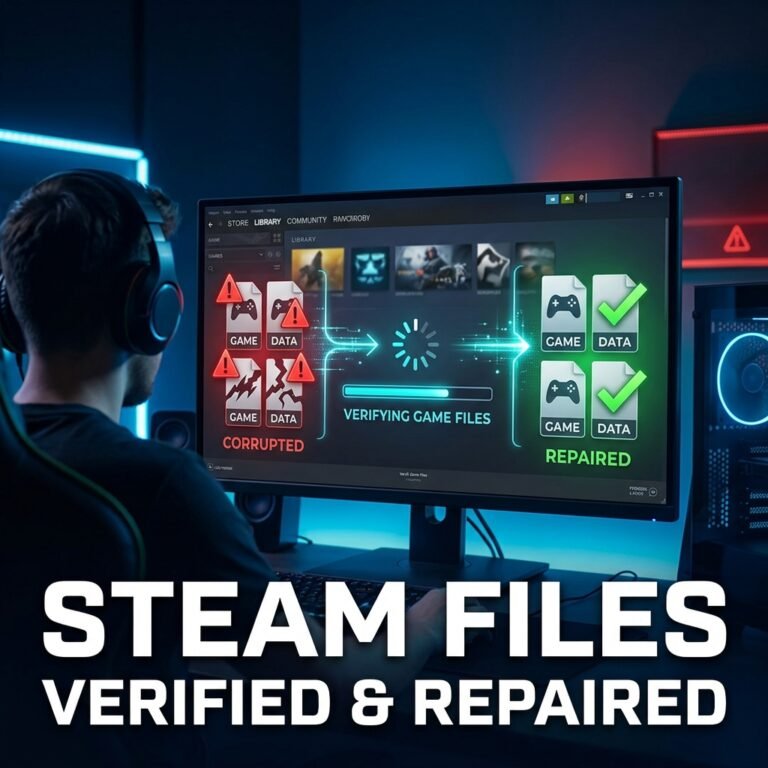
Step 2: Verify Integrity of Game Files
This should be your first real troubleshooting step, and here’s why it beats a full reinstall: instead of wiping and redownloading everything, your launcher compares your local files against the official server copy and replaces only what’s missing or damaged. For a large modern game, that’s the difference between a five-minute fix and a multi-hour redownload.
- Steam: Library → right-click the game → Properties → Installed Files → Verify Integrity of Game Files. See Steam’s official verification guide for reference.
- Epic Games: Library → click the three-dot menu (⋯) on the game → Verify. Epic documents this process in its official support article.
- GOG Galaxy: Click the settings gear on the game → Manage Installation → Verify/Repair
- Rockstar Games Launcher: Settings → My Installed Games → select the game → Verify Integrity
- Ubisoft Connect: Games tab → game settings → Verify Files
Screenshot: Steam “Verify Integrity of Game Files” menu location
If you’re troubleshooting a Rockstar title specifically, our guide on fixing GTA V not launching on PC walks through Rockstar Launcher quirks in more depth.
One honest note from actually running this process a lot: verification can occasionally get stuck or fail repeatedly, and it’s not always because your files are corrupted. If your drive is nearly full, Steam doesn’t have room to safely compare and redownload files, and the process can stall. A failing drive causes the same symptom. Before assuming the worst, check that you’ve got some free space to spare.
Keep in mind this tool only restores files the launcher itself installed — it won’t detect problems in manually added mods. If you’re not sure whether reinstalling or verifying will affect your progress, our guide on recovering lost game save files covers what typically is and isn’t affected.
If verification tool itself is throwing errors or your installation is fundamentally broken rather than just missing a runtime, it may be worth checking our guide on fixing game installation failed errors as well.
Step 3: Install or Repair Microsoft Visual C++ Redistributables
Most missing-DLL errors in games trace back to this single fix. Games built with Visual Studio depend on runtime components that Windows doesn’t always ship by default, and if the required version isn’t installed — or got corrupted — you’ll see exactly the kind of error described earlier.
Download the redistributables directly from Microsoft’s official Visual C++ downloads page. Install both the x86 and x64 versions; even on a 64-bit system, older game engines often still call the 32-bit runtime.
Tip: It’s completely normal to have several Visual C++ versions (2015–2022, plus older 2005–2013 releases for legacy titles) installed side by side. That’s not a conflict — different games are built against different versions, and Windows handles multiple versions coexisting just fine.
Restart your PC after installing.
Screenshot: Microsoft Visual C++ Redistributable official download page
Step 4: Repair or Reinstall DirectX
If the missing file is something like d3dx9_43.dll, d3dcompiler_43.dll, or an XInput file, this step is for you. Modern Windows already includes DirectX 12 built into the OS, so there’s technically nothing to “reinstall” in the traditional sense — but many games, especially older ones, depend on a legacy runtime layer that Windows doesn’t install automatically.
Run the DirectX End-User Runtime Web Installer from Microsoft’s official Download Center to restore these legacy components.
Step 5: Install or Repair .NET Framework / .NET Desktop Runtime
Some games and launchers specifically require .NET components. Check whether they’re enabled:
- Open Windows Features (search “Turn Windows features on or off”) and confirm .NET Framework 3.5 and .NET Framework 4.8 are checked.
- If a game calls for the newer .NET Desktop Runtime, install it from Microsoft’s official .NET download page.
Step 6: Run System File Checker (SFC)
If the DLL in question is a Windows system file rather than something the game itself installed, Microsoft’s System File Checker documentation is the official reference for this tool.
- Open Command Prompt as Administrator.
- Run:
sfc /scannow
- Let it finish, then restart.
SFC scans protected Windows system files and replaces corrupted ones using a local cache, which is exactly why it needs admin privileges to run.
Screenshot: Command Prompt running sfc /scannow
Step 7: Run DISM RestoreHealth
If SFC reports that it “could not fix some of the identified files,” that’s your cue to run DISM. SFC pulls its replacement files from Windows’ underlying system image, and if that image itself is damaged, SFC has nothing good to copy from. DISM repairs the image first — see Microsoft’s official DISM guidance.
DISM /Online /Cleanup-Image /RestoreHealth
This requires an internet connection, since it may need to pull repair files from Windows Update. Once it finishes, run sfc /scannow again to confirm the fix took.
Step 8: Check for Antivirus Quarantine
This one gets overlooked constantly. Antivirus software occasionally flags a legitimate game DLL as suspicious — usually right after a game update replaces or adds new files — and quietly quarantines or deletes it.
Open your antivirus software’s quarantine or history log and look for the missing file. If it’s there, restore it, then add your game’s install folder to your antivirus exclusions so it doesn’t happen again on the next update. This is a targeted exclusion for a folder you trust — not a reason to turn off your antivirus entirely.
Step 9: Update Windows and Graphics Drivers
Outdated drivers occasionally interact badly with a game’s expected DLL versions. Check Settings → Windows Update, and update your GPU driver through the official tool for your hardware — the NVIDIA App, AMD Software, or Intel Driver & Support Assistant.
Step 10: Repair the Game Launcher Itself
If verification tools won’t even open, or the launcher itself seems broken, the problem might be one level up from the game. Go to Settings → Apps, find the launcher, and choose Modify or Repair if available. Reinstalling the launcher typically doesn’t delete your installed games. If you’re specifically dealing with Epic’s launcher not opening at all, we’ve got a dedicated fix for that here.
Step 11: Try a Clean Boot to Rule Out Software Conflicts
Occasionally a background program — an overlay, an old driver utility, or third-party software — interferes with a game’s ability to load its dependencies. A clean boot temporarily disables non-Microsoft startup services so you can test whether the error still occurs. Run msconfig, go to the Services tab, check “Hide all Microsoft services,” then disable the rest and restart.
Step 12: Use System Restore (If the Error Started Recently)
If the error appeared suddenly after a specific change — a driver update, a Windows update, new software — and you have a restore point from before that change, rolling back can resolve it without touching your files.
Step 13: Run a Full Repair Install of Windows (Last Resort)
If deep system corruption is the underlying cause and SFC/DISM haven’t resolved it, Windows’ in-place repair install fixes the operating system without wiping your personal files or installed programs. This is a bigger step, so it’s worth reaching for only after the earlier steps have been ruled out.
Step 14: Reinstall the Affected Game
Reinstalling should be your last step, not your first. If the actual cause is a missing runtime component rather than damaged game files, a full reinstall often reproduces the exact same error — while costing you the most time and bandwidth of any fix on this list.
Quick Fix Checklist
- Restart your PC
- Verify game files through your launcher
- Reinstall Visual C++ Redistributables
- Repair DirectX
- Install/repair .NET Framework
- Run
sfc /scannow- Run DISM RestoreHealth
- Check antivirus quarantine
- Update Windows and GPU drivers
- Repair the launcher
- Try a clean boot
- Use System Restore
- Run a Windows repair install
- Reinstall the game
What NOT to Do When Fixing a Missing DLL Error
- Don’t download individual DLL files from third-party “DLL download” sites. These files are frequently the wrong version, outdated, or bundled with malware — and Microsoft, Steam, and Epic all advise against this approach directly.
- Avoid unverified “registry cleaner” tools that promise to fix DLL errors. They rarely address the actual cause and have a documented history of causing more instability than they resolve.
- Skip unofficial “all-in-one runtime fixer” installers, even ones that look polished and claim to include legitimate Microsoft components. The official Microsoft and platform tools already cover the same ground safely.
- Don’t manually copy a DLL from another PC or a different game’s folder into System32. Version mismatches from this kind of copy-paste fix are a common source of new, harder-to-diagnose problems.
How to Prevent Missing DLL Errors in the Future
- Keep Windows Update and your GPU drivers current
- Let your launcher fully finish verifying files after updates instead of interrupting the process
- Reinstall the full set of Visual C++ Redistributables after a Windows reinstall or major upgrade
- Set up antivirus exclusions for your games folder from the start, rather than after a problem appears
- Keep at least 10–15% free space on your game drive
- Only install mods from sources you trust, and know how to remove or roll them back if something breaks
If you’re also dealing with performance issues alongside DLL errors, it’s worth checking our guide on fixing low FPS in PC games — driver and system health overlap heavily between both problems. And if a game launches but shows a black screen instead of a DLL error, that’s usually a display/driver issue rather than a missing-file one — our guide on fixing a black screen when launching games covers that separately. If your controller stops responding after one of these fixes, see our guide on Xbox controller not connecting to PC, since XInput-related repairs can occasionally require a driver refresh.
Frequently Asked Questions
What causes a missing DLL error?
Most commonly, a missing or outdated Visual C++ Redistributable, DirectX component, or .NET runtime that the game needs but your system doesn’t have installed. Corrupted game files, antivirus quarantines, and mod conflicts are the next most common causes.
Is it safe to download a DLL file from the internet?
No — not from a standalone “DLL download” website. These files are frequently mismatched versions or carry malware. The safe path is always reinstalling the official redistributable package (Visual C++, DirectX, .NET) from Microsoft directly.
How do I fix a missing DLL file in Windows 11?
Start with your game launcher’s file verification tool, then reinstall the Visual C++ Redistributable and repair DirectX. If the error persists, run sfc /scannow followed by DISM RestoreHealth to check for deeper Windows system file corruption.
Why does my game keep showing a DLL error after I reinstalled it?
This usually means the missing component isn’t part of the game itself — it’s a system-level runtime like Visual C++ or DirectX. Reinstalling the game won’t fix that; you need to reinstall the actual runtime dependency.
Do I need every version of Visual C++ Redistributable, or just the newest one?
Different games are built against different versions, so installing the full range (2005 through 2022, both x86 and x64) is standard, safe practice. Having multiple versions installed at once isn’t a conflict.
Will verifying game files delete my saves or mods?
Verification only affects files the launcher originally installed — your save files (usually stored separately) aren’t touched, though manually added mod files can sometimes be flagged as mismatched. If you’re unsure, check our guide on recovering lost game save files before running a repair.
Does a missing DLL error mean my PC has a virus?
Not usually. It’s far more often a missing runtime component or a corrupted game file. That said, it’s worth running a malware scan if the error appeared alongside other unusual behavior, or if your antivirus recently quarantined something from your games folder.
Conclusion
Missing DLL errors look alarming, but they’re one of the most fixable problems in PC gaming. Work through file verification, the Visual C++ Redistributable, DirectX, and .NET Framework first — that combination resolves the overwhelming majority of cases. From there, SFC and DISM handle deeper Windows corruption, and a full reinstall of the game should be your last resort, not your first move.
The one rule that matters more than any specific step: get every runtime component from Microsoft directly, and every game file repair from your launcher’s official tools. That alone keeps you out of the malware-and-mismatched-file trap that a lot of “quick fix” sites lead people into.