How to Fix Corrupted Game Installation Files
You finally have a free evening to play, the download bar hits 100%, and then… nothing. An error window pops up telling you a file is corrupted, or the game crashes the second you try to launch it. If you’re trying to figure out how to fix corrupted game installation files, you’re not alone — this is one of the most common headaches in PC gaming, and the good news is that it’s almost always fixable without redownloading everything from scratch.
Corrupted install files happen more often than most players realize, and they can be triggered by something as simple as an antivirus scan or as frustrating as a failing hard drive. In this guide, we’ll walk through exactly why this happens, how to fix it on every major platform — Steam, Epic Games, EA App, Ubisoft Connect, Battle.net, GOG, and Xbox — and what to do when the problem keeps coming back. We’ll also cover the Windows-level fixes that resolve corruption at its actual source, not just on the surface.
By the end of this guide, you’ll know exactly which fix to try first, how to tell if your hardware is to blame, and how to stop this from happening again.
What Are Corrupted Game Installation Files?
A corrupted game installation file is a file that has been changed, damaged, or only partially written to your drive, so it no longer matches what the game actually needs to run. Your PC can technically “see” the file — it’s still sitting in the folder — but the data inside it is wrong, incomplete, or unreadable in the way the game engine expects.
How Corruption Actually Happens During Download and Decompression
Most modern games arrive as large compressed archives. Your launcher downloads that archive in pieces, then unpacks (decompresses) it onto your drive. If even one small chunk of that archive doesn’t download correctly, or gets altered afterward, the decompression tool can’t rebuild the file properly. It either fails outright or writes a broken version of that file to your disk.
This is exactly why a huge number of installation errors — including the infamous ISDone.dll and Unarc.dll messages — trace back to something going wrong during this unpacking stage, not necessarily anything wrong with the game itself.
Why a Single Damaged File Can Break the Entire Installation
Games are built with a lot of interdependent files: textures reference data files, executables call on shared libraries, and update patches expect the previous version to be intact before they apply changes. When one file in that chain doesn’t match what it should be, the whole system can refuse to proceed rather than risk running on broken data. That’s why players often see the entire install or launch fail over what looks like one small file.
Corruption vs. Missing Files vs. Outdated Files
These three get mixed up constantly, so it’s worth separating them clearly:
| Issue | What’s Actually Happening | Typical Fix |
|---|---|---|
| Corrupted file | File exists but its data is wrong/damaged | Verify/repair through your launcher |
| Missing file | File was deleted, quarantined, or never finished downloading | Redownload via verify, or check antivirus quarantine |
| Outdated file | File is fine but doesn’t match the current patch | Update the game through the launcher |
Knowing which one you’re dealing with saves you a lot of wasted troubleshooting time, which is exactly what the next section will help you pin down.
Common Symptoms of Corrupted Game Installation Files
Before jumping into fixes, it helps to recognize the specific way your game is misbehaving. Different symptoms often point to different root causes.
“Verification Failed” or Integrity Check Loops
You run a file verification tool, it finds an issue, redownloads a piece, and then… flags an error again. And again. This looping behavior usually means the same file keeps failing to download cleanly, which often points to a network issue or a damaged sector on your drive rather than a one-off glitch.
ISDone.dll and Unarc.dll Errors
If you’ve seen a message like Unarc.dll returned an error code, you’re dealing with a failure during archive decompression. These errors come with codes that actually tell you something useful:
| Error Code | What It Usually Means |
|---|---|
| 1 / 12 | An interrupted download or missing files in the archive |
| 6 | The installer can’t read the start of the compressed data block |
| 7 | The extracted data doesn’t match the original — confirms corruption |
| 11 | Windows ran out of memory during extraction |
| 14 | Decompression or read/write failure, often during large installs |
We’ll cover the specific fixes for this error further down, but recognizing the code helps you skip straight to the right solution instead of trying everything at once.
Disk Write Error Messages
This one is fairly literal — your system tried to write data to the drive and failed. It’s one of the clearer signs that your storage device, not the game files themselves, deserves a closer look.
Game Crashes on Launch or During Loading Screens
If the install appears to finish successfully but the game crashes the moment you try to play, the corruption may be isolated to a specific asset or data file rather than the whole installation.
Black Screen After Install
A black screen right after installing can be related to corrupted files, but it’s also commonly tied to display or driver conflicts. If you’ve already ruled out file corruption, our guide on black screens when launching games covers that side of the problem in more depth.
Missing Textures, CRC Mismatches, and Odd Visual Glitches
Sometimes the game runs but looks wrong — missing textures, garbled models, or strange visual artifacts. This is often a sign that specific asset files were damaged during extraction while the rest of the install completed fine.
Note: If your game launches fine but performance feels off rather than broken, that’s usually not a corruption issue — check our guide on fixing low FPS in PC games instead.
What Causes Corrupted Game Installation Files
Understanding the cause doesn’t just help you fix the problem once — it helps you avoid repeating the same troubleshooting cycle every time you install a new game.
Interrupted or Incomplete Downloads
This is, by far, the most common cause. A dropped Wi-Fi connection, a router hiccup, or simply closing your launcher mid-download can leave a partial file sitting where a complete one should be.
Sudden Shutdowns and Power Loss
If your PC loses power or restarts unexpectedly while a game is installing or updating, whatever was being written to disk at that exact moment is likely to be incomplete.
Antivirus and Windows Defender Quarantine
This cause gets overlooked constantly, but it’s extremely common: antivirus software sometimes flags a game file — especially unpacking tools like Unarc.dll — as suspicious and quietly removes or quarantines it. The installer then tries to use a file that simply isn’t there anymore, and you get a corruption error even though nothing was ever actually broken by a virus.
Insufficient RAM or Virtual Memory During Extraction
Unpacking a large compressed archive takes memory. If your system doesn’t have enough RAM available, or your Windows page file (virtual memory) is set too small, the extraction process can fail partway through and leave you with a damaged file.
Disk Errors, Bad Sectors, and Failing Drives
Physical storage issues — a hard drive with bad sectors or an SSD nearing the end of its usable life — can cause data to be written incorrectly without any obvious warning. This is one of the causes players often miss because everything else on the PC still seems to work normally.
Corrupted Windows System Files
Sometimes it’s not the game at all — it’s a damaged system file that the game’s installer depends on to function correctly.
Launcher Cache Corruption
Steam’s download cache, Epic’s local manifests, and similar cached data can themselves become corrupted, causing every fresh install attempt to fail in the same way until that cache is cleared.
OneDrive and Cloud Sync Conflicts
This is a newer, Windows 11-era issue: if a game’s install folder sits inside a directory that OneDrive is actively syncing, files can get locked, partially synced, or overwritten mid-write, leading to corruption that has nothing to do with your download at all.
Mod Conflicts and Damaged Archive Tools
If you’ve installed mods using tools like WinRAR or 7-Zip and the original archive was itself incomplete, extraction can partially succeed, leaving broken or missing assets behind.
Low Disk Space During Install or Patching
If your drive runs out of space mid-install, the installer can’t finish writing files correctly, and you’re left with a corrupted, incomplete installation.
How to Fix Corrupted Game Installation Files (Step-by-Step by Platform)
Every major launcher has a built-in tool designed specifically for this problem. Start here before considering anything more drastic — this resolves the vast majority of cases.
Steam: Verify Integrity of Game Files
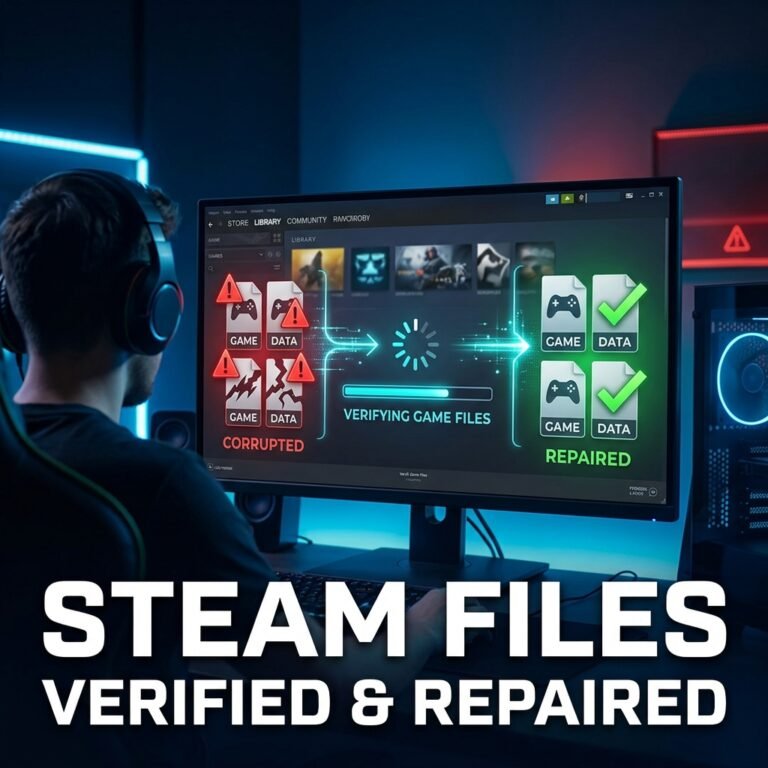
Why this works: Steam compares every installed file against the original version on its servers and automatically redownloads anything that doesn’t match.
Steps:
- Open Steam and go to your Library.
- Right-click the affected game and select Properties.
- Click the Installed Files tab.
- Select Verify integrity of game files.
- Let the process run — this can take several minutes depending on game size and your connection.
- Once it finishes, restart Steam fully before launching the game.
Expected result: Steam will tell you how many files were found and repaired. If it reports zero issues but the game still crashes, the corruption may be in save data or configuration files rather than the core install.
Tip: If verification keeps finding the same file broken over and over, that’s a strong sign of a network or drive issue, not a one-time glitch. Jump to the Windows-level fixes below.
If the game still won’t start after a clean verification, it’s worth checking whether Steam games not launching on Windows covers your exact symptom, since launch failures and corruption don’t always overlap.
Epic Games Launcher: Verify
Why this works: Same principle as Steam — Epic checks your local files against its servers and repairs any mismatches.
Steps:
- Open the Epic Games Launcher and go to your Library.
- Click the three-dot menu on the game.
- Select Manage, then click Verify.
- Wait for the scan and repair process to complete.
If the launcher itself won’t open or respond, that’s a separate issue — our guide on the Epic Games Launcher not opening walks through that specifically.
EA App: Repair
Steps:
- Open the EA App and go to My Collection.
- Select the game, then choose Repair from the options menu.
- Wait for the progress bar to complete.
The EA App will automatically download and replace any files it finds damaged or missing.
Ubisoft Connect: Verify Files
Steps:
- Open Ubisoft Connect and go to your games list.
- Click the game, then open the settings/gear icon.
- Select Verify Files.
- If discrepancies are found, Ubisoft Connect will automatically repair them.
Battle.net: Scan and Repair
Steps:
- Open the Battle.net app and select your game.
- Click the gear/options icon below the Play button.
- Choose Scan and Repair.
- Confirm and let the scan finish — this checks every game file against Blizzard’s servers.
GOG Galaxy: Verify/Repair Installation
Steps:
- Open GOG Galaxy and select the game.
- Click the Customization button next to Play.
- Choose Manage Installation → Verify/Repair.
- GOG Galaxy will compare your files against its servers and fix any mismatches.
Xbox App and Xbox Consoles
Steps:
- Open the Xbox app and go to My Library.
- Select the game, then click the (…) more options button.
- Choose Manage → Files → Check for updates.
- If the issue persists, select Verify and repair.
Microsoft Store Games
Microsoft Store titles can be trickier since they’re tied more tightly into Windows itself. Start with the same “Check for updates” and repair steps in the Xbox app. If that doesn’t resolve it, a full uninstall and reinstall through Settings → Apps → Installed apps is typically the next step, since Microsoft Store apps don’t always expose a standalone repair tool the way Steam or EA do.
Fixing the ISDone.dll and Unarc.dll Errors Specifically
If you’re seeing this exact error message, it’s worth treating it as its own troubleshooting path rather than a generic corruption issue.
Re-Registering isdone.dll and unarc.dll
Why this works: If these specific DLL files themselves have become corrupted or unregistered in Windows, re-registering them can restore normal function.
Steps:
- Open the Start menu, type cmd, right-click Command Prompt, and choose Run as administrator.
- Type
regsvr32 isdone.dlland press Enter. - Type
regsvr32 unarc.dlland press Enter. - Restart your PC and try the installation again.
Increasing the Windows Page File Size
Why this works: Decompressing a large archive uses a lot of memory. If your system runs low, Windows relies on the page file (virtual memory) to pick up the slack. A page file that’s too small can cause extraction to fail partway through.
Steps:
- Search for “Advanced System Settings” in the Start menu and open it.
- Under the Advanced tab, click Settings under Performance, then go to the Advanced tab again.
- Click Change under Virtual Memory.
- Uncheck “Automatically manage paging file size for all drives.”
- Select your main drive, choose Custom size, and set a larger initial and maximum size (many players find 4096–8192 MB sufficient for large game installs, but this depends on your available disk space).
- Click Set, then OK, and restart your PC.
Warning: Don’t set the page file larger than your available free disk space allows — this can cause other performance issues. If you’re low on storage, freeing up space should be your first step instead.
Freeing Up RAM Before Large Installs
Close background applications, browser tabs, and anything memory-intensive before installing a large game. This is a simple step, but it genuinely reduces the chance of extraction failing on systems with 8GB of RAM or less.
Windows-Level Fixes for Persistent Corruption
If the same corruption issue keeps happening across multiple games, the problem likely isn’t any single game — it’s something deeper in Windows, your drive, or your memory.
Running System File Checker (SFC)
Why this works: SFC scans for and repairs corrupted or missing Windows system files that games and installers rely on behind the scenes.
Steps:
- Open Command Prompt as administrator.
- Type
sfc /scannowand press Enter. - Let the scan run fully — this can take several minutes.
- Restart your PC once it completes.
Running DISM
When to use it: If SFC reports that it found errors but couldn’t fix all of them, DISM repairs the underlying Windows image that SFC draws from.
Steps:
- In an elevated Command Prompt, type:
DISM /Online /Cleanup-Image /RestoreHealth - Press Enter and wait — this can take a while and may appear to pause at certain percentages; let it finish.
- Run
sfc /scannowagain afterward to confirm the repair worked.
Note: DISM requires an internet connection, since it pulls replacement files through Windows Update by default.
Running CHKDSK to Repair Disk Errors
Why this works: CHKDSK scans your drive for file system errors and bad sectors, both of which can silently corrupt data during writes.
Steps:
- Open Command Prompt as administrator.
- Type
chkdsk C: /f /r(replace C: with your game’s install drive if different). - If prompted that the drive is in use, type Y to schedule the scan on next restart.
- Restart your PC and let the scan complete before it boots into Windows.
Checking Drive Health with SMART Diagnostics
Most SSDs and HDDs report their own health data through SMART (Self-Monitoring, Analysis, and Reporting Technology). Tools from your drive manufacturer — such as Samsung Magician for Samsung SSDs, Western Digital Dashboard, Crucial Storage Executive, or Kingston SSD Manager — can show you whether your drive is actually failing versus just being close to full.
Tip: If SMART data shows reallocated sectors climbing or a “pre-fail” warning, it’s time to back up your data and plan for a drive replacement, regardless of what game troubleshooting steps you try.
Testing RAM with Windows Memory Diagnostic
Steps:
- Search “Windows Memory Diagnostic” in the Start menu and open it.
- Choose Restart now and check for problems.
- Let your PC run the test on reboot (this takes several minutes).
- Check the results in Event Viewer or the notification after restart.
Faulty RAM is a sneaky cause of corruption because everything else on your PC can appear to run normally right up until you try something memory-intensive, like unpacking a 100GB game archive.
Updating GPU and Chipset Drivers
Outdated or corrupted drivers occasionally interfere with installation processes, particularly on freshly rebuilt or newly upgraded systems. Check NVIDIA, AMD, or Intel’s official driver pages depending on your hardware.
Reinstalling Visual C++ Redistributables and DirectX
Many games depend on Microsoft’s Visual C++ Redistributables and DirectX components to install and run correctly. If these are missing or damaged, installations can fail in ways that look identical to file corruption. Reinstalling the latest redistributables from Microsoft’s official site resolves this in many cases.
Repairing Windows Update Components
If Windows Update itself is malfunctioning, DISM’s repair process (which relies on it) may not work correctly. Microsoft maintains an official troubleshooting guide for resetting Windows Update components if you suspect this is contributing to the problem.
Antivirus, Storage, and Environmental Fixes
Adding a Game-Folder Exclusion in Windows Defender
Why this works: This prevents your antivirus from flagging or removing installer files mid-process, which is one of the most common — and most overlooked — causes of “corruption” that isn’t really corruption at all.
Steps:
- Open Windows Security → Virus & threat protection.
- Under Virus & threat protection settings, click Manage settings.
- Scroll to Exclusions and click Add or remove exclusions.
- Add your game’s install folder (for example, your Steam
steamapps/commondirectory).
Warning: Only exclude folders you trust completely, such as your own game library directories. Never exclude system folders or unknown downloads.
Restoring Files Removed to Quarantine
If you suspect your antivirus deleted a game file, check its quarantine section (usually under Protection history in Windows Security) and restore the file before re-running a verification.
Changing the Installation Drive
If your primary drive is nearly full or showing signs of failure, moving the install to a different, healthy drive with more free space can resolve persistent corruption that a simple verify/repair can’t fix.
Freeing Up Storage Space Before Reinstalling
Make sure you have at least 10–20% more free space than the game’s listed install size before starting. Installers sometimes need temporary scratch space beyond the game’s final footprint.
Pausing OneDrive Sync for Game Directories
If your game library sits inside a folder OneDrive is syncing (this happens more often than people expect on Windows 11, especially with default Documents/Desktop syncing enabled), pause sync or move your game library outside any synced folder entirely.
Clean Boot and Safe Mode Installation
When to use it: If nothing above works, a background program — often a third-party antivirus, overlay tool, or driver — may be interfering with the install process.
Steps:
- Search “System Configuration” (msconfig) in the Start menu.
- Under the Services tab, check Hide all Microsoft services, then click Disable all.
- Under the Startup tab, open Task Manager and disable startup items.
- Restart your PC and attempt the install again.
- Re-enable services and startup items once you’ve confirmed the install works.
When to Do a Full Reinstall (and How to Do It Safely)
If you’ve verified files, run the Windows-level fixes, and checked your hardware, and the corruption still returns, a clean reinstall is a reasonable next step — but do it carefully.
Back Up Save Files First
Warning: Uninstalling a game can sometimes remove local save data along with it, depending on where the game stores saves. Before uninstalling anything, back up your save files. Our guide on recovering lost game save files also covers what to do if you’ve already lost saves in a previous reinstall.
Clear Launcher Cache Before Reinstalling
Clearing your launcher’s download cache (available in Steam’s settings under Downloads, for example) before reinstalling prevents the same corrupted cached data from being reused in your fresh install attempt.
Choose a Different Install Drive for a Clean Attempt
If you suspect your original drive played a role, installing fresh to a different, healthy drive gives you a genuinely clean test — rather than repeating the same failure on the same hardware.
How to Prevent Corrupted Game Installation Files in the Future
Fixing the problem once is good. Not dealing with it again is better.
- Use a stable, wired connection for large downloads whenever possible. Wi-Fi drops are one of the single biggest causes of interrupted downloads. If your connection is inconsistent during downloads or online play, our packet loss troubleshooting guide and ping/latency calculator can help you diagnose whether your network itself is the weak link.
- Avoid forced shutdowns while a game is installing, patching, or updating — let processes finish completely.
- Monitor your drive’s health periodically using manufacturer tools, especially if your drive is several years old.
- Use a UPS (uninterruptible power supply) if you experience frequent power fluctuations or outages, to protect against mid-install shutdowns.
- Set antivirus exclusions in advance for your game library folders, rather than troubleshooting quarantine issues after the fact.
- Keep Windows and drivers updated, since many corruption-adjacent errors stem from outdated system components.
- Back up your saves regularly, independent of any troubleshooting — this protects you regardless of what causes a future issue.
Frequently Asked Questions
Why do my game files keep getting corrupted after every update?
This usually points to an interrupted download, insufficient drive space during the update, or a launcher cache issue rather than a problem with the game itself. Clearing your launcher’s download cache before updating often resolves recurring patch corruption.
Does verifying integrity of game files delete my saves?
No. Verification checks and repairs game installation files, not your save data, which is typically stored in a separate location (either locally in a different folder or in the cloud, depending on the platform).
What does “Unarc.dll returned an error code” mean?
It means the installer failed to decompress part of the game’s archive. The specific error code (such as 1, 6, 7, 11, or 14) tells you whether it’s a download issue, a memory issue, or confirmed data corruption.
Can a virus cause corrupted game installation files?
Directly, this is rare. Far more commonly, it’s the antivirus software itself mistakenly quarantining a legitimate game or installer file, which then causes the corruption error.
Will reinstalling Windows fix corrupted game files?
It can, if the root cause is deeply embedded system file corruption that SFC and DISM can’t repair. However, this is a last resort — most corruption issues are resolved at the launcher or drive level long before a Windows reinstall becomes necessary.
How do I know if it’s my SSD or HDD causing the corruption?
Run a manufacturer SMART diagnostic tool. Signs like reallocated sectors, pending sector counts, or a declining health percentage indicate the drive itself, not the game, is the underlying issue.
Why does Steam keep saying files failed to validate?
This typically means the same file keeps failing to download or write correctly, which points toward a network interruption or a drive-level write error rather than a one-time fluke.
Is it safe to disable antivirus to install a game?
Briefly disabling antivirus for a trusted, official game installer from a legitimate launcher is generally low-risk, but you should re-enable it immediately afterward and avoid downloading anything else while it’s off.
How long does verifying game files take?
This depends on the game’s size and your drive speed, ranging from a couple of minutes for smaller titles to twenty minutes or more for very large modern games.
Can low RAM cause installation corruption?
Yes. Extracting large compressed archives requires available memory, and systems with limited RAM (or an undersized page file) can fail partway through extraction, resulting in genuinely corrupted files.
Key Takeaways
- Most corrupted game installation file issues are resolved through your launcher’s built-in verify/repair tool — a full reinstall is rarely the first step you need.
- Antivirus quarantine and interrupted downloads are the two most common real-world causes.
- ISDone.dll and Unarc.dll errors almost always trace back to a damaged archive, insufficient RAM, or a page file that’s too small.
- If corruption keeps happening across multiple different games, the problem is likely your Windows installation, your drive, or your RAM — not any individual game.
- A little prevention (stable connections, antivirus exclusions, drive health checks) saves far more time than repeatedly troubleshooting the same error.
Conclusion
Corrupted game installation files are frustrating in the moment, but they’re rarely a sign of something catastrophic. In the vast majority of cases, your launcher’s built-in repair tool — whether that’s Steam’s file verification, EA’s Repair function, or GOG Galaxy’s Verify/Repair — will catch and fix the problem in a few minutes. When it doesn’t, working through the Windows-level checks (SFC, DISM, CHKDSK) and a quick look at your drive’s health will usually reveal what’s really going on.
Start with the verify/repair option for your platform, work through the Windows-level fixes if that doesn’t resolve it, and treat a full reinstall as your last resort rather than your first move. And once everything’s running smoothly again, take five minutes to set up an antivirus exclusion and check your drive’s health — future you will be glad you did.