How to Fix Low FPS in PC Games (2026 Guide)
Nothing kills the fun of a new game faster than watching your frame counter crawl while everything on screen turns into a slideshow. If you’re trying to figure out how to fix low FPS in PC games, the good news is that most frame rate problems come down to a handful of causes: an outdated driver, a background app quietly eating your CPU, a Windows setting that’s working against you, or graphics settings that simply ask more of your hardware than it can give. This guide walks through every one of those causes in order, starting with the fastest free fixes and ending with an honest answer to the question everyone eventually asks — is it time to upgrade?
You don’t need to try everything on this page. Once you know whether your CPU, GPU, or something else entirely is holding you back, you can skip straight to the fixes that actually apply to your system.
What Causes Low FPS in PC Games?
Low FPS almost always comes from one of five places: your hardware can’t keep up with the game’s demands, your graphics driver is outdated or misconfigured, background software is stealing CPU and RAM, your Windows or in-game settings aren’t tuned for performance, or your storage and cooling are creating hidden bottlenecks.
None of these causes are mutually exclusive — a laptop running on battery power with three browser tabs open and an outdated driver is dealing with three of these at once. That’s exactly why guessing at fixes wastes time. The next section shows you how to find out which one is actually responsible before you touch a single setting.
Diagnose Your Bottleneck Before You Fix Anything
Open Task Manager with Ctrl+Shift+Esc, click the Performance tab, and leave it running in the background while you play (or use the Xbox Game Bar overlay with Win+G, which shows GPU and CPU usage without alt-tabbing out). Watch what your GPU and CPU are doing during the exact moment your frame rate drops.
This one step saves more time than any individual fix on this page, because it tells you which half of the article actually applies to you.
GPU Pinned Near 100%
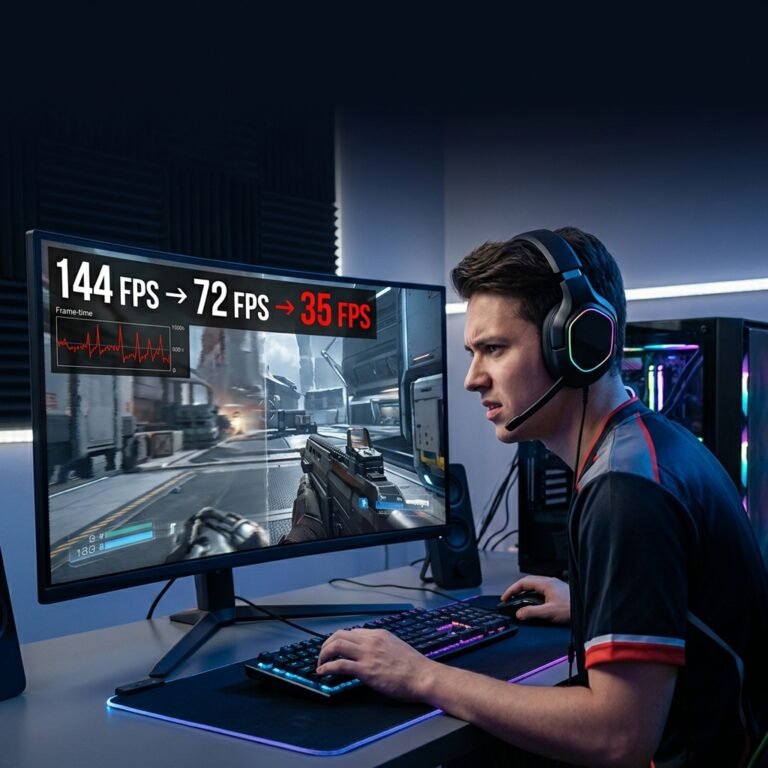
If your graphics card is sitting at or near 100% utilization while FPS is low, you’re GPU-bound. This is the most common scenario, and it means lowering your resolution or graphics settings, or eventually upgrading the GPU, will have the biggest impact. Driver tweaks and background app cleanup will only get you marginal gains here.
GPU Usage Low, FPS Still Low
If your GPU sits well under 100% but your frame rate is still poor, something else is the limiting factor — usually the CPU, but sometimes RAM or storage. This pattern is common in open-world games, strategy titles, and simulation games where the CPU has to track huge numbers of objects, NPCs, or AI calculations. Upgrading your GPU in this situation won’t help nearly as much as people expect.
Low FPS Only in One Specific Game
If every other game runs fine but one title tanks your frame rate, the issue is almost never your whole system. Look at whether the game recently updated, whether shaders are still compiling (more on this below), or whether that specific title has a known performance issue — PCGamingWiki maintains community-verified configuration notes for thousands of games and is the best place to check this.
Fastest Free Fixes to Try First
These are ordered by effort versus impact. Start at the top.
Update Your Graphics Drivers
Your GPU driver isn’t just a formality — it’s actively optimized on a per-game basis. NVIDIA, AMD, and Intel routinely release “day-one” drivers timed to major game launches, and those drivers can include shader-level optimizations specific to that title. Running a driver that’s several months old means you could be leaving real performance on the table.
- NVIDIA: Update through the NVIDIA App, which has replaced GeForce Experience as the primary driver and DLSS management tool.
- AMD: Update through AMD Software: Adrenalin Edition.
- Intel: Update through Intel Arc Software (formerly Intel Graphics Command Center).
One caveat worth knowing: if your FPS suddenly drops right after a driver update, don’t assume the newest driver is always best. Rolling back to the previous version is a legitimate, safe fix — driver regressions happen occasionally, and manufacturers usually patch them within a few weeks.
Close Background Apps and Startup Programs
Open Task Manager’s Startup apps tab and disable anything you don’t need running every time you boot. The usual offenders are browser windows with dozens of tabs open, RGB lighting control software, cloud sync clients, and old overlay tools running in the background. None of these need to be running while you’re trying to hit a stable frame rate.
Switch to a High-Performance Power Plan
Go to Settings > System > Power & battery > Power mode and select Best Performance. On desktops the difference is usually small, but on laptops this single change can be the difference between your CPU and GPU running at full clock speed or being artificially capped to save battery — even when plugged in, if the plan wasn’t set correctly.
Update the Game Itself
Developers frequently ship performance patches after launch, sometimes delivering larger FPS gains than any driver or Windows tweak. Turn on automatic updates in Steam or your launcher of choice so you’re not missing them.
Windows 11 and Windows 10 Settings That Actually Affect FPS
Not every Windows “gaming” setting does what people assume. Here’s what’s actually worth your time.
Game Mode
Game Mode deprioritizes background Windows processes in favor of whatever game currently has focus. It’s a modest, free improvement — turn it on in Settings > Gaming > Game Mode, but don’t expect it to single-handedly fix a serious FPS problem.
Hardware-Accelerated GPU Scheduling (HAGS)
HAGS hands GPU task scheduling over to a dedicated processor on the graphics card itself instead of relying entirely on the CPU, which Microsoft’s engineering team designed to reduce latency and free up CPU headroom. As of 2026, it’s also a requirement for using DLSS and FSR frame generation, which makes it worth enabling even if the raw FPS gain on its own is modest.
Enable it under Settings > System > Display > Graphics > Advanced graphics settings, then restart your PC — the change doesn’t apply until you reboot. If the toggle isn’t visible, your GPU or driver doesn’t support it yet, and no registry edit will force it to appear.
One honest caveat: a small number of older or budget GPUs, particularly some AMD RDNA 2 cards, show little to no measurable benefit from HAGS. If you don’t notice a difference after enabling it, that’s expected on some hardware — it’s not something you’re doing wrong.
Xbox Game Bar and Overlays
Every overlay running on top of your game — Discord, the NVIDIA App overlay, Game Bar itself — consumes a small amount of GPU and CPU resources. Individually they’re minor. Stacked together, especially on a mid-range system, they add up. Disable the ones you don’t actively use.
Storage and DirectStorage
An important distinction: a faster drive won’t raise your average FPS number by much, but it will dramatically reduce the stutters and hitches that happen when a game streams in new textures or loads a new area. If you’re still running your games off a hard drive in 2026, moving them to an SSD is the single most noticeable storage upgrade you can make. On Windows 11 with an NVMe drive, enabling DirectStorage where the game supports it further reduces load-related stutter by letting the GPU decompress assets directly instead of routing everything through the CPU.
GPU Control Panel Settings: NVIDIA, AMD, and Intel
Your driver’s control panel can override or reinforce whatever you’ve set inside the game itself, and a few settings here have an outsized effect.
| Setting | NVIDIA App | AMD Adrenalin | Intel Arc Software | What It Does |
|---|---|---|---|---|
| Max performance mode | Power Management Mode → Prefer Maximum Performance | High Performance profile | Performance mode | Keeps GPU clocks from idling down during lighter scenes |
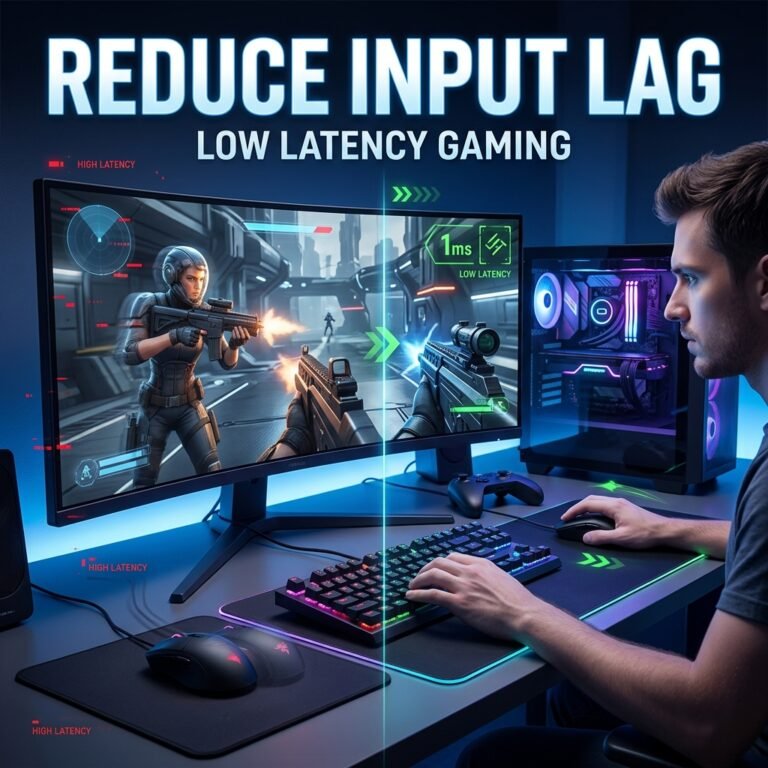
| Low latency mode | Low Latency Mode / Reflex | Anti-Lag / Anti-Lag+ | Xe Low Latency (XeLL) | Reduces the delay between input and what’s rendered |
| Per-game profile override | DLSS/graphics overrides | Per-game Adrenalin profile | Per-game Arc profile | Lets you force settings a game doesn’t expose natively |
Resizable BAR
Resizable BAR (branded Smart Access Memory on AMD systems) is a separate feature from HAGS — it’s a BIOS-level setting that lets your CPU access your GPU’s entire memory pool at once instead of in small chunks, which can meaningfully help in supported titles. Check that it’s enabled in your motherboard’s BIOS/UEFI settings; most systems built in the last four years support it, but it’s occasionally disabled by default.
In-Game Graphics Settings That Give the Biggest FPS Gains
Not all graphics settings cost the same amount of performance for the visual difference they make. Rank them by impact rather than working through the menu alphabetically.
Lower these first — biggest FPS return, smallest visual cost:
- Shadow quality and shadow distance
- Ray tracing effects (reflections, global illumination, shadows)
- Volumetric fog and lighting
- Motion blur and depth of field (these cost performance and most players turn them off anyway)
Usually safe to leave high:
- Texture quality — as long as you have enough VRAM, texture resolution has a comparatively small FPS cost while making a large visual difference
It depends on your GPU:
- Anti-aliasing method matters more than the on/off toggle. TAA-based methods are relatively cheap; older MSAA implementations can be expensive at high sample counts.
Upscaling and Frame Generation in 2026
If you take one section of this guide seriously, make it this one — upscaling technology has changed dramatically over the past two years, and a lot of advice still floating around online is describing versions that are already outdated.
DLSS (NVIDIA)
DLSS renders the game at a lower internal resolution and uses a trained AI model on your GPU’s Tensor Cores to reconstruct a sharp, near-native image. As of 2026, DLSS 4.5 is NVIDIA’s current version, introducing Dynamic Multi Frame Generation that automatically adjusts how many AI-generated frames it inserts based on scene complexity.
Hardware support varies significantly by GPU generation:
- RTX 50 series (Blackwell): Full support, including Multi Frame Generation and Dynamic MFG
- RTX 40 series: Standard single-frame DLSS Frame Generation, but not Multi Frame Generation
- RTX 30 series and older: DLSS Super Resolution (upscaling) works, but no frame generation at all — this requires the Optical Flow Accelerator hardware that only shipped starting with RTX 40
FSR (AMD)
AMD’s FSR technology took a major step forward with the “Redstone” suite, which finally moved from a purely mathematical upscaling approach to a trained machine-learning model on RDNA 4 hardware. The result is a much smaller image quality gap versus DLSS than older FSR versions had.
- RX 9000 series (RDNA 4): Full ML-based FSR Upscaling, plus FSR Frame Generation, Ray Regeneration, and Radiance Caching
- RX 7000 series (RDNA 3): ML-accelerated FSR Upscaling is also supported as of recent SDK updates, though with a smaller quality jump than RDNA 4
- Older Radeon and non-AMD GPUs: Falls back to the analytical FSR 3.1 path, which still works but doesn’t match the ML version’s image quality
FSR’s biggest practical advantage remains that it runs on essentially any DirectX 12 GPU, including NVIDIA and Intel cards, making it the fallback option when a game only supports one upscaler and you don’t have the “right” GPU brand.
XeSS (Intel)
Intel’s XeSS uses dedicated XMX cores on Arc GPUs for AI-accelerated upscaling, with a DP4a shader-based fallback mode that runs on non-Intel hardware. The current generation adds frame generation and Intel’s own low-latency technology. Quality on Arc GPUs is competitive with DLSS and FSR; the fallback mode on other vendors’ cards is usable but noticeably behind.
Is Frame Generation Right for You?
Frame generation multiplies frames you already have — it does not create performance out of nothing, and it works best as a top-up rather than a rescue. If your base frame rate is already a comfortable 50–60 FPS, frame generation can push that to 90–100+ with minimal downside. If your base frame rate is struggling at 25–30 FPS, turning on frame generation will make the number on screen look better without actually fixing the underlying stutter or responsiveness problem, because the added frames also add a small amount of input latency (typically single-digit milliseconds with NVIDIA Reflex or AMD Anti-Lag active, more without it).
Rule of thumb: use frame generation to make a good frame rate feel smoother. Don’t use it to try to rescue a genuinely bad one.
Genre-Specific FPS Tuning
Generic “turn everything down” advice doesn’t fit every kind of game. What you should prioritize changes depending on what you’re playing.
Competitive and Esports Titles (CS2, Valorant, Fortnite)
In fast-paced competitive games, consistency and responsiveness matter more than visual fidelity or even peak FPS. Turn off frame generation (the added latency works against you here), disable motion blur entirely, and consider capping your frame rate a few frames below your monitor’s refresh rate rather than leaving it uncapped — this reduces tearing and keeps frame pacing more consistent than letting the game run as fast as it possibly can.
Open-World and Story-Driven Games
Here, the priority flips. A high average FPS with occasional stutters feels worse than a slightly lower but rock-solid frame rate, so pay more attention to your 1% lows than your peak number. This is also where upscaling and frame generation genuinely shine, since the added latency from frame generation is far less noticeable when you’re not making split-second competitive decisions.
Fixing Stuttering vs. Fixing Low Average FPS
These are two different problems with two different sets of fixes, and conflating them is one of the most common mistakes in generic FPS advice. Your average FPS counter can read a perfectly healthy 90 or 100 while the game still feels rough because of uneven frame delivery.
Shader Compilation Stutter
This shows up most often on a fresh install or right after a driver update, and it happens because the game is compiling shaders for your specific GPU in real time as new visual effects appear for the first time. It’s temporary — letting the game sit through its first few play sessions (or its shader pre-compilation step, if it has one) resolves it without any settings changes needed.
Traversal Stutter and Streaming Hitches
These happen when the game is loading new areas, textures, or assets faster than your storage or RAM can deliver them. This is where an SSD, adequate free disk space (keep at least 15–20% free), and enough RAM matter more than raw GPU power. Sixteen gigabytes of RAM is now a practical floor for modern titles; 32GB removes most streaming-related pressure in memory-hungry open-world games.
Microstutter With High Average FPS
If your FPS counter looks great but the game still feels subtly uneven — most visible when slowly panning the camera — you’re dealing with a frame pacing issue rather than a raw power shortage. Pairing your system with a variable refresh rate display (G-Sync or FreeSync) is the single biggest fix here, because it synchronizes your monitor to whatever your GPU is actually delivering instead of forcing a fixed refresh interval. Capping your frame rate a few FPS below your monitor’s maximum refresh rate, so it stays inside the VRR window, also helps significantly.
Laptop-Specific FPS Fixes
Laptops introduce failure points that desktops simply don’t have, so they deserve their own checklist.
- Always game plugged in. On battery, laptops throttle CPU and GPU clocks aggressively to preserve battery life, even with a high-performance power plan selected.
- Confirm the discrete GPU is actually running the game. Laptops with both integrated and dedicated graphics sometimes default demanding games to the weaker integrated chip. Check Settings > System > Display > Graphics, find the game, and manually set it to use your high-performance GPU.
- Watch your thermals. Dust buildup in laptop cooling systems is one of the most common and most overlooked causes of gradually worsening FPS over time, since thermal throttling kicks in silently once temperatures climb too high. A can of compressed air through the intake vents every few months goes a long way.
- Use the manufacturer’s performance mode if one exists, alongside Windows’ own high-performance power plan — most gaming laptop software (Armoury Crate, Omen Gaming Hub, Legion Toolkit, and similar) has its own fan curve and power profile controls that work in tandem with Windows’ settings rather than replacing them.
Common Mistakes and Unsafe Fixes to Avoid
A few habits show up constantly in FPS troubleshooting threads that either don’t help or actively create new problems.
- Random registry “performance hacks” copied from forum posts. Without understanding what a specific registry edit actually changes, you’re gambling with system stability for a fix that usually does nothing measurable.
- Unverified third-party “FPS booster” or “game booster” software. Many of these bundle unwanted software, and some can trigger false positives with anti-cheat systems in multiplayer games — a real risk not worth taking for an unverified performance claim.
- Overclocking without proper stability testing and cooling. An unstable overclock can cause crashes or corruption that are far more disruptive than the low FPS you were trying to fix.
- Assuming a full Windows reinstall is necessary. It rarely is. The combination of driver updates, background app cleanup, and correct power settings covered above delivers nearly all the benefit a clean install would, without losing your setup.
- Stacking multiple upscalers or frame-gen options at once without understanding what each does. More isn’t always better — mismatched settings can introduce visual artifacts or extra input lag for no real performance gain.
If the problem you’re actually dealing with is a black screen rather than low frame rates — the game launches but nothing displays — that’s a different issue with a different fix path; see our guide to fixing a black screen when launching games instead.
When to Upgrade Your Hardware
This comes back to the diagnostic step from earlier in this guide, because the honest answer depends entirely on where your bottleneck actually is.
- GPU consistently pinned near 100% even after driver updates and settings adjustments → a GPU upgrade is the real fix. No amount of software tuning changes this.
- GPU usage stays low but FPS is still poor in CPU-heavy genres (strategy, simulation, NPC-dense open-world areas) → your CPU is the limiting factor, and a new graphics card won’t move the needle much.
- RAM: 16GB is a practical floor for 2026 titles. If you’re still running 8GB, that’s a hard ceiling worth removing before anything else. 32GB is comfortable headroom for the most demanding open-world games, with diminishing returns beyond that.
- VRAM: running out of video memory shows up as texture pop-in and stutter rather than a straightforward low FPS number — a sign that your GPU’s memory capacity, not just its core power, has become the limiter.
- Storage: if you’re still on a hard drive in 2026, this is the cheapest and most immediately noticeable upgrade available for reducing stutter, even if it won’t move your average FPS number much.
Quick Checklist: Fixing Low FPS Step by Step
- Diagnose whether you’re GPU-bound, CPU-bound, or dealing with a stutter rather than low average FPS.
- Update your GPU driver (and roll back one version if FPS dropped right after an update).
- Close unnecessary background apps and disable unused startup programs.
- Switch to a high-performance power plan (especially on laptops).
- Enable Hardware-Accelerated GPU Scheduling and Resizable BAR if supported.
- Lower the highest-impact, lowest-visual-value settings first: shadows, ray tracing, volumetric effects.
- Turn on DLSS, FSR, or XeSS upscaling if your GPU supports it, using Quality mode as your starting point.
- Add frame generation only if your base FPS is already smooth — not as a rescue for a genuinely low frame rate.
- If the issue is stutter rather than raw FPS, check storage speed, free disk space, and RAM capacity before anything else.
- Only consider a hardware upgrade once you’ve confirmed, through the diagnostic step, exactly which component is the actual bottleneck.
Frequently Asked Questions
Why is my FPS so low even though I have a good graphics card?
A powerful GPU can still be held back by an outdated driver, a CPU bottleneck, background processes eating resources, or a Windows power plan that isn’t set to maximum performance. Check GPU utilization while playing — if it’s well below 100%, your GPU isn’t the problem.
How do I know if my CPU or GPU is bottlenecking my FPS?
Open Task Manager or an in-game overlay while playing. If your GPU sits near 100% usage, you’re GPU-bound. If GPU usage is noticeably lower while FPS is still poor, your CPU (or occasionally RAM) is the limiting factor instead.
Does closing background apps actually increase FPS?
Yes, though the impact varies. Heavy background load — many browser tabs, RGB software, cloud sync clients — competes with your game for CPU and RAM. On systems with less RAM or a weaker CPU, the improvement can be noticeable; on high-end systems it’s usually smaller but still worth doing.
Is 30 FPS bad for PC gaming?
It’s playable but well below what most PC gamers consider smooth, especially compared to console frame rate targets. Most players notice a clear improvement moving into the 60 FPS range, and competitive players typically want 100+ to take advantage of high-refresh-rate monitors.
Does updating graphics drivers increase FPS?
Often, yes — sometimes significantly for new game releases with day-one optimized drivers, and modestly for older titles you’re already running well. Since updating costs nothing, there’s no real downside to keeping drivers current.
Should I use DLSS or FSR for more FPS?
Use whichever your GPU supports natively: DLSS for NVIDIA RTX cards, FSR for AMD or as a cross-vendor fallback, and XeSS if you’re on Intel Arc. In games that support more than one, native support for your specific GPU generation usually delivers the best quality-to-performance balance.
Does RAM affect FPS in games?
Indirectly, yes. Going from 8GB to 16GB removes a hard ceiling in most modern titles. Beyond 16–32GB, capacity gives diminishing returns for FPS specifically, though it still helps reduce stuttering in memory-heavy open-world games.
How do I fix FPS drops that only happen in one specific game?
Check whether the game recently updated, whether you’re hitting a shader-compilation stutter on a fresh install, or whether that title has known configuration issues on sites like PCGamingWiki. A single-game problem is rarely a system-wide issue.
Is frame generation the same as real FPS?
No. Frame generation inserts AI-created frames between the frames your GPU actually renders, which improves smoothness and the number on screen but doesn’t reduce the underlying rendering workload the way a true performance gain would, and it adds a small amount of input latency.
Why does my FPS drop after a Windows update?
Windows updates occasionally reset graphics driver settings, reintroduce default power plans, or temporarily conflict with GPU drivers until a corresponding driver update catches up. Reapplying your power plan and checking for a fresh GPU driver usually resolves it.
Conclusion
Low FPS is rarely one single problem — it’s usually a combination of a couple of small, fixable things stacking up. The fastest path to fixing low FPS in PC games is almost always free: diagnose whether you’re GPU-bound or CPU-bound, update your driver, clean up what’s running in the background, and get your Windows and in-game settings actually working in your favor before you spend a dollar on new hardware. Work through the fixes in this guide in order, starting with the diagnostic step, and you’ll know within a few minutes whether the answer is a two-minute settings change or a genuine hardware upgrade — instead of guessing.