
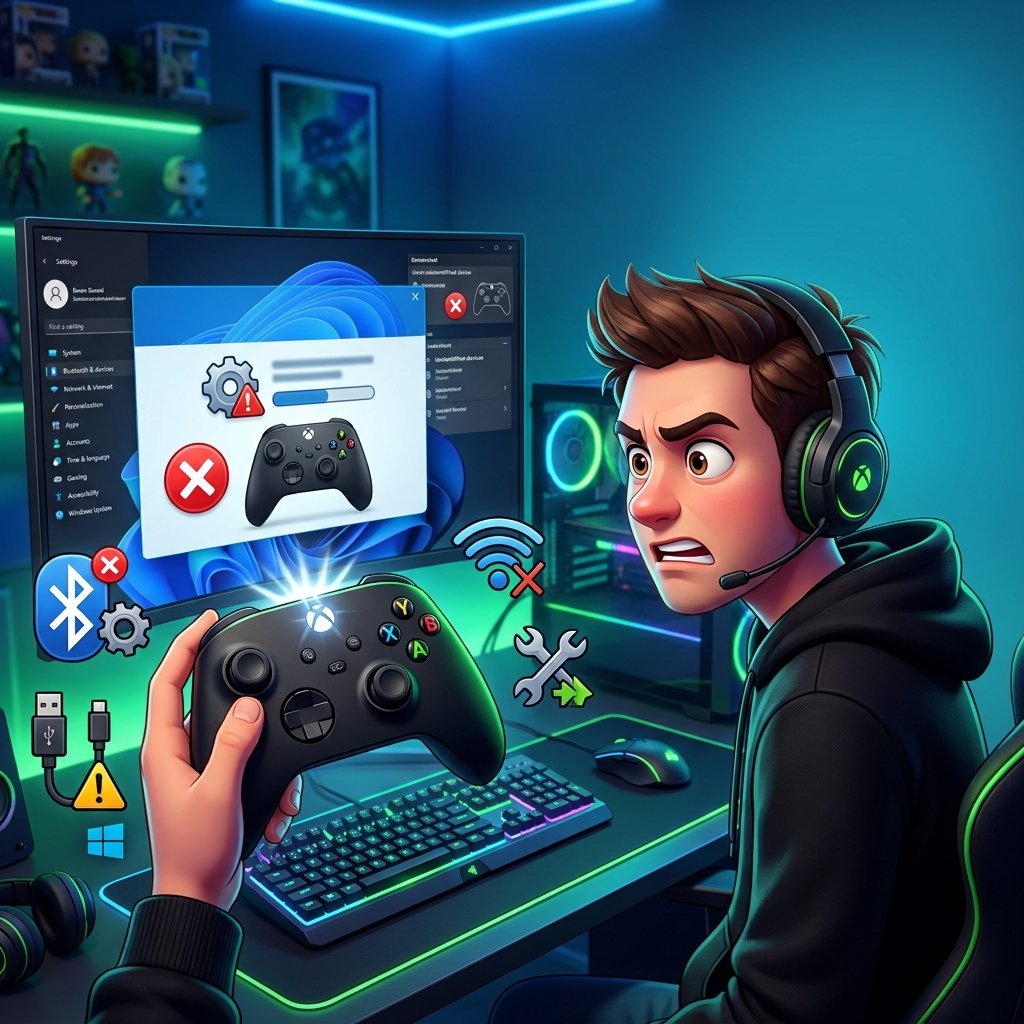
Xbox Controller Not Connecting to PC? Here’s How to Fix It
If you’re staring at your screen wondering why your Xbox controller not connecting to PC is happening again, you’re not alone. It’s one of the most common Xbox accessory complaints on Windows, and the frustrating part is that the fix depends entirely on what’s actually going wrong. A controller that won’t pair at all needs a different fix than one that connects fine and then randomly drops mid-game.
This guide walks through every current, verified fix for Windows 10 and Windows 11 — organized by symptom, not just as a random list of things to try. Find the section that matches what your controller is actually doing, and work through it from there.
Step 1: Confirm Your Controller Actually Supports the Connection You’re Trying
Quick answer: Only Xbox controllers made from 2016 onward support Bluetooth — you can tell by looking at the plastic around the Xbox button. If it’s one continuous piece, Bluetooth works. If there’s a separate glossy ring around the button, it doesn’t, and you’ll need a USB cable or the Xbox Wireless Adapter instead.
This is the step almost every other guide skips, and it quietly causes a huge share of “my controller won’t connect” reports. People spend twenty minutes messing with Bluetooth settings on a controller that was never built to use Bluetooth in the first place.
Here’s the visual check:
- Bluetooth-capable: The faceplate around the Xbox button is one seamless surface, flush with the rest of the controller’s face. This applies to the redesigned Xbox One controller (2016 refresh onward) and every Xbox Series X|S controller.
- Not Bluetooth-capable: There’s a distinct glossy circle around the Xbox button, separate from the matte plastic around it. This is the original 2013 Xbox One controller design.
If your controller falls into the second category, don’t panic — it still works great on PC. You just need a USB cable (data cable, not charge-only) or an Xbox Wireless Adapter for Windows.
Xbox Controller Generations at a Glance
| Controller | Bluetooth Support | USB Support | Wireless Adapter Support |
|---|---|---|---|
| Xbox 360 Controller | No | Yes (wired) | Yes (with Xbox 360 Wireless Adapter, a different product) |
| Xbox One Controller (2013 original) | No | Yes | Yes |
| Xbox One Controller (2016+ refresh) | Yes | Yes | Yes |
| Xbox One Elite Controller | No | Yes | Yes |
| Xbox One Elite Series 2 | Yes | Yes | Yes |
| Xbox Series X|S Controller | Yes | Yes (USB-C) | Yes |
Pro Tip: If you’re not sure which generation you have and don’t want to inspect the plastic, plug the controller into your PC with a USB cable first. If Windows recognizes it instantly, the hardware is fine — the wireless method is the only thing in question.
Step 2: Choose the Right Connection Method
There are three genuinely different ways to connect an Xbox controller to a Windows PC, and they don’t behave the same way. Picking the right one for what you’re doing matters more than most people realize.
Wired (USB-C or Micro-USB)
This is the simplest and most reliable option. Plug the controller into any USB port, and Windows installs the driver automatically — no Bluetooth, no adapter, no setup. It’s also the fastest way to rule out a hardware problem: if a wired connection works, your controller and PC are both fine, and the issue lives in your wireless setup.
Xbox Wireless Adapter for Windows
This small USB dongle uses the same proprietary 2.4GHz “Xbox Wireless” protocol found on Xbox consoles, rather than standard Bluetooth. It offers more consistent, lower latency than Bluetooth, supports up to eight controllers at once, and is the only wireless option that supports controller audio passthrough for a headset. If you play competitive multiplayer games or want a couch co-op setup with several controllers, this is the better choice.
Bluetooth
Built directly into Windows and most modern PCs — no extra hardware needed. It’s a perfectly good option for casual, single-player gaming. The tradeoff is that the controller switches to Bluetooth Low Energy (BLE) mode, which prioritizes battery life over performance. That typically means a slightly higher and less consistent input delay compared to the Wireless Adapter, and it’s more prone to interference from other 2.4GHz devices.
Connection Method Comparison
| Method | Setup Required | Typical Latency | Max Controllers | Audio Passthrough |
|---|---|---|---|---|
| USB (wired) | None | Lowest | 1 per port | Yes |
| Xbox Wireless Adapter | Plug in dongle | Low, console-like | Up to 8 | Yes |
| Bluetooth | Built-in pairing | Higher, less consistent | Limited by bandwidth | No |
Fixing “My Controller Won’t Pair At All”
Quick answer: Start by updating the controller’s firmware through the Xbox Accessories app over a wired connection — this alone resolves a large share of pairing failures, since Microsoft now delivers Bluetooth stability fixes exclusively through app-based firmware updates rather than Windows Update.
If your controller doesn’t show up at all, doesn’t flash when you try to pair, or Windows just never finds it, work through these in order. These steps align with Xbox Support’s official PC connection guide, with extra context on the failure points it doesn’t cover.
Basic Pairing Steps (Do This First)
- Turn the controller off, then hold the small Pair button on top (next to the shoulder bumper) until the Xbox logo starts flashing rapidly. A slow pulse means it’s not in pairing mode yet.
- On your PC, open Settings > Bluetooth & devices > Add device > Bluetooth.
- Select Xbox Wireless Controller from the list once it appears.
- Wait for the light to turn solid, confirming a successful pair.
Why it happens: Pairing mode has a short window (usually about 20 seconds) before the controller drops out of it. If Windows doesn’t catch it in that window, it looks like a failed pairing when really it’s a timing issue.
Expected result: The Xbox button lights solid white and the controller appears as a connected Bluetooth device.
If it fails: Move to firmware and driver checks below before assuming the hardware is broken.
Update Controller Firmware Before Anything Else
Microsoft no longer pushes Xbox controller firmware through Windows Update. It’s handled exclusively through the Xbox Accessories app, and it requires a wired connection to install.
- Install the Xbox Accessories app from the Microsoft Store if it isn’t already on your PC.
- Connect the controller to your PC using a USB data cable (not a charge-only cable).
- Open the app — it should detect the controller automatically.
- If an update is available, you’ll see an “Update available” prompt or a specific version number. Select it.
- Keep the cable connected the entire time. Don’t unplug it mid-update.
Warning: Interrupting a firmware update can leave the controller in a non-functional state. Always keep it plugged in and let the update finish completely before disconnecting.
Why it happens: As Windows updates its own Bluetooth stack over time, older controller firmware can fall out of sync with it, causing silent pairing failures even though nothing about the controller looks broken. A firmware update re-establishes a clean handshake between the two.
When to use it: Anytime pairing fails with no obvious error, or Windows says the firmware is “up to date” but the controller still won’t behave — running the update anyway forces a fresh handshake.
Clear Old Pairings and Reset the Controller
Old, stale, or “ghost” Bluetooth entries can block a fresh pairing attempt.
- Go to Settings > Bluetooth & devices.
- Look for any existing “Xbox Wireless Controller” entries, including greyed-out ones.
- Click each one and select Remove device.
- On the controller, hold the Pair button for about 3–4 seconds until the light turns off completely, clearing its internal pairing memory.
- Try pairing again from scratch.
Note: Xbox consoles support a maximum of eight paired accessories at a time. If you’ve paired the same controller to a console, a phone, and a PC, and it’s behaving inconsistently, clearing old entries on whichever device is misbehaving usually resolves it.
Restart the Bluetooth Support Service
Sometimes the Bluetooth service itself gets stuck, and no amount of controller-side troubleshooting will fix that.
- Open an elevated Command Prompt (search “cmd,” right-click, “Run as administrator”).
- Run:
net stop bthservnet start bthserv - Try pairing the controller again immediately after.
Alternatively, search “Services” in the Start menu, find Bluetooth Support Service, right-click it, and select Restart.
Fix Driver Conflicts in Device Manager
If Windows installs the wrong driver, it may treat your controller as a generic input device instead of recognizing it properly, which can cause pairing to silently fail or the controller to behave erratically once connected.
- Right-click the Start button and select Device Manager.
- Look under Xbox Peripherals. If you don’t see that category, check Human Interface Devices instead.
- If the controller shows a yellow warning icon, right-click it and check Properties > General for an error code.
- Code 28 specifically means Windows can’t load the correct driver. Right-click the device, choose Update driver > Browse my computer for drivers > Let me pick from a list, and select the Microsoft Xbox Controller driver rather than a generic HID entry.
Common Pairing Errors
| Symptom | Likely Cause | Fix |
|---|---|---|
| Controller doesn’t appear in Bluetooth list | Not in pairing mode, or firmware outdated | Re-enter pairing mode; update firmware via USB |
| Code 28 in Device Manager | Wrong or missing driver | Manually select Microsoft Xbox Controller driver |
| Windows asks for a PIN during pairing | Ghost driver bug | Cancel, restart PC, try again; firmware update usually resolves it long-term |
| Controller pairs, but light doesn’t turn solid | Old pairing conflict | Remove old device entries and reset the controller |
Common Mistake: Assuming a controller is “broken” after one failed pairing attempt. Most pairing failures are timing, firmware, or old-entry issues — not hardware failures. Test with a USB cable before writing off the controller entirely.
Fixing “It Pairs, Then Randomly Disconnects”
Quick answer: Random disconnects after a successful pairing are almost always caused by Windows power management features — specifically USB Selective Suspend and Fast Startup — putting the connection to sleep rather than an actual hardware fault.
This is a genuinely different problem from a controller that won’t pair, and it’s the category most other guides barely touch. If your controller connects fine, works for a while, and then just drops — especially after the PC has been idle — start here.
Disable USB Selective Suspend
Windows can power down USB ports it thinks are idle to save energy. On a desktop with no battery to preserve, this setting does more harm than good.
- Open Control Panel > Hardware and Sound > Power Options.
- Next to your active power plan, click Change plan settings > Change advanced power settings.
- Scroll to USB settings > USB selective suspend setting.
- Set both On battery and Plugged in to Disabled.
- Click Apply, then OK.
If you’re connecting via the Xbox Wireless Adapter (which shows up as a USB device), also check the per-device setting:
- In Device Manager, expand Universal Serial Bus controllers.
- Right-click each USB Root Hub, choose Properties > Power Management.
- Uncheck Allow the computer to turn off this device to save power.
- Repeat for any hub the adapter might be using.
Why it happens: Selective Suspend puts individual USB ports into a low-power state when Windows thinks nothing is happening. A wireless controller sitting idle for a few seconds between inputs can look “idle” to Windows even though you’re mid-game, triggering a suspend-and-fail-to-wake cycle. Microsoft’s own documentation on this behavior confirms it can affect any USB device sharing a hub, not just game controllers.
Expected result: The adapter or controller stays consistently powered and no longer drops after periods of inactivity.
Turn Off Fast Startup
Fast Startup saves a snapshot of the Windows kernel at shutdown to speed up the next boot, but it can prevent USB and Bluetooth hardware from fully reinitializing.
- Open Control Panel > Power Options > Choose what the power buttons do.
- Click Change settings that are currently unavailable.
- Scroll to Shutdown settings and uncheck Turn on fast startup (recommended).
- Click Save changes and restart the PC — a full restart, not a shutdown-then-power-on, so the USB stack properly reinitializes.
When to use it: If disconnects happen mainly after the PC has been shut down and restarted (rather than just sitting idle), Fast Startup is the more likely culprit.
Reduce Wireless Interference
Both Bluetooth and the Xbox Wireless Adapter operate in the crowded 2.4GHz band, shared with Wi-Fi routers, microwaves, and other wireless peripherals.
- Keep the adapter or PC’s Bluetooth antenna within clear line of sight — avoid placing it behind a metal PC case or a monitor.
- If you’re using a USB 3.0 hub, note that some 3.0 controllers generate interference in the 2.4GHz range; try a different port, ideally USB 2.0 for the adapter specifically.
- Move other 2.4GHz devices (wireless mice, other dongles) away from the receiving PC where possible.
Update Bluetooth Chipset Drivers
Windows Update doesn’t always carry the newest Bluetooth driver for your specific chipset (Intel, Realtek, MediaTek, and others all behave slightly differently).
- Check Device Manager > Bluetooth, right-click your adapter, and note the manufacturer.
- Visit that manufacturer’s site (or your laptop maker’s support page, e.g., Dell, HP, Lenovo, ASUS, Acer) directly for the latest Bluetooth driver package, rather than relying solely on the generic driver Windows installs.
- Install it and restart before testing again.
Best Practice: If you’re also fighting general wireless instability during online play, it’s worth checking whether the same interference is affecting your connection more broadly — our guide on fixing packet loss in online games covers the network side of that.
Fixing “It Connects, But Doesn’t Work in a Specific Game”
Quick answer: If the controller connects and Windows recognizes it, but a specific game doesn’t respond to it correctly, the issue is almost always a Steam Input conflict rather than a Windows or Bluetooth problem.
This is a distinct category from the earlier sections — the connection itself is fine, but the game and the controller aren’t communicating the way you’d expect.
Steam Input vs. Xbox Configuration Support
Steam has its own controller input layer that can sit between your controller and the game, remapping inputs in ways that occasionally conflict with a game’s native Xbox controller support.
- Open Steam > Settings > Controller > General Controller Settings.
- Check whether Xbox Configuration Support is enabled — this is required for many games.
- Look for Enable Steam Input for Xbox controllers. If a game supports Xbox controllers natively (common in newer titles like recent Call of Duty or Halo releases) and behaves oddly, try turning this off. If an older game doesn’t recognize the controller at all, try turning it on.
Why it happens: Some titles expect a raw, unfiltered Xinput signal, while others are built to work through Steam’s translation layer. When the two don’t match, you get symptoms like unresponsive sticks, doubled inputs, or menus that won’t navigate with the controller even though it clearly shows as connected.
Big Picture Mode Fix
If a controller shows as connected in Steam’s regular desktop view but the game still doesn’t detect it, launching Steam in Big Picture Mode (the TV-shaped icon in the top corner) sometimes forces proper controller detection in a way the standard client doesn’t.
Pro Tip: If a game refuses to launch at all rather than just ignoring the controller, that’s usually a separate issue. Our guides on fixing games that won’t launch and fixing a black screen when launching games are a good next stop if the controller isn’t actually the root cause.
Windows 10 vs. Windows 11: What’s Different
Xbox controllers are natively supported through the Xinput standard on both Windows 10 and Windows 11, so the core pairing process is the same. A few practical differences are worth knowing:
- Power settings location: Windows 11 sometimes hides the classic USB Selective Suspend toggle in Control Panel’s advanced power settings depending on the build and OEM power plan. If you can’t find it there, the per-device toggle in Device Manager > [device] > Power Management achieves the same result.
- Bluetooth settings layout: Windows 11’s Bluetooth & devices settings page is visually reorganized compared to Windows 10, but the “Add device” flow works the same way.
- Driver handling: Both versions install the Xbox controller driver automatically through Windows Update the first time you connect via USB, but firmware updates on either version now require the Xbox Accessories app rather than Windows Update itself.
Neither version has an inherent advantage for controller stability — most disconnect and pairing issues come down to hardware, firmware, or power settings rather than which Windows version you’re running.
Using the Xbox Wireless Adapter: Setup and Troubleshooting
How to Set It Up
- Plug the Xbox Wireless Adapter into a USB port — ideally USB 2.0 or a USB 3.0 port without a hub in between.
- Press the small pairing button on the side of the adapter. Its light will start flashing.
- Press and hold the Pair button on your controller until the Xbox logo flashes.
- Wait for both lights to turn solid, confirming the pair succeeded.
Once paired, Windows treats the controller almost exactly as it would on an Xbox console, including firmware updates and audio passthrough through the Xbox Accessories app.
If Windows Doesn’t Detect the Adapter
- Try a different USB port, avoiding unpowered or passive hubs — the adapter draws more power than a typical Bluetooth dongle.
- Check Device Manager for a similar driver conflict to the Code 28 issue described earlier; the fix is the same.
- Confirm the adapter isn’t being power-managed into a suspended state — apply the same USB Selective Suspend fix covered above.
Common Mistakes That Cause Connection Problems
- Using a charge-only USB cable instead of a full data cable — this is one of the most common false alarms; the controller charges but Windows never sees it as a connected device.
- Assuming every Xbox One controller has Bluetooth — only the 2016+ redesign and later models do.
- Skipping firmware updates because Windows already reports “up to date” — firmware updates through the Xbox Accessories app are a separate system from Windows Update.
- Leaving USB Selective Suspend enabled on a desktop where there’s no battery to protect in the first place.
- Re-pairing without clearing old entries first, which can leave conflicting ghost devices in the Bluetooth list.
Prevention Tips for a Stable Long-Term Connection
- Keep the Xbox Accessories app installed and check for firmware updates every few months, even if nothing seems wrong.
- On a desktop PC, disable USB Selective Suspend once — there’s rarely a good reason to keep it on when you’re not worried about battery life.
- If you frequently use multiple controllers or play competitively, invest in the Xbox Wireless Adapter rather than relying on Bluetooth.
- Keep your PC’s Bluetooth chipset drivers current by checking the manufacturer’s site periodically, not just Windows Update.
- If you’re chasing overall smoother gameplay rather than just controller stability, it’s also worth checking your general performance setup — see our guide on fixing low FPS in PC games for the broader picture.
Conclusion
An Xbox controller not connecting to PC almost always falls into one of three categories: it won’t pair at all, it pairs but disconnects randomly, or it connects fine but doesn’t behave correctly inside a specific game. Each has its own root cause and its own fix — hardware generation and firmware for pairing failures, Windows power management for random disconnects, and Steam Input settings for in-game quirks.
If you only remember one troubleshooting step, make it this: test with a USB cable first. It instantly tells you whether the problem is your controller, your PC, or just your chosen wireless method — and it saves you from chasing the wrong fix.
Frequently Asked Questions
Why won’t my Xbox controller connect to my PC?
The most common causes are an outdated controller firmware, a controller generation that doesn’t support Bluetooth, or a driver conflict in Device Manager. Start by testing a USB connection to confirm the hardware works, then update firmware through the Xbox Accessories app.
How do I know if my Xbox controller supports Bluetooth?
Look at the plastic around the Xbox button. If it’s one continuous piece with the rest of the faceplate, Bluetooth is supported. A separate glossy ring around the button means it’s an original 2013 Xbox One controller without Bluetooth.
Why does my Xbox controller keep disconnecting from my PC?
Random disconnects after a successful pairing are usually caused by Windows power management — specifically USB Selective Suspend or Fast Startup — putting the connection to sleep. Disabling both settings typically resolves it.
What does Code 28 mean in Device Manager for an Xbox controller?
Code 28 means Windows couldn’t load the correct driver for the device. Manually selecting the Microsoft Xbox Controller driver instead of a generic HID driver in Device Manager usually fixes it.
Is the Xbox Wireless Adapter better than Bluetooth?
For competitive gaming or multi-controller setups, yes — it offers lower, more consistent latency and supports audio passthrough, which Bluetooth doesn’t. For casual single-player gaming, Bluetooth is a perfectly reliable and simpler option.
How do I update my Xbox controller’s firmware on PC?
Install the Xbox Accessories app from the Microsoft Store, connect the controller via a USB data cable, and select the update prompt if one appears. Keep the cable connected until the update finishes completely.
Why does my controller connect but not work in a specific game?
This is usually a Steam Input conflict rather than a connection issue. Check Steam’s Controller settings and toggle Xbox Configuration Support or Steam Input for Xbox controllers depending on whether the game has native Xbox controller support.
Can I connect more than one Xbox controller to my PC at once?
Yes. The Xbox Wireless Adapter supports up to eight controllers simultaneously. Bluetooth can technically support multiple controllers too, but shared bandwidth can cause noticeable lag with more than one or two connected at a time.
Xbox controller not connecting to PC issues are almost always solvable without new hardware — it’s a matter of identifying which of the three failure categories you’re dealing with and working through the matching fix.

One Comment