How to Fix Packet Loss in Online Games

How to Fix Packet Loss in Online Games (2026 Guide)

If you’ve ever been winning a fight one second and rubber-banded back across the map the next, you already know what packet loss feels like, even if you didn’t know the name for it. Learning how to fix packet loss in online games starts with understanding that it’s a different problem from “high ping” or “slow internet” — and that’s exactly why the generic advice you’ve probably already tried (restart your router, run a speed test) so often doesn’t work.

Packet loss happens when small pieces of data traveling between your PC or console and the game server simply never arrive. Your game has to guess what happened, or wait for a resend, and that’s the stutter, the missed shot, or the sudden disconnect you’re feeling. The good news is that packet loss is diagnosable. Instead of randomly trying fixes, you can find out where your connection is dropping data — your PC, your router, your ISP, or the game server — and apply the fix that actually matches the cause.

This guide walks through exactly that process: quick fixes to try immediately, the real diagnostic tools built into Windows, the router-level cause most articles miss in 2026, and what to do when the problem genuinely isn’t on your end.


What Packet Loss Actually Is (And What It Isn’t)

Packet Loss vs. Ping vs. Latency vs. Jitter

These four terms get used interchangeably, but they describe different things:

  • Latency (ping) is how long it takes a packet to make the round trip to the server and back. Low ping (around 15–30ms) feels responsive; high ping (150ms+) feels sluggish.
  • Jitter is how much your ping varies from one packet to the next. Even a decent average ping can feel terrible if it’s jumping all over the place.
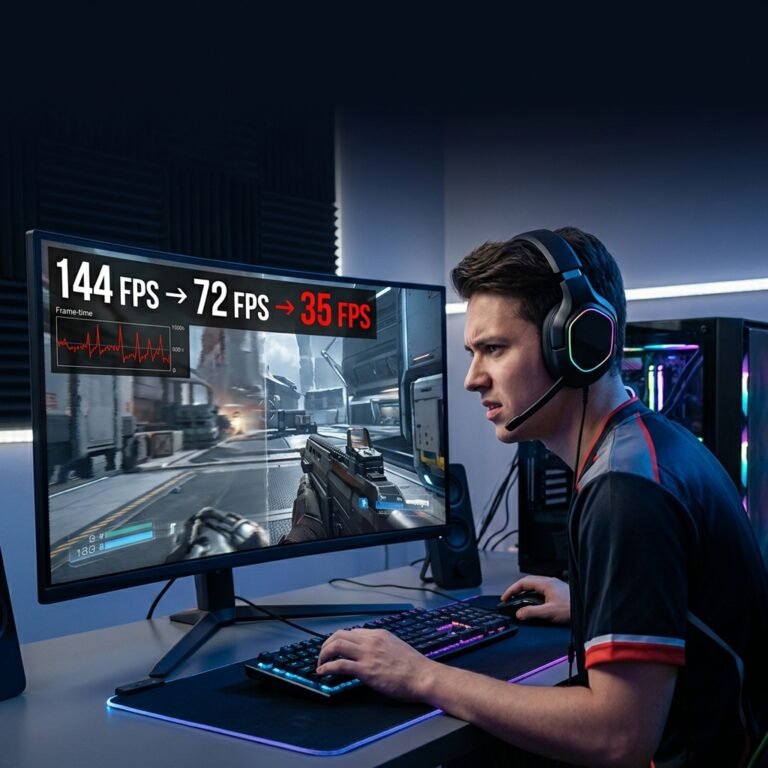
  • Packet loss is different from both — it’s when packets don’t arrive at all, so there’s nothing to measure a “time” for. The data has to be re-requested or reconstructed, which is what causes the sudden freeze-then-snap-forward effect known as rubber-banding.

A useful mental model: latency is how long the mail takes to arrive, jitter is how unpredictable the delivery schedule is, and packet loss is when the letter never shows up at all.

How to Recognize Packet Loss in a Match

Most competitive shooters and battle royales — Valorant, Counter-Strike 2, Apex Legends, Fortnite, Call of Duty — now include a network stats overlay that shows packet loss as a percentage in real time. If you don’t see a built-in indicator, the symptoms are still recognizable: your character teleports forward, your shots register late or not at all, voice chat cuts out mid-sentence, or you get briefly kicked and reconnected. If this sounds familiar in a specific title, it’s worth checking whether the game has known connectivity quirks — for example, players troubleshooting Battlefield 6 connection and ping issues or ARC Raiders lag and server connection problems often find the same underlying causes covered in this guide.

How Much Packet Loss Is “Normal”?

For everyday browsing and downloads, occasional loss under roughly 1% is barely noticeable because TCP automatically resends missing data behind the scenes. Real-time gaming is far less forgiving. Because game traffic runs mostly over UDP (built for speed, not guaranteed delivery), even 1–2% sustained packet loss is enough to cause visible stutter, and anything consistently above 2–3% will make fast-paced competitive play frustrating or unplayable. If you’re seeing numbers like that in a network test, it’s time to move to actual diagnosis rather than guessing.


Quick Fixes to Try First (Under 5 Minutes)

Before diving into diagnostics, try these first — they resolve a surprising number of cases on their own.

  1. Restart your router and modem. Unplug both, wait about 30 seconds, then power the modem back on first, followed by the router. This clears temporary memory issues and forces a fresh connection to your ISP.
  2. Switch from Wi-Fi to Ethernet, even temporarily, to see if the problem disappears. Wireless connections add an extra, unpredictable layer of buffering that wired connections simply don’t have.
  3. Close bandwidth-heavy background apps — cloud backups, game downloads, streaming on another device, or a second family member on a video call. These fill your connection’s usable capacity and are one of the most common everyday causes of gaming packet loss.
  4. Pick a closer or lower-ping server in the game’s region settings, if it offers one. The farther your data travels, the more chances it has to get dropped somewhere along the route.

If these clear up the problem, you’re done. If not, the next step is finding out exactly where the loss is happening — and that requires actual testing, not more guessing.


How to Test for Packet Loss the Right Way

Using the Ping Command

Open Command Prompt and run a sustained ping to a stable public server:

ping -t 8.8.8.8

Let it run for at least 50–100 packets (roughly a minute or two), then press Ctrl + C to stop it. The summary at the bottom shows your loss percentage. This confirms that loss exists, but not where it’s happening — for that, you need the next tool.

Using Pathping to Find Which Hop Is Dropping Packets

pathping is the single most useful built-in Windows tool for this problem because it combines route tracing with statistical sampling at every hop along the way:

pathping -n 8.8.8.8

The -n flag skips slow reverse-DNS lookups so it finishes faster. The test takes a few minutes because it samples each hop for around 25 seconds, but the payoff is a table showing exactly what percentage of packets were lost at each point in the route. According to Microsoft’s own packet loss diagnostics documentation, this hop-by-hop approach is the recommended way to isolate whether a problem is local, upstream, or at the destination.

Here’s how to read the result:

Where loss appearsLikely causeWhat to do
Hop 1 (your router)Local network — Wi-Fi, cable, router hardwareFix your local setup: Ethernet, drivers, router restart
Hop 2–4 (ISP nodes)Your internet provider’s infrastructureDocument it and contact your ISP
Final hop (game server)Server-side congestionLikely unfixable on your end — see the section below

Using WinMTR or PingPlotter for Continuous Monitoring

If loss is intermittent rather than constant, a single pathping run might miss it. WinMTR is a free, lightweight tool that runs the same kind of hop-by-hop test continuously, so you can leave it running in the background during a gaming session and see exactly when and where loss spikes. PingPlotter offers a similar continuous view with a more visual, graph-based interface, which is useful if you want to show an ISP support rep a clear picture of the problem over time.

Checking In-Game Network Stats Overlays

Don’t skip this — it’s the fastest confirmation step. Most modern multiplayer games let you enable a network overlay (often under Settings > Gameplay or Settings > Network) showing live ping and packet loss. Comparing what you see in-game against what pathping shows on your PC helps confirm whether the issue is specific to that title or affects your whole connection.


Fixing Packet Loss Caused by Your Wi-Fi or Local Network

If pathping showed loss starting at hop 1, the problem is local — and it’s usually one of these:

Wired vs. Wireless: Why Ethernet Still Wins

Wi-Fi introduces a scheduling mechanism where devices take turns transmitting, which adds its own layer of unpredictable delay on top of anything happening at your router. For fast-paced, tick-sensitive games, plugging in via Ethernet remains the single highest-impact fix available, especially in a household with multiple connected devices.

Wi-Fi Channel Congestion and Signal Interference

If Ethernet genuinely isn’t an option, try switching your router’s Wi-Fi to a less congested channel (most modern routers can do this automatically), move closer to the router, or switch from the 2.4GHz band to 5GHz or 6GHz if your router and device both support it — the higher bands have far less interference from neighboring networks and household electronics.

Updating Network Adapter Drivers

Outdated network drivers are a well-documented cause of intermittent packet loss. Open Device Manager, find your network adapter, and check for updates — or go directly to your adapter manufacturer’s site (Intel, Realtek, or your GPU vendor’s page for NVIDIA or AMD network components) for the latest driver.

Disabling Adapter Power-Saving Features

Windows can power down your network adapter to save energy, which can cause brief drops during gameplay. In Device Manager, right-click your adapter, open Properties, go to the Power Management tab, and uncheck “Allow the computer to turn off this device to save power.”

Checking Cables and Ethernet Ports for Faults

A worn or damaged Ethernet cable is an easy thing to overlook. If you have a spare cable, swap it in as a quick test, and try a different port on your router if one is available.


Fixing Packet Loss Caused by Your Router (Bufferbloat & QoS)

This is the section most 2026 troubleshooting guides still get wrong — and it’s often the real answer for gamers who have fast internet but still see loss under load.

What Bufferbloat Is and Why It Causes Real Packet Loss

Modern routers try to be “helpful” by storing extra data in a memory buffer instead of dropping it the moment your connection gets busy — say, when someone else in the house starts a large download or a cloud backup. In theory this prevents transfers from failing. In practice, it creates a growing queue of data waiting to be sent, and once that buffer fills up completely, the router has no choice but to start dropping packets outright. That’s bufferbloat, and unlike simple congestion, it can happen even on a fast connection with plenty of measured bandwidth, because the problem is queue management, not raw speed.

You can check whether this affects you with a free online bufferbloat test (several are available, including tools from Cloudflare’s network performance resources). A poor grade under load is a strong sign your router — not your internet plan — is the bottleneck.

Basic QoS vs. Smart Queue Management (SQM/CAKE/fq_codel)

Older-style Quality of Service (QoS) settings just prioritize which device or app gets bandwidth first, but the underlying buffer can still overflow and drop packets regardless. Smart Queue Management (SQM), using algorithms like CAKE or fq_codel, actually manages how deep that buffer is allowed to get in the first place, which is a meaningfully more effective fix. As documented by the Bufferbloat.net project, SQM support is now built into a growing number of mainstream router firmwares, not just enthusiast setups.

To enable it: log into your router’s admin panel (commonly at 192.168.1.1 or router.asus.com-style addresses depending on brand), look for a setting labeled SQM, CAKE, fq_codel, or “Adaptive QoS” (on ASUS routers), and turn it on.

Setting Bandwidth Limits to 85–90% of Your Real Speed

Once SQM is enabled, set the upload and download limits to about 85–90% of your actual measured speed, not your plan’s advertised number. That small buffer of unused capacity is what allows the queue management algorithm to keep your router’s buffer from filling up in the first place.

Updating Router Firmware

Router manufacturers have shipped meaningful bufferbloat and queue-management improvements in firmware updates over the past couple of years. Check your router admin panel or manufacturer’s site for the latest version before assuming you need new hardware.

When to Consider a New Router

If your current router genuinely has no QoS or SQM option at all, and firmware updates haven’t added one, that’s the point where upgrading hardware makes sense — not before.


Windows-Specific Fixes for Packet Loss

If your local hardware and router both check out, corrupted network settings inside Windows itself are a reasonable next suspect.

Resetting the TCP/IP Stack

netsh int ip reset

This rewrites Windows’ TCP/IP configuration back to its installation defaults, clearing out corrupted stack parameters or leftover static routes. A restart is required afterward.

Resetting Winsock

netsh winsock reset

Winsock is the layer that lets network-aware apps (browsers, VPN clients, antivirus tools, Steam, game clients) talk to your network stack. Third-party software can leave broken hooks behind after a bad uninstall, and this command clears them out. Restart your PC after running it.

Flushing and Renewing DNS/DHCP

ipconfig /flushdns
ipconfig /release
ipconfig /renew

This won’t fix true in-session packet loss on its own, but it clears out stale network configuration that can compound other issues, and it’s a quick, safe step to run alongside the resets above.

Using Windows’ Built-In Network Reset

If individual commands don’t help, Windows has a full reset option under Settings > Network & Internet > Advanced network settings > Network reset. Be aware this removes all network adapters and their saved settings, so you may need to reinstall VPN client software afterward.

Checking Task Manager and Resource Monitor for Bandwidth Hogs

Open Task Manager (Ctrl + Shift + Esc) and check the Network column to see which processes are actively using bandwidth while you play. Resource Monitor gives an even more detailed per-process breakdown if you need it.

When to Use Advanced Diagnostics

For persistent, hard-to-pin-down cases, Windows includes Pktmon and netsh trace for capturing detailed packet-level drop events, as outlined in Microsoft’s own troubleshooting documentation. These are more advanced tools best reserved for cases where the simpler steps above haven’t resolved anything.


Other Common Causes and Fixes

MTU Mismatches and How to Test/Adjust Them

If a packet is larger than the maximum size a link along your route can handle, it may need to be fragmented or dropped, generating errors. This is more common with PPPoE connections and some VPN setups. The Windows default MTU is 1500; if you suspect a mismatch, try testing at 1400 to see if it resolves intermittent drops, keeping in mind this is a targeted fix for a specific symptom, not a first step.

VPN-Related Packet Loss (When a VPN Helps vs. Hurts)

A gaming VPN can sometimes route around a genuinely congested ISP path and reduce loss. Just as often, though, it adds an extra hop and extra processing overhead that introduces new loss or latency. Test with and without your VPN active using the pathping method above before assuming it’s helping.

NAT Type and Firewall Interference

An overly restrictive NAT type or firewall rule can cause connection drops that look like packet loss, particularly in games with peer-assisted networking or party/lobby systems. This is a common thread in games like Helldivers 2’s connection and NAT type issues, where players are advised to restart routers to clear NAT conflicts. Setting your router’s NAT type to Open or Moderate, and confirming your firewall allows the specific game through, resolves most of these cases.

IPv4 vs. IPv6 Routing Issues

Occasionally a game or ISP handles IPv6 routing poorly even though the connection itself is fine. If you’re seeing persistent loss and your connection uses IPv6, temporarily disabling it on your network adapter is a reasonable diagnostic test — re-enable it afterward if it doesn’t help.

ISP-Level Congestion and Peak-Hour Slowdowns

If pathping consistently shows loss at the ISP hops (not your local network, not the destination), especially worse during evenings and weekends, this is peak-hour congestion on your provider’s network. Documenting the pathping results with timestamps gives your ISP’s support team something concrete to act on, rather than a vague “my internet is bad” report.


When Packet Loss Isn’t Fixable On Your End

Recognizing Server-Side Packet Loss

If your pathping test shows clean results all the way to the final hop, but you still see loss reflected in the game’s own network overlay, the problem is very likely happening on the game developer’s server infrastructure — completely outside your control.

How to Report It Effectively

Check the game’s official status page and social channels first; server issues are often already known and being worked on. If not, submit a support ticket including your pathping results, the approximate time the issue occurs, and your general region — concrete diagnostic data gets taken far more seriously than “the game is laggy.” Titles like PUBG and Marvel Rivals have public support channels specifically for this kind of report, as covered in troubleshooting guides for PUBG lag and connection issues and Marvel Rivals loading and connection problems.

What to Realistically Expect

Server-side fixes are entirely in the developer’s hands. There’s no local setting, router tweak, or command that resolves this — the honest answer is to wait for a patch or infrastructure fix while keeping an eye on official status updates.


Common Mistakes That Make Packet Loss Worse

  • Chasing bandwidth upgrades instead of fixing the real cause. A faster internet plan doesn’t fix bufferbloat, a bad cable, or a driver issue — and can sometimes make bufferbloat worse, since a bigger pipe means a bigger buffer to fill before problems become obvious.
  • Relying only on paid “booster” software. These tools can occasionally help by rerouting around a congested path, but treating them as the primary fix — rather than an occasional workaround — means the actual underlying problem (router, driver, or local network) never gets addressed.
  • Skipping the diagnostic step and guessing. Randomly trying fixes without running ping or pathping first wastes time on changes that may not even apply to your situation.

Prevention: Keeping Packet Loss From Coming Back

A Simple Monthly Maintenance Checklist

  • Restart your router and modem monthly, even if things seem fine.
  • Check for router firmware updates.
  • Re-run a bufferbloat test after any change to your internet plan or hardware.
  • Keep network adapter drivers current.
  • Periodically re-check that SQM/QoS bandwidth limits still match your actual measured speed.

Monitoring Tools Worth Keeping Installed

Keeping a lightweight tool like WinMTR or PingPlotter installed means you can immediately start gathering evidence the next time something feels off, instead of starting from zero.


Real-World Troubleshooting Workflow

  1. Notice packet loss symptoms in-game (rubber-banding, missed hits, voice cutting out).
  2. Run ping -t to confirm loss is actually occurring.
  3. Run pathping -n to find which hop is dropping packets.
  4. Hop 1 loss → check Wi-Fi/Ethernet, drivers, adapter power settings, cables.
  5. ISP-hop loss → check for bufferbloat, try SQM, then contact your ISP with documented results.
  6. Final-hop loss → check the game’s server status; report it with your data if not already known.
  7. If everything tests clean but problems persist, reset TCP/IP and Winsock in Windows, then retest.
  8. Re-run your test after each change to confirm whether it actually helped before moving to the next step.

Frequently Asked Questions

What is a good packet loss percentage for online gaming?

Aim for as close to 0% as possible. Occasional loss under about 1% is usually unnoticeable, but sustained loss above 2–3% will cause visible stutter and missed inputs in fast-paced games.

Why do I have packet loss even with fast internet?

Speed and packet loss are separate problems. A fast connection can still suffer from bufferbloat, a faulty cable, outdated drivers, or ISP routing issues — none of which are solved by more bandwidth.

How do I check packet loss on Windows 11?

Open Command Prompt and run ping -t 8.8.8.8 for a general loss percentage, then run pathping -n 8.8.8.8 to see exactly which hop along the route is dropping packets.

Does a VPN fix or cause packet loss?

It can do either. A VPN sometimes routes around a congested ISP path and reduces loss, but it also adds an extra hop that can introduce new loss. Test your connection with and without it active to see which is true for you.

Can Wi-Fi cause packet loss even with a strong signal?

Yes. Wi-Fi has its own scheduling and buffering behavior separate from signal strength, which is why switching to Ethernet often helps even when your Wi-Fi bars look full.

Is packet loss my ISP’s fault or my router’s fault?

Run a pathping test to find out. Loss starting at hop 1 points to your local router or hardware; loss appearing several hops in points to your ISP’s network.

Does restarting my router actually fix packet loss?

Sometimes, yes — it clears temporary memory buildup and forces a fresh connection. But if the cause is bufferbloat, a driver issue, or an ISP problem, a restart will only offer temporary relief.

What’s the difference between QoS and SQM for gaming?

Basic QoS prioritizes which device or app gets bandwidth first but doesn’t stop the underlying buffer from overflowing. SQM (using CAKE or fq_codel) actively manages how full that buffer is allowed to get, which is a more complete fix for bufferbloat-related packet loss.


Conclusion

Packet loss feels random when you’re in the middle of a match, but it almost never is. Once you know the difference between packet loss, ping, and jitter, and you’ve run an actual ping and pathping test instead of guessing, you’ll know within a few minutes whether the problem sits with your local network, your router’s queue management, or something entirely outside your control on the game server side.

Start with the quick fixes, move to proper diagnostics if they don’t stick, and treat bufferbloat and SQM as seriously as any router setting — it’s the cause most guides still leave out, and for a lot of gamers with otherwise fast internet, it’s the actual answer. If your testing points to the ISP or the game’s servers, you now have the documented evidence to make that report count instead of guessing in the dark.


Related Resources

Leave a Reply

Your email address will not be published. Required fields are marked *