
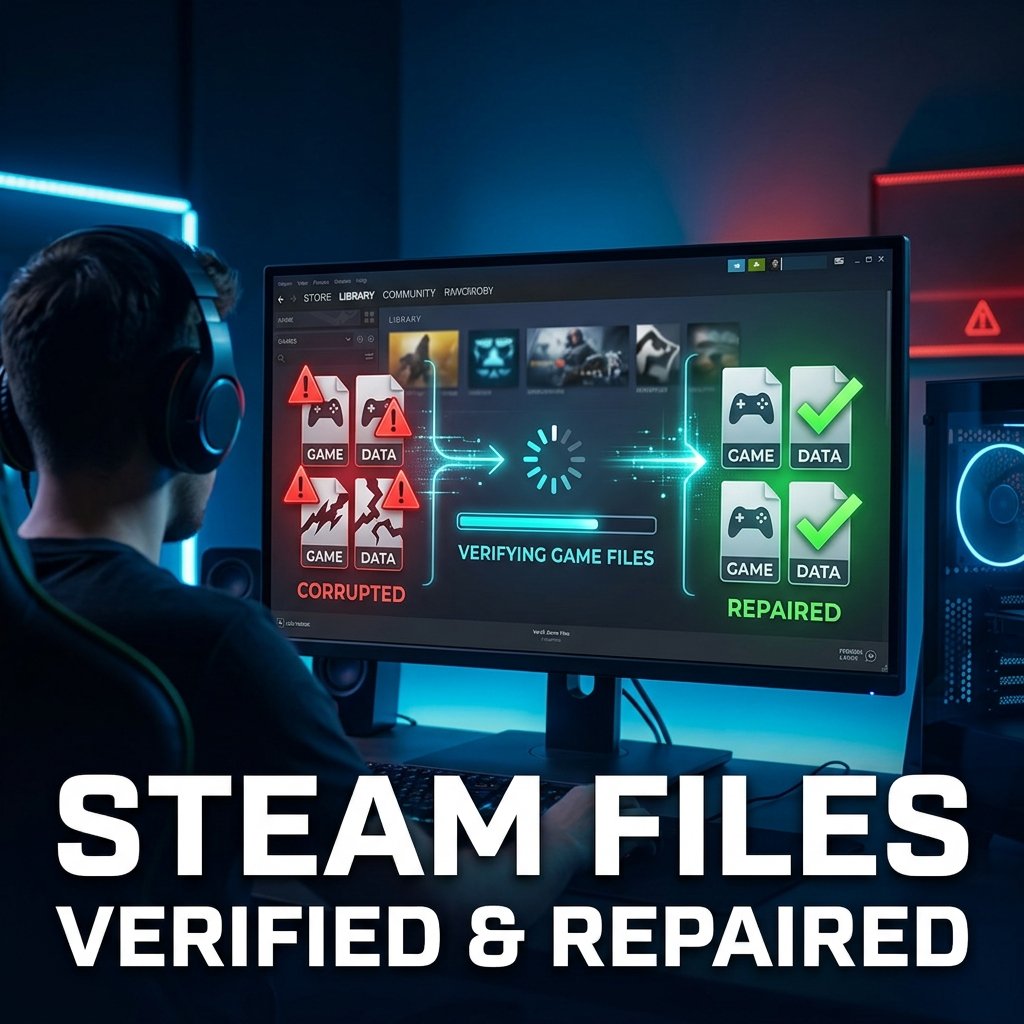
How to Verify and Repair Corrupted Steam Game Files
A game that crashed on launch, froze mid-level, or suddenly greeted you with missing textures and error messages is almost always a sign that something in its installation folder is missing, damaged, or out of sync with what Steam expects. Before you reinstall anything or start digging through Windows settings, it helps to know how to verify and repair corrupted Steam game files using the tool Steam already has built in for exactly this situation. It won’t fix every possible problem, but it’s the right first step for most of them, and understanding what it actually does will save you a lot of guesswork later.
This guide walks through the current verification process, explains what Steam is checking behind the scenes, and covers what to do if the first pass doesn’t solve things — including cases involving mods, save data, and files that keep coming back corrupted no matter how many times you check them.
What Corrupted Steam Game Files Actually Means
“Corrupted” gets used as a catch-all term, but a few different problems usually hide behind it:
- Corrupted files — a file exists but its contents don’t match what Steam expects, often because a download or write was interrupted partway through.
- Missing files — a file Steam expects to find simply isn’t there anymore, whether from a failed install, accidental deletion, or an incomplete update.
- Modified files — a file was intentionally changed, usually by a mod, and no longer matches Steam’s reference copy even though nothing is technically broken.
These aren’t interchangeable. A missing file and a modded file will both show up as a “mismatch” during verification, but only one of them is actually a problem you want fixed. Keeping that distinction in mind will make the rest of this process much less confusing.
Common Signs Your Steam Game Files Are Corrupted
Corruption doesn’t always announce itself clearly. Watch for:
- The game crashing immediately on launch, or failing to launch at all
- Missing textures, models, or placeholder graphics (sometimes called “purple checkerboards”)
- Crashes that consistently happen at the same point in the game
- A “disk write error” or “corrupt disk” message during a download or update
- Steam re-downloading the same files every time you verify, without ever fully resolving
- Verification stuck at 0% or hanging for an unusually long time
- An update that fails to install, sometimes labeled a “corrupt update files” error
If you’re seeing a disk-related error specifically, it’s worth reading up on the Steam disk write error separately, since it often points to a slightly different set of causes than a straightforward corrupted-file problem.
Why Steam Game Files Become Corrupted
A handful of causes account for the vast majority of real-world cases:
- Interrupted downloads or updates — a crash, forced shutdown, or dropped internet connection during a download can leave a file only partially written.
- Antivirus or Windows Defender interference — security software can quarantine or block a legitimate game file mid-write, especially during large updates.
- Insufficient free disk space — Steam needs extra headroom to decompress and write files during installs and updates; a nearly full drive increases the odds of a failed write.
- A damaged Steam download cache — leftover partial data from a previous failed download can interfere with later attempts.
- Failing or aging storage hardware — bad sectors on a hard drive or a dying SSD can corrupt data even when nothing else went wrong.
- File-system damage — if the underlying NTFS file system on your library drive is damaged, files can be written to or read from bad areas of the disk.
- Restricted folder permissions — if Steam doesn’t have full write access to its library folder, updates and repairs can fail partway through.
Viruses actively corrupting game files is rare today; in most cases, what looks like malware interference is actually antivirus software being overly cautious rather than an infection.
What Steam’s File Verification Actually Does
Steam keeps a record of every file it installed for a given game. When you run verification, Steam checks each of those files against that record — comparing size and content — and flags anything that doesn’t match. If a file is missing entirely, or its contents differ from what Steam expects, Steam deletes the broken copy and automatically re-downloads a clean version from its servers.
This is different from a general disk scan or an antivirus check. Verification only knows about files Steam itself installed. Anything it never put there in the first place — including most mod files — is simply ignored, since Steam has no reference copy to compare it against. That’s also why verification can’t detect or fix problems that aren’t file-related, such as driver conflicts, corrupted graphics settings, or bugs in the game itself.
How to Verify and Repair Corrupted Steam Game Files (Step-by-Step)
Here’s the current process in Steam, from opening your library to reading the result. It’s also documented directly on Steam’s own support page for verifying game file integrity, if you’d like to cross-check it against the source.
Step 1: Open your Steam Library
Launch Steam and click Library at the top of the window to see your list of installed games.
Step 2: Open the game’s Properties
Right-click the game giving you trouble (or click the gear icon on its library page) and select Properties from the menu.
Step 3: Go to the Installed Files tab
In the Properties window, click the Installed Files tab. Older versions of Steam labeled this tab Local Files — it’s the same feature, just renamed at some point, so don’t worry if a guide or forum post you’ve read refers to it by the old name.
Step 4: Click “Verify integrity of game files”
You’ll see a button labeled Verify integrity of game files… Click it to start the check.
Step 5: Let the process run
Steam will scan every installed file for that game and compare it against its reference copies. This can take anywhere from under a minute to twenty or more, depending on how large the game’s library is and how fast your drive is. Avoid canceling the process partway through — interrupting it can leave the game in a worse state than before and force you to start over.
Step 6: Read the result
When it finishes, the check window closes automatically. You may see a message noting that a certain number of files failed to validate and were reacquired, or no message at all if everything checked out. Either way, launch the game again to see whether the issue is resolved.
What “One or More Files Failed to Verify” Really Means
Seeing that message can be alarming, but it’s frequently normal. Many games include a small number of local configuration files that are expected to differ from Steam’s reference copies — these often store personal settings rather than core game data, and Steam intentionally leaves some of them alone. A single recurring “failed to verify” file that doesn’t affect gameplay is usually nothing to worry about.
What’s worth paying attention to is a large number of failed files, or the same significant files failing every time you verify, especially if the game still isn’t working properly afterward. That pattern points toward one of the deeper causes covered later in this guide, rather than a harmless configuration quirk.
Will Verifying Game Files Delete My Saves, Mods, or Settings?
This is one of the most common concerns before running verification, and the honest answer depends on what you’re asking about.
Save files and Steam Cloud
Save data is generally stored separately from a game’s installed files — either in Steam’s own user data folders or synced through Steam Cloud — so verification typically doesn’t touch it. That said, “typically” isn’t “always”: a small number of games store save data inside their install folder rather than in the standard location, and Cloud-sync conflicts can occasionally cause confusion around which save is current. If you have progress you can’t afford to lose, it’s worth taking a quick look at how to recover lost game save files beforehand so you know your options exist if something does go sideways. Games with ongoing Cloud sync issues specifically are covered in more detail in this guide to Cloud save sync problems.
Mods and custom files
This is where verification is more likely to cause visible changes. If a mod works by directly replacing an official game file — a texture, a config file, a script — verification will detect that file as “mismatched” and restore Steam’s original version, effectively undoing the mod. Mods that only add new files alongside the originals, rather than overwriting them, are usually left untouched, since Steam has no record of them to compare against.
Important: If your game is modded, back up any files you’d be upset to lose before verifying, or disable mods that overwrite official files ahead of time. Worst case, you’ll need to reapply or redeploy them afterward through your mod manager.
What to Do If Verification Doesn’t Fix the Problem
If the game still isn’t working after a clean verification pass, work through these in order — easiest and least invasive first.
- Restart Steam and your PC. This clears out any stuck background processes that might still be holding a file open or interfering with a fix that already applied.
- Clear the Steam download cache. Go to Steam’s settings, open the Downloads tab, and click Clear Download Cache. This is especially useful if verification seems to stall, loop, or never fully complete. If your download got stuck entirely rather than just repeating, see this guide to a Steam download stuck at 0%.
- Check your available disk space. Steam needs extra room beyond a game’s final install size to decompress and write update files. A drive that’s nearly full is a common, easily overlooked cause of repeat failures.
- Check for antivirus interference. Temporarily see whether your security software is blocking or quarantining game files, and add Steam’s library folders as an exclusion if so.
- Repair the Steam library folder. In Steam’s Downloads settings, you can select a specific library folder and choose to repair it, which can resolve deeper path or metadata issues that a simple file verification won’t catch.
- Consider Windows-level or hardware causes. If problems persist across multiple different games, the issue is more likely with your drive, your Windows installation, or your RAM than with any individual game. Windows includes a built-in tool called CHKDSK that can scan a drive for file-system errors and bad sectors — useful for ruling out storage-level causes, though it’s worth noting Microsoft’s own documentation confirms it won’t repair already-corrupted files, only the underlying disk structure. If the failure started right after a Windows update, this guide on games crashing after a Windows update covers that scenario specifically, and if the game won’t launch at all after all of the above, see Steam games not launching on Windows.
| Verification Result | What It Means | What to Do |
|---|---|---|
| No issues found, game still crashes | The files are fine; the cause is elsewhere | Investigate drivers, settings, or Windows-level causes |
| A few files reacquired, game now works | Verification did its job | Nothing further needed |
| Same files fail every time you verify | Something keeps damaging or blocking those files | Check antivirus, disk space, and drive health |
| Verification stuck or never completes | Cache, network, or permission issue | Clear the download cache and check permissions |
When Files Keep Becoming Corrupted Repeatedly
If verification “fixes” the same files over and over without the problem staying fixed, something is actively causing the damage rather than it being a one-time event. The most likely culprits are a failing drive (listen for unusual noises, or check the drive’s health with a manufacturer diagnostic tool), persistent antivirus interference that keeps flagging the same files, or a mod that reapplies itself and overwrites official files every time you launch the game. Ruling these out one at a time, starting with antivirus exclusions since they’re the quickest to test, is generally more productive than repeatedly re-running verification and hoping for a different result.
When to Reinstall vs. When to Investigate Further
Reinstalling feels like a clean-slate fix, but for a corruption problem it’s rarely necessary and can cost hours of download time for something verification could have solved directly. Verification exists specifically to avoid full reinstalls by only replacing the files that are actually broken. Save a full reinstall for cases where verification, cache clearing, and library repair have all been tried without success, or where you suspect the install itself is fundamentally misconfigured — for example, after manually moving game folders outside of Steam’s own library-management tools. If you’re dealing with installation failures more broadly rather than an already-installed game acting up, this guide to corrupted game installation files covers that earlier stage of the process in more depth.
Frequently Asked Questions
What does verifying Steam game files do?
It compares every file Steam installed for a game against Steam’s reference copies and automatically re-downloads anything that’s missing or doesn’t match.
Can Steam repair corrupted files, or does it just detect them?
Both. Verification automatically fixes what it finds — you don’t need a separate repair step once a mismatch is identified.
Does verifying game files delete my saves?
Usually not, since save data is normally stored separately from a game’s installed files. A small number of games are exceptions, so if you’re unsure, back up your save folder or confirm Steam Cloud is enabled before verifying.
How long does Steam file verification take?
It varies widely based on the game’s size and your drive speed — anywhere from under a minute for a small game to twenty-plus minutes for a very large one.
Why does Steam keep finding corrupted files after I already verified?
This usually points to something actively damaging or blocking those files between verification passes, most often antivirus software, a failing drive, or a mod that keeps overwriting official files.
What does “files failed to validate” mean?
It means Steam found files that don’t match its reference copies. A small number of local configuration files failing is normal for many games; a large number failing, or the same major files failing repeatedly, is worth further investigation.
Does Steam verification remove mods?
Only mods that directly overwrite an official game file. Mods that add separate files alongside the originals are typically left alone.
What if verifying files doesn’t fix the game?
Work through cache clearing, disk space, antivirus exclusions, and library repair in that order before considering a full reinstall.
Should I reinstall Steam itself if files keep becoming corrupted?
Rarely. Reinstalling the Steam client addresses client-level problems, not per-game file corruption — if one specific game keeps having issues, the cause is almost always tied to that game’s install, your drive, or software interference rather than Steam itself.
Conclusion
Start with Steam’s built-in verification tool — it’s built for exactly this problem and will resolve most cases of missing or damaged game files without any risk to your saves. If it comes back clean but the game still doesn’t work, or the same files keep failing no matter how many times you check them, the cause has moved beyond simple file corruption into territory involving your antivirus software, your storage drive, or your Windows setup. Work through those possibilities in order rather than jumping straight to a full reinstall, and you’ll usually find the actual source of the problem well before you need to redownload anything.

One Comment