How to Fix Cloud Save Sync Problems
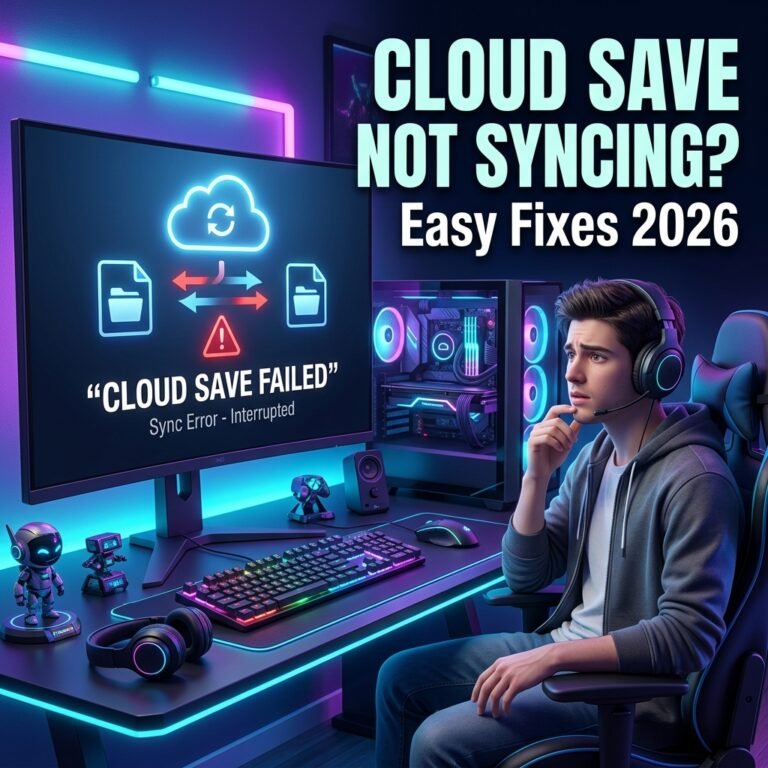
A cloud save sync error usually shows up at the worst possible moment: you launch a game and instead of your save loading, you get a warning that your local files and your cloud files don’t match. Learning how to fix cloud save sync problems starts with understanding one thing — that warning is not a sign your progress is gone. It’s the platform pausing to ask you which version of your save is correct, because it genuinely doesn’t know. Click through it carelessly, and you can overwrite hours of progress. Handle it deliberately, and you’ll almost always keep everything you’ve earned.
This guide walks through why cloud save syncing breaks, how to protect your existing save data before you touch any settings, and the safest order to work through fixes — from simple checks to platform-specific troubleshooting for Steam, Epic Games, Xbox, PlayStation, Ubisoft Connect, EA app, and GOG Galaxy.
Why Cloud Save Sync Fails
Cloud saving works by comparing two copies of your save data: the one stored locally on your device and the one stored on the platform’s servers. Every time you close a game, the local copy is supposed to upload to the cloud. Every time you open a game on a different device, the cloud copy is supposed to download to that device. When both sides agree on which version is newest, everything works silently in the background.
Sync fails when that comparison breaks down. That can happen for several reasons:
- Cloud sync is turned off, either globally in the launcher or specifically for that game
- You played offline, then reconnected without giving the app time to reconcile the change
- Your internet connection dropped mid-upload
- The same account is signed in and active on two devices at once, which most platforms treat as a red flag rather than a normal event
- A game crash or forced shutdown corrupted the local save file before it could sync
- The platform itself is experiencing a service outage — this isn’t rare. In February 2026, a widespread Xbox Live disruption affected save syncing across multiple titles, and both Steam and Ubisoft Connect have had shorter, more localized outages during 2026 that briefly blocked syncing entirely
- Your cloud storage allotment is full, so new saves silently stop uploading
None of these causes are permanent on their own. The real risk isn’t the sync failure itself — it’s what happens if you respond to it incorrectly.
Why a Sync Conflict Can Put Your Save at Risk
When local and cloud saves genuinely disagree, most platforms show you a conflict prompt asking which version to keep. This is where save data actually gets lost, and it’s almost always because someone picked the wrong option under pressure. Epic Games’ own support documentation is direct about this: when a Cloud Save conflict appears, you should select the file marked NEWER, because choosing the older file will overwrite your recent progress, and that progress is not recoverable through the platform once it’s gone. PlayStation 5 saves have a similar risk profile — the console doesn’t support save versioning, so once a save is overwritten, there’s no built-in way to step back to the previous version.
That’s why the very first thing to do when you see a sync warning is not to fix the sync. It’s to protect what you already have.
Before You Touch Anything: Protect Your Save Data
Every official troubleshooting resource for every platform converges on the same advice: back up your local save folder before changing any cloud settings or responding to a conflict prompt. This takes a few minutes and removes almost all of the real risk from the rest of this process.
Copy your game’s local save folder to a separate location — a different folder on your drive, an external drive, or cloud storage you control (like Dropbox or Google Drive). You don’t need to do anything with the copy. It’s just there as a safety net in case a later step doesn’t go the way you expect.
How to Tell Which Save Is Actually Newer
If you’re facing a conflict prompt, don’t assume the cloud version is automatically correct just because it’s labeled “cloud.” Compare:
- Timestamps — most platforms show when each version was last saved
- Playtime — if the game tracks hours played, the higher number is usually the more recent save
- Your own memory of what you last did — if you remember finishing a specific mission or reaching a specific level, that can settle an ambiguous timestamp
If the timestamps are identical or unclear and you can’t confidently tell which is newer, don’t guess. Back up both versions separately and, if needed, contact official support before proceeding — this is exactly the scenario where a wrong click causes real, permanent loss.
Step-by-Step: Safe, Low-Risk Fixes First
Work through these before anything more advanced. They fix the majority of sync failures without any risk to your save data.
1. Check for a Platform-Wide Outage
Before assuming the problem is on your end, check the platform’s status page (Steam, Xbox, PlayStation Network, or Ubisoft) or a third-party outage tracker. If a sync-related outage is in progress — as happened during the February 2026 Xbox Live incident — the fix is simply to wait. Changing settings or forcing syncs during an active outage won’t help and can create confusing conflict states once service is restored.
2. Confirm You’re Signed Into the Right Account, on One Device at a Time
Sync errors frequently appear when the same account is active on two devices simultaneously — for example, a game still running on your desktop while you try to launch it on a laptop. Fully close the game (and ideally the launcher) on every other device before continuing.
3. Check Your Internet Connection
Cloud sync needs a stable connection more than a fast one. A weak Wi-Fi signal that’s fine for browsing can still drop during a save upload. If you’re using a VPN, try disabling it temporarily, since some VPNs interfere with the connection between the launcher and the platform’s servers.
4. Confirm Cloud Sync Is Actually Enabled
Check both the global cloud-sync setting in the launcher and the per-game setting. Some games can have cloud sync disabled individually even when the launcher’s global setting is on, which silently stops that one title from syncing while everything else works normally.
5. Let Sync Fully Finish Before Closing the App
If you close a launcher or shut down your device before an upload finishes, that session’s progress never reaches the cloud. Watch for a “synced” or “up to date” indicator before exiting. This one habit prevents a large share of future sync problems.
6. Restart the Launcher
Restarting the launcher refreshes its connection to the platform’s servers and gives it a fresh opportunity to process a sync request that may have stalled. It’s low-effort and worth doing before moving to anything more involved.
Resolving a Cloud/Local Save Conflict Safely
If you’ve backed up your save and you’re now facing the actual conflict prompt, here’s how to work through it:
- Read the prompt carefully. It’s telling you the platform found two different versions and needs you to choose.
- Compare timestamps and playtime between the two options, as described above.
- Choose the version that matches your most recent play session — not automatically whichever option is listed first or labeled “cloud.”
- If you’re not sure, stop and don’t choose yet. Most platforms let you back out of the prompt without launching the game. Use that time to verify.
If you do choose wrong, check whether the platform offers any recovery window before assuming the older progress is gone for good — more on that in the recovery section below.
More Advanced Fixes (Use With Caution)
Try these only after the basic checks above haven’t resolved the issue, and only after you’ve backed up your local save.
Clearing Launcher Cache
Corrupted cache data inside a launcher can interfere with how it reads sync status, even when your actual save files are fine. Clearing the cache forces the launcher to rebuild that information from scratch. This does not delete your save files, but it’s still worth doing with a backup in place.
Verifying or Repairing Game Files
If the launcher offers a “verify integrity” or “repair” option, running it can fix a corrupted local installation that’s blocking sync — though it’s worth noting this step can occasionally remove mods or custom configuration files, so back those up too if they matter to you.
Checking Your Cloud Storage Quota
Cloud storage isn’t unlimited. Steam Cloud allocates a fixed amount of space per account, and PlayStation Plus cloud storage caps out at 100GB for PS5 saves and a separate 100GB for PS4 saves. If you’re near your limit, new saves can stop uploading without any obvious error message. Check your account’s storage usage and remove old, unneeded saves if you’re close to the cap.
Checking Folder Permissions and Security Software
Firewall or antivirus software can occasionally block a launcher from reading or writing local save files, which then blocks the sync process entirely. If you’ve ruled everything else out, check whether your security software has flagged or restricted the launcher, and allow it if you recently updated your antivirus or firewall settings.
Do not delete local save files at this stage, even if a guide elsewhere suggests it as a quick fix. Deleting files removes your safety net entirely. If a step ever calls for removing or replacing a save, make sure you have a verified backup first and understand that the action may not be reversible.
Platform-Specific Fixes
Steam Cloud
Steam Cloud only syncs the specific files a game’s developer configured it to sync — it’s a synchronization tool, not a full backup system, so a game showing “up to date” doesn’t guarantee every save file is included. Start by confirming Cloud is enabled both globally, under Steam’s Cloud settings, and individually for the game in its Properties menu. If sync still fails, clear Steam’s download cache and verify the game’s files. For conflicts, Steam’s own Cloud troubleshooting guidance explains how to check sync status per game. If a save appears genuinely lost, Steam maintains a rolling backup of Cloud saves for roughly 30 days, recoverable by contacting Steam Support with your Steam ID, the game name, and an approximate timestamp for the save you’re trying to recover.
If the underlying issue turns out to be a local storage problem rather than sync itself, it’s worth checking whether you’re also seeing a Steam disk write error, which can prevent saves from writing correctly in the first place.
Epic Games Launcher
Epic’s cloud save system is opt-in per game and controlled from the launcher’s Settings menu under Enable Cloud Saves. When a conflict appears, Epic’s official guidance is unambiguous: choose the file marked NEWER, since selecting the older version will overwrite your progress permanently. If the launcher seems stuck on “Cloud Syncing” and won’t proceed, restarting the launcher or briefly disconnecting from the internet to force an offline launch can unstick it — the local save will still sync once you’re back online. If login problems are part of what’s blocking sync, our guide on fixing an Epic Games login error covers that separately, and if the launcher itself won’t open at all, see Epic Games Launcher won’t open.
Xbox / Microsoft Store
Xbox cloud saves sync through Xbox Live and, on PC, through the Xbox app and its background Gaming Services component. Microsoft’s official error-message reference is the most reliable source for interpreting a specific Xbox sync error. As of mid-2026, Xbox has been actively working on this experience: the Xbox Cloud Gaming Fullscreen Experience update added a visible last-synced timestamp so players can confirm a save actually uploaded before switching devices, and Xbox’s engineering team publicly acknowledged in July 2026 that save-data error messages have been too cryptic, with clearer, more actionable messaging in development. In the meantime, if a sync error persists, checking Xbox service status, confirming you’re signed into the same Microsoft account across devices, and repairing Gaming Services through Windows’ Installed Apps settings resolve most cases.
PlayStation (PS5 / PS4)
PS5 games sync automatically in both directions to whichever save is most recent, as long as automatic updates and “Stay Connected to the Internet” in Rest Mode are enabled. PS4 saves upload automatically but must be downloaded manually when moving to a PS5. According to PlayStation’s official cloud storage documentation, PlayStation Plus cloud storage provides 100GB for PS5 saves and a separate 100GB for PS4 saves. When you see the “couldn’t sync your saved data due to a conflict” message, go to Settings > Saved Data and Game/App Settings > Saved Data (PS5), and manually choose between console storage and cloud storage — compare whichever timestamp matches your actual last play session rather than defaulting to either option. Because PS5 doesn’t version saves, there’s no way to recover the discarded copy afterward, so treat this choice carefully.
Ubisoft Connect
Ubisoft Connect’s “Failed to Synchronize Cloud Saves” error is most often tied to an unstable connection, a VPN, firewall interference, or a corrupted local save file that the client can’t read. Ubisoft’s official cloud save troubleshooting page covers the standard checks. If those don’t resolve it, temporarily disabling cloud sync for the affected game, playing briefly to generate a fresh local save, then re-enabling sync can prompt a clean re-upload — just back up the existing save folder first. If a save was lost entirely, Ubisoft’s guide on restoring save files for Ubisoft games on PC walks through the recovery process.
EA App
Cloud saves in the EA app have been inconsistently reliable according to reports on EA’s own community forums, with some players needing to temporarily force the launcher into offline mode to get a game to open when cloud sync gets stuck. If you hit this, check for an EA app update first, since this is an area EA has continued to patch. As with the other launchers, confirm cloud saves are enabled per-game in the settings before assuming something deeper is wrong.
GOG Galaxy
GOG Galaxy’s cloud sync issues are less common but tend to appear after account-system changes — for instance, some CD Projekt RED titles required players to separately link a CDPR account after GOG and CDPR login systems were split. If a specific game’s cloud saves suddenly stop syncing after being fine previously, check whether that title requires its own developer account link in addition to your GOG login.
Recovering a Lost or Overwritten Cloud Save
If you’ve already chosen the wrong save in a conflict, or a sync failure appears to have erased progress, don’t assume it’s permanently gone before checking your options.
- Steam keeps a rolling backup of Cloud saves for about 30 days. Contact Steam Support with the game name, your Steam ID, and an approximate time for the save you need.
- Xbox and PlayStation don’t offer the same guaranteed backup window, but it’s still worth checking your local save cache — on PC, look for lingering save folders under the game’s AppData or Packages directory before they’re overwritten — and contacting official support, since account-specific recovery is sometimes possible.
- Ubisoft, EA, and GOG generally direct players to their respective support teams for save recovery, since none of these publish a guaranteed self-service recovery window.
When you contact any platform’s support team, have the game name, your account/ID, and an approximate timestamp of the save you’re trying to recover ready — this is consistently the information support teams ask for first, and having it ready speeds up the process considerably.
If recovery isn’t possible, it’s worth being honest with yourself about it: cloud sync is a convenience feature, not a guaranteed backup system, and once a platform confirms nothing is recoverable, further troubleshooting won’t change that outcome.
How to Prevent Cloud Save Sync Problems in the Future
- Let every sync finish before switching devices or shutting down. Watch for the “up to date” or “synced” indicator.
- Avoid running the same game on two devices at once, even briefly.
- Keep a manual backup of saves you especially care about, separate from the automatic cloud sync, especially for long single-player campaigns.
- Keep your launcher and console software updated, since platforms like Xbox have continued shipping sync-reliability improvements throughout 2026.
Frequently Asked Questions
Why is my game’s cloud save not syncing?
Usually one of a few things: cloud sync is disabled for that specific game, your internet connection dropped during the upload, the same account is active on another device, or the platform is experiencing a temporary outage. Check platform status first, then confirm your sync settings.
How do I force a cloud save to sync?
Make sure the game is fully closed, confirm cloud sync is enabled for it, and restart the launcher. Some platforms also offer a manual “sync now” or “retry sync” option directly in the game’s properties or settings.
What happens if my local save and cloud save conflict?
The platform will ask you to choose which version to keep. Compare timestamps and playtime, and choose the one matching your most recent play session rather than guessing.
Should I choose the local save or the cloud save when prompted?
Neither option is automatically correct — choose whichever one is actually newer based on timestamps, playtime, or your memory of your last session, not based on the label.
Can I recover a cloud save that was overwritten?
Sometimes. Steam keeps roughly a 30-day rolling backup accessible through support. Other platforms vary and don’t guarantee recovery, so it’s worth contacting official support quickly rather than assuming it’s unrecoverable.
Why is Steam Cloud not syncing between my devices?
Steam Cloud only syncs files the game developer specifically configured, so check that the game supports Steam Cloud at all. From there, confirm the setting is enabled both globally and per-game, and check your internet connection.
Why is my Epic Games cloud save not working?
Confirm Cloud Saves is enabled in the launcher’s settings, and make sure you’re not playing offline on one device while trying to sync on another. If a conflict prompt appears, choose the file marked NEWER.
Can a cloud save become corrupted?
Yes — usually from a crash or forced shutdown during a save operation. A corrupted local file can block the sync process entirely until it’s repaired or replaced with a verified backup.
Do cloud saves require an active internet connection to work?
Yes, syncing requires connectivity. You can still play and save locally while offline; the local save will sync once you’re back online, assuming the platform correctly reconciles it as the newer version.
How do I stop cloud save conflicts from happening again?
Let syncs finish before switching devices, avoid playing the same game on two devices simultaneously, and keep your software updated.
Why does my PS5 say it “couldn’t sync saved data due to a conflict”?
This means the console detected a mismatch between the save stored locally and the one in PlayStation cloud storage. Go to Settings > Saved Data and Game/App Settings > Saved Data (PS5) and manually choose the correct version based on timestamps.
Does Steam really keep a backup of my cloud saves?
Yes, Steam maintains a rolling backup of Cloud saves for roughly 30 days, which Steam Support can help restore if you act within that window.
Conclusion
Cloud save sync problems look alarming, but the underlying cause is almost always one of a small handful of things: a disabled setting, an unstable connection, a temporary outage, or a genuine conflict between two save versions. The single most important habit is backing up your local save before you respond to any warning or change any setting — it removes nearly all of the real risk from troubleshooting. Work through the basic checks first, resolve conflicts deliberately by comparing timestamps rather than guessing, and if a save genuinely seems lost, contact official platform support quickly with your account details and an approximate timestamp. In most cases, your progress is still recoverable — you just need to handle the next few clicks carefully.