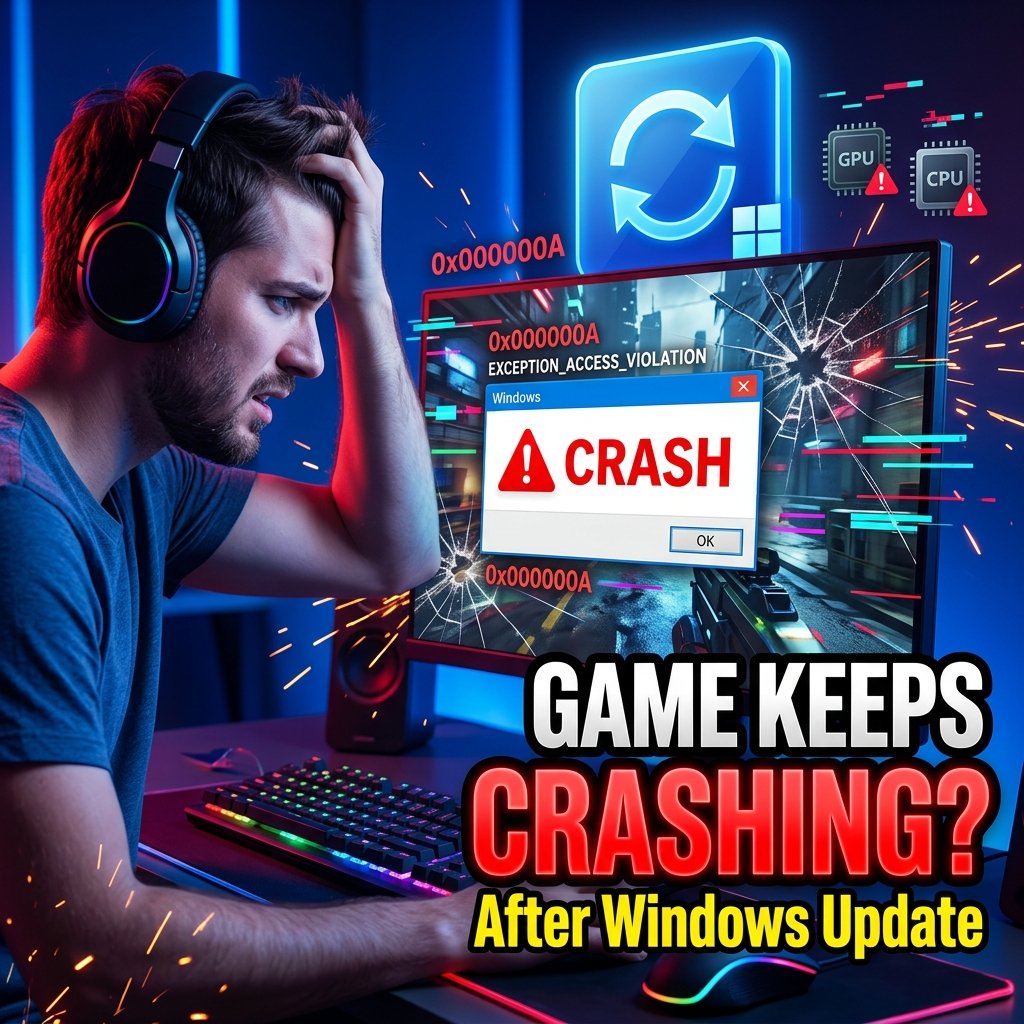
Game Crashes After Windows Update? Here’s the Real Fix
Everything was running fine. Then Windows quietly installed an update, restarted your PC, and now your favorite game won’t stay open for more than a few minutes — or it won’t even launch. If your game crashes after a Windows update, you’re not imagining things, and you’re not alone. This is one of the most common PC gaming problems, and it almost always comes down to one of a handful of predictable causes: a graphics driver that hasn’t caught up, a security feature that now conflicts with your anti-cheat software, or a system file that got scrambled during installation.
The good news is that this problem is usually fixable in under an hour, and you don’t need to reinstall Windows to do it. In this guide, we’ll walk through exactly why this happens, how to confirm the update is really to blame, and a complete list of fixes — from the quick and easy to the more advanced — so you can get back to actually playing instead of troubleshooting.
Why Games Crash After a Windows Update
Windows updates aren’t just security patches. They can quietly change graphics scheduling behavior, tighten security defaults like Memory Integrity, update core system drivers, or replace files that games and anti-cheat software depend on. Most of the time this happens without any visible warning — you just notice your game crashing that same day.
The mismatch happens because your GPU vendor, your anti-cheat provider, and Microsoft don’t all update on the same schedule. When Windows changes something first, your graphics driver or your anti-cheat client may not yet know how to handle it, and the result is instability, a crash to desktop, or in more serious cases, a blue screen.
The Most Common Causes, Ranked by Frequency
In order of how often they actually turn out to be the culprit:
- Outdated or conflicting GPU drivers — by far the most common cause. A Windows update can shift internal scheduling or API behavior just enough to expose a bug in an older driver.
- Anti-cheat vs. security feature conflicts — kernel-level anti-cheat systems like Riot Vanguard, Easy Anti-Cheat, and BattlEye rely on deep system access that can clash with Windows security features such as Memory Integrity (HVCI), Virtualization-Based Security (VBS), and IOMMU/Kernel DMA Protection.
- DirectX or Visual C++ Runtime mismatches — games that depend on a specific DirectX or C++ redistributable version can fail to launch if an update alters or removes a file they expect.
- Corrupted system files or a failed update installation — occasionally the update itself doesn’t install cleanly, leaving damaged system files behind.
- Overlay software conflicts — Discord, Steam, Xbox Game Bar, and tools like MSI Afterburner/RivaTuner inject code into your game’s rendering pipeline, and a Windows-level change can suddenly make that injection unstable.
Windows 10 vs. Windows 11 Differences
Windows 11 generally enforces more security features by default, which is why anti-cheat and Memory Integrity conflicts tend to show up more often there. Windows 10 issues, on the other hand, skew more toward older graphics drivers and DirectX compatibility, since much of its hardware base is older. Either way, the diagnostic process below works for both.
Confirming the Windows Update Is Actually Causing Your Game Crashes
Before changing any settings, it’s worth spending five minutes confirming the update is really the cause. Guessing wrong means wasting time on fixes that were never going to help.
Game Crashes After Windows Update — How to Confirm It
- Check your current build number. Press
Win + R, typewinver, and press Enter. Note the version and build number shown. - Open Reliability Monitor. Press Start, type “Reliability History,” and open it. You’ll see a calendar with a red X marking each day something crashed. If the crashes start clustering right after a specific date, that’s your first strong clue.
- Cross-reference your Update History. Go to Settings > Windows Update > Update History and check whether a KB update installed on or near that date.
- Check Microsoft’s Windows Release Health dashboard. Microsoft actively tracks known problems by update and by device, and will note if an issue like yours has already been reported and whether a fix is coming.
If your crash timeline lines up neatly with an update install date, you can skip straight to the driver and update-related fixes below rather than working through every possible cause.
Reading Event Viewer and Minidump Clues
For a bit more certainty, open Event Viewer (search for it in the Start menu) and look under Windows Logs > System around the time of the crash. Look for a BugCheck code or a referenced driver file name, such as a .sys file. A driver name pointing to your GPU (like nvlddmkm.sys) suggests a graphics driver issue, while a name tied to an anti-cheat client (like vgk.sys for Vanguard) points toward a security/anti-cheat conflict. You don’t need to become a kernel debugging expert — just having the file name narrows down which fix to try first.
Step-by-Step Fixes (Easiest to Advanced)
Work through these roughly in order. Most people find their fix somewhere in the first five steps.
Fix 1 — Update or Roll Back Your GPU Driver
Outdated graphics drivers are the single most common reason games crash after a Windows update, so this is always worth trying first.
- Go directly to your GPU vendor’s site — NVIDIA, AMD, or Intel — rather than relying on whatever Windows Update installs, since vendor sites usually have the newest release.
- Install the latest driver and restart.
- If crashes continue or started right after a driver update, do a clean reinstall using Display Driver Uninstaller (DDU) in Safe Mode. This removes old driver remnants that a normal install can leave behind and that often cause exactly this kind of instability.
Why it works: A clean, current driver removes the most common source of mismatch between Windows and your GPU. When to use it: Any time crashes started after a Windows or driver update, or you’re not sure what changed. Expected result: For a large share of users, this alone resolves the issue.
If your crashes come with DirectX-related error messages specifically, it’s worth also working through this guide on how to fix DirectX errors while launching games, since driver and DirectX problems frequently overlap.
Fix 2 — Uninstall the Problem Windows Update
- Go to Settings > Windows Update > Update History > Uninstall Updates.
- Find the KB number that matches your crash timeline and click Uninstall.
- Restart and test your game.
Why it works: It reverts the specific change that likely triggered the conflict. When to use it: When you’ve confirmed a specific KB lines up with the crash and no driver update has fixed it. Expected result: Crashes usually stop immediately, but treat this as temporary — Windows will likely offer the update again, sometimes in a revised form.
Fix 3 — Check for a Known Issue on Windows Release Health
Microsoft maintains a public Windows Release Health dashboard that lists confirmed problems tied to specific updates, along with whether Microsoft has applied a “safeguard hold” to prevent the update from installing on affected hardware. If your device shows a missing update that others have received, this is often why — and forcing it manually through the Microsoft Update Catalog can reintroduce the very bug Microsoft is trying to prevent. Checking this page first can save you from creating a new problem while trying to fix an old one.
Fix 4 — Reinstall DirectX and Visual C++ Redistributables
If your game fails to launch entirely, or throws a missing-component error, reinstalling these two components is a fast, low-risk fix.
- Download the latest DirectX End-User Runtime from Microsoft.
- Install the current Visual C++ Redistributable packages for both x86 and x64.
- Restart and relaunch the game.
If you’re seeing specific missing-file errors, this guide on fixing missing DLL errors in PC games walks through identifying and resolving the exact file involved.
Fix 5 — Verify and Repair Game Files
Sometimes it’s not Windows at all — a partially failed update can coincide with (or even damage) game files.
- Steam: Right-click the game > Properties > Installed Files > Verify integrity of game files.
- Epic Games, EA App, Ubisoft Connect, Battle.net: Use each launcher’s built-in “Verify” or “Repair” option, usually found in the game’s settings menu.
For a deeper walkthrough, see this guide on fixing corrupted game installation files. And if a crash happened mid-save and your progress looks affected, this guide on recovering corrupted save data can help you get it back.
Fix 6 — Adjust Anti-Cheat and Security Conflicts
This is the fix most people don’t expect, but it’s extremely common with competitive, anti-cheat-protected games.
Vanguard, Easy Anti-Cheat, and BattlEye Conflicts
Kernel-level anti-cheat systems like Riot’s Vanguard, Epic’s Easy Anti-Cheat, and BattlEye need deep, trusted access to your system to detect cheating tools. Windows security features — particularly Memory Integrity (part of Core Isolation) — are designed to block exactly that kind of low-level access from anything that isn’t fully verified as safe. When Windows tightens this behavior in an update, previously working anti-cheat drivers can suddenly get flagged, causing the game to crash or blue-screen on launch.
How to check and adjust it:
- Open Windows Security > Device Security > Core Isolation Details.
- Toggle Memory Integrity off.
- Restart your computer and try launching the game again.
Important trade-off: Disabling Memory Integrity does reduce protection against certain kernel-level malware. Treat this as a targeted troubleshooting step, not a permanent setting change, and consider re-enabling it once the anti-cheat vendor releases a compatible update.
If you’re specifically dealing with Valorant, this guide on fixing the Valorant VAN error covers Vanguard-specific error codes in more depth.
Waiting for a Vendor Patch
Anti-cheat vendors are generally quick to respond to disruptive Windows changes, often shipping a compatibility update within days to a couple of weeks. If disabling Memory Integrity isn’t something you’re comfortable doing, checking the game’s official support page for a recent anti-cheat update is a safe, if slightly slower, alternative.
Fix 7 — Toggle Hardware-Accelerated GPU Scheduling (HAGS)
HAGS shifts some GPU scheduling work from your CPU to your graphics card. It’s more relevant than ever in 2026 because features like DLSS Frame Generation require it to be enabled — but it can also be a source of instability if your driver hasn’t fully caught up with a recent Windows change.
- Go to Settings > System > Display > Graphics > Default Graphics Settings.
- Toggle Hardware-accelerated GPU scheduling off, restart, and test your game.
- If the crash disappears, update your GPU driver to the latest version and try re-enabling HAGS afterward — many stability issues here are driver-related rather than a permanent HAGS problem.
Fix 8 — Disable Overlays and Third-Party Injectors
Overlay tools — Discord, Steam, Xbox Game Bar, MSI Afterburner/RivaTuner — all hook into your game’s rendering process. A Windows update that changes rendering or scheduling behavior can suddenly make these overlays unstable.
- Disable one overlay at a time (Discord’s in-app overlay setting, Steam’s in-game overlay in Settings, Xbox Game Bar via
Win + Gsettings). - Relaunch the game after each change to isolate which one, if any, is responsible.
Fix 9 — Run System File Checker and DISM
If the update itself may have installed incorrectly, these two built-in tools can repair damaged system files.
- Open Command Prompt as Administrator.
- Run
sfc /scannowand let it complete. - Run
DISM /Online /Cleanup-Image /RestoreHealth. - Restart and test.
Fix 10 — Clean Boot Testing
A Clean Boot starts Windows with a minimal set of drivers and startup programs, which helps isolate whether a third-party service — not the update itself — is the real conflict.
- Open
msconfig, go to the Services tab, check “Hide all Microsoft services,” then Disable all. - In Task Manager’s Startup tab, disable all startup items.
- Restart and test your game in this minimal state.
Fix 11 — Check for Hardware Instability Exposed by the Update
Occasionally, a Windows update changes power management or scheduling behavior enough to expose a marginal RAM, storage, or BIOS issue that was already there but not yet triggered. If you see WHEA-related errors in Event Viewer alongside your crashes, it’s worth running a memory diagnostic (Windows Memory Diagnostic) and checking for a pending BIOS or chipset driver update from your motherboard manufacturer.
Fix 12 — System Restore as a Last Resort
If nothing above resolves it, System Restore can roll your system back to a point before the update.
- Search for “Create a restore point” in the Start menu.
- Select System Restore and choose a restore point dated before the crashes began.
- Follow the prompts and restart.
This won’t touch your personal files or most installed games, but it will undo system-level changes made since that point, including driver installs — so treat it as a broader reset rather than a first-choice fix.
Windows-Specific Troubleshooting
| Windows 11 | Windows 10 | |
|---|---|---|
| Most common cause | Anti-cheat/security (Memory Integrity, VBS) conflicts | Older GPU drivers, DirectX mismatches |
| Check first | Core Isolation settings, Windows Release Health | Device Manager for driver warnings, Update History |
| Update cadence | Feature updates plus monthly security patches | Monthly security patches (feature updates largely finished) |
| Good first fix | Toggle Memory Integrity, update GPU driver | Update or roll back GPU driver, reinstall DirectX/VC++ |
GPU and Driver Troubleshooting
Clean-Installing Drivers with DDU
If a standard driver reinstall doesn’t fix things, a clean install removes leftover files and registry entries from the old driver that can otherwise keep causing conflicts:
- Download Display Driver Uninstaller (DDU) and the latest driver from your GPU vendor.
- Boot into Safe Mode.
- Run DDU to fully remove the current driver.
- Restart normally and install the fresh driver you downloaded earlier.
When to Roll Back vs. Update Forward
If your crashes started right after a driver update (not a Windows update), rolling back to the previous driver version is often faster than waiting for a new one. If your crashes started after a Windows update and your driver hasn’t changed, updating forward to the newest available driver is usually the better first move, since GPU vendors frequently patch compatibility issues quickly.
If your crashes are paired with lower frame rates or stuttering rather than outright closures, these guides on fixing low FPS in PC games and fixing high CPU usage while gaming cover the performance side of the same driver-related issues.
Game Launcher Troubleshooting
Different launchers handle repairs slightly differently, but the goal is the same: confirm your local game files weren’t affected by whatever changed during the update.
- Steam: Right-click the game > Properties > Installed Files > Verify integrity of game files. If Steam games specifically won’t launch at all, see this guide on Steam games not launching on Windows.
- Epic Games Launcher: Library > the game’s options menu > Verify. If the launcher itself won’t open, this guide on fixing Epic Games Launcher not opening can help, as can this one on Epic Games installation failed errors.
- EA App, Ubisoft Connect, Battle.net: Each has a repair option in the game’s settings — use it before assuming the problem is Windows-level.
Advanced Fixes
These are worth trying if you’ve worked through the steps above and crashes persist, especially if they involve full system crashes rather than a single game closing.
BIOS and Chipset Driver Updates
An outdated BIOS or chipset driver can behave fine for months and then start conflicting once a Windows update changes power or scheduling behavior. Check your motherboard manufacturer’s support page for the latest BIOS and chipset driver versions.
Storage Driver and SSD Firmware Checks
If crashes are paired with stuttering, long load times, or intermittent freezes rather than a clean crash to desktop, check your SSD manufacturer’s tool for firmware updates and confirm your storage drivers are current.
Analyzing Minidumps with WinDbg (Advanced Users Only)
If you’re comfortable with more technical tools, Microsoft’s WinDbg can open your crash minidump files and show the exact driver or module responsible. This isn’t necessary for most people, but it can definitively confirm the cause if you’ve tried everything else.
Symptom-to-Cause Quick Reference
| Symptom | Most Likely Cause | Try First |
|---|---|---|
| Crashes to desktop on launch | Corrupted game files or DirectX/VC++ mismatch | Fix 4 or Fix 5 |
| Blue screen during gameplay | Anti-cheat vs. Memory Integrity conflict | Fix 6 |
| Crash after a loading screen or menu | GPU driver issue | Fix 1 |
| Stutter or freeze, not a full crash | HAGS or storage driver issue | Fix 7 or advanced storage checks |
| Every game crashes, not just one | System-wide issue (driver, hardware, or update itself) | Fix 1, Fix 9, or Fix 12 |
| Only one specific game crashes | Game-specific file corruption or a launcher issue | Fix 5 or launcher repair tools |
Preventing Game Crashes After Future Windows Updates
Once you’ve fixed the current problem, a few habits will reduce how often this happens again:
- Give new updates a few days before installing, when practical — problems are often caught and patched quickly.
- Check Windows Release Health before manually forcing an update through the Update Catalog, especially if you’ve seen reports of issues.
- Keep GPU drivers and anti-cheat clients updated in parallel with Windows, rather than letting one lag behind.
- Create a System Restore point before major feature updates, so you have an easy way back if something breaks.
Frequently Asked Questions
Why did my games suddenly start crashing after a Windows update?
Windows updates can change graphics scheduling behavior, tighten security defaults like Memory Integrity, or update system files that your GPU driver or anti-cheat software hasn’t caught up with yet. The mismatch between these components is what causes the crash.
How do I know which Windows update caused my game to crash?
Open Reliability Monitor to see when crashes started, then compare that date against your Update History in Settings. If they line up, check Microsoft’s Windows Release Health dashboard to see if others have reported the same issue.
Is it safe to uninstall a Windows update?
Generally yes, as a temporary fix. Windows will likely try to reinstall it later, sometimes in a revised form, so treat this as a short-term workaround rather than a permanent solution.
Does disabling Memory Integrity fix game crashes?
It often resolves crashes tied to kernel-level anti-cheat conflicts, since Memory Integrity can block the deep system access some anti-cheat software requires. It does reduce a layer of security, so it’s worth re-enabling once your anti-cheat provider ships a compatible update.
Why does Valorant, Fortnite, or another anti-cheat game crash after an update?
These games rely on kernel-level anti-cheat drivers (Vanguard, Easy Anti-Cheat) that can conflict with Windows security features after an update changes how those features behave. See our Valorant VAN error guide for a deeper walkthrough.
How do I roll back a GPU driver in Windows 11?
Open Device Manager, expand Display Adapters, right-click your GPU, choose Properties > Driver tab, and select “Roll Back Driver” if the option is available. If it isn’t, you’ll need to manually reinstall a previous version from your GPU vendor’s site.
What is Hardware-Accelerated GPU Scheduling, and should I turn it off?
HAGS shifts GPU scheduling work from the CPU to the GPU itself. On current drivers it’s generally safe and even required for features like DLSS Frame Generation, but if you notice new instability after an update, testing with it off is a quick, reversible check.
Can a Windows update cause a blue screen (BSOD) while gaming?
Yes. This typically happens when a security change conflicts with a kernel-level driver, most often anti-cheat software, and is one of the more serious versions of this problem.
Should I update or roll back my graphics driver first?
If your GPU driver hasn’t changed recently, update it — vendors often patch Windows compatibility issues quickly. If you updated your driver right before the crashes started, rolling back to the previous version first is usually faster.
How long does it usually take for a bad Windows update to get fixed?
It varies, but Microsoft and hardware/anti-cheat vendors typically respond within days to a few weeks once an issue is confirmed and reported widely enough.
Will System Restore delete my games or save files?
No. System Restore only affects system settings, drivers, and installed programs from the restore point onward — your personal files and most game saves are untouched.
How do I stop this from happening after every future Windows update?
Keep your GPU driver and anti-cheat software updated alongside Windows, check Windows Release Health before forcing optional updates, and create a restore point before major feature updates.
Is Windows 10 or Windows 11 more prone to post-update game crashes?
Windows 11 tends to see more anti-cheat and security-related conflicts due to stricter default protections, while Windows 10 issues lean more toward older driver and DirectX compatibility problems.
What’s the difference between a game crash to desktop and a full system BSOD?
A crash to desktop closes just the game while Windows keeps running — usually a game file, driver, or launcher issue. A BSOD affects your whole system and points to a deeper driver or kernel-level conflict, most often anti-cheat or GPU driver related.
How do I check if my Windows update is a known issue on Microsoft’s site?
Visit the Windows Release Health dashboard, find your Windows version, and check the “Known issues” list for anything matching your symptoms and update date.
Conclusion
A game crashing right after a Windows update feels random, but it almost never is — it’s the predictable result of Windows, your GPU driver, and your anti-cheat software briefly falling out of sync with each other. Work through the fixes in order: update your graphics driver, verify your game files, check Windows Release Health for a known issue, adjust anti-cheat/security settings if needed, and fall back to uninstalling the update or using System Restore if nothing else works.
Once you’re back up and running, a little prevention goes a long way. Keep your drivers and anti-cheat clients current alongside Windows, and get in the habit of checking Windows Release Health before forcing any update through — it’s the same page Microsoft itself uses to track exactly the kind of issue you just fixed.