How to Fix Corrupted Save Data (2026 Guide)
|

How to Fix Corrupted Save Data (2026 Guide)

You booted up your game expecting to pick up right where you left off, and instead you got a message no gamer wants to see: your save data is corrupted. Maybe it won’t load at all. Maybe it loads, but half your inventory is gone. Either way, if you’re trying to figure out how to fix corrupted save data, the good news is that in most cases, the situation isn’t as hopeless as it feels in the first panicked minute. Some corruption is fully recoverable. Some is only partially recoverable. And a small number of cases genuinely can’t be fixed — but knowing which category you’re in, and doing things in the right order, makes an enormous difference.

This guide walks through what corrupted save data actually is, why it happens, and exactly how to attempt recovery on PC, Steam, PlayStation, Xbox, and Nintendo Switch — starting with the safest steps and working up to the more advanced ones. We’ll also cover how to tell if your storage drive itself is the real culprit, and how to set up a backup habit so this doesn’t happen again.

One thing before we start: the very first move, no matter what platform you’re on, is to stop and back up whatever save data still exists before you try anything else. We’ll explain exactly how to do that in a moment.


What Is Corrupted Save Data?

“Corrupted” sounds dramatic, but at its core it just means the save file’s data no longer matches the structure the game expects. A save file isn’t just a blob of text — it’s a precisely formatted set of bytes that the game reads in a specific order to rebuild your character, your inventory, your world state, and so on. If even a small part of that structure gets scrambled, cut off, or overwritten with the wrong data, the game can’t safely rebuild your progress from it.

Rather than loading a broken file and risking a crash — or worse, silently loading a “half-correct” version of your save that causes bugs later — most games are designed to reject the file outright and throw an error. That’s frustrating in the moment, but it’s actually a safety mechanism working as intended. It’s also why, in some cases, only part of the file is actually damaged, which is exactly why targeted recovery methods (rather than just giving up) are worth trying.


Signs Your Save Data Is Corrupted

Corruption doesn’t always look the same. Here are the most common ways it shows up:

Explicit Error Messages

The most obvious sign: a direct message like “Save data is corrupted,” “Unable to load save file,” or “Save file not recognized.” Some games will offer to delete the corrupted file automatically — don’t accept that prompt yet if you haven’t backed anything up.

Missing Progress Without an Error

Sometimes there’s no scary popup at all. You load in fine, but a completed quest is marked incomplete, an item is missing from your inventory, or your character level has reverted. This is often a sign of a partial corruption or a cloud sync issue rather than full file damage, which is actually good news — partial corruption is usually easier to recover from.

Repeated Crashes Tied to One Save Slot

If the game only crashes when loading one specific save slot, and runs fine otherwise (including on a new save), that slot’s file is very likely the source of the problem, not your system as a whole. <blockquote> <strong>Tip:</strong> Before assuming the worst, try loading a different save slot or starting a fresh save. If everything else works normally, you can be fairly confident the problem is isolated to that one file rather than your whole game installation. </blockquote>


Common Causes of Corrupted Save Files

Understanding why this happened helps you pick the right fix — and avoid repeating the mistake.

Interrupted Saves

This is the single most common cause. If your console loses power, your PC crashes, or you force-quit the game while it’s in the middle of writing the save file, you can end up with a half-written file that’s neither the old version nor the new one. Several official support teams, including Bethesda’s guidance for console saves, specifically recommend waiting a minute or two after your last in-game save before powering off — giving the write (and any cloud sync) time to fully complete.

Cloud Sync Conflicts

If you play the same game on two devices — say, a desktop and a Steam Deck, or two Xbox consoles — without letting the cloud finish syncing in between, the platform can end up with two different “versions” of your save that don’t agree. This isn’t technically the same thing as corruption, but it produces the same symptom: a file that won’t load, or one that overwrites progress unexpectedly. We’ll cover how to tell these apart in a dedicated section below.

Storage-Level Problems

Sometimes the game itself isn’t the problem — your storage is. File system errors, bad sectors, or a drive that’s beginning to fail can corrupt save data along with other files. This cause gets skipped in a lot of troubleshooting guides, but it’s worth taking seriously, especially if you’ve noticed other files behaving oddly too.

Mods, Patches, and Version Mismatches

A save file created with one version of a game — or with a set of mods installed — can fail validation after an update changes the expected save structure. This is especially common in PC RPGs and simulation games with active modding communities.

Reaching Cloud Storage Limits

Less talked about, but real: some cloud save systems will silently fail to sync a new save once you hit a storage cap for that title or your account, leaving you playing on an outdated cloud version without realizing it.

Antivirus Interference and Full Disks

Occasionally, overzealous antivirus software will quarantine or lock a save file mid-write, and a completely full disk can also interrupt a save from finishing correctly.


Before You Start: Back Up Any Remaining Save Data

This is the step to do first, every time, no matter what platform you’re on — even a corrupted file is worth preserving, because some recovery methods work on partially damaged files, and you don’t want to lose that option by overwriting it.

Where Save Files Typically Live (PC)

On Windows, most save files are stored in one of these locations:

  • Documents\My Games\[Game Name]\
  • %APPDATA%\[Game Name]\ or %LOCALAPPDATA%\[Game Name]\
  • The game’s Steam userdata folder, typically Steam\userdata\[your SteamID]\[App ID]\

How to Back Up Before Doing Anything Else

  1. Locate the save folder using the paths above (check the specific game’s official support page if it uses a nonstandard location).
  2. Copy the entire folder — not just the file you think is affected — to a separate location, like a different drive or a cloud storage folder that isn’t tied to the game’s own save-sync system.
  3. Only after this copy exists should you attempt any of the fixes below.

<blockquote> <strong>Why this matters:</strong> If a later step accidentally makes things worse — for example, choosing the wrong version in a cloud sync conflict — you’ll still have this backup to fall back on. </blockquote>


Step-by-Step Fixes (Safe First, Then Advanced)

Work through these roughly in order. Each one explains why it works, how to do it, what to expect, and when to move to the next step.

Fix 1: Restart and Check for Updates

Why this works: Occasionally what looks like corruption is actually a temporary read error or a known bug that’s already been patched. A restart clears any stuck background processes, and an update may include a fix for a save-loading bug specific to that title.

Steps:

  1. Fully close the game (and, on PC, the platform client too).
  2. Restart your device.
  3. Check for and install any pending game or platform updates.
  4. Relaunch and try loading the save again.

Expected result: This resolves a surprising number of “corrupted” reports that were actually minor glitches, not real file damage.

Possible risks: None — this step is completely safe.

When to move on: If the same error appears after a clean restart and full update, move to Fix 2.


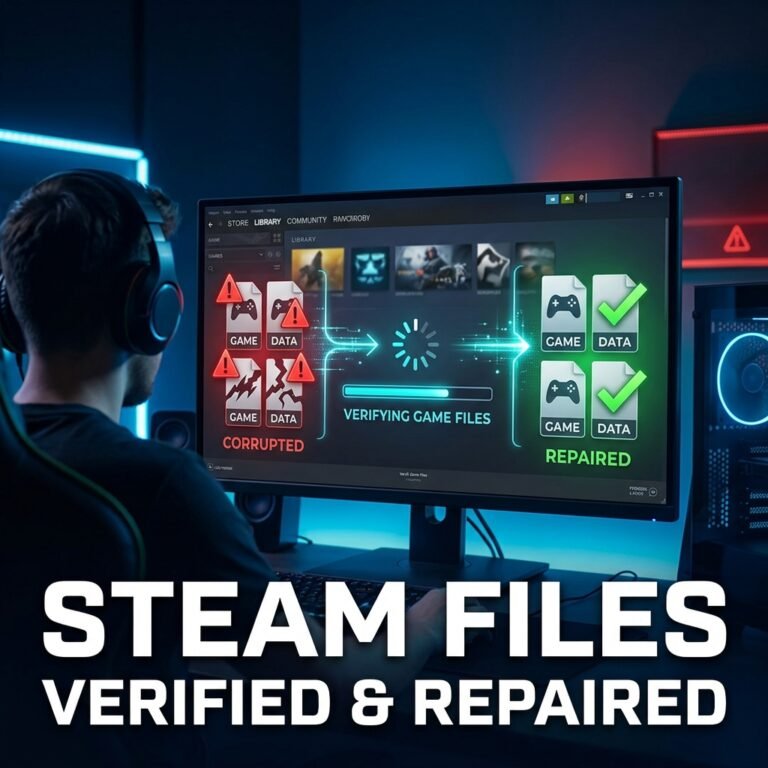
Fix 2: Verify Game File Integrity (PC/Steam)

Why this works: Sometimes a corrupted or missing game file — not the save itself — causes the game to misread a perfectly fine save file. Verifying integrity replaces any damaged installation files.

Steps (Steam):

  1. Open your Steam Library.
  2. Right-click the game and select Properties.
  3. Go to the Installed Files tab and choose Verify integrity of game files.
  4. Let Steam complete the scan and replace any flagged files.

Expected result: If the save issue was actually caused by damaged installation files, this resolves it. If your save data itself was corrupted, this step alone won’t fix it — but it rules out one possible cause and is worth doing before moving to save-specific recovery.

Possible risks: None to your save data — this only touches game installation files.

When to move on: If the corrupted save error persists after verification, move to the cloud recovery or local backup sections below.


Fix 3: Resolve a Cloud Sync Conflict Correctly

Why this works: If your platform is showing a “local vs. cloud” conflict rather than a hard corruption error, the fix isn’t to force a repair — it’s to correctly choose which version of the save to keep.

Steps:

  1. When prompted, check the last-modified timestamp on both the local and cloud versions.
  2. Choose the version with the most recent timestamp that reflects the progress you actually remember playing.
  3. If you’re unsure, back up both versions first (see the backup section above) so you can try the other one if your first choice turns out to be the older file.

Expected result: Choosing correctly restores your most recent progress. Choosing incorrectly can overwrite your newer local save with an older cloud version, which is exactly why backing up both first is worth the extra minute.

Possible risks: Picking the wrong version can cost you progress — this is the main reason to always have a backup of both files before resolving the conflict.

When to move on: If there’s no conflict prompt at all — just a straightforward “corrupted” error — this isn’t a sync issue, and you should move to the platform-specific and storage-level sections below.


Fix 4: Check and Repair Storage Errors (Advanced)

Why this works: If the underlying drive has file system errors or bad sectors, no amount of game-level troubleshooting will hold — you have to fix the storage itself first.

Steps (Windows, using CHKDSK):

  1. First, check the drive’s health status through Windows’ built-in disk information or a SMART-monitoring tool. Look specifically for a “Good,” “Caution,” or “Bad” status.
  2. If the drive shows “Good,” open Command Prompt as an administrator and run chkdsk C: /f (replacing C: with your actual drive letter) to fix logical file system errors first.
  3. Only if problems remain, run chkdsk C: /r, which also scans for and attempts to recover data from bad sectors. This step takes considerably longer.
  4. Restart if prompted, and let the scan complete before using the drive again.

<blockquote> <strong>⚠️ Important:</strong> If your drive’s SMART status already shows “Caution” or “Bad,” or you’re seeing more than roughly 10 new bad sectors a month, the hardware itself is failing. Running repair scans on a failing drive can actually accelerate total failure. In that situation, prioritize copying off anything important immediately and plan to replace the drive, rather than repeatedly running repair tools on it. </blockquote>

Expected result: If the corruption was caused by a logical file system error, this often resolves it and any save file “corruption” that came from the same root cause. If the drive itself is failing, this step will not create new problems if you follow the SMART-status warning above, but it also won’t fix a dying drive — replacement is the real answer there.

Possible risks: Running repair flags on a severely failing drive can worsen data loss — always check SMART status first.

When to move on: If your drive checks out healthy and the save still won’t load, the corruption is most likely isolated to the save file itself, and you should focus on the cloud and local backup recovery methods above, along with the platform-specific steps below.


Recovering Saves from Cloud Backups

Steam Cloud Recovery

Steam Cloud has two separate switches that both need to be on: a global toggle under Steam > Settings > Cloud, and a per-game toggle under that game’s Properties > General tab. If Steam detects a version mismatch, it will show a chooser listing both the local and cloud files with their last-modified dates — refer back to Fix 3 above for how to choose correctly. Valve’s own Steam Cloud troubleshooting FAQ covers additional sync-specific error scenarios if the basic steps above don’t resolve it. If you’re also dealing with a stuck Steam download while trying to reinstall or update the game, our guide on Steam download stuck at 0% fixes walks through that separately.

PlayStation Cloud Save Recovery

PS5 (and PS4) save data is encrypted and managed entirely by the system — you can’t browse or edit individual save files the way you can on PC. Your main recovery path is PlayStation Plus cloud backup, accessed through Settings > Saved Data and Game/App Settings > Cloud Storage. Sony’s official guide on PlayStation Plus cloud storage for PS5 consoles walks through checking sync status and downloading an earlier, uncorrupted version of your save.

Xbox Cloud Save Recovery

Xbox handles saves the same way across Xbox One and Xbox Series X|S through a unified cloud save system. Check Settings > System > Storage > Xbox Cloud Saves or the equivalent cloud save management screen for the affected game to see if an earlier, working version is available to restore. If you’re seeing a specific sync error rather than a straightforward missing save, Microsoft’s official page on Xbox cloud save sync error messages lists what each message means and how to resolve it.

Nintendo Switch Save Data Cloud Recovery

On Switch, local save files aren’t user-browsable on stock hardware, so recovery depends on Nintendo Switch Online’s Save Data Cloud feature, which lets you restore a previous cloud backup for supported titles from the system settings. Nintendo’s official support article on how to download Save Data Cloud backups walks through the exact menu steps, and note that downloading a backup will overwrite the console’s current save, so don’t skip the backup step above first.

Epic Games and Ubisoft Connect Cloud Recovery

Epic Games’ cloud saves work similarly to Steam Cloud in concept. If your Epic Games Launcher itself won’t open — which can happen alongside save-loading issues — check our Epic Games Launcher won’t open fix guide first. For Ubisoft titles, Ubisoft’s official cloud save help article describes the straightforward recovery flow: play until the game creates a new local save (even a fresh one), then choose to overwrite the cloud save with your local version when prompted, replacing the corrupted cloud copy.


Recovering Local Backups

If you keep manual backups (and after reading this guide, hopefully you will going forward), recovery is simple:

  1. Close the game completely.
  2. Navigate to the save folder location (see the backup section above).
  3. Rename or move the corrupted save file out of the folder — don’t delete it yet, in case you need it later.
  4. Copy your most recent clean backup into that folder, renaming it to match the expected save file name if necessary.
  5. Launch the game and confirm the save loads correctly.

If you don’t have a manual backup and cloud recovery isn’t available either, it’s worth checking our dedicated guide on recovering lost game save files, which covers additional recovery angles specifically for saves with no existing backup.


Platform-Specific Solutions

PC / Windows General Troubleshooting

Beyond the save file itself, general PC stability issues can contribute to save corruption over time. If your game has also been crashing or running poorly in ways that might explain repeated corruption, it’s worth ruling out unrelated performance issues — our guides on fixing low FPS in PC games and high CPU usage while gaming cover common culprits.

Steam

If the game won’t even launch after a save issue, check our guide on Steam games not launching on Windows, since a damaged save can sometimes prevent a game from starting at all rather than just failing to load that one slot.

Epic Games Store

Covered above under cloud recovery — see the Epic Games Launcher link if the launcher itself is the problem rather than just the save.

PlayStation 5

Remember: saves are encrypted and non-browsable. Don’t attempt third-party save editors that claim to “repair” PS5 save files directly — stick to the official cloud backup and restore process described above.

Xbox Series X|S

The unified save system means the recovery process is identical whether you’re on Xbox One or Series X|S — check cloud save history through system storage settings as described above.

Nintendo Switch

Since local saves aren’t accessible on unmodified hardware, Nintendo Switch Online’s Save Data Cloud is genuinely your only built-in recovery option — there’s no local backup folder to dig into on stock hardware.


Repairing Storage Errors and Checking Drive Health

We covered the CHKDSK process above, but it’s worth expanding on how to actually read your drive’s health status, since this is the step most gaming-focused guides skip entirely.

SMART StatusWhat It MeansRecommended Action
GoodNo significant errors detectedSafe to run CHKDSK /f if you suspect file system issues
CautionSome abnormal values, drive is aging or under stressBack up everything immediately; use CHKDSK sparingly
BadDrive is failingStop running repair tools; prioritize copying off data and replacing the drive

For the exact command syntax and full list of CHKDSK parameters, Microsoft’s official chkdsk command reference documentation is the authoritative source — it’s worth a quick check before running any repair flags you’re unfamiliar with.

If storage errors are affecting more than just your save files — for instance, if the game itself fails to install or update correctly — our guide on fixing corrupted game installation files covers that related but distinct problem in more depth. Similarly, if you’re seeing outright installation failures rather than save corruption, check our game installation failed errors guide.


Resolving Cloud Sync Conflicts (Without Losing Progress)

It’s worth restating this clearly, because it’s one of the most commonly confused points: a sync conflict is not the same thing as corruption. A conflict means the platform sees two different valid-looking versions of your save and doesn’t know which one you want. Corruption means the file itself is structurally broken. The fix for a conflict is choosing the right version by timestamp (see Fix 3 above); the fix for true corruption is the recovery and repair steps covered throughout this guide. If you’re not sure which one you’re dealing with, the presence of a clear “choose local or cloud” prompt is your best clue that it’s a conflict rather than genuine corruption.


Preventing Future Save Corruption

A few habits prevent the vast majority of future save corruption:

  • Wait for the sync confirmation (the green checkmark or sync icon on most platforms) before closing the game, shutting down, or switching to another device.
  • Keep one backup that isn’t tied to cloud sync at all — a manual copy on an external drive means a bad cloud sync can never cost you everything.
  • Keep mods and game versions aligned, and back up your save before installing new mods or major updates.
  • Check your drive’s health periodically (a couple of times a year is plenty — there’s no need to run disk checks obsessively on a healthy drive).
  • Avoid force-quitting a game, especially right after saving — give it that extra minute to finish writing and syncing.

When Recovery Isn’t Possible

It’s worth being honest here: not every corrupted save can be recovered. If the drive itself has failed, if there’s no backup anywhere (local or cloud), and if the corruption affects the entire file rather than a recoverable portion, the save may genuinely be gone. In that situation:

  • Contact the game’s official support channel — some developers keep server-side backups even when a player’s local and cloud saves are both gone, particularly for online or live-service titles.
  • Consider starting fresh rather than repeatedly attempting risky recovery methods on a failing drive, which can make things worse.
  • Use the experience as the reason to set up the backup habits described above going forward.

Frequently Asked Questions

Can a corrupted save file always be fixed?

No. Most cases are recoverable, especially if you have a cloud or local backup, but a save can be permanently lost if the corruption is severe, there’s no backup, and the underlying storage has failed.

Will verifying game files on Steam fix a corrupted save?

Not directly — verifying integrity repairs damaged game installation files, not your save data. It’s still worth doing, since a damaged game file can sometimes cause a save to appear corrupted when it isn’t.

Why did my save corrupt right after a power outage?

If the game was actively writing the save file when power was lost, the file can end up only partially written, which most games reject as corrupted rather than risk loading incomplete data.

Is my cloud save also corrupted if my local save is?

Not necessarily. If your local file corrupted after your last successful cloud sync, the cloud version may still be clean. Check your cloud backup before assuming everything is lost.

Can I recover a corrupted save without any backup?

Sometimes, if the corruption is only partial, but it’s far from guaranteed. This is the main reason backups matter — with one in place, recovery is usually straightforward.

Does reinstalling the game delete my save data?

Usually not, since save files are typically stored outside the game’s install folder (in Documents or AppData on PC, for example). Still, back up your save folder before reinstalling just in case.

How do I know if my hard drive is causing the corruption?

Check the drive’s SMART status. A “Caution” or “Bad” reading, or a pattern of other files also acting oddly, points to a hardware issue rather than a game-specific bug.

Can mods cause save file corruption?

Yes — a save created with certain mods installed may fail to load correctly after those mods are removed, updated, or made incompatible by a game patch.

Why does my save conflict between two devices on Steam Cloud?

This happens when you play on one device without letting the sync finish before opening the game on another. Steam then sees two different valid versions and asks you to choose, rather than corrupting either file.

How often should I back up my game saves?

For games you’re actively playing, backing up every few sessions (or before any major update or mod change) is a reasonable habit without being excessive.


Conclusion

Corrupted save data is stressful, especially when there are dozens of hours behind it, but the situation is rarely as final as that first error message makes it feel. The core approach that works across every platform is the same: back up what’s left before touching anything, figure out whether you’re dealing with true corruption or just a sync conflict, and work through fixes from safest to most advanced rather than jumping straight to a reinstall. Building a simple backup habit — one copy that isn’t dependent on cloud sync — is the single best thing you can do to make sure this is the last time you have to go through this process.


Similar Posts

Leave a Reply

Your email address will not be published. Required fields are marked *