
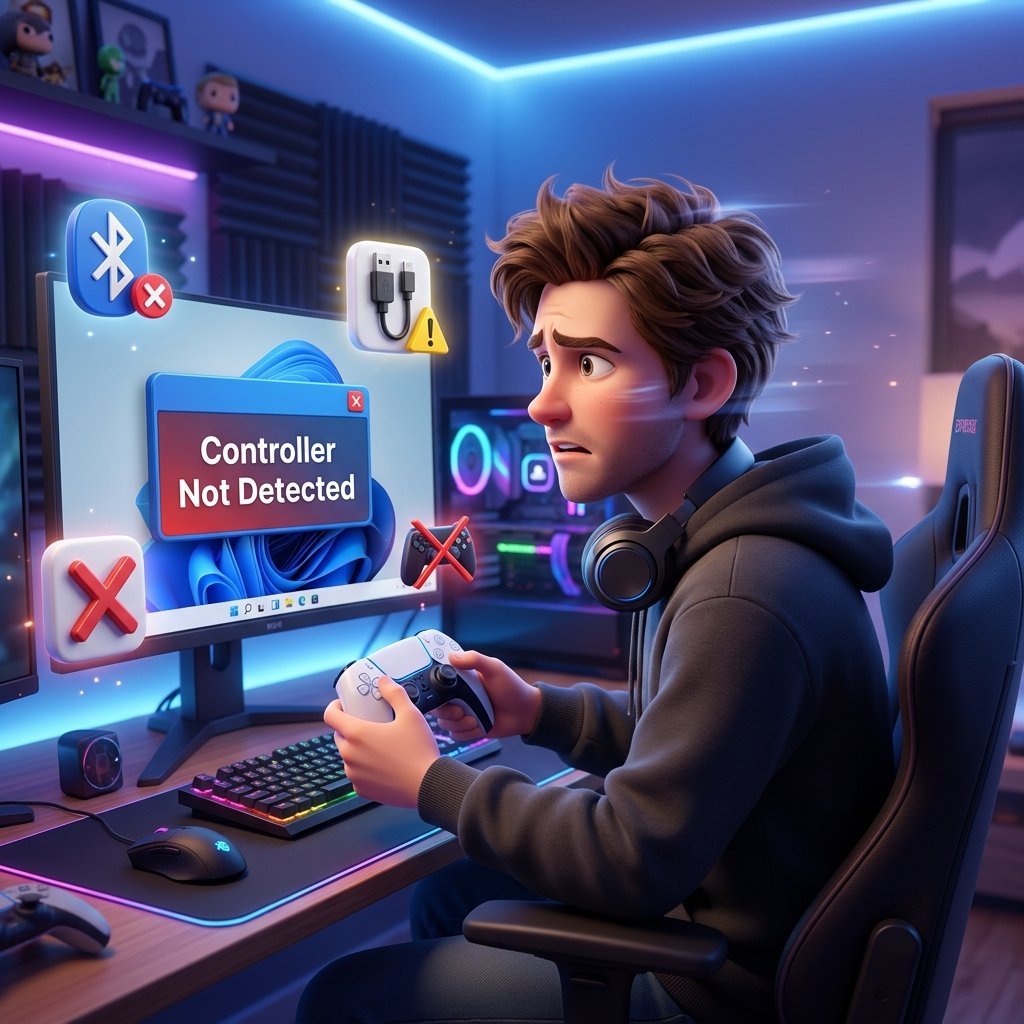
PS5 Controller Not Working on Windows? Here’s Every Fix That Actually Works
You plug in your DualSense, Windows makes that little “device connected” chime, and then… nothing. The sticks don’t move a cursor, the buttons don’t register, or worse, your PC suddenly thinks the controller is a microphone. If your PS5 controller is not working on Windows, you’re dealing with one of a handful of well-understood problems, and almost none of them mean your controller is actually broken.
I’ve spent a lot of time with DualSense controllers on PC — pairing them, breaking them, fixing them, and testing them across Windows 10 and Windows 11 with Steam, Epic Games, and a handful of non-Steam titles. The honest truth is that Windows was never built with the DualSense in mind the way it was built for Xbox controllers, so the PS5 pad needs a little more hand-holding to work reliably.
In this guide, I’ll walk through exactly why this happens and how to fix it, starting with the quick wins and working up to the deeper driver- and firmware-level fixes. By the end, you’ll know whether you’re dealing with a cable, a driver, a Bluetooth quirk, or a Steam Input conflict — and exactly what to do about each one.
Quick Diagnosis: What’s Actually Happening?
Before you start changing settings, it helps to pin down exactly what “not working” looks like for you. The fix is different depending on the symptom, so use this table to jump to the right section.
| Symptom | Likely Cause | Jump To |
|---|---|---|
| Controller won’t pair or show up at all | Bluetooth pairing conflict, dead battery, faulty cable | Fixes 2–3 |
| Connects, but buttons/sticks do nothing | Driver issue, Windows misreading the device | Fixes 5–7 |
| Works in Steam Big Picture, not in-game | Steam Input / game-specific controller support | Fix 8 |
| Shows up as a microphone or speaker | Windows treating the controller as an audio device | Fix 4 |
| Pairs, then disconnects repeatedly | Bluetooth adapter/driver conflict, power management | Fixes 9–10, Advanced Fixes |
| Triggers/haptics feel off or delayed | Bluetooth vs. USB limitation, firmware, or unsupported game | Firmware and Latency sections |
Screenshot suggestion: a side-by-side of Device Manager showing the DualSense correctly listed under “Human Interface Devices” as “Wireless Controller” versus incorrectly listed under “Other devices.” Alt text: “PS5 controller not working on Windows shown in Device Manager as unrecognized device.”
Why Your PS5 Controller Isn’t Working on Windows
Windows treats the DualSense as a generic HID (Human Interface Device), not a first-class citizen the way it treats Xbox controllers, which speak XInput natively. That mismatch is the root of almost every issue on this list. Here are the specific causes worth knowing before you start troubleshooting:
- Bluetooth pairing conflicts — the controller is still actively paired to your PS5 console, or to another PC/phone, and can’t hold a second connection cleanly.
- Outdated or corrupted Windows drivers — the “Wireless Controller” HID driver gets confused after a Windows Update, a sleep/wake cycle, or a botched previous install.
- Audio-device misidentification — Windows sees the DualSense’s built-in speaker and microphone and defaults to routing system audio through it, sometimes at the expense of the controller functioning as an input device.
- Steam Input conflicts — Steam’s own controller layer intercepts input before it reaches the game, which is great for compatibility but a common source of “works in Steam, not in the actual game.”
- DS4Windows or DSX running without proper configuration — these tools emulate an Xbox controller for games that don’t support DualSense natively, but if Steam Input is also active, you get double inputs or nothing at all.
- Outdated controller firmware — rare, but it does cause connectivity oddities and missing features.
- A charge-only USB-C cable — a huge number of “PS5 controller not working on Windows” reports turn out to be a cable that only carries power, not data.
- Windows power management — Windows can be configured to shut off USB ports to save power, which drops wireless dongles and even wired connections mid-session.
- Bluetooth adapter or chipset driver issues — especially on desktop PCs using budget USB Bluetooth dongles.
- Windows Update bugs — occasionally a cumulative update breaks the Bluetooth stack or HID drivers system-wide, not just for the DualSense.
Knowing which of these applies to you will save a lot of time. Now let’s get into the actual fixes.
How to Fix a PS5 Controller Not Working on Windows (Step by Step)
Work through these in order. Most people find their fix somewhere in the first five steps — the later ones are for stubborn cases.
1. Restart the Controller and Your PC
Why this works: Both Windows and the DualSense keep small caches of connection state. A simple restart clears out whatever got stuck without you needing to touch a single setting.
When to use it: Always try this first, especially if the controller was working recently and just stopped mid-session.
Steps:
- Turn off the controller by holding the PS button until it powers down, or by disconnecting the USB cable.
- If it’s still unresponsive, find the small reset pinhole on the back of the DualSense, between the shoulder buttons, and press it gently with a paperclip or SIM tool for about 5 seconds.
- Restart your PC.
- Reconnect the controller via USB first to confirm basic functionality before trying Bluetooth again.
Expected result: The controller should reconnect and register input normally.
If it fails: Move on to checking your cable and port (Fix 2).
Common mistake: People hold the reset button for a second or two and give up — give it the full five seconds, and expect the light bar to flash before it’s actually reset.
2. Try a Different USB-C Cable and Port
Why this works: Not every USB-C cable carries data — a lot of cheap or phone-charging cables are power-only. If your cable can’t carry data, Windows will never see the controller as an input device, no matter what else you try.
When to use it: If the controller charges but never appears in Windows at all, or only shows up intermittently.
Steps:
- Swap to a cable you know supports data transfer (the cable that came with your PS5 or a reputable USB-C data cable).
- Try a different USB port — ideally a rear motherboard port on desktops rather than a front-panel header, which can have looser connections or power delivery issues.
- Avoid USB hubs where possible; connect directly to the PC.
Expected result: The controller should now appear in Device Manager and register as a Wireless Controller.
If it fails: The cable and port weren’t the issue — move to Bluetooth re-pairing or the audio-device fix.
Expert tip: Keep one cable specifically labeled “controller cable” so you’re not accidentally grabbing a charge-only one from a drawer of mixed cables.
3. Re-Pair the Controller via Bluetooth From Scratch
Why this works: A partial or “ghost” pairing — where Windows remembers the controller but the connection handshake is broken — is one of the most common causes of a controller that won’t connect wirelessly. Removing and re-adding the device forces a clean handshake.
When to use it: Bluetooth pairing fails, times out, or the controller connects then instantly disappears.
Steps:
- Open Settings > Bluetooth & devices (Windows 11) or Settings > Devices > Bluetooth & other devices (Windows 10).
- Find “Wireless Controller” in the list, click it, and select Remove device.
- On the DualSense, make sure the USB cable is unplugged and the light bar is off (press and hold the PS button until it powers off).
- Press and hold the Create button (to the left of the touchpad) together with the PS button until the light bar starts flashing rapidly — this puts it into pairing mode. Sony’s own DualSense pairing instructions confirm this is the correct combination for first-time pairing.
- Back in Windows, click Add device > Bluetooth, and select the “Wireless Controller” entry when it appears.
- Wait for pairing to complete — the light bar should stop flashing and settle into a solid color or a single player-indicator light.
Expected result: The controller connects and stays connected, and Windows lists it as an available input device.
If it fails: Try a different Bluetooth adapter (see Advanced Fixes below), or switch to USB while you troubleshoot the wireless side separately.
Common mistake: Trying to pair while the controller is still connected via USB — unplug the cable first, or Windows may prioritize the wired connection and ignore the Bluetooth pairing request.
4. Fix the “Recognized as an Audio Device” Problem
Why this works: The DualSense has a built-in microphone and speaker for chat and in-game sound effects. Windows sees these as a standard audio device and, in many configurations, defaults to routing system audio through them — sometimes at the cost of button and stick input being deprioritized or ignored by whatever app currently has focus.
When to use it: Your game audio suddenly comes out of the controller’s tiny speaker, your microphone switches to the controller, or the controller “connects” but nothing responds inside games.
Steps:
- Right-click the speaker icon in your taskbar and choose Sound settings, or open Control Panel > Hardware and Sound > Sound.
- Look for an entry named something like “2 – DualSense Wireless Controller” under Playback devices.
- Right-click it and select Disable, or click into its Properties and choose Don’t allow under the General tab.
- For a more permanent fix, open Device Manager, expand Audio inputs and outputs, find the DualSense’s audio entry, right-click it, and select Disable device.
- Restart your PC and confirm your normal speakers/headset remain the default playback device.
Expected result: System audio stays on your regular speakers or headset, and the controller functions purely as an input device.
If it fails: Windows sometimes re-enables the audio device automatically after a reconnect or update — you may need to repeat this step periodically, or look into Group Policy device-installation restrictions for a permanent lock.
Note: Disabling the controller’s audio device will also disable any in-game features that use the DualSense’s built-in speaker for sound effects (a feature some titles use for haptics-adjacent audio cues). If a specific game relies on that, you’ll need to re-enable it before playing that title and disable it again afterward.
Screenshot suggestion: Windows Sound settings panel with the “2 – DualSense Wireless Controller” playback device highlighted. Alt text: “Fixing PS5 controller not working on Windows due to audio device conflict.”
5. Reinstall or Update the Wireless Controller Driver
Why this works: Sometimes the HID driver itself gets corrupted, especially after a Windows Update or an interrupted previous connection. Removing it forces Windows to install a fresh copy the next time the controller connects.
When to use it: The controller shows up in Device Manager but with a yellow warning icon, or Windows fails to recognize any input from it despite a solid connection.
Steps:
- Open Control Panel > Hardware and Sound > Devices and Printers.
- Right-click the Wireless Controller entry.
- Select Remove device, and check the box for Delete the driver software for this device if prompted.
- Disconnect the controller completely (unplug the cable or remove the Bluetooth pairing).
- Reconnect it — Windows should automatically reinstall a clean driver.
- Confirm functionality using the built-in Game Controllers panel (see Fix 7).
Expected result: The controller is re-recognized cleanly, often resolving stuck or “ghost” input issues.
If it fails: Move on to a firmware update (Fix 6), since an outdated firmware version can sometimes present the same symptoms as a driver fault.
6. Update the Controller Firmware Using PlayStation Accessories
Why this works: Sony ships firmware updates for the DualSense that improve Bluetooth stability, battery reporting accuracy, and general responsiveness. An outdated firmware version is a less common cause than drivers or cables, but it’s worth ruling out, especially on an older controller you haven’t updated in a while.
When to use it: After trying the above steps, or if you’ve had the controller for years and have never checked its firmware version.
Steps:
- Download PlayStation Accessories from Sony’s official controller support page — this is the current name for what used to be called the “Firmware Updater for DualSense Wireless Controller.”
- Connect your DualSense via USB-C cable (firmware updates require a wired connection).
- Make sure the controller has a reasonable charge before starting — don’t attempt an update on a near-dead battery.
- Open PlayStation Accessories, select your controller, and check for an available update.
- Start the update and don’t disconnect the cable or close the app until it finishes.
Expected result: Your controller reports a current firmware version, and any related connectivity quirks should improve.
If it fails: If the app doesn’t detect your controller at all, double-check that you’re using a data-capable USB-C cable (see Fix 2) and that the PlayStation Accessories system requirements match your version of Windows.
Note: If you own a DualSense Edge, PlayStation Accessories now also lets you build and switch custom control profiles directly from your PC — something that used to require a PS5 console.
7. Test the Controller in Windows’ Game Controllers Panel
Why this works: This isolates whether the problem is with Windows recognizing the controller at all, or with a specific game or launcher. If input registers here but not in a game, the controller and drivers are fine — the issue is downstream in Steam Input or the game’s own controller settings.
Steps:
- Press Windows key + R, type
joy.cpl, and press Enter. - Select Wireless Controller from the list and click Properties.
- Move the sticks and press buttons to confirm they register on screen in real time.
Expected result: Every button, trigger, and stick axis moves the corresponding indicator.
If it fails here: The issue is at the Windows/driver level — go back to Fixes 3–5.
If it works here but not in a game: The issue is Steam Input, DS4Windows configuration, or the game’s own controller support — continue to Fix 8.
8. Fix Steam Input and Big Picture Conflicts
Why this works: Steam has its own controller-input layer that sits between your DualSense and the game. It’s what lets non-native games understand PlayStation input, but it can also cause the exact “works in Big Picture, not in the actual game” problem so many people run into.
Steps:
- In Steam, go to Steam > Settings > Controller > General Controller Settings.
- Make sure PlayStation Configuration Support is checked if you want Steam to handle DualSense input for non-native games.
- If a specific game still won’t respond, right-click it in your library, choose Properties > Controller, and check whether it’s set to override Steam Input or use the game’s native support.
- If you’re running DS4Windows alongside Steam, be aware that Steam will stop recognizing real or virtual PlayStation controllers through Steam Input once it detects DS4Windows running — this is expected behavior, not a bug. To use both together, DS4Windows needs to be run under a renamed executable, and Steam’s own remapping should generally be turned off so the two tools aren’t fighting over the same input.
Expected result: The controller responds correctly inside the actual game, not just in Steam’s overlay or Big Picture mode.
If it fails: Try disabling PlayStation Configuration Support entirely and letting the game handle native DualSense support directly, if the game advertises that it has any. If you’re troubleshooting a Steam-related launch issue more broadly, this guide on Steam games not launching on Windows covers adjacent problems worth ruling out.
9. Set Up DS4Windows or DSX for Non-Steam Games
Why this works: Many older or non-native PC titles only understand Xbox-style XInput. DS4Windows and similar tools (like DSX/DualSenseX) translate your DualSense’s input into a virtual Xbox controller that these games can understand, and some also unlock haptic feedback and adaptive trigger support that Windows doesn’t expose natively.
Steps:
- Install ViGEmBus first — this is the underlying virtual controller driver that DS4Windows depends on.
- Install and open DS4Windows (or DSX), and connect your controller via USB or Bluetooth.
- Confirm a virtual Xbox 360 controller appears in
joy.cplalongside your physical DualSense. - Launch your game and select the virtual controller if it’s given a choice, or simply let the game auto-detect it.
Expected result: Games that only support Xbox controllers now recognize your DualSense through the virtual layer.
Common mistake: Running DS4Windows and leaving Steam’s PlayStation Configuration Support enabled at the same time, which can cause double inputs (the stick moving a menu cursor twice as fast, for example) or the controller not working at all in certain titles.
10. Update Bluetooth and Chipset Drivers
Why this works: A generic or outdated Bluetooth driver — especially on desktop PCs using a cheap USB dongle — is a frequent cause of pairing failures and random disconnects that have nothing to do with the controller itself.
Steps:
- Open Device Manager and check under Bluetooth for your adapter’s exact model (common ones include Intel AX200/AX210 or Qualcomm QCA6390 on laptops, or generic USB dongles on desktops).
- Go to the adapter manufacturer’s site (Intel, Qualcomm, or your dongle’s brand) rather than relying solely on Windows Update, and download the latest driver for your specific chipset.
- Uninstall the current driver in Device Manager, restart, and install the new one.
Expected result: More stable pairing and fewer random disconnects during long sessions.
11. Run the Windows Bluetooth Troubleshooter
Why this works: Windows includes a built-in diagnostic that catches common Bluetooth service issues — stopped services, misconfigured settings — without you needing to dig through Device Manager manually.
Steps:
- Go to Settings > System > Troubleshoot > Other troubleshooters (Windows 11) or Settings > Update & Security > Troubleshoot (Windows 10).
- Run the Bluetooth troubleshooter and follow any suggested fixes.
Expected result: Minor Bluetooth service issues get resolved automatically.
12. Test on Another PC to Rule Out Hardware Failure
Why this works: If every fix above has failed, the last useful diagnostic step is confirming whether the problem follows the controller or stays with your PC.
Steps:
- Try the DualSense on a different Windows PC, or on the PS5 console itself if you have one.
- If it works fine elsewhere, the problem is specific to your original PC’s Windows install, drivers, or Bluetooth hardware.
- If it fails identically everywhere, including on the PS5 console, you’re likely looking at a genuine hardware fault, and it’s time to look into PlayStation’s repair options rather than more software troubleshooting.
Advanced Fixes for Persistent Problems
If you’ve worked through all twelve steps above and you’re still fighting your controller, these deeper fixes are worth trying before assuming the hardware is at fault.
Use a dedicated USB Bluetooth adapter instead of your motherboard’s built-in chipset. Built-in Bluetooth on some desktop motherboards shares bandwidth or interference with Wi-Fi antennas mounted close by. A dedicated USB Bluetooth adapter, plugged into a rear port away from other wireless devices, often solves disconnects that nothing else touches.
Stop Windows from powering down the USB port. Windows can be set to cut power to “idle” USB devices to save energy, which will drop your controller mid-session.
- Open Device Manager, expand Universal Serial Bus controllers.
- Right-click each USB Root Hub, go to Properties > Power Management.
- Uncheck Allow the computer to turn off this device to save power.
Do a clean reinstall of the HID and Bluetooth stack. If your Bluetooth adapter is misbehaving system-wide (not just for the controller), uninstalling the Bluetooth adapter entirely in Device Manager and letting Windows reinstall it from scratch can resolve deeper stack corruption that a simple driver update won’t touch.
Prevent Windows from resetting your audio defaults on every reconnect. If Fix 4 keeps getting undone every time you plug the controller back in, right-click the volume icon, open Sound settings, and manually lock your preferred playback and recording devices as defaults each time — or explore Group Policy device-installation restrictions if you’re comfortable with more advanced Windows configuration.
Does the DualSense Work With Your Launcher? A Compatibility Breakdown
Not every PC storefront treats the DualSense the same way. Here’s what to expect from the ones you’re most likely to use:
| Launcher | Native DualSense Support | Needs Steam Input / DS4Windows? | Haptics & Adaptive Triggers |
|---|---|---|---|
| Steam | Yes, built-in | Only for non-native titles | Supported in select games via USB |
| Epic Games Store | Partial, game-dependent | Often needed for older titles | Rare, game-dependent |
| EA App | Partial | Sometimes, especially in sports titles | Limited |
| Ubisoft Connect | Partial | Occasionally | Rare |
| Xbox Game Pass for PC | Limited — many titles expect Xbox input | Usually yes, via DS4Windows/DSX | Not typically supported |
Windows 10 and Windows 11 handle the underlying DualSense connection identically — both rely on the same generic HID and Bluetooth stack — so compatibility differences you run into are almost always about the game or launcher, not the OS version itself.
Wired vs. Bluetooth: Which Is Actually Faster for the DualSense?
Here’s something that surprises a lot of people: for the DualSense specifically, Bluetooth can genuinely be the faster connection method — the opposite of the usual “wired is always better” rule of thumb that applies to most other gamepads.
Sony’s USB wired mode on the DualSense runs at a 250Hz polling rate by default, which works out to roughly a 4ms baseline input delay. Bluetooth, on the same controller, can reach a 1000Hz polling rate using tools like HIDUSBF or DS4Windows, cutting that baseline down to around 1ms. That’s a direct consequence of how Sony implemented USB polling on this specific controller — it’s not a general rule that applies to every gamepad, and it doesn’t hold true for Xbox controllers, which are optimized differently for wired play.
In practice, this means:
- If you’re using the DualSense purely stock, with no tweaking, wired and Bluetooth latency will feel roughly similar for most people.
- If you’re chasing the lowest possible input lag and are comfortable using DS4Windows or a similar polling-rate override tool, Bluetooth can actually edge out wired on this particular controller.
- Haptic feedback and adaptive triggers, however, are far more consistently supported over a wired USB connection in the games that support them at all — Bluetooth support for these features varies a lot by title and isn’t guaranteed.
So the honest answer is: use USB if you want the widest feature support (haptics, adaptive triggers, guaranteed firmware updates), and consider Bluetooth with a polling-rate tool if raw input speed is your priority and you don’t need the extra features for a particular game.
Table/screenshot suggestion: a simple bar comparison of stock wired polling, overclocked wired polling, and Bluetooth polling latency, generated from your own testing if possible. Alt text: “PS5 controller not working on Windows latency comparison wired vs Bluetooth.”
Keeping Your DualSense Firmware Up to Date
Firmware issues aren’t the most common cause of connectivity problems, but they’re worth ruling out, especially if you bought your controller used or haven’t touched it in over a year.
Sony’s current tool for this is PlayStation Accessories, available from the official PlayStation controller support page. It replaced the older “Firmware Updater for DualSense Wireless Controller” app, and if you own a DualSense Edge, it now also handles full custom profile creation directly from your PC — something previously exclusive to the PS5 console itself.
A few practical tips:
- Always update over a wired USB-C connection — firmware updates won’t run over Bluetooth.
- Make sure the controller has meaningful charge before starting; don’t attempt an update below roughly 20–30% battery.
- Don’t disconnect the cable, close the app, or let your PC sleep mid-update.
- Check for updates every few months, not just when something breaks — Sony periodically ships stability and Bluetooth-handling improvements.
Frequently Asked Questions
Why does my PS5 controller keep disconnecting on Windows?
This is almost always Bluetooth-related — either a weak or interference-prone adapter, an outdated Bluetooth driver, or Windows’ USB power management shutting down the connection to save power. Try a dedicated Bluetooth adapter, update your Bluetooth driver directly from the manufacturer, and disable USB power-saving on the relevant Root Hub in Device Manager.
Why is my PS5 controller recognized as an audio device?
The DualSense has a built-in speaker and microphone, and Windows automatically treats these as a standard audio device. You can disable this in Sound settings and Device Manager, though be aware it also disables any in-game audio effects that use the controller’s speaker.
Do I need DS4Windows if I only play Steam games?
Usually not. Steam has built-in PlayStation Configuration Support that handles DualSense input for most games, including titles that don’t natively support PlayStation controllers. DS4Windows is mainly useful for non-Steam launchers and older titles that expect Xbox-style input exclusively.
Does the PS5 controller support adaptive triggers and haptic feedback on PC?
In some games, yes, but only over a wired USB connection, and only in titles that specifically added DualSense support. Bluetooth generally doesn’t carry these features reliably, and plenty of PC games don’t support them at all regardless of connection type.
Is Bluetooth or USB better for the DualSense on PC?
It depends on what you’re optimizing for. USB guarantees the widest feature support, including haptics and adaptive triggers where a game supports them. Bluetooth, when paired with a polling-rate tool like DS4Windows, can actually achieve lower raw input latency than the DualSense’s stock wired mode, which is capped at 250Hz.
Why does my PS5 controller work in Steam Big Picture but not inside the actual game?
This points to a Steam Input or game-specific controller-support issue rather than a connectivity problem. Check the game’s individual controller settings in its Steam Properties page, and confirm PlayStation Configuration Support is set the way you expect.
How do I update my PS5 controller’s firmware without owning a PS5 console?
Download PlayStation Accessories from Sony’s official site, connect your controller via USB-C, and run the update from there. You don’t need a PS5 console to keep the controller current.
Is my PS5 controller broken, or is this a Windows issue?
If the controller behaves identically on a different PC and on a PS5 console (if you have access to one), you’re likely dealing with a genuine hardware fault. If it works fine elsewhere but not on your usual PC, the problem is almost certainly software — a driver, Bluetooth stack, or Steam Input configuration issue, all of which are covered above.
How to Prevent This From Happening Again
A few small habits go a long way toward keeping your DualSense reliable on Windows:
- Keep firmware current by checking PlayStation Accessories every couple of months.
- Avoid running DS4Windows and Steam Input at the same time unless you’ve specifically configured them to coexist.
- Use a proper data-capable USB-C cable, and keep a spare on hand.
- If you use Bluetooth regularly, invest in a decent dedicated adapter rather than relying on a motherboard’s built-in chipset shared with other wireless traffic.
- Don’t let the battery run all the way to zero repeatedly — deep discharges over time can make Bluetooth pairing less reliable on some units.
Conclusion
If your PS5 controller is not working on Windows, the overwhelming majority of cases come down to something fixable — a charge-only cable, a stuck Bluetooth pairing, Windows misreading the controller as an audio device, or Steam Input stepping on the game’s own controls. True hardware failure is much rarer than forum threads make it sound.
Work through the fixes in order, starting with the simple restart-and-cable checks before moving into Bluetooth re-pairing, the audio-device fix, and Steam Input configuration. Most people find their answer somewhere in the first half of this list. And if you’ve ruled out every software cause and the controller still fails identically on another PC or console, that’s your sign it’s genuinely time for a repair or replacement rather than another round of driver reinstalls.

2 Comments