How to Fix DirectX Errors While Launching Games
You click “Play,” the loading screen flickers, and instead of your game, you get a small gray box telling you something failed. If you’re dealing with a DirectX error while launching games, you’re not looking at a dying PC — you’re looking at one of a handful of very fixable problems: an outdated driver, a missing runtime component, a corrupted shader cache, or a background app quietly getting in the way. This guide walks through exactly why these errors happen and, more importantly, the order to fix them in so you’re not wasting time on the wrong step first.
By the end, you’ll know how to read what your specific error is actually telling you, how to work through the fixes that resolve the vast majority of cases, and how to tell the difference between a five-minute software fix and a genuine hardware problem worth escalating.
What Is DirectX, and Why Do Games Need It?
DirectX is a collection of APIs (Application Programming Interfaces) built into Windows that lets games talk directly to your graphics card, sound hardware, and input devices without every developer having to write their own low-level hardware code. When a game renders a 3D scene, plays positional audio, or reads your controller input, there’s a good chance DirectX is the middle layer making that handoff possible.
That’s also why DirectX errors are so disruptive — when that communication layer breaks, the game usually can’t proceed past the loading screen at all, rather than just running a feature poorly.
DirectX Runtime vs. DirectX Feature Level
These two terms get mixed up constantly, and it matters for troubleshooting:
- DirectX Runtime refers to the actual installed files and libraries on your system that let DirectX-based applications run.
- DirectX Feature Level refers to which specific capabilities your GPU hardware and driver actually support (for example, whether your card can handle certain DirectX 12 rendering features).
You can have the runtime installed correctly and still hit an error if your GPU’s feature level doesn’t support what the game is asking for — which is usually a driver or hardware limitation, not a missing file.
DirectX 11 vs. DirectX 12: What’s Actually Different
Most modern games are built on DirectX 11 or DirectX 12, and many newer titles let you choose between them in the launch options or in-game settings.
| DirectX 11 | DirectX 12 | |
|---|---|---|
| CPU overhead | Higher, less multi-core efficient | Lower, better multi-core utilization |
| Driver responsibility | Driver handles more optimization | Game engine handles more optimization directly |
| Compatibility | Very broad, more mature | Requires newer GPUs/drivers, more feature variance |
| Typical error pattern | More driver-level crashes | More DXGI device-removed/hung errors |
Tip: If a game gives you the option, switching between DirectX 11 and DirectX 12 in the launcher’s advanced settings is a legitimate troubleshooting step, not just a performance toggle. Some crashes are tied to one rendering path and not the other.
Is DirectX Already Installed on Windows 10 and 11?
Yes — but only partially, and this is the single most misunderstood part of DirectX troubleshooting. Both Windows 10 and Windows 11 ship with the modern DirectX 12 components built in. What they don’t ship with, by default, are the legacy DirectX 9 and 10 components — things like d3dx9_43.dll or older XAudio/XInput libraries — that a surprising number of current games still quietly depend on for specific subsystems. That gap is exactly why installing the DirectX End-User Runtime is still a relevant fix in 2026, even on a fully updated Windows 11 machine.
Common DirectX Errors When Launching Games (and What They Actually Mean)
Not all DirectX errors point to the same root cause. Here’s what the most frequently reported ones are actually telling you.
“DirectX Encountered an Unrecoverable Error”
This is a catch-all error, usually thrown when the game’s rendering engine loses its connection to the GPU mid-initialization. It’s commonly tied to driver instability rather than a missing DirectX file.
DXGI_ERROR_DEVICE_REMOVED / DXGI_ERROR_DEVICE_HUNG / DXGI_ERROR_DEVICE_RESET
These three are related but distinct:
- DXGI_ERROR_DEVICE_REMOVED means Windows lost contact with the graphics device entirely — often because the driver crashed and restarted.
- DXGI_ERROR_DEVICE_HUNG means the GPU stopped responding to commands in time, frequently because it’s under too much load, overclocked past stability, or waiting on a command queue that never completes.
- DXGI_ERROR_DEVICE_RESET means the driver detected a problem and forcibly reset the graphics device, which usually interrupts the game the same way a crash would.
All three are frequently linked to GPU driver crashes, aggressive overclocks, thermal issues, or a GPU under more strain than it can sustain — not to a corrupted DirectX installation.
“Direct3D Initialization Failed” / “Unable to Initialize DirectX”
This typically fires before the game even reaches a menu, and it usually means the game can’t create a valid connection to your graphics hardware at all — often because of an outdated driver, a GPU that doesn’t meet the game’s minimum feature level, or another process holding exclusive access to the display.
Missing DirectX DLL Errors
Errors naming a specific file — d3dx9_43.dll, xinput1_3.dll, d3dcompiler_43.dll, and similar — almost always mean the legacy DirectX End-User Runtime components aren’t installed, not that Windows itself is broken. See our guide on missing DLL errors in PC games if you’re seeing this alongside errors unrelated to DirectX as well.
DirectX Setup or Installation Errors
These show up when you try to manually install or repair the DirectX runtime itself, and they’re generally caused by a corrupted download, insufficient permissions, or conflicting security software blocking the installer.
“Unsupported DirectX Version” or Feature Level Not Supported
This means your GPU or its driver genuinely doesn’t support the DirectX feature level the game requires — most often seen on older or entry-level integrated graphics trying to run a modern DirectX 12 title.
What Causes DirectX Errors While Launching Games?
Before jumping into fixes, it helps to understand which causes are actually most common, based on patterns reported across driver vendors, Microsoft’s own troubleshooting documentation, and game support pages.
- Outdated or corrupted GPU drivers — by far the most frequently cited cause across NVIDIA, AMD, and Intel troubleshooting resources.
- Missing legacy DirectX runtime components — especially on clean Windows 11 installs.
- Corrupted or incomplete game files, often after a failed update or interrupted download.
- Overlay software conflicts — Discord, Steam Overlay, Xbox Game Bar, GeForce Experience, and RTSS/MSI Afterburner all inject code into the game process, and any one of them can destabilize DirectX rendering.
- GPU or CPU overclocking, and unstable RAM timings, which push hardware past the point where it can reliably respond to DirectX commands.
- Corrupted Windows system files, particularly core rendering DLLs.
- Visual C++ Redistributable or .NET Framework issues, since many games lean on these alongside DirectX itself.
- Hybrid graphics conflicts on laptops, where the game launches on integrated graphics instead of the dedicated GPU.
- Low storage space or a failing drive, which can corrupt shader cache writes and game files silently.
How to Fix DirectX Errors While Launching Games (Step-by-Step)
Work through these in order. Each one builds on ruling out the previous cause, starting with the fastest and safest options first.
Step 1 — Restart Your PC and Relaunch the Game
Why this works: A surprising number of DirectX errors are caused by a driver process or overlay tool getting stuck in a bad state in memory, not by anything actually broken. A full restart clears that state completely.
Instructions:
- Close the game and its launcher completely.
- Restart Windows (not just the game) — a full reboot, not sleep or hibernate.
- Relaunch the game before trying anything else.
Expected outcome: If the error was a temporary driver hiccup, it clears immediately.
Move to Step 2 if: the error reappears on the very next launch.
Step 2 — Run the DirectX Diagnostic Tool (dxdiag)
Why this works: Before changing anything, confirm what Windows thinks your DirectX status actually is. This tells you whether you’re dealing with a driver problem, a feature level mismatch, or something else entirely.
Instructions:
- Press
Win + R, typedxdiag, and press Enter. - Check the System tab for your DirectX version.
- Check the Display tab for driver version, and look for any listed “Notes” warnings.
Expected outcome: You’ll either see a clean report (pointing you toward drivers/overlays as the cause) or a specific warning (pointing you toward that exact issue).
Note: dxdiag reporting “no problems found” doesn’t mean your driver is fine — it only confirms DirectX itself is present. Driver-level crashes won’t always show up here.
Step 3 — Update Windows
Why this works: Windows Update frequently bundles driver-adjacent fixes and updated system components that DirectX depends on.
Instructions:
- Go to Settings > Windows Update.
- Click Check for updates and install everything available, including optional driver updates.
- Restart when prompted.
Expected outcome: Resolves errors tied to outdated system components; won’t fix GPU-driver-specific crashes on its own.
Step 4 — Update or Clean-Reinstall Your GPU Driver
Why this works: Outdated or corrupted graphics drivers are consistently the single most common cause of DirectX errors, DXGI crashes, and initialization failures.
Instructions:
- Download the latest driver directly from NVIDIA, AMD, or Intel — not from Windows Update or a third-party site.
- For a standard update, run the installer and choose the default (clean) install option if offered.
- If errors persist after a normal update, use Display Driver Uninstaller (DDU) in Safe Mode to fully remove the old driver before installing the new one. This clears out leftover driver fragments that a standard update can leave behind.
Expected outcome: This single step resolves a large share of DXGI_ERROR_DEVICE_REMOVED, DXGI_ERROR_DEVICE_HUNG, and generic “unrecoverable error” cases.
Move to Step 5 if: the error persists after a clean driver reinstall.
Warning: Never download GPU drivers from unofficial “driver update” tools or random third-party sites — these are a common source of malware and can make DirectX errors worse, not better.
Step 5 — Install the DirectX End-User Runtime
Why this works: This installs the legacy DirectX 9/10 components that Windows 10 and 11 don’t include by default, which resolves the majority of missing-DLL-style DirectX errors.
Instructions:
- Download the DirectX End-User Runtime installer from Microsoft’s official download page.
- Run the installer and follow the prompts — it installs alongside your existing DirectX 12 components without conflict.
- Restart your PC and relaunch the game.
Expected outcome: Fixes errors referencing specific missing DLLs, and many general Direct3D initialization failures on older or DirectX 9/10/11-hybrid titles.
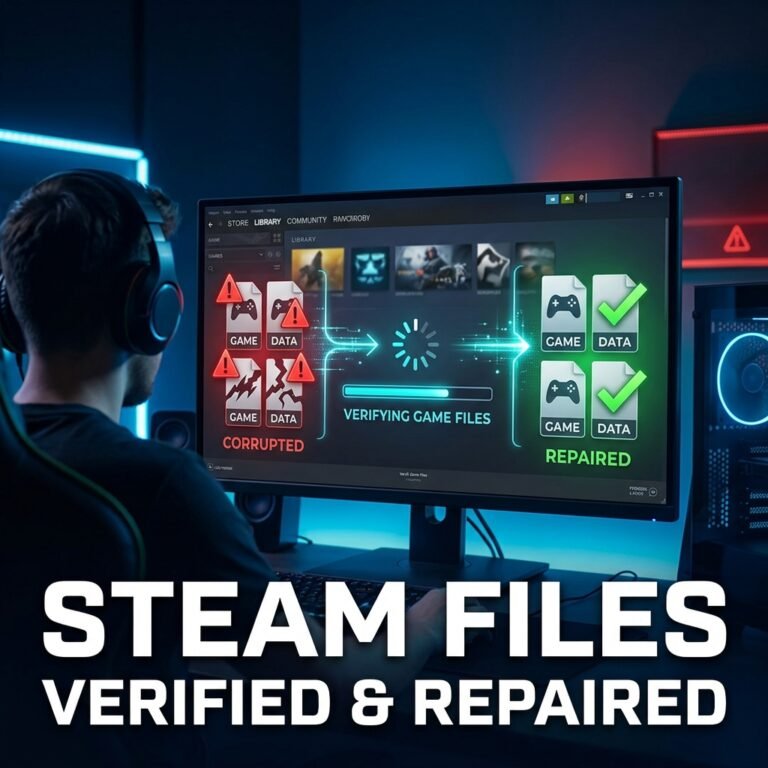
Step 6 — Verify and Repair Game Files
Why this works: A single corrupted or incompletely downloaded file can be enough to trigger a DirectX initialization error, even when everything else on your system is fine.
Instructions (Steam):
- Right-click the game in your library → Properties → Installed Files.
- Click Verify integrity of game files and let it complete.
Instructions (Epic Games, EA App, Ubisoft Connect, Battle.net): Each launcher has an equivalent “Verify” or “Scan and Repair” option under the game’s settings menu — use it the same way. If you’re dealing with launch failures specifically on Steam, our dedicated guide on Steam games not launching on Windows covers additional launcher-specific steps.
Expected outcome: Repairs or re-downloads any corrupted files automatically.
Step 7 — Disable Overlays
Why this works: Overlay software (Discord, Steam Overlay, Xbox Game Bar, GeForce Experience, RTSS/MSI Afterburner) injects code directly into the game’s process to render on top of it — and any one of them can conflict with DirectX rendering, especially right after a Windows or driver update.
Instructions:
- In Discord: Settings > Activity Status/Game Overlay → turn off in-game overlay.
- In Steam: Settings > In-Game → uncheck “Enable the Steam Overlay while in-game.”
- Disable Xbox Game Bar via Settings > Gaming > Xbox Game Bar.
- Temporarily close GeForce Experience’s overlay and RTSS if installed.
Expected outcome: If an overlay was the cause, the game launches normally with everything disabled — re-enable them one at a time afterward to identify the specific culprit if you want to keep using it.
Step 8 — Repair Visual C++ Redistributables and .NET Framework
Why this works: Many games rely on Visual C++ runtimes and .NET Framework components alongside DirectX itself, and a corrupted install here can present as a DirectX-adjacent crash.
Instructions:
- Go to Settings > Apps, search “Microsoft Visual C++.”
- Click each installed version → Modify → Repair.
- Confirm .NET Framework is enabled via Control Panel > Programs > Turn Windows features on or off.
Expected outcome: Resolves initialization crashes tied to shared runtime libraries rather than DirectX itself.
Step 9 — Run SFC and DISM to Repair Windows System Files
Why this works: Core DirectX components like d3d11.dll and d3d12.dll are Windows system files. If they’ve been corrupted — by a bad update, a failed install, or disk errors — the game can’t initialize DirectX no matter how many drivers you reinstall.
Instructions:
- Open Command Prompt as Administrator.
- Run
sfc /scannowand let it finish completely. - If issues remain, run:
DISM /Online /Cleanup-Image /RestoreHealth - Restart and re-run
sfc /scannowonce more to confirm a clean result.
Expected outcome: Repairs corrupted system files that block DirectX from initializing correctly.
Step 10 — Clear the DirectX Shader Cache
Why this works: Shader cache files speed up load times by storing precompiled shader data — but when that cache becomes corrupted (often after a driver or Windows update), it can cause crashes, stutters, or failed launches rather than a smoother experience.
Instructions:
- Open Settings > System > Storage > Temporary files.
- Check the box for DirectX Shader Cache.
- Click Remove files.
- Restart your PC and relaunch the game — expect a slightly longer first load while shaders recompile.
Expected outcome: Resolves stutter-related crashes and some initialization errors tied to stale cache data.
Note: This is safe to do occasionally, especially after a major driver or Windows update — it’s not something you need to do as routine maintenance.
Step 11 — Remove Overclocks and Test at Stock Speeds
Why this works: GPU, CPU, or RAM overclocks that are even slightly unstable frequently manifest as DXGI_ERROR_DEVICE_HUNG or DXGI_ERROR_DEVICE_REMOVED specifically, because DirectX is what notices the hardware failing to respond in time.
Instructions:
- Reset GPU clocks and power limits to factory defaults in your vendor’s software (MSI Afterburner, GeForce Experience, AMD Adrenalin).
- Disable any XMP/EXPO RAM profile temporarily and run at default JEDEC speeds.
- Test the game for at least one full session before concluding the overclock wasn’t the cause.
Expected outcome: If overclocking was the trigger, crashes stop entirely at stock speeds. You can reintroduce a more conservative overclock later and validate it with a stability test.
Step 12 — Force the Dedicated GPU (Laptops with Hybrid Graphics)
Why this works: Laptops with both integrated and dedicated GPUs sometimes launch a game on the weaker integrated chip by default, which can trigger feature-level or performance-related DirectX errors that look like driver problems.
Instructions:
- Right-click the desktop → Display settings → Graphics.
- Find the game’s executable and set it to High performance (dedicated GPU).
- Alternatively, set this preference directly inside NVIDIA Control Panel or AMD Software under Program Settings.
Expected outcome: Games that were mistakenly running on integrated graphics launch correctly on the dedicated GPU.
Step 13 — Run as Administrator or Try Compatibility Mode
Why this works: Some games need elevated permissions to properly access GPU resources or write to protected folders — without them, DirectX initialization can silently fail.
Instructions:
- Right-click the game’s executable → Properties > Compatibility.
- Check Run this program as an administrator.
- If the issue started after a Windows feature update, try compatibility mode for the previous Windows version as a temporary test.
Expected outcome: Fixes permission-related initialization failures, particularly on older titles.
Step 14 — Reinstall the Game or Launcher (Last Resort)
Why this works: If nothing above resolves the issue, a deep installation-level corruption not caught by file verification may be at fault.
Instructions:
- Fully uninstall the game, including any leftover folders in its install directory.
- Reinstall the launcher itself if problems persist across multiple games (see our guide on the Epic Games Launcher not opening if that’s the specific launcher affected).
- Reinstall the game fresh and update GPU drivers again before first launch.
Expected outcome: This resolves the remaining edge cases, but should be your last step, not your first — jumping here too early wastes time and bandwidth on problems that were actually a driver or overlay conflict. For related corruption issues, see fixing corrupted game installation files and game installation failed errors.
DirectX Errors by GPU Brand: NVIDIA, AMD, and Intel Differences
NVIDIA
NVIDIA-specific DXGI errors are frequently tied to GeForce Experience’s driver installer leaving behind partial files during an update. A full DDU-based clean install resolves this far more reliably than using GeForce Experience’s built-in “Express” update option.
AMD
AMD’s Adrenalin software includes its own shader cache and driver reset tools, located under the software’s Performance/Tuning tabs, which can be worth trying specifically for AMD-reported DXGI_ERROR_DEVICE_HUNG issues before a full reinstall.
Intel Graphics
Intel integrated graphics have narrower DirectX feature-level support than dedicated GPUs, so “unsupported DirectX version” or feature-level errors are more common here — sometimes a driver update won’t fully resolve it if the game’s minimum requirements simply exceed what the integrated GPU supports.
DirectX Errors on Popular Game Launchers
- Steam: Verify integrity of game files first; see Steam games not launching on Windows for launcher-specific quirks.
- Epic Games Launcher: Use the built-in “Verify” option under a game’s settings; if the launcher itself won’t open, that’s a separate issue covered in our Epic Games Launcher fix guide.
- EA App: Use “Repair” from the game’s context menu before reinstalling.
- Ubisoft Connect: Scan and repair is available under game properties, similar to Steam.
- Battle.net: The gear icon next to a game offers “Scan and Repair,” which resolves many launch-blocking errors.
- Xbox App: Reset the app via Settings > Apps > Xbox > Advanced options > Reset if games repeatedly fail to launch.
Games Commonly Affected by DirectX Errors
DirectX errors aren’t unique to any one title, but certain patterns show up more in specific game categories:
- Competitive shooters (Call of Duty, Valorant, Apex Legends, Counter-Strike 2, PUBG) tend to report more overlay-related crashes, given how many of these are played with Discord and Steam Overlay active simultaneously.
- Open-world AAA titles (GTA V, Cyberpunk 2077, Red Dead Redemption 2, Elden Ring, Hogwarts Legacy, Forza Horizon) more frequently show DXGI device-removed/hung errors tied to GPU load and overclocking, given how demanding these titles are on hardware. If GTA V specifically won’t launch, see our dedicated GTA V not launching guide.
- Live-service and engine-driven titles (Rainbow Six Siege, Minecraft with shader mods) sometimes surface shader-cache-related crashes more often due to how frequently their assets update.
These are general patterns, not guarantees — the step-by-step process above applies regardless of which specific game you’re troubleshooting.
Common Mistakes People Make When Fixing DirectX Errors
- Reinstalling the entire game before checking drivers. This wastes significant time and bandwidth on a fix that rarely addresses driver-level or overlay-related causes.
- Downloading DirectX “fixer” tools from unofficial sites. These are unnecessary at best and malware at worst — Microsoft’s official runtime installer is the only “DirectX fixer” you need.
- Leaving an overclock enabled while troubleshooting. If you’re testing fixes with an unstable overclock still active, you can’t tell which change actually solved the problem.
- Assuming DirectX 12 support means the legacy runtime is unnecessary. Windows 11 having modern DirectX built in doesn’t cover the older DirectX 9/10 components many games still quietly need.
- Editing the registry without a backup. Registry tweaks circulated in forums for DXGI errors can help in specific cases, but should only be attempted after backing up the registry and exhausting safer options first.
How to Prevent DirectX Errors in the Future
- Update GPU drivers on a regular cadence, not only when something breaks.
- Keep Windows Update current, including optional driver updates.
- Avoid running multiple overlay tools simultaneously (Discord + Steam Overlay + RTSS all at once is a common recipe for conflicts).
- Keep any overclocks conservative and validated with a proper stability test before daily use.
- Re-verify game files after major patches, particularly for large open-world titles.
- Monitor GPU temperatures during demanding games if you’ve noticed DXGI_ERROR_DEVICE_HUNG under heavy load — thermal throttling can trigger the same symptoms as an unstable overclock.
When to Seek Advanced Help
Most DirectX errors resolve somewhere between Steps 4 and 10 above. It’s worth escalating to more advanced help when:
- The error persists after a full clean driver reinstall (via DDU) and a complete runtime/system file repair.
- You’re seeing visual artifacts, random shutdowns, or thermal warnings alongside the DirectX error — these point toward failing hardware rather than software.
- DXGI_ERROR_DEVICE_HUNG recurs specifically tied to one piece of hardware across multiple unrelated games, which suggests a GPU or power supply issue rather than a game-specific bug.
In these cases, contacting your GPU manufacturer’s support team (NVIDIA, AMD, or Intel) is the right next step for hardware-level diagnostics, while the game’s own publisher support is better suited for issues that only happen in that one title. For Windows-level system file corruption that SFC/DISM can’t resolve, Microsoft Support’s dedicated troubleshooting channels are the appropriate escalation path.
Frequently Asked Questions
What does “DirectX encountered an unrecoverable error” mean?
It generally means the game’s rendering engine lost its connection to the GPU during initialization — most often caused by an unstable or outdated graphics driver rather than a corrupted DirectX installation itself.
How do I know which DirectX version my game needs?
Check the game’s store page system requirements, or run dxdiag to see your currently installed DirectX version and compare it against what’s listed as the minimum requirement.
Is it safe to delete the DirectX Shader Cache?
Yes. Windows and your GPU driver rebuild it automatically the next time you launch a game — you may notice a slightly longer first load while shaders recompile, but no data is permanently lost.
Do I need to install DirectX manually on Windows 11?
Not the core DirectX 12 components, since those ship with Windows 11 by default. However, many games still require the legacy DirectX End-User Runtime for older DirectX 9/10 components, which isn’t included automatically.
Why does my game crash with a DXGI_ERROR_DEVICE_REMOVED error?
This typically means your GPU driver crashed and restarted mid-game, often due to driver instability, an unstable overclock, or the GPU being pushed past its thermal or power limits.
Can overclocking cause DirectX errors?
Yes — an unstable GPU, CPU, or RAM overclock is one of the most common causes of DXGI_ERROR_DEVICE_HUNG and DXGI_ERROR_DEVICE_REMOVED specifically, since these errors are triggered when hardware fails to respond to commands in time.
Will updating my GPU driver delete my settings?
A standard update usually keeps your custom settings, but a clean install (recommended if errors persist) resets driver-level settings to default — you’ll need to reapply any custom fan curves, overclocks, or color profiles afterward.
Does reinstalling DirectX fix corrupted game files?
No — reinstalling the DirectX runtime only repairs DirectX’s own components. Corrupted game files need to be fixed separately through your launcher’s file verification or repair tool.
Conclusion
A DirectX error while launching games feels like a much bigger problem than it usually is. In the overwhelming majority of cases, the cause traces back to one of a handful of things: an outdated or corrupted GPU driver, a missing legacy runtime component, an overlay app interfering with rendering, or a shader cache that needs a fresh start. Working through the steps above in order — starting with the fastest, safest fixes and only reaching for a full reinstall as a last resort — resolves nearly every DirectX error without requiring you to touch a single game file unnecessarily. Bookmark this guide; DirectX errors have a way of reappearing after major Windows or driver updates, and having the right order of operations on hand saves real time the next time it happens.