
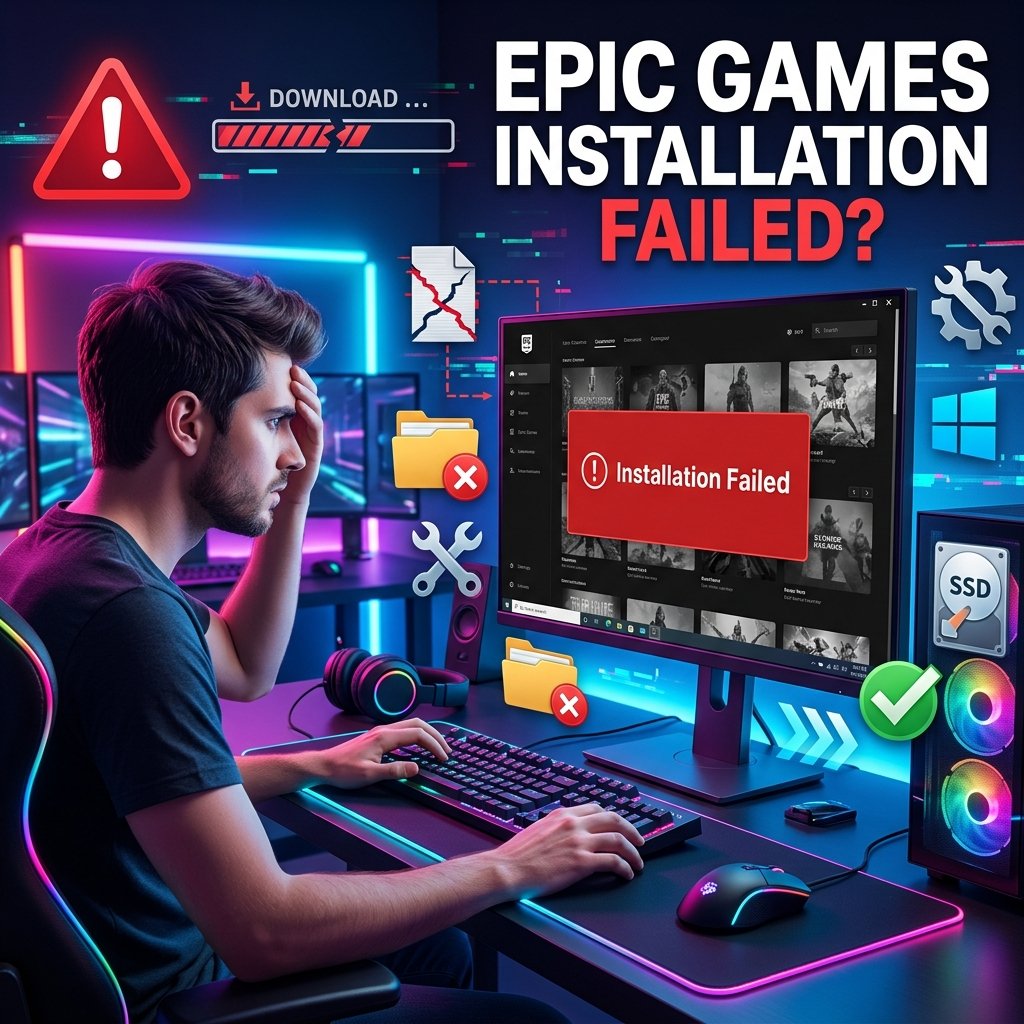
How to Fix the Epic Games Installation Failed Error (2026 Guide)
You click “Install,” watch the progress bar creep along, and then — right near the end, almost every time — it stops and throws an error at you. Epic Games installation failed. No real explanation, just a code you’ve never seen before and a game that still isn’t on your PC.
The frustrating part isn’t just that it happens. It’s that it can happen for half a dozen completely different reasons, and the “restart your PC” advice you’ll find everywhere only fixes the easy ones. If you’ve already tried that and you’re still stuck, this guide goes further. We’ll walk through every documented cause of the Epic Games installation failed error — from launcher cache corruption to antivirus interference to the “not enough space” error that shows up even when your drive isn’t full — in the order you should actually try them.
By the end, you’ll know exactly which fix matches your specific error message, why it works, and what to do if it doesn’t.
What Does “Installation Failed” Actually Mean on Epic Games?
Quick answer: It means the Epic Games Launcher was interrupted somewhere between downloading, verifying, and writing your game’s files to disk — and the cause is almost always local to your PC (permissions, cache, security software, or storage) rather than something wrong with the game itself.
Launcher Install Failure vs. Game Install Failure
These get lumped together, but they’re not the same problem, and mixing them up wastes time.
- The launcher itself fails to install (you’re setting up Epic Games for the first time, or reinstalling it) — this points to Windows-level permission issues, antivirus interference, or a corrupted installer download.
- A specific game fails to install inside an otherwise-working launcher — this points to disk space, corrupted manifests, or missing prerequisites tied to that particular title.
Knowing which one you’re dealing with tells you which half of this guide to focus on first.
Common Error Messages and Codes You’ll Actually See
| Error | What It Usually Means |
|---|---|
| LS-0006 — Installation Failed | Generic install/update failure, often cache-related |
| LS-0019 — Prerequisites Installation Failed | A dependency (like Visual C++) didn’t install correctly |
| IS-DS01 — Not Enough Space | Space calculation issue, often unrelated to actual free space |
| “Setup Wizard ended prematurely” | Launcher installer itself was blocked or interrupted |
| Invalid Drive error | Launcher is still pointing to a drive letter that changed or was removed |
| “Another installation is already in progress” | A previous install process didn’t fully close |
Quick Diagnosis — Jump to Your Exact Problem
If you already know your error code, skip straight to that section using the list above. If you’re on a different platform entirely — Steam, the EA App, or Ubisoft Connect — the same five root causes apply, and our general guide to game installation failed errors covers the platform-specific menus for each one.
If you’re not sure what’s causing your specific failure, start with the fast fixes below before jumping into any single error code — they resolve a surprising number of cases without you needing to diagnose anything at all.
Fast Fixes to Try First (Solve Most Cases in Minutes)
Expert Tip: In practice, roughly half of the installation failures we see reported trace back to one of these four steps. Don’t skip them just because they sound too simple — they address the most common causes first.
1. Restart your PC and the launcher. This clears out any half-finished processes, file locks, or pending Windows updates that quietly block installs. It sounds obvious, but a full restart (not just closing the launcher) also releases file handles that Windows sometimes keeps locked after a failed install attempt.
2. Run the Epic Games Launcher as Administrator. Right-click the launcher shortcut and select Run as Administrator. A large share of installation failures — including LS-0006 and LS-0019 — come down to the launcher not having write permission to Program Files or your chosen install folder. Running as administrator removes that barrier entirely.
3. Check the Epic Games Server Status page for outages. Before you spend twenty minutes troubleshooting your own PC, rule out Epic’s end. Server-side hiccups on Epic’s content delivery network can look identical to a local installation failure. Check the Epic Games Server Status page — if there’s a known incident, the fix is simply to wait.
4. Confirm you actually have enough free space — and where Epic checks it. Epic doesn’t just check your destination drive; it also checks the drive holding its VaultCache folder, which by default sits on your C: drive even if you’re installing games elsewhere. We’ll cover this in detail in the space-error section below, since it trips up more people than you’d expect.
Fix the LS-0006 “Installation Failed” Error
Why it happens: According to Epic’s own support documentation, LS-0006 means the launcher is unable to install or update a game, most commonly because of corrupted cache files left over from a previous session.
Step 1 — Clear the Launcher’s Cache
The launcher stores temporary data about past installs in a webcache folder. When this data gets corrupted, new installs can fail even though nothing is technically wrong with the game files themselves.
On Windows:
- Right-click the Epic icon in your system tray and select Exit to fully close the launcher.
- Press Windows key + R, type
%localappdata%, and press Enter. - Open the
EpicGamesLauncherfolder, then theSavedfolder. - Delete the
webcachefolder (or rename it if you’d rather keep a backup). - Relaunch the Epic Games Launcher and let it rebuild the cache automatically.
On macOS:
- Quit the launcher completely.
- Open Finder, click Go → Go to Folder, and enter
~/Library/Caches/com.epicgames.EpicGamesLauncher. - Delete the
webcachefolder, empty the Trash, and relaunch.
Expected outcome: The launcher restarts with a clean cache and typically re-attempts the install without the previous error. If it still fails, move to Step 2.
Step 2 — Run as Administrator
If clearing the cache alone doesn’t fix it, close the launcher and run it as administrator (see the Fast Fixes section above for the exact steps), then try the install again.
Step 3 — Reinstall Just the Affected Game
This is the step people skip too early, jumping straight to reinstalling the entire launcher. Don’t. Instead:
- Open your Library in the Epic Games Launcher.
- Click the three dots next to the problem game.
- Select Uninstall.
- Once that finishes, click the game again to start a fresh install.
Common Mistake: Reinstalling the whole launcher when only one game is affected. This wastes time, doesn’t touch the actual corrupted game manifest, and can force you to redownload every other game too. Always try a targeted game reinstall first.
Step 4 — Manually Remove Leftover Game Files (Last Resort)
If verifying and reinstalling both fail, there may be orphaned files blocking a clean install:
- Exit the Epic Games Launcher completely.
- Navigate to your install directory (default is
C:\Program Files\Epic Games\). - Right-click the specific game’s folder and delete it.
- Restart the launcher and reinstall.
Risk to be aware of: if the game stores local save data inside its install folder rather than in the cloud, manually deleting the folder can remove that save data permanently. Back up anything you’re not sure about first.
Fix LS-0019 “Prerequisites Installation Failed”
Why it happens: Per Epic’s LS-0019 support article, this code means a game’s required dependencies — most commonly the Microsoft Visual C++ Redistributables — didn’t install correctly, usually because of missing permissions or a pending restart.
Step 1 — Restart Your Computer First
This isn’t filler advice here — some prerequisites (particularly Visual C++ components) explicitly require a system restart to finish registering. If you installed something recently and haven’t restarted since, do that before anything else.
Step 2 — Manually Install Visual C++ Redistributables
If a restart doesn’t resolve it, install the redistributables yourself directly from Microsoft rather than relying on the launcher to do it silently in the background:
- Download both the x86 and x64 versions from the official Microsoft Visual C++ Redistributable page, even on a 64-bit system — many games still call the 32-bit runtime.
- Install both, restart, then try launching your game again.
Step 3 — Use the -SkipBuildPatchPrereq Launch Flag (Advanced)
This flag tells the launcher to skip its own prerequisite check entirely. Only use it after manually installing the redistributables yourself in Step 2 — skipping the check without doing that first will just move the failure further downstream.
- Close the Epic Games Launcher completely.
- Right-click the launcher shortcut and select Properties.
- At the end of the Target field, add a space followed by:
-SkipBuildPatchPrereq
- Click Apply, then relaunch as administrator.
Warning: This is an advanced workaround, not a permanent fix. If prerequisites genuinely aren’t installed, skipping the check just delays the error to a different point in the process.
Step 4 — Update to the Latest Launcher Version
Older launcher builds occasionally carry known prerequisite-installation bugs that Epic has since patched. Downloading the current version from Epic’s official site closes that gap.
Fix “Not Enough Space” / IS-DS01 (Even When You Have Space)
Why it happens: This is one of the most misleading errors on the entire platform. IS-DS01 frequently appears even when File Explorer clearly shows plenty of free space, because Epic isn’t only checking your chosen install drive — it’s also checking the drive that holds the VaultCache folder, which defaults to C:\Program Files (x86)\Epic Games\Launcher\VaultCache regardless of where you’re installing the actual game.
Step 1 — Check Where VaultCache Actually Lives
If your C: drive is nearly full but you’re trying to install a game on D:, the launcher can still report a space error, because it’s staging a cached copy in VaultCache on C: first.
Step 2 — Move or Change the VaultCache Location
- Open the Epic Games Launcher and go to Settings.
- Scroll down to Vault Cache Location.
- Click Browse and point it to a drive with more available room.
Expected outcome: the space check now evaluates against the new location instead of your original, nearly-full drive.
Step 3 — Change the Game’s Install Location
Separately from VaultCache, you can also just install the game itself somewhere else:
- In your Library, click Install on the game.
- Click Browse and choose a drive with sufficient free space.
Step 4 — Run Disk Cleanup
If space really is tight rather than just miscalculated, Windows’ built-in Disk Cleanup tool (right-click your drive in File Explorer → Properties → Disk Cleanup) can recover several gigabytes from temporary files and old Windows Update leftovers without deleting anything you’d miss.
If your space issue turns out to be caused by a partially corrupted previous download rather than a genuine shortage, our guide on fixing corrupted game installation files covers how to clear that out safely.
Pro Tip: As a rule of thumb, keep at least 15–20% of your install drive free at all times. Below that threshold, Windows itself starts behaving unpredictably during large file writes, independent of anything Epic is doing.
Fix “Invalid Drive” Errors
This one shows up almost exclusively after you’ve unplugged, renamed, or reformatted a drive the launcher was previously installed to or configured for.
Why it happens: The launcher stores an absolute path to its install location. If that drive letter changes or the drive disappears, Epic’s installer looks for a location that no longer exists and refuses to proceed — even if you try to reinstall to a completely different drive.
Official fix path: Epic’s documented solution is to either restore the original drive letter so the path resolves correctly again, or run the Windows-provided Program Install and Uninstall troubleshooter to clear the launcher’s install record before trying a clean reinstall.
A safer first step: before changing your system drive letter (which can break paths used by other installed software), try the troubleshooter route first. Changing drive letters should be your last option, not your first.
Antivirus, Firewall, and Windows Security Interference
This is one of the most commonly overlooked causes, especially for launcher setup failures rather than in-library game installs.
How to Tell If Security Software Is the Real Cause
If the launcher’s setup wizard “ends prematurely” with no specific error code, or an install stalls at the exact same percentage every time, security software silently blocking file writes is a strong candidate.
Step 1 — Temporarily Disable Real-Time Protection to Test
Turn off real-time protection in your antivirus (built-in or third-party), attempt the install once, and see if it completes.
Warning: Only disable protection for the duration of this single test. Re-enable it immediately afterward — leaving your system unprotected isn’t worth the convenience, and it’s not actually necessary once you’ve confirmed the cause.
Step 2 — Add a Permanent Exclusion Instead
Once you’ve confirmed antivirus software is the cause, the correct long-term fix is an exclusion, not leaving protection off:
- Add the Epic Games Launcher’s install folder to your antivirus’s exclusion list.
- Add your games’ install directory as well.
Step 3 — Check Windows Defender Controlled Folder Access
This feature is specifically designed to block unrecognized applications from writing to certain folders — and it frequently catches the Epic Games Launcher, especially after a Windows feature update re-enables it.
- Open Windows Security → Virus & threat protection → Manage ransomware protection.
- Check whether Controlled folder access is turned on.
- If it is, click Allow an app through Controlled folder access and add the Epic Games Launcher executable.
To confirm this is genuinely the cause rather than guessing, open Event Viewer, navigate to Applications and Services Logs → Microsoft → Windows → Windows Defender → Operational, and filter for Event ID 1123 — this shows the exact executable paths Windows blocked, which tells you definitively whether the launcher was affected.
Best Practice: Allowlist the specific launcher executable rather than disabling Controlled Folder Access entirely. You keep the ransomware protection active for everything else on your system while removing the one false positive causing your install to fail.
Step 4 — Rule Out VPN and Proxy Interference
If you’re running a VPN or a system-wide proxy, some configurations interfere with Epic’s content delivery network mid-download, producing a failure that looks identical to a local file-write problem. Temporarily disabling the VPN for the install is a quick way to test this.
Permissions and Windows-Level Fixes
If none of the above resolves it, the problem may sit deeper in Windows itself rather than in the launcher or your security software.
NTFS Permission Conflicts
If your install folder has restrictive NTFS permissions (common on drives migrated from another PC, or external drives formatted on a different system), the launcher may be unable to write to it even when running as administrator. Right-click the folder → Properties → Security tab, and confirm your user account has full control.
Run SFC and DISM
These built-in Windows tools repair corrupted system files that can quietly interfere with installers of all kinds:
sfc /scannow
DISM /Online /Cleanup-Image /RestoreHealth
Run both from an administrator Command Prompt. This can take several minutes — let it finish completely before restarting.
Check Disk Health With CHKDSK
If your drive itself has developing errors, installs can fail partway through in ways that look like a launcher problem:
chkdsk C: /f /r
This will likely require a restart to complete, since it needs exclusive access to the drive.
Try a Clean Boot
If you suspect a third-party background application (not just antivirus) is interfering, a Clean Boot temporarily disables non-Microsoft startup services so you can test the install in isolation. This is a diagnostic step, not a permanent fix — once you’ve identified the conflicting app, you re-enable everything else and just address that one program.
Network-Related Installation Failures
Installation failures aren’t always about your drive or your security software — sometimes it’s the download itself getting interrupted.
- Switch between wired and Wi-Fi to rule out router-level throttling or interference specific to one connection type.
- DNS issues can cause the launcher to lose its connection to Epic’s servers mid-download without a clear error message. Switching to a public DNS provider temporarily can help isolate this.
- Resume vs. restart: if a download stalls, try resuming it first before deleting anything — starting over unnecessarily just costs you time on a large game.
If your installs are consistently timing out or dropping partway through, it’s worth checking your connection stability directly rather than guessing. Our packet loss troubleshooting guide and high ping guide cover this in more depth, and you can run a quick check with our ping and latency calculator before re-attempting a large install.
Missing Dependencies That Block Installation
Beyond the Visual C++ Redistributables covered in the LS-0019 section, a few other dependencies commonly interfere with installation and launch:
- DirectX runtime — outdated or missing DirectX components can block certain games from finishing setup. See our DirectX errors guide for the full fix.
- .NET Framework — some titles require a specific .NET version that Windows Update hasn’t yet delivered.
- Windows Installer service — if this core Windows service isn’t running, no installer (Epic’s included) can complete properly. Check its status via
services.msc.
If you get past installation only to run into missing file errors when you try to launch the game, that’s a related but separate issue — our missing DLL errors guide picks up from there.
Epic Online Services (EOS) Conflicts
What it is: Epic Online Services is a background component many Epic-published and third-party games rely on for cross-platform features, even titles you access through Steam. When an old or corrupted version lingers on your system, new installs can fail in ways that have nothing to do with the game itself.
The safe fix:
- Uninstall Epic Online Services from Windows Settings → Apps.
- Launch the Epic Games Launcher (or the affected game) again.
- Let it reinstall EOS automatically — this generally installs a clean, current version without you needing to source it manually.
Note on trustworthiness: this fix is widely reported by users across Epic and Steam community forums as effective, but it isn’t part of Epic’s own official troubleshooting documentation for installation failures. Treat it as a solid second-line fix if the official steps above haven’t worked, not as your very first step.
Clean Reinstall of the Epic Games Launcher (Without Losing Your Games)
If you’ve worked through everything above and installations are still consistently failing, a full launcher reinstall is a reasonable next step — but it doesn’t have to mean redownloading every game you already own.
Why this works: your installed game files live in your chosen install directories (e.g., C:\Program Files\Epic Games\), while the launcher’s own configuration, cache, and login data live in a completely separate location. Reinstalling the launcher replaces the second without touching the first.
- Uninstall the Epic Games Launcher via Settings → Apps.
- Restart your PC.
- Download and install the latest launcher from Epic’s official site.
- Log in, then go to your Library — Epic will detect previously installed games and offer to verify/import them rather than redownload from scratch.
If, after all this, the launcher installs fine but simply won’t open afterward, that’s a distinct issue with its own set of fixes — covered in our Epic Games Launcher won’t open guide.
Advanced Troubleshooting for Persistent Failures
If you’ve tried everything above and you’re still stuck, these steps go a level deeper:
- Read the launcher’s own logs. Located in the same
Savedfolder as the webcache (see the LS-0006 section), these logs record the exact point of failure and are far more specific than the on-screen error message. If you end up contacting Epic Support, attach these. - Update GPU and storage-controller drivers. Outdated drivers occasionally interfere with how Windows handles large file writes during installation.
- Test on a different drive, including an external SSD, to rule out a failing or nearly-full primary drive.
- Watch for symbolic link or junction folder issues if you’ve customized your install paths using junctions — the launcher doesn’t always resolve these correctly, and a standard folder path avoids the problem entirely.
How to Prevent This Error From Happening Again
- Keep both Windows and the launcher updated. Most of the bugs covered here get patched over time; staying current avoids reintroducing them.
- Don’t interrupt downloads. Letting your PC sleep or losing power mid-install is one of the most common causes of corrupted manifests down the line.
- Clear the launcher cache periodically, even before you see a problem — it prevents the slow buildup that leads to LS-0006 in the first place.
- Maintain 15–20% free space on whichever drive holds your VaultCache folder, not just your games drive.
Frequently Asked Questions
Why does Epic Games say “not enough space” when I clearly have space?
This is almost always the VaultCache folder, which by default stages files on your C: drive regardless of where you’re installing the actual game. Moving VaultCache to a drive with more room usually resolves it immediately.
Is LS-0006 the same as LS-0019?
No. LS-0006 is a general installation/update failure, most often tied to cache corruption. LS-0019 specifically means a prerequisite component (like the Visual C++ Redistributables) failed to install.
Will reinstalling the Epic Games Launcher delete my already-installed games?
No, not if your games live in their own install directories separate from the launcher’s configuration folder. The launcher will detect and offer to re-verify existing installs rather than redownload them.
Does uninstalling Epic Online Services break my games?
Not permanently. EOS reinstalls itself automatically the next time you launch the affected game or the launcher, typically resolving conflicts caused by an outdated or corrupted version.
Why does running the launcher as administrator fix so many installation errors?
Many installation failures come down to Windows blocking the launcher from writing to Program Files or your chosen install folder. Administrator mode removes that restriction entirely.
Can antivirus software really block a legitimate installer like Epic’s?
Yes. This is a well-documented false-positive pattern, particularly with Windows Defender’s Controlled Folder Access feature, which is designed to flag unrecognized applications writing to protected folders.
Is it safe to use the -SkipBuildPatchPrereq launch flag?
Only after you’ve manually installed the required prerequisites yourself. Using it beforehand just moves the failure to a later stage instead of fixing it.
Conclusion
- Most Epic Games installation failures come down to one of five causes: permissions, cache corruption, security software interference, a VaultCache-related space miscalculation, or a missing prerequisite.
- Epic’s own official fix path for LS-0006 — admin mode, clear cache, reinstall the specific game, then manual folder deletion as a last resort — resolves the large majority of cases.
- “Not enough space” errors are frequently about VaultCache location, not your actual free disk space.
- You can reinstall the launcher without losing your already-installed games, as long as you understand where game files live versus where launcher data lives.
- Keeping Windows and the launcher updated, along with periodic cache clearing, prevents most recurrences before they start.

One Comment