Matchmaking Error in Online Games: How to Fix It
You queue up, the search spins, and then it happens: a matchmaking error kicks you back to the menu, or the queue just never resolves. It’s one of the most frustrating things that can happen in an online game, mostly because the cause isn’t obvious. Your internet might be working fine for everything else, and the game might still refuse to find you a match.
A matchmaking error simply means the game’s client couldn’t successfully connect you to a match or lobby through its matchmaking service. That failure can happen for a handful of very different reasons: the game’s own servers could be down or overloaded, something on your local network could be blocking the connection, or your account, crossplay settings, or game files could be the actual problem. This guide walks through how to tell which of those it is, and the safest order to try fixes in — starting with the simplest checks and only moving into network and platform-specific troubleshooting if you actually need to.
What Is a Matchmaking Error, Exactly?
A matchmaking error is any failure that stops a game from placing you into a lobby or match after you’ve queued. In practice, this shows up in a few recognizable ways:
- The queue spins indefinitely and never finds a match
- You get a direct error message like “could not enter matchmaking,” “matchmaking failed,” or “matchmaking unavailable”
- A match is found, but the game freezes or fails while loading you into it
- The queue cancels itself after a few seconds with no explanation
These are all symptoms of the same underlying problem: the handshake between your game client and the matchmaking service didn’t complete successfully. What’s different is where that handshake broke down — which is the first thing worth figuring out.
Is It You or the Game? Diagnosing Server-Side vs. Local Issues
Before changing a single setting, it’s worth spending two minutes figuring out whether the problem is even on your end. This matters because local troubleshooting won’t fix a problem that’s happening on the developer’s servers, and a lot of wasted time comes from people resetting their router when the real issue is a server outage.
Check the official server status first
Every major publisher maintains a status page, and checking it should be your first move, not your last resort. If matchmaking is degraded for everyone, no amount of local troubleshooting will fix it.
- Epic Games / Fortnite: status.epicgames.com
- EA titles: EA’s server status page
- Blizzard titles: Blizzard Support
- Call of Duty / Activision titles: Activision’s online services page
- Xbox network: Xbox Live status
Signs it’s a server-side (not local) problem
- The status page shows an active incident or scheduled maintenance
- Friends on different networks or platforms are seeing the same error
- Other games and apps on your connection work completely normally
- The error started suddenly right after a patch or update went live
Signs it’s local to your setup
- Other people are playing the same game right now without issues
- Other online games or services work fine on your connection
- The problem is limited to one device on your network, not all of them
- Nothing has changed on the developer’s side recently
If it looks server-side, the right move is simply to wait and periodically re-check the status page. If it looks local, the sections below walk through the fixes in a safe order.
Quick Fixes to Try First
These are the lowest-risk, fastest steps, and they resolve a meaningful share of matchmaking errors on their own — especially ones caused by temporary glitches rather than a genuine configuration problem.
- Restart the game and, if that doesn’t help, the client/launcher too. This is standard first-line advice across official support channels because it forces a fresh connection to matchmaking servers instead of reusing a stale session.
- Check for game and platform updates. A patch you haven’t installed yet can cause version mismatches with the matchmaking service.
- Restart your router/modem. This refreshes your connection and IP lease, and clears up temporary local network congestion.
- Switch from Wi-Fi to Ethernet, if that’s an option. Wired connections are more stable and less prone to the kind of intermittent packet loss that can interrupt a matchmaking handshake.
- Temporarily disable any VPN or proxy and try again. Routing your connection through a VPN can add latency or send your traffic through a path the matchmaking service doesn’t expect.
If none of these resolve it, move on to the diagnostic steps below.
Common Causes of Matchmaking Errors
Server maintenance, patches, and outages
Developers regularly take matchmaking offline for updates, and unusually high player counts after a major content drop can overload backend services even without a bug involved. This is a genuine, well-documented cause — not just an excuse — which is exactly why checking status pages first matters.
Network instability: high ping and packet loss
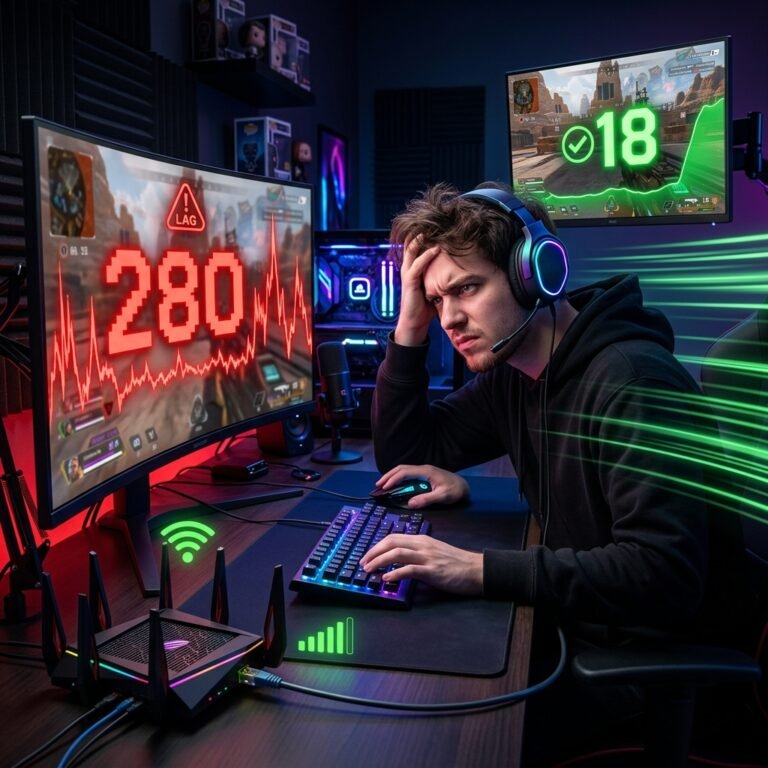
Matchmaking isn’t just about being “connected” — it requires a reliable, low-latency exchange of data to place you into a lobby. If your connection is dropping packets or spiking in latency, that handshake can fail even though basic browsing works fine. If this looks like your situation, our guide on how to fix high ping while gaming and our guide on how to fix packet loss in online games go deeper into diagnosing and resolving both.
NAT type restrictions
NAT (Network Address Translation) is what allows multiple devices on your home network to share a single public IP address. Depending on how your router is configured, your NAT type is usually labeled Open, Moderate, or Strict (sometimes Type 1/2/3). A Strict NAT type blocks a lot of the direct, incoming connections that peer-to-peer and hybrid multiplayer games rely on — which can prevent matchmaking from completing, shrink the pool of players you can be matched with, or cause matches to fail silently.
Firewall and security software interference
Windows Defender Firewall or third-party antivirus software can block the specific connections a game needs for matchmaking, especially right after installing a new security tool or after a Windows update resets firewall rules.
VPN or proxy interference
A VPN can route your traffic through a server that’s geographically or technically mismatched with what the game expects, adding latency or triggering region-based matchmaking issues.
Crossplay and region/pool settings
Crossplay is usually on by default, and it changes how you’re matched, not just whether you can play with other platforms. Many games split matchmaking pools by input type (controller vs. mouse-and-keyboard) or platform for competitive/ranked modes specifically, even while crossplay itself is enabled. That’s expected behavior, not a bug — but it’s easy to mistake for a broken matchmaking system if you don’t know it’s happening.
Corrupted or outdated game files
Failed downloads, interrupted updates, or corrupted local files can prevent a game from properly communicating with matchmaking services. This is a real cause, but it’s also one of the more time-consuming fixes, which is why it belongs later in the troubleshooting order rather than first.
Account, session, or anti-cheat service issues
Some games rely on a background anti-cheat service to authorize matchmaking. If that service isn’t running, matchmaking can fail even though everything else looks normal. Leftover settings from private lobbies — like a custom matchmaking key — can also silently block you from public queues.
Diagnosing and Fixing Network-Level Problems
If the quick fixes didn’t help and the problem looks local rather than server-side, these are the next steps, in order of risk.
Fix: Check your ping and packet loss
Why it can help: Confirms whether your connection quality — not your settings — is the actual bottleneck.
What to do:
- Run an in-game or third-party ping/packet-loss test while connected to the network you normally play on.
- Compare the results to what’s normal for your connection type (wired connections should show consistently low, stable ping).
- If packet loss is present even on a stable-looking connection, that’s a strong signal to investigate your router, Wi-Fi interference, or contact your ISP.
Check after completing it: If ping is high or packet loss is present, that likely explains matchmaking failures on its own.
If it doesn’t work: Move on to the DNS/Winsock reset below.
Fix: Flush DNS and reset Winsock (Windows)
Why it can help: Your PC caches DNS lookups and network settings, and a corrupted cache can quietly break the connection between your game client and matchmaking servers even though basic internet access still works. This is one of the more reliably safe fixes — it’s the same procedure documented in Epic Games’ own support resources for connectivity issues, and Rockstar Games publishes nearly identical steps for its own titles.
What to do:
- Open Command Prompt as an administrator.
- Run the following commands one at a time:
ipconfig /flushdns
ipconfig /release
ipconfig /renew
netsh int ip reset
netsh winsock reset
- Restart your PC after running them.
Check after completing it: Try matchmaking again after the restart.
If it doesn’t work: Move on to checking your NAT type.
Fix: Check and improve your NAT type
Why it can help: A Strict NAT type actively blocks the kind of direct connections a lot of multiplayer games need for matchmaking and voice chat.
What to do:
- Enable UPnP first. Log into your router’s admin panel (usually at an address like 192.168.1.1) and look for UPnP under Advanced, Network, or Security settings. For most home setups, this alone moves NAT from Strict to Moderate or Open.
- Check for double NAT. This happens when your ISP’s modem/router and your own router are both performing NAT translation. If you’re using your own router behind an ISP-provided gateway, put the ISP device into bridge or passthrough mode so only one device handles NAT.
- Try manual port forwarding as a next step, using the specific ports documented by your platform or the game itself — these vary by title and platform, so check the official instructions for the game or console you’re using rather than relying on a generic list.
- Treat DMZ as a last resort. Placing a device in the DMZ exposes it to all incoming traffic and removes a layer of your router’s firewall protection. Only use it if the other options fail, and understand the security trade-off before doing so.
Check after completing it: Recheck your NAT type in your console’s network settings or the game’s connection menu to confirm it changed.
If it doesn’t work: If your ISP uses carrier-grade NAT (CGNAT), router-side changes may not be enough — see below.
CGNAT and what to do if your ISP is the bottleneck
If your NAT type stays Strict no matter what you change on your router, your ISP may be using carrier-grade NAT, which shares a single public IP across many customers. In that case, the fix isn’t on your end — you’ll need to contact your ISP to ask about a dedicated public IP address, or check whether the game supports IPv6, which can sometimes route around the restriction.
Platform-Specific Considerations
Matchmaking troubleshooting isn’t identical across every platform. Here’s how it differs.
Windows PC (Steam and Epic Games)
PC introduces more variables than consoles: background overlays, third-party antivirus, launcher cache corruption, and driver issues can all interfere with matchmaking. If you’re specifically running into launcher problems rather than in-game matchmaking errors, our guides on the Epic Games Launcher not opening and Steam games not launching on Windows cover those separately.
Xbox
NAT type is checked directly in your console’s network settings (Profile & System → Settings → General → Network Settings). Xbox troubleshooting leans more heavily on router-side fixes like UPnP and port forwarding than on the DNS/Winsock commands used on PC.
PlayStation
NAT type is shown under Settings → Network → Connection Status. As with Xbox, the primary fixes are router-side rather than client-side.
Crossplay environments
If matchmaking only seems to break when playing with friends on other platforms, don’t assume something is broken — check whether the game splits ranked/competitive pools by platform or input type, which is normal, documented behavior in several current titles rather than a bug.
Advanced Troubleshooting
If you’ve checked server status, tried the quick fixes, and ruled out network/NAT issues, these are the next steps — but they take more time, so they belong later in the process.
Verify or repair game files
Most PC launchers include a built-in file-verification tool (Steam’s “Verify Integrity of Game Files,” Epic’s “Verify” option under Manage). This checks for corrupted or missing files without requiring a full reinstall.
Reinstall the game
Only necessary if file verification fails to resolve the issue. This is the most time-consuming fix, which is why it’s a last resort rather than an early step.
Check background/anti-cheat services
Some competitive games require an anti-cheat service to be actively running for matchmaking to work. If matchmaking fails but the rest of the game loads normally, check whether that background service has stopped and needs to be restarted.
Clear custom matchmaking keys or private-lobby settings
If you’ve played in a private tournament or custom lobby recently, a leftover custom matchmaking key can prevent you from queuing into public matches. Check the game’s mode-selection or custom-match settings and clear it if present.
Common Mistakes That Waste Time
- Assuming your internet is broken when the game’s servers are actually down — always check the status page first.
- Changing DNS settings repeatedly without confirming DNS was actually the problem.
- Using a VPN without understanding its effect on latency and region-based matchmaking.
- Permanently disabling a firewall or antivirus instead of testing with it off briefly and turning it back on.
- Opening ports or enabling DMZ unnecessarily before trying UPnP first.
- Reinstalling the entire game before ruling out server status, network issues, and NAT type.
- Ignoring packet loss because “the internet seems fine” for browsing.
- Repeating the same fix multiple times without actually testing whether it worked in between attempts.
When to Contact Official Support
Stop troubleshooting locally and reach out to official support when:
- The server status page confirms an ongoing, unresolved issue
- Authentication fails even though your internet connection is clearly working
- The problem is limited to one specific game and persists after you’ve checked server status, restarted your connection, and ruled out NAT/firewall issues
- You suspect an account restriction rather than a technical problem
- The issue looks like a known bug that only the developer can fix on their end
When you contact support, it helps to have ready:
- The exact error message or code
- Your platform (PC/Steam/Epic, Xbox, or PlayStation)
- Your region
- Roughly when the issue started
- Your connection type (wired or Wi-Fi)
- What troubleshooting you’ve already tried
Frequently Asked Questions
Why is matchmaking not working in my game?
It usually comes down to one of three layers: the game’s servers (outage or maintenance), your network (NAT, packet loss, firewall), or your account/session (anti-cheat service, crossplay settings, leftover custom keys). Check server status first, then work through the network-level fixes above.
Why is my game stuck searching for a match?
This typically means your client sent a valid request but isn’t getting matched — often because the eligible player pool is small (due to region, rank, or crossplay filtering) or because the matchmaking service itself is degraded.
How do I know if matchmaking servers are down?
Check the game’s or platform’s official status page first. If that shows an active incident, treat it as confirmed rather than relying only on social media chatter or forum posts.
Can high ping or packet loss cause matchmaking errors?
Yes. Matchmaking requires a reliable handshake between your client and the matchmaking service, and packet loss or high latency can interrupt that process — separately from how ping affects your performance once you’re actually in a match.
Can NAT type prevent matchmaking?
Yes, particularly a Strict/Type 3 NAT in games that rely on peer-to-peer or hybrid connections. Moving to Open or Moderate NAT (usually via UPnP) resolves this in most home setups.
Does restarting my router actually fix matchmaking problems?
It genuinely helps for a lot of transient, local network issues by refreshing your IP lease and clearing temporary congestion — but it won’t fix a server-side outage, so don’t rely on it if the status page shows an active incident.
Can a VPN cause matchmaking errors?
It can, mainly by adding latency or routing your connection through a path the matchmaking service doesn’t expect. If you’re using one, test with it temporarily disabled.
Why does matchmaking fail only with crossplay enabled?
This is often not a failure at all — several games separate ranked/competitive matchmaking pools by platform or input type even while crossplay is technically on, which can look like a problem if you’re not expecting it.
How do I fix a matchmaking error on Xbox or PlayStation specifically?
Start with your console’s NAT type in its network settings, then work through UPnP and port forwarding on your router. Console troubleshooting relies more on router-side fixes than the DNS/Winsock commands used on PC.
When should I contact support instead of troubleshooting further?
Once you’ve confirmed server status, tried a restart, and ruled out NAT and firewall issues without success — especially if the problem is limited to one game and looks like it needs a developer-side fix.
Conclusion
Matchmaking errors almost always trace back to one of three places: the game’s servers, your local network, or your account/session settings — and figuring out which one first will save you far more time than guessing. Check the official status page before changing anything. If it’s local, work through the fixes in order: restart, check for updates, test your connection, check NAT type, check firewall/VPN interference, and only move into file verification or reinstalling as a later step. If none of that resolves it, official support is the right next move — and having your error message, platform, and troubleshooting history ready will make that process faster.