How to Stop Random FPS Drops in Games: A Step-by-Step Diagnostic Guide
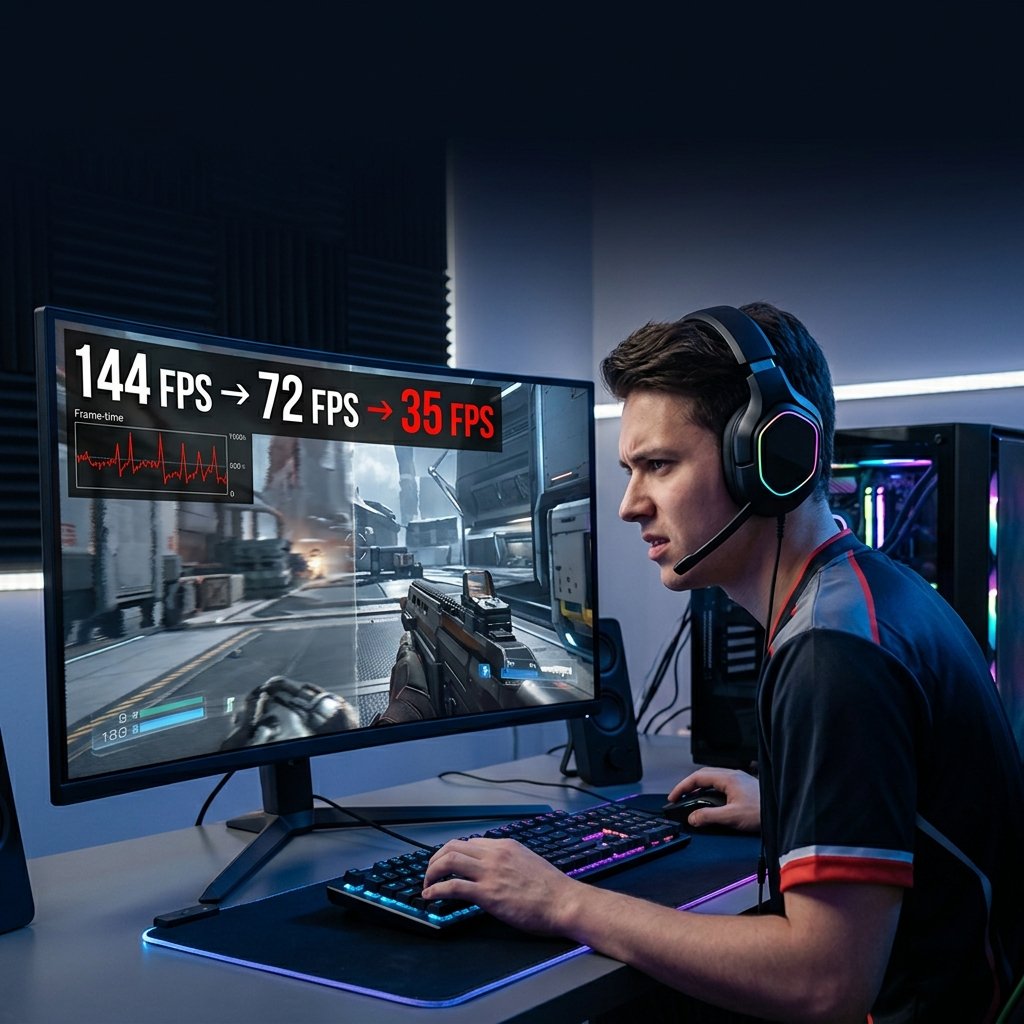
Random FPS drops are one of the most frustrating PC gaming problems to solve, mainly because they’re inconsistent. Your frame rate looks fine for a while, then suddenly dips for a few seconds before returning to normal, only to repeat later with no obvious trigger. If you’re trying to figure out how to stop random FPS drops in games, the real challenge usually isn’t finding a fix — it’s finding the right one, since drops like this can come from your CPU, GPU, thermals, drivers, background software, or even the game itself.
Lowering every graphics setting rarely solves this kind of problem, because random drops are often not caused by your PC struggling to render a demanding scene. They’re more commonly caused by something interrupting the rendering pipeline temporarily — a core overheating and throttling for a few seconds, a shader compiling on the fly, a background process spiking, or a driver hiccup. This guide walks through a diagnostic-first approach: how to tell what’s actually happening before you change anything, followed by fixes ordered from safest to most advanced.
FPS Drops vs. Stuttering vs. Lag — What You’re Actually Diagnosing
Before troubleshooting, it helps to separate three things that often get lumped together as “the game feels bad.”
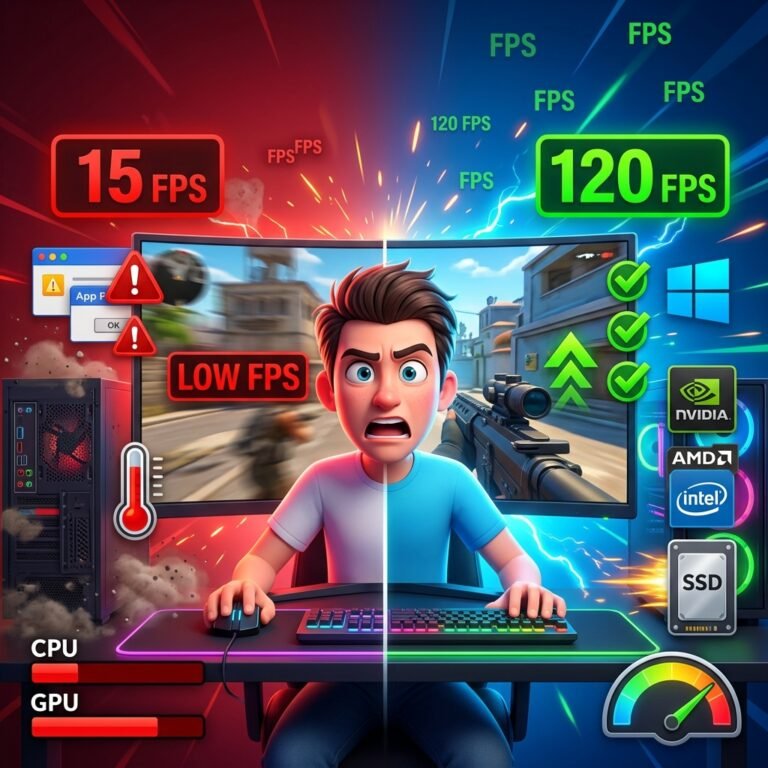
FPS (frames per second) is how many frames your GPU renders each second. It’s usually shown as an average, but the average can be misleading. A game reporting a steady 90 FPS can still feel rough if a handful of frames take far longer to render than the rest — this is why performance analysts pay attention to 1% lows and 0.1% lows, which represent the slowest 1% or 0.1% of frames in a session rather than the average. A high average FPS with poor 1% lows is a strong sign of frame-time spikes rather than a raw power problem.
Stuttering (also called micro-stuttering) is what you feel when frame timing is inconsistent, even if the frame count looks acceptable. If your FPS counter reads 100 but the game still feels like it’s hitching every few seconds, you’re looking at a frame-pacing issue, not a lack of rendering power.
Lag, in the sense most players mean it, is a network problem — not a rendering problem. This distinction matters enough that it deserves its own section.
Does Ping Affect FPS?
No — not directly. FPS is a measurement of your local hardware rendering frames; ping is a measurement of how long it takes data to travel between your PC and a game server. High ping can cause rubber-banding, delayed hit registration, or players appearing to teleport, but it does not slow down your GPU’s ability to render frames. If your FPS counter is dropping at the same time your connection feels bad, treat them as two separate problems to diagnose, not one. If you’re seeing connection-specific symptoms like rubber-banding or disconnects, our guide on how to fix high ping while gaming covers that separately, and if you’re also seeing choppy visuals specifically in multiplayer titles, how to fix packet loss in online games is worth a look. Neither will fix a genuine FPS drop, but they’ll rule network issues out so you’re not chasing the wrong cause.
Quick Checks Before You Start Diagnosing
A handful of low-risk checks can sometimes resolve the problem without any deeper investigation, and they’re worth doing first because they take only a few minutes:
- Restart your PC. This clears temporary memory issues and stops background processes from earlier sessions that may still be running.
- Check for pending Windows and GPU driver updates. An interrupted or outdated update can cause inconsistent behavior.
- Verify your game files aren’t corrupted or incomplete. A partial or corrupted install can cause both crashes and unpredictable performance issues. If you’re on Steam, our guide on how to verify and repair corrupted Steam game files walks through this process.
- Close obvious background load — browser windows with many tabs, screen recorders, or anything you know is resource-heavy.
If the drops persist after these checks, it’s time to actually diagnose the cause rather than guessing at fixes.
Diagnose Before You Fix: Find Your Bottleneck
Randomly trying settings wastes time because different causes need different fixes. A CPU bottleneck won’t be solved by lowering texture quality, and a GPU bottleneck won’t be solved by closing background apps. Two simple diagnostic techniques will point you in the right direction.
The Resolution Test
Play the game at your normal settings and note the FPS during a drop-prone moment. Then drop the resolution significantly (for example, from 1440p to 1080p, or 1080p to 720p) and repeat the same scenario.
- If FPS increases noticeably, your GPU is the limiting factor for that scenario (GPU-bound).
- If FPS stays roughly the same, your CPU is more likely the limiting factor (CPU-bound), since resolution changes mostly affect GPU workload, not CPU workload.
Monitor While You Play
Use an on-screen overlay — the built-in Xbox Game Bar (Win+G), MSI Afterburner with RivaTuner Statistics Server, or your GPU vendor’s own overlay (NVIDIA App or AMD Adrenalin) — and watch these during a drop:
- GPU usage: If it’s pinned near 100% the whole time, the GPU is working at its limit — a genuine GPU bottleneck. If usage drops during the FPS dip, something else is interrupting the pipeline.
- CPU usage — overall and per-core: Overall CPU usage can look moderate (50–60%) while a single core or thread is maxed out and quietly bottlenecking the game, since many games still rely heavily on one or two threads for core game logic. Don’t assume total CPU usage has to hit 100% for a CPU bottleneck to exist.
- Temperatures and clock speeds: A GPU or CPU clock speed that drops sharply at the same moment FPS drops is a strong indicator of thermal throttling.
- VRAM usage: If VRAM is at or near your GPU’s total capacity when the drop happens, you may be VRAM-limited.
Reading the pattern of the drop also tells you a lot:
| Pattern | What it often suggests |
|---|---|
| Drops repeat roughly every 20–60 seconds, GPU usage dips during each drop | Thermal throttling |
| Drops happen briefly after a driver update, Windows update, or entering a new area | Shader compilation |
| Drops happen only in one specific game | Game-specific issue, not hardware |
| Drops happen across every game you play | System-wide cause: drivers, thermals, or background software |
| GPU usage is consistently low but FPS is still unstable | Likely CPU or background-process related, not GPU |
If high CPU usage shows up consistently during your monitoring, our dedicated guide on how to fix high CPU usage while gaming goes deeper into that specific scenario.
Thermal Throttling: A Common Cause of Sudden, Repeating Drops
When a CPU or GPU gets too hot, it automatically reduces its clock speed to protect itself from damage — this is thermal throttling, and it’s one of the most common explanations for FPS drops that repeat on something close to a schedule, especially on laptops.
What to check: Monitor temperatures alongside clock speeds during gameplay. If you see clock speed drop sharply at the exact moment FPS drops, and temperatures are climbing toward the upper end of what’s typical for your specific CPU or GPU model, throttling is a reasonable explanation. Exact “safe” temperature limits vary meaningfully between chip models and manufacturers, so rather than relying on a single universal number, check your CPU or GPU manufacturer’s specifications for your specific model.
How to address it:
- Clean dust from fans, heatsinks, and intake vents — restricted airflow is one of the most common and easily fixed causes of rising temperatures over time.
- Make sure your case or laptop has adequate airflow (not pressed against a couch cushion or blocked by walls).
- On a desktop, confirm case fans are actually spinning and correctly oriented for intake/exhaust.
- On a laptop, consider a cooling pad and make sure it’s plugged in rather than running on battery, since battery mode itself limits performance (more on this below).
If temperatures and clock speeds stay stable throughout your session and the drops still happen, thermal throttling is unlikely to be the cause, and it’s worth moving on to drivers and shaders.
Driver and Shader-Related Causes
Outdated, corrupted, or recently updated GPU drivers are one of the most frequently cited causes of both stuttering and outright FPS drops, and 2026 has brought some genuinely new developments worth understanding.
Shader Compilation Stutter
Modern games rely on shaders — small GPU programs responsible for lighting, textures, and effects — that must be compiled into a format your specific GPU and driver can use. This compilation can happen up front (the “Compiling Shaders” loading screen some games show) or on the fly during gameplay, which is a common cause of brief stutters the first time you enter a new area or encounter a new visual effect. It’s also a common reason performance changes suddenly after a driver update or game patch: your GPU’s cached, precompiled shaders are invalidated and need to recompile, causing temporary instability until the cache rebuilds.
What’s changed in 2026: NVIDIA introduced Auto Shader Compilation (ASC) in its NVIDIA App, which proactively recompiles a game’s shaders in the background using idle CPU cycles after a driver update, rather than making you sit through recompilation the next time you launch the game. It’s worth knowing that ASC specifically targets the post-driver-update recompile penalty — it does not address shaders a game compiles on the fly for the first time during gameplay, which is a separate cause of mid-session micro-stutter.
Separately, Microsoft has been rolling out Advanced Shader Delivery for Windows, a system that delivers precompiled shaders to your PC at download time rather than compiling them locally at all. As of mid-2026 it’s available broadly for AMD Radeon GPUs through the Xbox PC app, with NVIDIA support confirmed to be coming to GeForce RTX cards later in the year. Coverage is currently tied to specific titles distributed through the Xbox app rather than every PC game, so it won’t apply universally yet, but it’s the clearest sign that shader-related stutter is being addressed at the platform level rather than left entirely to individual games.
What you can do now:
- If a game shows a shader compilation or “optimizing shaders” screen at launch, let it finish rather than skipping it.
- After a major driver update, expect the first 10–15 minutes of play to be less stable while shaders recompile; this is normal and usually resolves on its own.
- NVIDIA users can check the NVIDIA App’s shader cache settings under Graphics settings to confirm Auto Shader Compilation is available and enabled if it’s causing you repeated post-update stutter.
Updating and Cleanly Reinstalling Drivers
A straightforward driver update — downloaded directly from NVIDIA, AMD, or Intel rather than through Windows Update — resolves a meaningful share of driver-related FPS issues and should be your first driver-related step.
A clean driver installation, which removes old driver files and profiles before installing fresh, is a more advanced step and shouldn’t be your default first move. It’s worth doing specifically when:
- Problems started right after a driver update and a straightforward reinstall didn’t help
- You recently switched GPU brands (e.g., NVIDIA to AMD) and leftover files from the old driver may be conflicting
Tools like Display Driver Uninstaller (DDU) are commonly used for this, run in Safe Mode. Because this removes your driver configuration entirely and requires reinstalling from scratch, treat it as a later-stage step rather than something to try before simpler fixes.
Background Processes and Overlays
Software running alongside your game competes for CPU cycles, memory, and sometimes GPU resources, and this competition tends to show up as exactly the kind of inconsistent, unpredictable FPS drop this guide is about — smooth most of the time, with occasional dips when something else briefly demands resources.
Common culprits worth checking:
- Browsers with many open tabs
- Discord, especially with hardware-accelerated video or screen sharing active
- RGB lighting control software (from motherboard, keyboard, or peripheral manufacturers)
- Recording or streaming software
- Multiple overlays running simultaneously (game launcher overlay, GPU vendor overlay, and Discord overlay all at once, for example)
- Antivirus scans scheduled during your usual play times
How to check: Open Task Manager (Ctrl+Shift+Esc) during a session and sort by CPU or memory usage, or watch for spikes in your monitoring overlay that line up with the FPS drop. If you disable overlays and background apps one at a time and the drops disappear, you’ve found your cause; if performance is identical either way, background software isn’t the issue and you can rule it out.
Windows Settings Worth Checking
Windows offers several graphics-related settings, but they’re situational rather than universal fixes — not every setting needs to be forced on or off for every system.
Game Mode and Power Plan
Game Mode (Settings > Gaming > Game Mode) prioritizes foreground game processes for CPU and GPU resources and is generally safe to leave enabled. Setting your power plan to High Performance (or your laptop manufacturer’s equivalent “Performance” mode) prevents Windows from throttling CPU speed to save power, which matters more on laptops than desktops.
Hardware-Accelerated GPU Scheduling (HAGS)
HAGS shifts some GPU task scheduling from the CPU to a dedicated processor on the GPU itself, intended to reduce CPU overhead. It’s worth understanding that this setting has a mixed track record: independent testing has found that it produces little to no measurable frame-rate improvement in most games, and Microsoft’s own documentation has stated that most users shouldn’t expect significant changes from it. At the same time, it’s not something to dismiss outright — it’s a requirement for NVIDIA DLSS Frame Generation to function, and it can help specifically in CPU-bound, low-GPU-usage titles like some competitive esports games by reducing CPU scheduling overhead.
In practice: if you’re playing a CPU-bound competitive game and want DLSS Frame Generation to work, keep it enabled. If you’re experiencing unexplained stutter and have ruled out other causes, it’s reasonable to test toggling it off to see if it’s contributing, since a small number of users report the opposite of the intended effect on certain hardware and driver combinations. You’ll find the toggle at Settings > System > Display > Graphics > Change default graphics settings, and it only appears if both your GPU and driver support it.
Background Updates
Windows Update and antivirus definition updates occasionally run in the background during a session and can cause a temporary spike that looks exactly like an unexplained FPS drop. Pausing updates during a play session, or checking Task Manager for Windows Update activity when a drop occurs, can rule this out quickly.
If your FPS problems started right after installing a Windows update, our guide on game crashes after a Windows update covers a closely related failure pattern worth reading if crashes are also happening alongside the drops.
VRAM, RAM, and Storage-Related Drops
When a GPU runs out of dedicated video memory (VRAM), it has to offload data to system RAM over a much slower connection, which typically shows up as a sudden, noticeable stutter rather than a gradual slowdown — especially when textures or new assets need to load.
What to check: Watch VRAM usage in your monitoring overlay. If it’s sitting near your GPU’s total VRAM capacity specifically during the moments FPS drops (particularly when moving into a new area or increasing texture detail), VRAM is a reasonable suspect.
What to do: Lower texture quality or resolution — these are the settings most directly tied to VRAM usage — rather than settings like shadow quality or anti-aliasing, which affect GPU load differently. If you’re running low on system RAM in general (16GB has become a practical minimum for many modern titles), background processes and Windows itself compete with the game for memory, which can produce similar symptoms; closing unnecessary background applications is the most direct fix short of adding more RAM.
Graphics Settings That Actually Matter
Not every graphics setting affects performance the same way, and blanket advice to “turn everything down” often means changing settings that don’t meaningfully help your specific bottleneck. Understanding what each category actually taxes lets you make targeted changes.
| Setting category | Primarily affects |
|---|---|
| Resolution, render scale, textures | VRAM and GPU load |
| Shadows, reflections, ambient occlusion, volumetric effects | GPU load |
| View distance, background NPC/object count | Often CPU load |
| Ray tracing, global illumination | Heavy GPU load |
| Anti-aliasing | GPU load, varies by method |
| DLSS, FSR, XeSS (upscaling) | Reduces GPU load by rendering at a lower internal resolution |
| Frame generation | Increases perceived frame rate but does not reduce underlying render load, and can add input latency |
If your diagnosis pointed to a GPU bottleneck, reducing GPU-heavy settings like ray tracing, shadow quality, or render resolution — or enabling an upscaler like DLSS, FSR, or XeSS — is the more targeted fix. If your diagnosis pointed to a CPU bottleneck, GPU-focused settings won’t help much; reducing view distance or background object density is more likely to make a difference, since those settings tend to affect CPU-side game logic more than GPU rendering.
Laptop-Specific Causes
Laptops introduce several FPS-drop causes that don’t apply to desktops, and it’s worth separating these out rather than assuming desktop advice applies equally.
- Battery mode: Most laptops intentionally reduce CPU and GPU performance on battery power to preserve battery life. If you’re seeing random drops on battery that disappear when plugged in, this is expected behavior, not a fault — plug in during gaming sessions for full performance.
- Manufacturer performance modes: Many gaming laptops have vendor-specific software (ASUS Armoury Crate, Lenovo Vantage, and similar) with performance profiles that limit power and fan speed in “quiet” or “balanced” modes. Switching to the highest performance profile while gaming can resolve throttling-related drops.
- Hybrid graphics switching: Laptops with both integrated and discrete GPUs sometimes assign a game to the wrong GPU, or switch between them mid-session. Checking your Windows graphics preference (Settings > System > Display > Graphics) to confirm the game is set to use your discrete GPU, not the integrated one, can resolve unexplained performance inconsistency.
- Thermal limitations: Laptop cooling is inherently more constrained than desktop cooling, so throttling is proportionally more common — see the thermal throttling section above, but expect it to be a more frequent culprit on a laptop.
Game-Specific vs. System-Wide FPS Drops
One of the most useful diagnostic questions is simple: does this happen in every game, or just one?
If it’s happening in one specific game:
- The game’s own optimization or a known engine issue may be responsible
- Game files could be outdated, incomplete, or corrupted — verifying/repairing files is a reasonable next step
- A shader cache specific to that game may need to rebuild
- Graphics settings specific to that title may be poorly tuned for your hardware
If it’s happening across every game you play:
- Drivers are a stronger suspect
- Thermal throttling affecting the whole system is a stronger suspect
- Background software or Windows-level settings are more likely responsible
- Genuine hardware limitations or instability become more plausible
This isn’t an absolute rule — a badly optimized game can expose a marginal thermal or driver issue that other games mask — but it’s a useful starting filter for where to focus your diagnosis first.
Recommended Troubleshooting Order
Bringing everything together, here’s a safe-to-advanced sequence to work through:
- Restart, check for updates, verify game files
- Run the resolution test and monitor GPU/CPU/temps during a drop to identify your bottleneck
- Check for thermal throttling specifically (temperature and clock speed correlation)
- Update GPU drivers directly from the manufacturer
- Rule out background processes and overlays
- Check Windows settings relevant to your situation (Game Mode, power plan, HAGS)
- Adjust graphics settings targeted at your specific bottleneck
- If on a laptop, check power mode and GPU assignment
- Only after the above: consider a clean driver reinstall or advanced shader cache troubleshooting
What Not to Do
A few common recommendations circulating online do more harm than good, or simply aren’t worth the risk relative to their benefit:
- Fake “FPS booster” or PC optimizer software. These typically just close background processes you could close yourself in Task Manager, and some bundle unwanted software or telemetry.
- Registry edits without a specific, documented reason. Random registry tweaks copied from forum posts can introduce instability without a clear performance benefit.
- Permanently disabling antivirus or built-in security features. This isn’t a legitimate performance fix and introduces real security risk.
- Unofficial DLL downloads or “fixes” from unverified sites. These can introduce malware; if a game is missing a DLL, get it through a verified reinstall or official redistributable, not a third-party download site.
- Aggressive, undocumented BIOS changes made without understanding what they control.
If a specific fix requires one of these approaches, it’s worth treating that as a signal to look for a safer method rather than proceeding.
Frequently Asked Questions
Why do my FPS randomly drop in games?
Random drops usually come from something briefly interrupting your PC’s ability to render frames consistently — most commonly thermal throttling, a background process spiking, driver instability, or on-the-fly shader compilation — rather than your hardware being generally too weak for the game.
Why does my FPS drop even though my GPU usage is low?
Low GPU usage during a drop points away from the GPU and toward the CPU, background software, or a temporary stall like shader compilation. A single overloaded CPU core or thread can bottleneck a game even when total CPU usage looks moderate.
Can overheating cause FPS drops that go away after a few seconds?
Yes. Thermal throttling reduces clock speed briefly to protect the chip, then allows it to recover once temperatures drop slightly, which produces exactly this pattern of a short dip followed by a return to normal.
Does high ping cause FPS drops?
No. Ping measures network latency and FPS measures local rendering performance; they’re caused by different things. High ping can make gameplay feel inconsistent in ways that resemble FPS drops (like rubber-banding), but it doesn’t reduce your GPU’s actual frame output.
Why did my FPS drop after a driver or Windows update?
This is commonly related to shader cache invalidation — updates can force your GPU to recompile shaders it previously had cached, causing temporary instability until the new cache builds up. It typically stabilizes within the first several play sessions after the update.
Should I turn Hardware-accelerated GPU Scheduling on or off?
It depends on your situation. It’s required for NVIDIA DLSS Frame Generation and can help in CPU-bound, low-GPU-usage games. If you’re troubleshooting unexplained stutter and have ruled out other causes, it’s reasonable to test toggling it off, since a minority of users see the opposite of its intended effect.
Why do FPS drops happen only in one specific game?
This points toward causes specific to that title: its own optimization, a corrupted or outdated install, a game-specific shader cache issue, or graphics settings poorly suited to your hardware — rather than a system-wide hardware or driver problem.
Conclusion
Random FPS drops rarely have one universal cause, which is exactly why diagnosing before fixing matters more than working through a generic checklist. Start by identifying whether you’re GPU-bound or CPU-bound using the resolution test, watch temperatures and clock speeds for signs of thermal throttling, and pay attention to whether the problem is isolated to one game or happening everywhere — that single distinction alone will rule out or confirm most of the causes covered here. From there, work through fixes in order of risk: updates and background software first, targeted graphics-setting adjustments next, and advanced steps like clean driver reinstalls only once simpler explanations have been ruled out. If the drops persist after working through this process methodically, you’ll at least know precisely what you’ve eliminated, which makes any further troubleshooting — including reaching out to a hardware manufacturer or game developer — far more productive than starting from scratch.