
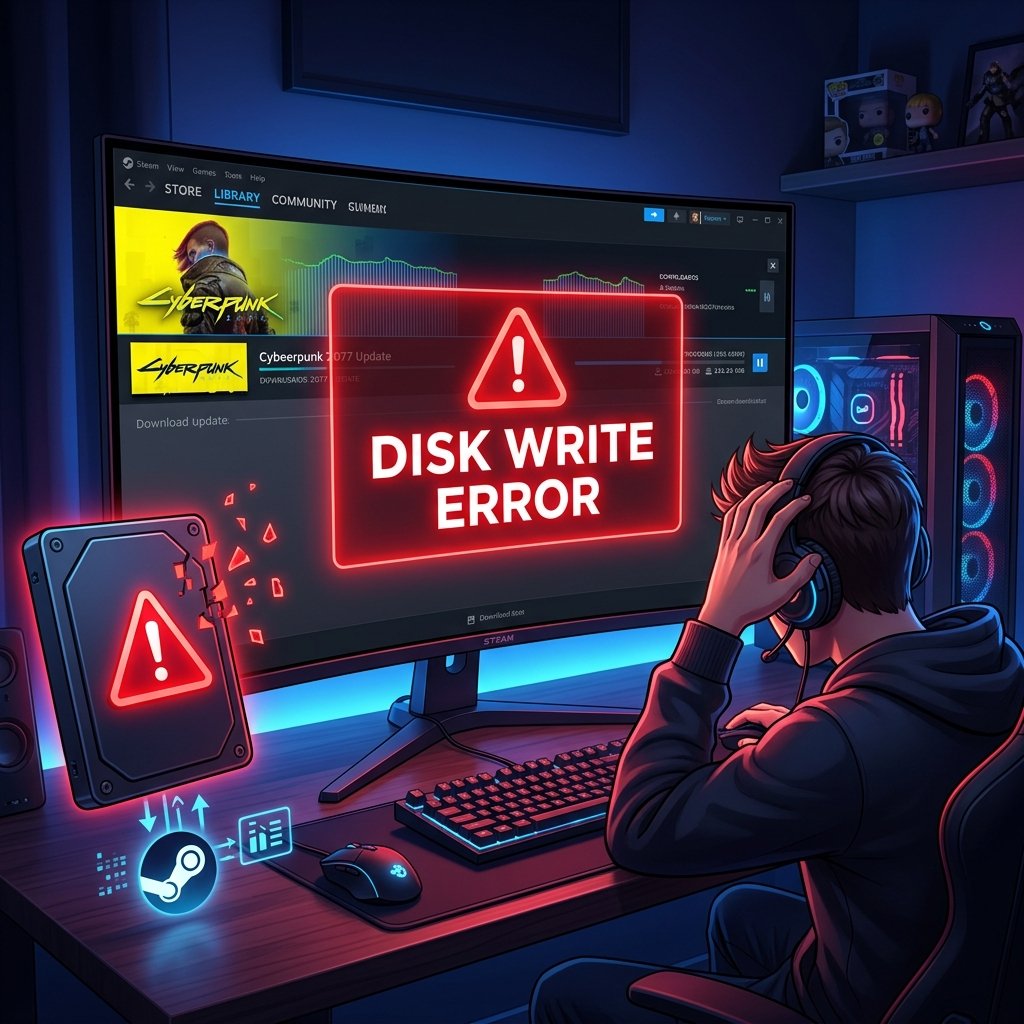
How to Fix Steam Disk Write Error (2026 Troubleshooting Guide)
If you’re mid-download or mid-update and Steam suddenly stops with a disk write error, it means Steam couldn’t save the data it was downloading to your drive. The install or update halts, and retrying often just triggers the same error again. This guide walks through how to fix Steam disk write error problems in the order that’s most likely to solve them fastest — starting with simple, safe checks and moving toward drive-level troubleshooting only if you actually need it.
The causes range from something as simple as a nearly-full drive to something more involved, like Windows Security blocking Steam from writing files, a corrupted download cache, or a genuine problem with the drive itself. Rather than working through every possible fix in random order, this guide starts with a quick way to narrow down what’s likely causing it for you, then walks through the fixes themselves.
What Is the Steam Disk Write Error?
A disk write error means Steam successfully downloaded (or is downloading) game data, but couldn’t write — that is, save — that data to your storage drive. You’ll usually see it referencing a specific game, sometimes with a file path pointing to an .acf manifest file inside your Steam library folder.
This is different from a network or connection problem. If Steam can’t reach its servers, you’ll typically see a connection or timeout error instead. A disk write error means the data got to your PC just fine — the problem is saving it locally.
One note on sourcing: Valve has historically published support articles specifically addressing this error, but those older knowledge-base links are no longer reliably reachable. This guide draws on Steam’s current client behavior, Microsoft’s official documentation on Windows storage and security features, and consistent, cross-verified troubleshooting reports from the Steam community, rather than a single outdated source.
Why Does Steam Show a Disk Write Error?
Based on current evidence, these are the most commonly confirmed causes, roughly ordered by how often they actually turn out to be the culprit:
- Not enough free space on the drive Steam is writing to
- Permission issues — Steam or Windows doesn’t have write access to the library folder
- Antivirus software or Windows Security blocking Steam from writing files (Controlled Folder Access is a common cause)
- A corrupted Steam download cache or a leftover partial/zero-byte file
- A corrupted Steam library folder
- File-system errors or bad sectors on the drive
- A failing drive, or a loose/faulty connection on an external drive
- Less commonly, a bug in the Steam client itself
Older troubleshooting guidance leaned heavily toward blaming the hard drive first. More recent, converging evidence points to software-side causes — permissions, antivirus interference, and cache corruption — as the more frequent culprits today. That’s why this guide checks those first, and treats drive hardware failure as something to investigate after simpler causes are ruled out.
One Game or Every Game? A Quick Way to Narrow It Down
Before trying fixes, it helps to answer a couple of quick questions. This alone can save you from working through steps that don’t apply to your situation.
Does the error happen with only one game, or with every game you try to download or update?
- Only one game → The problem is likely specific to that game’s files or the library folder it’s installed in. Start with verifying that game’s files and repairing its library folder.
- Every game → The problem is more likely client-wide, permissions-related, or tied to the entire drive. Start with permissions, antivirus, and Steam client checks.
Is this happening on your main internal drive, or an external/secondary drive?
- External drive → Check the cable and connection before anything else. Loose connections and drive-letter changes are common causes on external drives specifically.
- Internal drive → Work through the fixes below in order.
Did it start right after a Windows update, an antivirus update, or moving your Steam library?
- If yes, prioritize the Windows Security and permissions checks before drive-level troubleshooting — timing like this is a strong clue.
Troubleshooting Decision Tree
Does the error affect ONE game or ALL games?
│
├── ONE game
│   → Verify integrity of game files
│   → Repair that game's library folder
│
└── ALL games
    ├── Is it limited to ONE drive/library?
    │   ├── YES → Check that drive: free space, permissions,
    │   │         repair library folder, drive health/connection
    │   └── NO (every drive) → Check Steam client + permissions:
    │             restart Steam & PC, run as admin, check
    │             antivirus/Controlled Folder Access, update Steam
    │
    └── Is the drive EXTERNAL?
        ├── YES → Check cable/port/enclosure connection first
        └── NO  → Free space → permissions → antivirus/CFA →
                  CHKDSK → drive health → consider moving library
Quick Checks Before Trying Anything Else
These take a minute or two and carry no risk to your data.
- Fully close and reopen Steam. Quit it completely (check Task Manager to make sure it’s not still running in the background), then relaunch and retry the download.
- Restart your computer. This clears out any background processes or temporary conflicts that might be interfering with Steam’s ability to write files.
- Check your free disk space. Steam should show a separate “not enough space” warning, but in practice, running low on space sometimes surfaces as a disk write error instead. Confirm the drive has a reasonable amount of free space before ruling this out.
- If you’re using an external drive, check the connection. Try a different cable or port, and confirm the drive still shows the same drive letter it had before.
If none of these resolve it, move on to the fixes below — in order.
How to Fix Steam Disk Write Error
Each fix below includes what it does, how to do it, and its risk level, so you can decide how far you need to go.
1. Free Up Disk Space
What it does: Gives Steam enough room to write and stage files during download and installation. Risk level: None, as long as you only delete files you recognize. When to use it: First, especially if your drive is close to full.
Check your available space (Settings > System > Storage on Windows 11), and remove anything you don’t need — old downloads, unused programs, temporary files — before retrying.
2. Run Steam as Administrator
What it does: Ensures Steam has full Windows permission to write to its installation and library folders. Risk level: Low. When to use it: If quick checks didn’t help, or if the error happens across multiple games.
Right-click the Steam shortcut or Steam.exe and select Run as administrator, then retry the download. This is a troubleshooting step, not something you need to leave on permanently.
3. Check Folder Permissions on Your Steam Library
What it does: Confirms your Windows user account actually has read/write access to the folder Steam is trying to write into. Risk level: Low, if you’re only checking or granting permissions to the Steam library folder itself. When to use it: If running as administrator didn’t help, or the error is tied to one specific library folder.
Right-click the affected Steam library folder, choose Properties > Security, and confirm your account has Read and Write permissions listed. If it doesn’t, you can grant it from that same dialog.
4. Repair the Steam Library Folder
What it does: Rebuilds Steam’s internal tracking data for a library folder without touching your installed games. Risk level: Low — this does not delete installed content. When to use it: If the error is limited to one library folder or drive.
In Steam, go to Settings > Storage (on some client versions this may still appear under Settings > Downloads > Steam Library Folders), select the affected drive, and choose Repair Folder. Wait for it to finish, then retry.
5. Clear the Steam Download Cache
What it does: Clears out Steam’s cached download data, which can occasionally become corrupted and block further writes. Risk level: Low-medium — it won’t remove installed games, but any in-progress download will need to restart. When to use it: If repairing the library folder didn’t resolve it.
Go to Steam > Settings > Downloads > Clear Download Cache. Steam will restart and prompt you to log back in.
6. Verify Integrity of Game Files
What it does: Checks a specific game’s files against Steam’s records and re-downloads anything missing or corrupted. Risk level: Low. When to use it: If the error is affecting one specific game rather than your whole library.
Go to your Library, right-click the affected game, choose Properties > Installed Files, and select Verify integrity of game files. If your steamapps folder has corrupted game installation files, this step is usually the fastest way to identify and fix them.
7. Check Windows Security or Antivirus Interference
What it does: Rules out Windows’ built-in ransomware protection, or third-party antivirus software, blocking Steam from writing files. Risk level: Low if done carefully; avoid disabling protection entirely. When to use it: If the error started after a Windows or antivirus update, or nothing above has worked.
Windows Security includes a feature called Controlled Folder Access that can block trusted apps — including Steam — from writing to certain folders. Microsoft’s documentation explains how this feature works and why a legitimate app can still get blocked.
To allow Steam through it:
- Open Windows Security > Virus & threat protection.
- Under Ransomware protection, select Manage ransomware protection.
- Select Allow an app through Controlled folder access.
- Add Steam’s executable (
Steam.exe) to the allowed list.
Safety note: Only allow apps you actually trust and recognize. If you use third-party antivirus software, check its settings for a similar exclusion list rather than disabling it entirely. Don’t turn off Windows Security or your antivirus completely, even temporarily, unless you’re specifically testing whether it’s the cause — and turn it back on right away afterward.
8. Check the Drive for File-System Errors
What it does: Scans the drive’s file system for logical errors, and optionally checks for bad sectors. Risk level: Medium — generally safe, but not risk-free if the drive is already failing. When to use it: If permission and cache-related fixes haven’t resolved the error.
Open Command Prompt as administrator and run:
chkdsk C: /f
Replace C: with the letter of the drive Steam is installed on. This checks for and fixes logical file-system errors. For a deeper scan that also checks for bad sectors:
chkdsk C: /r
This takes longer and includes everything /f does. If the drive is in use (likely, if it’s your system drive), Windows will ask to schedule the scan for your next restart — type Y and restart when ready.
Before running
/ron a drive you suspect may be failing, back up anything important on it. Repair operations on a drive that’s already struggling carry some inherent risk, and it’s better to have a backup first.
9. Check Drive Health and Connection
What it does: Tells you whether the drive itself is showing signs of physical wear or failure. Risk level: None — this is just a check. When to use it: If you’ve ruled out permissions, antivirus, and cache issues, and the error persists.
On Windows 11: Settings > System > Storage > Advanced storage settings > Disks & volumes, select the drive, and open its properties. Supported drives (mainly NVMe SSDs) will show estimated drive health and remaining life.
For external drives, also physically check the cable and port — a loose or failing connection can produce the same symptoms as a drive problem.
One important caveat: never run traditional defragmentation on an SSD. Windows’ built-in Optimize Drives tool already handles SSDs and HDDs correctly and automatically (TRIM for SSDs, defrag for HDDs) — you don’t need to do this manually, and doing it wrong can shorten an SSD’s lifespan for no benefit.
10. Move the Game or Library to a Different Drive
What it does: Moves the affected content off a drive or folder that may be the actual source of the problem. Risk level: Low-medium — time-consuming for large games, but not destructive when done through Steam’s own tools. When to use it: If the issue is isolated to one drive and everything above has been tried.
Add a new library location under Settings > Storage, then go to your Library, right-click the affected game, and choose Properties > Local Files > Move Install Folder to move it to the new location. Avoid manually cutting and pasting game folders yourself — Steam’s built-in move function keeps its tracking data intact.
11. Update Steam and Windows
What it does: Rules out a client-side bug that’s already been fixed in a newer release. Risk level: None.
Confirm Steam is running its latest version (it typically updates automatically) and that Windows Update has no pending updates. This is a quick check, not usually the primary fix, but worth ruling out.
Different Scenarios, Different Priorities
- Happens only during one game’s update or patch → Focus on Verify Integrity of Game Files and repairing that game’s library folder.
- Happens on an external drive → Check the cable, port, and drive-letter stability before anything else.
- Started right after a Windows update → Prioritize the Controlled Folder Access and antivirus checks.
- Started after moving your Steam library → Repair the library folder and double-check permissions on the new location. If Steam games aren’t launching after a library move on top of the write error, that folder’s permissions are worth checking closely.
- Downloads are stuck rather than erroring outright → That’s a related but distinct issue; see our guide on Steam downloads stuck at 0% if that better matches what you’re seeing.
If Nothing Works
If you’ve worked through the fixes above — permissions, antivirus/Controlled Folder Access, cache, library repair, and a file-system check — and the disk write error is still happening, that pattern increasingly points toward a genuine problem with the drive itself.
At this point:
- Back up anything important on that drive before doing anything further.
- Test the same library on a different drive if you have one available. If the problem disappears, that strongly points to the original drive.
- Check drive health again, and pay attention to whether the same drive is showing other symptoms — slow installation speeds, other file corruption, or unexpected disconnects on any application, not just Steam.
- Contact Steam Support (help.steampowered.com) with your Steam logs if you want Valve’s team to look at the specific error.
- Consider a hardware diagnosis or replacement if the drive is confirmed to be failing — repeated, persistent write errors across multiple programs are a stronger signal than a single Steam error.
Reinstalling Windows isn’t a proportionate first response here, and current evidence doesn’t support it as a routine fix for this specific error — it’s a last resort, not a default step.
How to Prevent It Going Forward
- Keep a reasonable amount of free space on your install drive rather than running it close to full.
- Keep Steam and Windows updated.
- Avoid installing games into protected system folders when you can choose the location.
- If you’re on an older or heavily used drive, check its health periodically rather than waiting for errors to appear.
Frequently Asked Questions
Why does Steam keep saying disk write error?
Steam shows this when it can’t save data it’s downloading to your drive. The most common causes are low disk space, permission issues, antivirus or Windows Security interference, a corrupted download cache, or — less often — a problem with the drive itself.
How do I fix Steam disk write error on Windows 11?
Start with the safe checks (restart Steam and your PC, confirm free space), then work through permissions, Controlled Folder Access, repairing the library folder, and clearing the download cache. Windows 11’s Storage settings are under Settings > System > Storage.
Can low disk space cause a Steam disk write error?
Yes. Steam sometimes shows a disk write error instead of a dedicated low-space warning, so checking your available space is one of the first things worth ruling out.
Can antivirus or Windows Security cause a Steam disk write error?
Yes. Windows’ Controlled Folder Access and third-party antivirus software can both block Steam from writing files. Adding Steam as an allowed app usually resolves it without needing to disable protection entirely.
How do I repair a Steam library folder?
Go to Steam’s Settings, then Storage (or Downloads > Steam Library Folders on older client versions), select the affected drive, and choose Repair Folder. This doesn’t delete your installed games.
Can a failing SSD or HDD cause a Steam disk write error?
Yes, and it’s more likely if the error persists after ruling out permissions, antivirus, and cache issues. Checking drive health and watching for similar problems in other programs can help confirm this.
Does clearing the Steam download cache fix disk write errors?
It can, particularly if a corrupted cache is the cause. It won’t delete your installed games, but any downloads in progress will need to restart afterward.
Why does Steam show a disk write error for only one game?
This usually points to that specific game’s files or the library folder it’s installed in, rather than a system-wide problem. Verifying that game’s files and repairing its library folder are the most direct fixes.
Conclusion
Most Steam disk write errors come down to something fixable in a few minutes — free space, permissions, or an overzealous antivirus rule — rather than a dying drive. Work through the fixes in order, starting with the safest ones, and pay attention to whether the error is tied to one game or your whole library, since that alone narrows things down significantly. If you’ve genuinely ruled out the software-side causes and the error keeps coming back, that’s the point to start taking a closer look at the drive itself.



One Comment