How to Fix Resolution Problems in PC Games (2026 Guide)
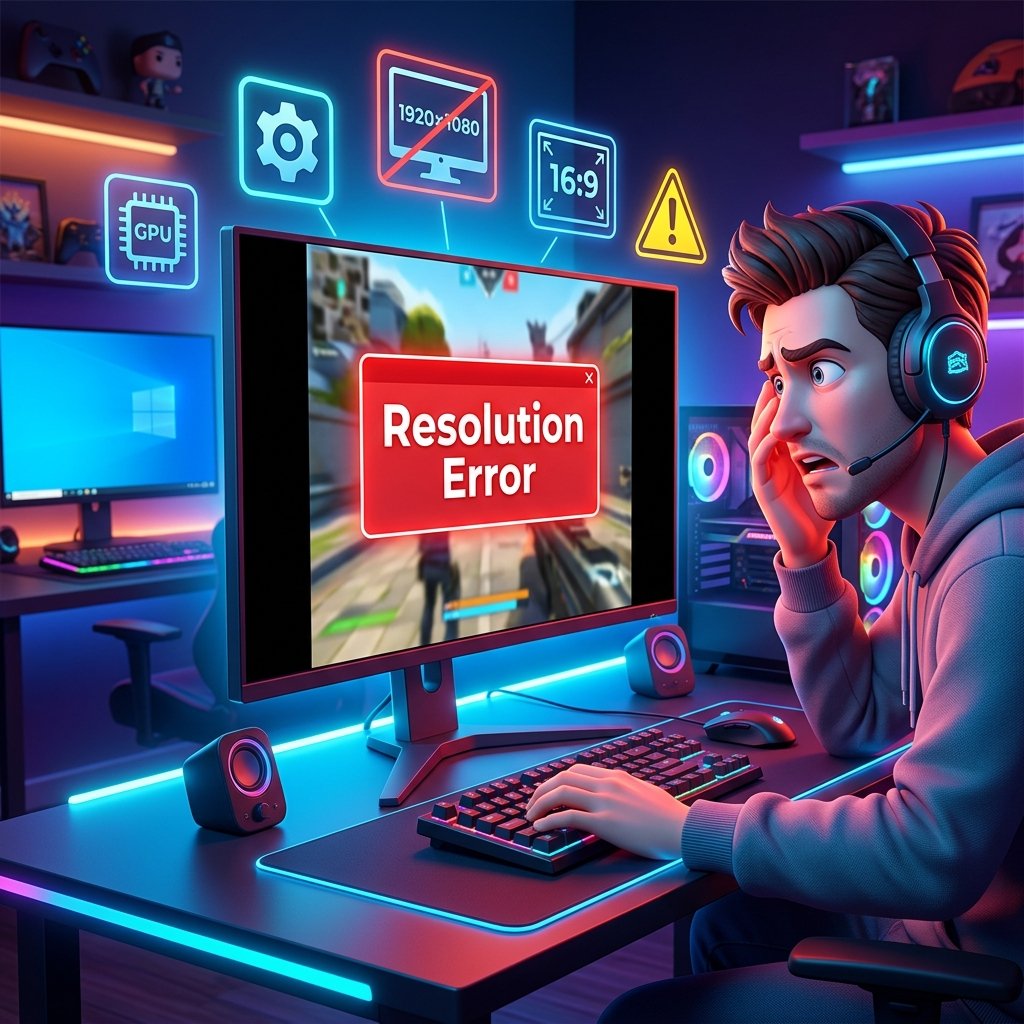
You launch a game you’ve played a hundred times, and something’s off. Maybe there are black bars running down both sides of the screen. Maybe the image looks stretched, like someone grabbed the corners and pulled. Maybe the resolution dropped to something that looks like it belongs on a phone from 2009, and no amount of clicking “Apply” brings it back.
If you’re searching for how to fix resolution problems in PC games, you’ve probably already tried the obvious thing — changing the resolution in the game’s settings menu — and it either didn’t stick or didn’t fix anything. That’s normal, and it doesn’t mean your PC or your monitor is broken.
In almost every case, a resolution problem comes from a mismatch between three layers that all have a say in what ends up on your screen: the game itself, your GPU driver, and Windows’ own display settings. Once you know which of those three is actually causing the problem, the fix is usually just a few clicks. This guide walks through it in order — quick checks first, then driver and scaling settings, then the deeper config-file fixes for the stubborn cases that quick fixes don’t touch.
Common Ways Resolution Problems Show Up in PC Games
Before troubleshooting anything, it helps to know exactly what you’re dealing with. Not all “resolution problems” are the same bug wearing different masks — they usually point to different causes.
Black Bars / Letterboxing / Pillarboxing
Black bars on the top and bottom (letterboxing) or the sides (pillarboxing) usually mean the game’s aspect ratio doesn’t match your monitor’s aspect ratio, or the GPU’s scaling mode is set to preserve the original proportions instead of filling the screen.
Stretched or Squished Image
This is the opposite problem — the image fills the screen, but circles look like ovals and everything looks slightly warped. This is almost always a scaling mode set to “Full-screen” or “Stretch” when your content doesn’t match your display’s native aspect ratio.
Game Won’t Go Fullscreen / Stuck in Windowed Mode
Sometimes a game refuses to leave a small window, or the window won’t fill the display no matter what you drag.
Resolution Locked or Native Resolution Missing from the List
You open video settings and your monitor’s actual native resolution simply isn’t an option — or every option is greyed out.
Resolution Resets After Every Restart
You set it correctly, close the game, come back, and it’s back to whatever it was before.
Blurry Image Despite a “Correct” Resolution
The resolution says 1920×1080, your monitor is 1920×1080, and it still looks soft. This is typically a scaling or DPI issue, not a true resolution issue.
Wrong Resolution on Ultrawide, 4K, or Multi-Monitor Setups
Ultrawide and 4K displays expose problems that 1080p 16:9 setups rarely hit, because a lot of older or poorly optimized games were never built with those aspect ratios or pixel counts in mind.
Before You Start: Quick Safe Checks
These take under two minutes each, and they solve a surprising number of “broken” games. Don’t skip past them just because they sound obvious — most support tickets for resolution issues get closed by one of these four steps.
1. Confirm your monitor’s actual native resolution and refresh rate. Right-click the desktop, choose Display Settings, and check what Windows lists as the recommended resolution. If you don’t know your monitor’s native resolution, you can’t correctly diagnose anything downstream.
2. Check the in-game video settings menu first. It sounds basic, but plenty of “bugs” are just a setting that got changed by a previous session, a mod, or a shared PC. Open Settings > Video/Display inside the game and manually pick your resolution.
3. Try Alt+Enter to toggle fullscreen and windowed mode. This keyboard shortcut forces a lot of games to refresh their display mode. If a game is stuck in a broken fullscreen state, toggling out and back in with Alt+Enter often resets it cleanly.
4. Restart the game after any display change. Some games apply resolution changes immediately; others only fully apply them on the next launch. If a fix “didn’t work,” restart before assuming it failed.
Expert Note: If none of these four checks change anything, the problem is very likely happening one layer down — in your GPU driver or in Windows’ scaling settings, not in the game itself.
Fixing Resolution Problems in Windows Display Settings
Setting the Correct Native Resolution in Windows 11
Go to Settings > System > Display and make sure the resolution dropdown is set to the option marked “(Recommended).” Running Windows itself at a non-native resolution will cause problems in every app that opens afterward, games included.
Understanding Windows Display Scaling and How It Affects Games
Display scaling (the 100%/125%/150% setting under Display) controls how large text, icons, and UI elements appear — it does not change your actual resolution. But it can still affect games, particularly older titles that aren’t aware of scaling and end up rendering at the wrong size or with a mismatched cursor position.
Fixing Blurry Games Caused by DPI Scaling Conflicts
If a game looks blurry despite matching your native resolution, DPI scaling is the most likely cause, not the resolution setting itself.
Fix:
- Right-click the game’s
.exefile or shortcut and select Properties. - Go to the Compatibility tab and click Change high DPI settings.
- Check Override high DPI scaling behavior.
- From the dropdown, choose Application for most modern games, or System (Enhanced) if the game still looks blurry afterward.
When to use which option: “Application” tells the game to handle its own scaling — best for modern titles with proper DPI support. “System (Enhanced)” forces Windows to do bitmap scaling, which can help older or poorly optimized games look sharper, though results vary by title.
Disabling Fullscreen Optimizations
Fullscreen Optimizations is a Windows compatibility feature that runs certain games in a borderless-style mode behind the scenes even when they think they’re in exclusive fullscreen. It occasionally conflicts with resolution and scaling settings.
To disable it: right-click the game’s shortcut, go to Properties > Compatibility, and check Disable fullscreen optimizations.
Multi-Monitor and Laptop + External Monitor Conflicts
If you’re running a laptop connected to an external display, or duplicating displays instead of extending them, games can pick up the wrong resolution or scaling from whichever display Windows currently treats as primary. Setting both displays to matching scaling percentages, and making sure the correct monitor is set as primary before launching the game, resolves most of these conflicts.
GPU Scaling vs. Display Scaling (The Setting Most Guides Skip)
This is the single most misunderstood setting in the entire resolution-troubleshooting process, and it’s the one most generic guides gloss over.
GPU scaling happens on your graphics card — it resizes the image before sending it to the monitor. Display scaling happens inside the monitor itself, using its built-in hardware scaler. When a game runs at a non-native resolution, something has to stretch or fit that image to your screen, and this setting decides whether that job goes to your GPU or your monitor.
| Scaling Mode | What It Does | Best For |
|---|---|---|
| Aspect Ratio | Fills the screen while preserving proportions; may show black bars | Avoiding distortion, older 4:3/16:10 games |
| Full-Screen / Full Panel | Stretches the image to fill every pixel, ignoring original proportions | Eliminating black bars when distortion is acceptable |
| No Scaling | Centers the image at its original size | Diagnosing whether scaling is the actual cause |
| Integer Scaling | Duplicates pixels at a whole-number multiple (GPU only, newer NVIDIA cards) | Retro games and emulation, pixel-perfect results |
NVIDIA Control Panel
- Right-click the desktop and open NVIDIA Control Panel (on Windows 11, you may need to select “Show more options” first).
- Go to Display > Adjust desktop size and position.
- Under Perform scaling on, choose GPU.
- Pick your preferred scaling mode from the list above.
- Optionally check Override the scaling mode set by games and programs — but test this with one game first before applying it broadly.
AMD Software: Adrenalin Edition
- Right-click the desktop and open AMD Software: Adrenalin Edition.
- Go to the Display tab.
- Turn GPU Scaling from Disabled to Enabled.
- Choose your scaling mode (Preserve Aspect Ratio or Full Panel).
Intel Graphics Command Center
- Open Intel Graphics Command Center.
- Go to Display > General > Resolution.
- Choose a resolution different from the recommended one if you’re testing a non-native setup, and select your preferred scaling behavior.
Warning: Enabling “Override the scaling mode set by games and programs” forces your chosen mode across every game, which can fix one title while breaking another that expects to control its own scaling. Test on the specific game giving you trouble before leaving this enabled system-wide.
Driver-Related Resolution Fixes
Updating GPU Drivers Safely
Outdated drivers are a common — and often overlooked — cause of resolution options disappearing, scaling settings not saving, or a monitor’s native resolution simply not being detected. Download updates directly from NVIDIA, AMD, or Intel’s official graphics support page rather than relying solely on Windows Update, which can lag behind.
When a Driver Rollback Is the Right Call
If your resolution problems started right after a driver update, the new driver itself may be the cause. Reverting to the previous version through Device Manager or the manufacturer’s driver archive can resolve regressions introduced in a fresh release.
Clean-Installing Drivers When Settings Don’t Stick
If scaling settings keep reverting or refuse to save, a full driver reinstall — uninstalling the current driver and its companion software (GeForce Experience, AMD Software, Intel Graphics app) before installing fresh — often clears out corrupted configuration data that a standard update won’t touch.
Checking Windows Update
Some resolution and driver compatibility issues are fixed through routine Windows patches. Check Settings > Windows Update for anything pending. On the flip side, if your problem started immediately after a specific Windows update, you can view installed updates and uninstall the most recent one to see if that resolves it.
Common Mistake: Reinstalling the entire game when the real problem is a stale, corrupted, or recently-updated driver. Reinstalling a 60GB game takes an hour; rolling back or reinstalling a driver takes five minutes and fixes the same underlying issue far more often.
Fixing Fullscreen, Borderless, and Windowed Mode Issues
Understanding the difference between these three display modes matters more than most players realize:
- Exclusive Fullscreen hands the game direct control over the display, which usually gives the best performance but can behave inconsistently with alt-tabbing and scaling.
- Borderless Fullscreen (Windowed Fullscreen) runs the game in a borderless window matched to your screen size, letting Windows keep control of the desktop resolution — often the safer choice when a game is fighting with scaling settings.
- Windowed Mode runs the game in an actual resizable window, useful mainly for diagnosing whether a resolution issue is tied to fullscreen behavior specifically.
If a game won’t behave properly in exclusive fullscreen, switching it to borderless fullscreen frequently resolves black bars and scaling conflicts, since the OS — not the game — is handling final output.
Editing Game Config Files (Intermediate/Advanced Fix)
What Is GameUserSettings.ini?
Many games built on Unreal Engine store their display settings in a file called GameUserSettings.ini, typically located at:
C:\Users\[YourUsername]\AppData\Local\[GameName]\Saved\Config\WindowsNoEditor\GameUserSettings.ini
This is often the root cause of a resolution that keeps resetting itself, or an in-game resolution slider that visibly changes but doesn’t actually affect the render output.
Backing Up the File First
Warning: Always copy
GameUserSettings.inito a safe folder before editing it. If you make a mistake, you can restore the backup instead of risking a corrupted profile or a game that won’t launch.
Manually Editing Resolution Values
Open the file in Notepad or Notepad++ and look for lines similar to:
ResolutionSizeX=2560
ResolutionSizeY=1440
LastUserConfirmedResolutionSizeX=2560
LastUserConfirmedResolutionSizeY=1440
FullscreenMode=1
Change the X/Y values to your desired resolution (make sure both ResolutionSize and LastUserConfirmedResolutionSize match, or the game may revert them on next launch), save the file, and start the game.
Stopping a Game From Resetting Your Resolution
If a game keeps overwriting your changes, setting the file to read-only (right-click > Properties > check Read-only) after you’ve dialed in the settings you want prevents the game from rewriting it on close.
Steam Launch Options
For games that support command-line resolution overrides, right-click the game in your Steam library, go to Properties > Launch Options, and try:
-w 1920 -h 1080
or
-fullscreen
-windowed
-screen-width 1920 -screen-height 1080
These switches aren’t universal — support depends on the game’s engine — but they’re a reliable fix for titles that expose them, and they’re especially useful for forcing a smaller, manageable window when a game’s in-game menu is unreachable due to a broken resolution.
Epic Games Launcher Equivalents
Some Epic Games Store titles support similar command-line arguments, added through the game’s settings within the launcher rather than a dedicated launch-options field. If a specific Epic title is giving you trouble beyond resolution — for instance, the launcher itself failing to open — that’s worth ruling out separately before assuming the game’s config is at fault.
Resolution Problems Caused by Upscaling Features (DLSS, FSR, XeSS)
This is a genuinely modern cause of “resolution confusion,” and it trips up a lot of players in 2026 because upscaling technology has become the default rather than the exception in new titles.
Render scale (sometimes called resolution scale) is different from your actual display resolution. When DLSS, FSR, or XeSS is enabled in Quality mode, your GPU might render the game internally at a noticeably lower resolution — for example, rendering at roughly 67% of your target resolution — and then reconstruct it back up using AI or spatial upscaling before it hits your screen. Your monitor still receives your set output resolution; the internal render resolution is what changed.
This matters because a game can look softer or sharper purely based on which upscaling mode and quality preset you’ve selected, even though the “Resolution” setting in the menu hasn’t moved at all.
- If the image looks unusually soft: check whether DLSS/FSR/XeSS is set to Performance or Ultra Performance mode rather than Quality.
- If you’re seeing a black screen or visual artifacts after enabling frame generation: try disabling the upscaler entirely to confirm whether it’s the source, then re-enable it and test one setting at a time.
- If troubleshooting a low-FPS complaint alongside a resolution complaint, these two issues are frequently connected — our guide on fixing low FPS in PC games covers render scale and upscaler settings in more depth from the performance side.
Ultrawide, 4K, and Custom Resolution Fixes
Why Some Games Don’t Support Ultrawide Natively
Plenty of games — especially older titles or those built primarily for consoles — were never designed with 21:9 or 32:9 aspect ratios in mind. That’s why some ultrawide displays see black bars on the sides even when everything else is configured correctly; it’s the game enforcing a supported aspect ratio rather than a bug.
Creating a Custom Resolution
Both NVIDIA Control Panel and AMD Software allow you to create custom resolutions under their respective display settings pages, which can help when a game’s native resolution list doesn’t include what your ultrawide or 4K panel actually needs.
Cable and Bandwidth Limitations
Not every resolution and refresh rate combination is possible over every cable. HDMI and DisplayPort have different bandwidth ceilings depending on their version, and high resolutions paired with high refresh rates (4K at 144Hz, for example) can require a specific cable spec to work at all. If a resolution or refresh rate option is missing entirely — not just greyed out — check your monitor’s manual for which port and cable combination supports your target settings.
HDR and Refresh Rate Conflicts That Look Like Resolution Bugs
Toggling HDR on or off can visually resemble a resolution problem — washed-out colors, a slightly different scale, or elements that appear misaligned — even though the actual resolution hasn’t changed. If a resolution issue appeared right after enabling HDR, try disabling it to confirm whether HDR (not resolution) is the real variable.
Similarly, a refresh rate mismatch between Windows, your GPU driver, and the game itself can produce visual artifacts that look like scaling problems. Confirm all three are set to the same refresh rate before troubleshooting resolution further.
Advanced Troubleshooting (When Nothing Above Works)
If you’ve worked through the driver, scaling, and config-file fixes above and the problem persists, a few deeper checks are worth trying:
- Verify or repair game files through Steam or Epic’s built-in file verification tools, which can catch a corrupted config or asset without a full reinstall.
- Check for third-party overlay conflicts — capture software, RGB lighting apps, and performance overlays have all been known to interfere with fullscreen and scaling behavior in specific titles.
- Try a clean boot to rule out a background application silently conflicting with the game’s display initialization.
- If the game refuses to launch at all rather than just displaying incorrectly, that’s a separate issue worth checking against our guide on Steam games not launching on Windows.
- If you’re seeing missing files alongside display errors, it may be worth ruling out missing DLL errors, which can sometimes accompany a botched driver or engine component.
- A black screen specifically at launch (rather than a wrong resolution once the game is running) points toward a different, related issue — see fixing a black screen when launching games.
- For engine-specific config quirks (a common example being GTA V’s launch and resolution behavior), checking a title-specific guide can save time versus generic troubleshooting.
Common Mistakes to Avoid
- Reinstalling the game before checking drivers or config files. This almost never fixes a scaling or resolution problem and costs the most time for the least benefit.
- Changing GPU scaling and Windows scaling at the same time. If you adjust both at once and the problem goes away, you won’t know which one actually fixed it — change one variable at a time.
- Downloading unofficial “resolution unlocker” tools from untrusted sources. These are unnecessary for the vast majority of resolution issues and carry real security risk.
- Ignoring cable bandwidth limits while chasing a specific resolution/refresh rate combination that your current cable simply can’t carry.
Preventive Tips to Avoid Future Resolution Problems
- Keep GPU drivers reasonably current, but avoid updating immediately before a big session or competitive match, in case a new driver introduces a regression.
- Once you find a
GameUserSettings.iniconfiguration that works, back it up somewhere safe. - Write down your monitor’s native resolution and refresh rate — it sounds trivial until you’re troubleshooting at 1 a.m. and can’t remember it.
- Avoid stacking Windows scaling, GPU scaling, and in-game resolution scaling changes all at once. Adjust one, test, then move to the next if needed.
When to Contact Game Support
Reach out to the game’s official support team if:
- Resolution resets persist across multiple sessions tied to a specific patch or update.
- The settings menu shows one resolution while the game visibly renders at another.
- Other players are reporting the same engine-level bug for that title with no confirmed workaround.
When to Contact Your GPU Manufacturer
Reach out to NVIDIA, AMD, or Intel support if:
- Scaling options are missing or permanently greyed out in the control panel.
- Custom resolution creation fails consistently across multiple different games.
- Your monitor’s native resolution isn’t being detected correctly at the hardware level.
FAQ
Why does my game keep changing my screen resolution?
This usually happens when a game applies its own resolution on launch, separate from your Windows desktop resolution, and doesn’t properly restore your original setting on exit. Checking the game’s video settings and, for Unreal Engine titles, the GameUserSettings.ini file, usually resolves it.
Why is my game resolution stuck at 800×600?
This is often caused by a corrupted config file or a driver that isn’t reporting your monitor’s supported resolutions correctly. Try deleting or resetting the game’s config file, and confirm your GPU driver is current.
How do I stop black bars from appearing in fullscreen games?
Check your GPU scaling mode (Aspect Ratio vs. Full-Screen) in NVIDIA Control Panel, AMD Software, or Intel Graphics Command Center, and confirm the game’s aspect ratio setting matches your monitor.
What’s the difference between GPU scaling and display scaling?
GPU scaling resizes the image using your graphics card before it reaches the monitor; display scaling uses the monitor’s own built-in hardware scaler. Both can produce different results depending on your specific display.
Why does my resolution reset every time I restart a game?
This is a classic symptom of a config file being overwritten on close. Setting the config file to read-only after configuring it correctly is the most reliable fix for Unreal Engine titles.
Should I use borderless windowed or fullscreen for the best resolution?
Borderless windowed mode tends to have fewer scaling conflicts since Windows manages the desktop resolution directly, while exclusive fullscreen can offer slightly better performance but occasionally fights with GPU scaling settings.
Does Windows display scaling affect game resolution?
Not the actual resolution, but it can affect how a game’s UI, cursor, and text render, especially in older or poorly optimized titles.
How do I set a custom resolution for a game that doesn’t support my monitor?
Create a custom resolution through your GPU’s control panel (NVIDIA Control Panel or AMD Software both support this), then check if the game detects the new option in its video settings.
Why does DLSS/FSR make my game look like a different resolution?
These upscalers render internally at a lower resolution and reconstruct the image to your target output resolution, so image sharpness can vary by quality mode even though your set resolution hasn’t changed.
Is editing GameUserSettings.ini safe?
Yes, as long as you back up the original file first and only change values you understand, such as resolution size and fullscreen mode.
Conclusion
Resolution problems in PC games look intimidating, but they almost always come down to one of three layers fighting each other: the game’s own settings, your GPU driver’s scaling behavior, or Windows’ display settings. Working through the fixes in order — the quick checks, then driver and scaling settings, then config-file edits for the stubborn cases — resolves the overwhelming majority of these issues without reinstalling the game or touching your hardware.
If you’re still troubleshooting display and launch issues beyond resolution specifically, it’s worth browsing the rest of our troubleshooting library on GamesGuider, including guides on game installation failures and recovering lost save files, both of which cover related PC gaming headaches step by step.