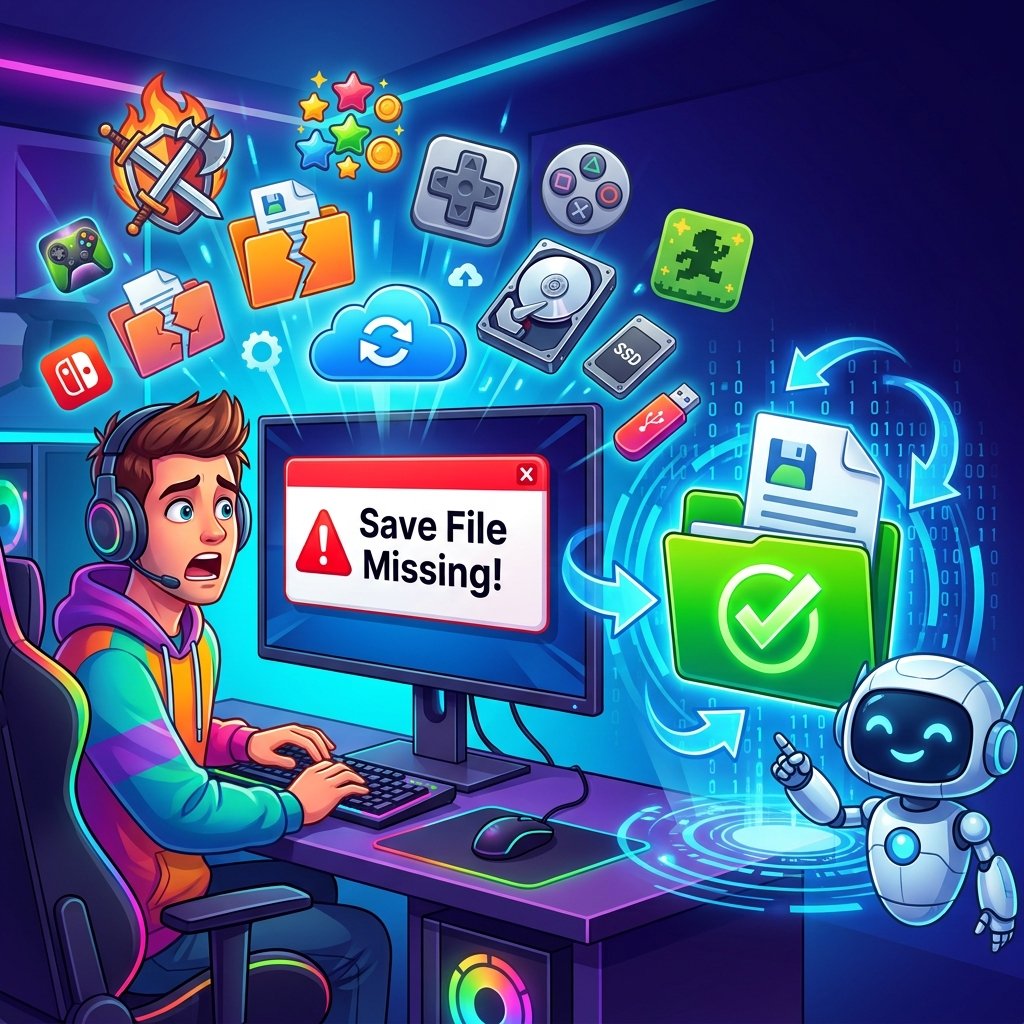
How to Recover Lost Game Save Files (Every Platform, 2026 Guide)
If you just opened your game and found your save gone, you’re probably not looking for reassurance — you’re looking for a fix, right now. This guide walks through how to recover lost game save files on Steam, Xbox, PlayStation, Nintendo Switch, and Windows PC, starting with the methods most likely to actually work and ending with what to do if none of them do. Some of this is genuinely recoverable in the next five minutes. Some of it isn’t, and it’s worth knowing which is which before you make things worse by poking around.
Here’s the short version, before we go deep on each platform:
- Stop playing immediately. Don’t launch the game again “just to check” — that can trigger a cloud sync that overwrites the very save you’re trying to get back.
- Check cloud storage before touching local files. Steam, Xbox, PlayStation, and Nintendo Switch all keep a separate cloud copy that may still have your progress even if the local file is gone.
- Look for a local backup folder — Steam’s Backup and Restore feature and manual save folders often hold an older-but-recoverable copy.
- If there’s genuinely no backup anywhere, data recovery software is a real last resort, not a magic fix — and it only works if the disk space hasn’t been overwritten yet.
Let’s go through exactly how to do each of these, platform by platform.
Before You Do Anything — 3 Rules That Prevent Making It Worse
A lot of “permanent” save loss isn’t actually permanent until someone panics and makes it permanent. Before you touch anything, follow these three rules.
Stop playing and stop syncing
Every extra minute you spend relaunching the game to “see if it fixes itself” is a minute where cloud sync might quietly push an empty or corrupted save over a good one. Close the game, and if you can, disable automatic cloud sync for that title while you investigate.
Never let a sync conflict resolve itself without checking dates first
This is the single most common way people accidentally destroy a recoverable save. Steam, Xbox, and PlayStation all compare the modification date of your local save against the cloud copy — not which one is objectively “better.” If you played offline for an hour and then reconnect, the platform may see your local file as “newer” and silently overwrite the cloud version with it, or vice versa. When you’re prompted to choose between a local and cloud save, stop and think about which one actually has your progress before clicking anything.
Always copy, never cut, when backing up
If you’re manually grabbing a save file to protect it, copy it to a new location. Don’t cut and paste. If something interrupts the process, cutting can leave you with neither a working original nor a successful backup.
Why Game Saves Get Lost (Common Causes)
Understanding why your save disappeared helps you pick the right recovery path faster instead of trying every method in order.
- Accidental deletion — you or someone else deleted a save slot, a profile, or the wrong folder.
- Cloud sync conflicts — the local and cloud versions disagree, and the wrong one wins.
- Corrupted save files — a crash, forced shutdown, or bad game update leaves the file unreadable. This is the same root cause behind some stubborn launch failures — see our breakdown of why GTA V won’t launch on PC if you’re hitting this with Rockstar’s launcher specifically.
- Console resets or account changes — factory resets, deleted user profiles, or console resets wipe local save data.
- Drive failure or reinstalling Windows — the physical storage fails, gets formatted, or the OS is reinstalled without backing up first.
| Symptom | Likely Cause | Where to Look |
|---|---|---|
| Save slot is just gone, game shows “new game” only | Accidental deletion or corrupted save | Local save folder + platform cloud storage |
| Progress reverted to an earlier point | Cloud sync overwrote local save | Cloud storage download history |
| Game won’t load past a certain point / crashes on load | Corrupted save file | Verify game files, try an older local backup |
| Everything is missing after a console/PC reset | Local storage wiped | Cloud storage (if enabled beforehand) |
| Save disappeared after reinstalling Windows | Local files not backed up before reinstall | Windows.old folder, OneDrive, File History |
How to Recover Lost Save Files on Steam (PC/Mac)
Steam Cloud syncs save files, settings, and controller configs for supported games — but not every title uses it, and syncing isn’t the same as guaranteed backup.
Check Steam Cloud first
Before anything else, look at what Steam actually has stored for you. Visit your Steam Remote Storage page while logged in — it lists every game with cloud saves, file sizes, and last-modified dates, and lets you download files individually. This is worth checking even if the game “looks” like it lost everything, because the cloud copy is often untouched by whatever happened locally.
Verify Integrity of Game Files
If the game shows as installed but the save won’t load, corruption in the installation itself (not just the save) can be the culprit. In your Steam Library, right-click the game, open Properties > Installed Files, and select Verify Integrity of Game Files. This won’t restore a deleted save, but it rules out a whole category of “my save is fine but the game is broken” problems before you go further.
Restore from a Steam Backup
If you’ve ever manually created a backup through Steam’s built-in tool, go to Steam > Backup and Restore Games > Restore a Prior Backup, then browse to your backup file and follow the prompts. This restores the entire game install, saves included, from whatever point you backed it up.
Find local save files manually
Many Steam games without cloud support (older or smaller titles especially) only ever stored saves locally. You’ll usually find them here:
- Windows:
C:\Program Files (x86)\Steam\userdata\[your Steam ID]\[game's App ID]\or under%localappdata%/%appdata%, depending on the game - macOS:
~/Library/Application Support/Steam/userdata/
Exact paths vary by developer, so if you’re not sure where a specific game keeps its saves, PCGamingWiki maintains a community-verified database of save locations per title — it’s the most reliable single source for this and worth bookmarking generally, not just for recovery emergencies.
What if Steam Cloud is enabled but the save is still gone?
This usually means a sync conflict already resolved in the wrong direction, or the game never actually flagged the save for upload before it was lost. Check the Remote Storage page for a last-modified date — if it predates your loss, the cloud copy won’t help, and you’re back to local backups or recovery software.
Steam Deck and Proton save file quirks
On Steam Deck, native Linux games and Steam Cloud titles behave normally, but Windows-only games running through Proton store saves inside a virtual Windows-style drive within the compatibility layer. The save still follows the same relative path a Windows install would use — you’re just navigating through Proton’s file structure to reach it, which is a common point of confusion during manual recovery.
How to Recover Lost Save Files on Xbox (Console & PC)
Xbox’s cloud save system is generally reliable, but it’s not immune to sync conflicts, and 2026 has seen some high-profile examples of exactly that.
Recovering from Xbox Cloud Saves
Sign in to your console (or the Xbox PC app) with the same profile you used originally, install the game, and launch it. Xbox will typically sync your cloud save automatically once you’re connected. You can also review and manage saves directly through the Xbox cloud game saves FAQ, which covers cloud storage requirements and sync behavior in detail.
Re-downloading through Download History
If a game itself seems to have vanished (not just the save), check Settings > Account > Download History, find the title, and select it to re-download. This re-syncs the game with your Xbox profile, which will attempt to pull your most recent cloud save automatically.
What to do when cloud sync overwrote your local save
This is unfortunately common enough that Microsoft’s own support forums have multiple active threads about it. If you played offline and the console later synced an older cloud version over your local progress, official guidance is honest about the limits here: recovery generally isn’t guaranteed once that overwrite happens, though contacting support is still worth doing in case a recent backup exists on their end.
A recent example worth knowing about: the Forza Horizon 6 fix
In July 2026, Xbox and Playground Games rolled out a change specifically to reduce this kind of loss in Forza Horizon 6. When the game detects a save conflict now, it shows a dialog letting you choose to restore your most recent cloud version yourself, rather than losing progress silently or waiting on manual support intervention. It’s a good sign of where cloud save handling is heading industry-wide, and a reminder to always read a conflict dialog carefully instead of clicking through it.
Contacting Xbox Support
If nothing above works, Xbox Support can sometimes check for server-side backups that aren’t visible to you directly. Be specific about dates and what you were doing when the save disappeared — that context genuinely helps their investigation.
How to Recover Lost Save Files on PlayStation (PS4/PS5)
PlayStation splits saves between console storage and PlayStation Plus cloud storage, and knowing which one you’re missing matters.
Restoring from PlayStation Plus Cloud Storage
Go to Settings > Saved Data and Game/App Settings, select Saved Data (PS5) or Saved Data (PS4), then Download or Delete from Cloud Storage, and choose Download to console storage. Full details on how this syncing works are covered in Sony’s own PlayStation Plus cloud storage support page. One important note: downloading from the cloud replaces what’s currently on your console, so if you’re not sure the cloud version is the one you want, don’t rush this step.
Restoring from a USB backup
If you’ve ever manually backed up to USB, connect the drive, go to Settings > Saved Data and Game/App Settings > USB Drive, and select Copy to Console Storage for the save you need.
PS4-to-PS5 save data transfer
Many cross-generation titles share save data. If you’re recovering a PS4 save on a PS5 (or vice versa), the same Saved Data and Game/App Settings menu lets you select the correct platform’s saved data and download it across.
When there’s no backup at all
Rebuilding the console database (via Safe Mode) can sometimes resolve saves that appear missing due to a database or indexing error rather than actual deletion — this fixes access issues more often than true data loss, so don’t expect it to bring back a genuinely deleted save.
Contacting PlayStation Support
For anything cloud-related that isn’t showing up as expected, PlayStation Support can look into account-level cloud storage records that aren’t accessible through the console menu alone.
How to Recover Lost Save Files on Nintendo Switch
Nintendo’s system is more restrictive than the others, and it’s worth understanding that up front rather than assuming a save can always be pulled back.
Downloading from Save Data Cloud
With an active Nintendo Switch Online membership, highlight the game from the HOME Menu, press + or – to open the software menu, select Save Data Cloud, choose your user, and select Download Save Data. You can also reach this through System Settings > Data Management > Save Data Cloud, as detailed on Nintendo’s official Save Data Cloud support page.
Important: overwritten saves can’t be recovered
Nintendo is explicit about this in its own documentation: downloading save data from the cloud overwrites and replaces whatever is currently on the console for that game, and that overwritten data cannot be recovered afterward. If you’re unsure whether the console or cloud version has the progress you want, don’t select download until you’ve confirmed it — there’s no undo once it’s done.
What happens if your membership lapses
If your Nintendo Switch Online membership expires, you lose access to your Save Data Cloud backups. Nintendo currently allows you to resubscribe within 180 days to regain access to those backups — after that window, per Nintendo’s own support documentation, they may no longer be retrievable.
Re-downloading a deleted game
If you deleted the game itself (not just the save), redownloading it from the Nintendo eShop using the same account will typically restore the game and trigger the normal cloud backup check, which can bring back save data that was already synced before deletion.
How to Recover Lost Save Files on Windows PC (Local Files)
For PC games that don’t use a platform’s cloud service — or save data stored outside the game folder itself — Windows has its own recovery layers, each with different limitations.
Check the Recycle Bin first
It sounds obvious, but it’s the most overlooked step. If the file was deleted with a normal Delete key press (not Shift+Delete), it’s very likely sitting in the Recycle Bin right now. Open it, find the file, right-click, and select Restore.
Restore Previous Versions / File History
If File History was turned on before the file was lost, right-click the folder where the save used to live and choose Restore previous versions. This only works if File History was already configured — it can’t retroactively protect a file that was never backed up.
Recovering from OneDrive
If your save lived inside a folder synced with OneDrive (Documents, Desktop, or a custom synced folder), check the OneDrive website. Deleted files go to OneDrive’s Recycle Bin, and OneDrive Personal retains them there for up to 30 days. You can also use Restore your OneDrive to roll an entire OneDrive folder back to a point in time before the loss occurred, which is useful if you’re not sure exactly when the save went missing.
Using Windows File Recovery as a last resort
Microsoft’s Windows File Recovery is a command-line tool built for scenarios where the Recycle Bin and OneDrive don’t apply — for example, a file deleted from local storage with no backup enabled. It works on internal drives, external drives, USB devices, and SD cards, but it is not built for cloud storage or network shares, and success drops sharply the more the drive has been used since the file was lost. If you’re going to try it, do it before installing anything else or writing new data to that drive.
When to consider third-party data recovery software
If none of the above locates your save, dedicated recovery software can sometimes retrieve files that Windows’ own tools can’t reach — but it’s genuinely a last resort, not a first move. These tools work by scanning for data that hasn’t been overwritten yet, which means the odds get worse the longer you keep using the affected drive. Stop saving new files to that drive immediately if you’re planning to try this route, and recover to a different drive than the one you’re scanning.
| Method | Works Without Prior Setup? | Best For | Limitation |
|---|---|---|---|
| Recycle Bin | Yes | Recently deleted, not permanently removed | Doesn’t help with Shift+Delete or emptied bin |
| File History | No — must be enabled beforehand | Files in libraries/backed-up folders | Useless if never turned on |
| OneDrive Recycle Bin / Version History | Yes, if the file was OneDrive-synced | Cloud-synced folders | 30-day retention window (Personal) |
| Windows File Recovery | Yes | Local drives, no backup existed | Chances drop fast if drive is reused |
| Third-party recovery software | Yes | Last resort, no backup anywhere | Not guaranteed; depends on disk overwrite status |
When Recovery Isn’t Possible — What You Can Still Do
Sometimes a save really is gone. This usually happens when a cloud version overwrote a local one and both are now identical (and both empty or old), when a drive has been heavily used since deletion, or when a platform explicitly states overwritten data can’t be recovered — as Nintendo does for Save Data Cloud.
If you’ve hit that point, a few things are still worth trying:
- Contact the game’s developer or publisher directly. Some studios can manually restore server-side progress for online or live-service games, even when local/cloud saves can’t help.
- Check if the game has any server-side account progress separate from the save file itself — this is common in live-service and online multiplayer titles, where most of your actual progress lives on the company’s servers rather than your device.
- Accept it and move forward deliberately. It’s a genuinely frustrating outcome, but starting over with a backup routine in place (below) means it won’t happen twice.
How to Back Up Game Saves So This Never Happens Again
Almost every recovery scenario above becomes a non-issue with a basic backup habit.
- Enable cloud sync everywhere it’s offered — Steam Cloud, Xbox Cloud Saves, PlayStation Plus cloud storage, and Nintendo Switch Online’s Save Data Cloud all exist specifically for this.
- Keep a manual backup routine — copy save folders to an external drive or a personal cloud folder on a regular schedule, especially before major system changes like reinstalling Windows or upgrading a console.
- Name backups clearly — something like
eldenring-saves-2026-07makes it obvious which version you’re restoring later, instead of guessing between several similarly-named folders. - Verify your backup actually worked — open one of the files or at least confirm the file sizes match. A backup you’ve never checked is a backup you can’t fully trust.
Best Practices Checklist
- [ ] Cloud sync enabled for every game that supports it
- [ ] Manual save folder backed up externally at least monthly
- [ ] Backup folders labeled with game name and date
- [ ] File History or OneDrive sync turned on for local save locations
- [ ] Confirmed sync status before switching devices or playing offline for extended periods
Platform-by-Platform Quick Reference
| Platform | Cloud Save Location | Typical Retention | Overwrite Risk | Official Support |
|---|---|---|---|---|
| Steam | Steam Cloud / Remote Storage | Ongoing while enabled | Medium — depends on sync timing | Steam Remote Storage |
| Xbox | Xbox Cloud Saves | Ongoing while subscribed/enabled | Medium — documented sync conflicts | Xbox Cloud Saves FAQ |
| PlayStation | PS Plus Cloud Storage | Ongoing with active PS Plus | Medium — download replaces console data | PlayStation Cloud Storage |
| Nintendo Switch | Save Data Cloud | 180 days after membership lapse | High — explicitly non-recoverable once overwritten | Nintendo Save Data Cloud |
| Windows PC (local) | OneDrive / File History | 30 days (OneDrive Personal Recycle Bin) | Low if backed up, high if not | Restore your OneDrive |
Frequently Asked Questions
Can I recover a game save that was never backed up to the cloud?
Sometimes, but only through local recovery methods — the Recycle Bin, File History (if it was enabled beforehand), or third-party recovery software as a last resort. Without any backup, cloud or local, recovery isn’t guaranteed.
Why did my save file get overwritten by an older cloud version?
Most platforms sync based on which file was modified more recently, not which one has more progress. If you played offline and reconnected, the platform may have judged the wrong version as “newer” and synced it over your actual progress.
Does reinstalling a game delete my save data?
Not usually, if your save data supports cloud sync — reinstalling and signing back in typically re-downloads it. Locally stored saves, however, can be deleted along with the game folder depending on how the uninstaller handles it, so check before uninstalling if you’re not sure.
Is data recovery software safe to use for game saves?
Reputable, well-known tools are generally safe, but they’re not guaranteed to succeed — results depend heavily on whether the drive has been overwritten since the file was lost. Avoid installing recovery software onto the same drive you’re trying to recover from.
How long do OneDrive, Steam, Xbox, PlayStation, and Nintendo keep deleted or backup save data?
It varies: OneDrive Personal keeps deleted files in its Recycle Bin for about 30 days. Nintendo Switch Online allows resubscribing within 180 days to regain Save Data Cloud access. Steam, Xbox, and PlayStation cloud saves persist as long as the feature stays enabled and the game continues syncing, without a fixed deletion timer under normal use.
Can I transfer a save file between consoles or platforms, like PS4 to PS5 or Switch to Switch 2?
Often yes, for supported titles. PlayStation’s Saved Data and Game/App Settings menu lets you select PS4 or PS5 saved data for cross-generation transfer, and Nintendo’s Save Data Cloud can share backups between Switch and Switch 2 consoles under the same Nintendo Account, provided the game supports it.
Will a corrupted save file crash my game every time I load it?
It can, especially if the corruption affects core progress data the game reads on startup. Verifying game file integrity (on Steam) or checking for a corrupted-data prompt (common on PlayStation and Xbox) is usually the first step before trying to load a corrupted save again.
“If the game gets as far as a black screen instead of an error message, that’s often a slightly different issue — check our guide on fixing a black screen when launching games if verifying your save and game files doesn’t resolve it.”
Key Takeaways
- Stop playing and stop syncing the moment you notice a save is missing — that single pause protects your best chance at recovery.
- Check cloud storage before local recovery tools; it’s often untouched by whatever happened on your device.
- Steam, Xbox, and PlayStation cloud saves can be overwritten by sync conflicts — always check modification dates before resolving a conflict dialog.
- Nintendo Switch is explicit that overwritten Save Data Cloud backups cannot be recovered, so confirm before downloading.
- Windows PC saves without cloud sync depend on the Recycle Bin, File History, OneDrive, or Windows File Recovery — roughly in that order of likelihood.
- Third-party recovery software is a genuine last resort, not a guaranteed fix — success depends on how much the drive has been used since the loss.
- The best fix for all of this is prevention: enable cloud sync everywhere it exists, and keep a simple, dated manual backup routine.
Conclusion
Most lost game saves are recoverable if you act quickly and check cloud storage before touching anything locally — that’s genuinely the highest-odds first move on every platform covered here. Local recovery tools and third-party software close most of the remaining gap, but they’re recovery attempts, not guarantees, and some platforms — Nintendo’s Save Data Cloud most clearly — are upfront that an overwrite is final. The realistic takeaway isn’t that every save is savable; it’s that the small habit of enabling cloud sync and keeping one dated manual backup turns almost every scenario in this guide into a five-minute fix instead of a lost weekend.