How To Fix Screen Flickering During Gameplay On Pc
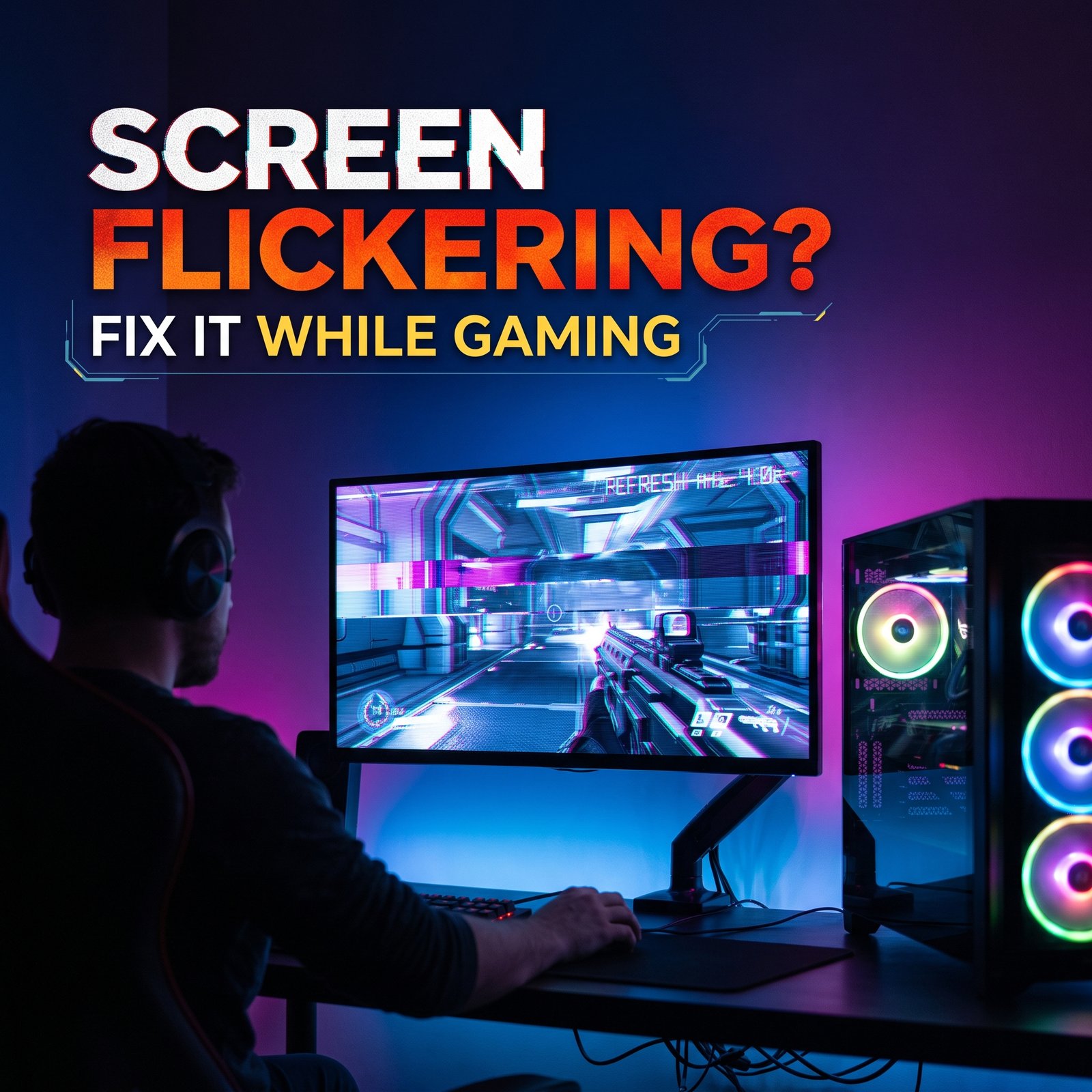
Screen flickering in games can mean several different things: the whole image strobing, dark scenes pulsing in brightness, brief black flashes, or one object shimmering inside the game. Each points to a different cause, which is why a random checklist often fails. This guide covers how to fix screen flickering during gameplay by identifying which kind of flicker you have first, then testing the likely causes in order: display settings and variable refresh rate (VRR), graphics drivers, cables, Windows features, and finally hardware.
Quick Answer: Five Checks to Try First
- Reset the graphics driver with Windows key + Ctrl + Shift + B. If the screen blinks and the flicker stops, a driver or display-pipeline issue is likely.
- Turn off VRR (G-SYNC, FreeSync, or Adaptive Sync) briefly. If the flicker disappears, the cause is in the VRR setup or the monitor’s VRR behavior.
- Reseat the video cable at both ends, or try a different cable or port.
- Confirm the refresh rate in Windows is set to your monitor’s intended value.
- Roll back the graphics driver if the flicker began right after an update.
Treat these as tests as much as fixes. Whichever one changes the behavior tells you where to look.
Work Out Which Kind of Flicker You Have
“Flickering” covers different problems:
- Whole-screen flicker: the entire image flashes or shimmers. Usually a driver, cable, refresh rate, or VRR issue.
- Brightness flicker in dark scenes: menus, loading screens, or dark areas pulse. This is characteristic of VRR on some monitors, especially OLED.
- Brief black flashes or dropouts: the signal cuts out momentarily. Points to cables, driver resets, or display-pipeline conflicts.
- Flicker on objects or shadows only: parts of the scene shimmer while the rest of the screen is stable. This is a rendering problem in the game, not a display fault.
Use the Task Manager test
Microsoft’s screen flickering troubleshooting guide describes a simple test: open Task Manager while the flicker is happening. If Task Manager flickers along with everything else, a display driver is the probable cause. If it stays stable while the rest of the screen flickers, an incompatible app is more likely.
Match your symptom to a starting point
| What you notice | What it suggests | Test first |
|---|---|---|
| Only one game | Game setting, game bug, or a graphics API issue | Change display mode, verify game files |
| Every game | Driver, cable, monitor, or GPU | Reset driver, swap cable, test another monitor |
| Desktop flickers too | Display, driver, cable, or hardware, not the game | Task Manager test, cable swap |
| Only in fullscreen | Display mode and VRR behavior | Try borderless, check VRR settings |
| Changes with FPS | VRR range or frame pacing | Turn VRR off, cap the frame rate |
| After a driver or Windows update | Regression | Roll back the driver |
| Only with HDR on | HDR configuration or bandwidth | Disable HDR in Windows and the game |
| One monitor, not another | The monitor or its connection | Swap cables and ports between monitors |
Fix Flicker That Follows Your Frame Rate (VRR)
If the flicker gets worse when your frame rate dips or fluctuates, VRR is a prime suspect. VRR lets the monitor change its refresh rate to match the game’s frame rate. Every panel has a limited VRR range, and behavior near the low end varies by monitor. Forum reports show flicker triggering when frame rates fell below a panel’s minimum VRR range, and turning VRR off resolving it. These are user reports, not official findings, so treat them as patterns to test, not guarantees.
- Disable VRR as a test. In the NVIDIA Control Panel, look under Set up G-SYNC. In AMD Software, look for the FreeSync option in the display settings. Menu names vary by driver version and monitor.
- Check whether the flicker returns when VRR is off. If not, VRR is involved.
- Stabilize your frame rate. Large frametime swings aggravate the problem, and our guide on how to stop random FPS drops in games covers the usual causes.
- Cap the frame rate slightly below your refresh rate so the game stays inside the VRR range.
- Try V-Sync with VRR enabled if your driver and monitor support the combination. This is a common community recommendation, but results vary by setup. V-Sync can add latency, so see how to reduce input lag while gaming if responsiveness matters to you.
- Check your monitor’s firmware and menu. Some monitors have an anti-flicker or VRR control setting.
OLED monitors and dark-scene flicker
Some OLED monitors show brightness flicker in near-black scenes with VRR on. Community experts attribute it to frame-time variation rather than average FPS. Some monitors offer an anti-flicker mode, but users report it can reduce the effective VRR range, so you may trade tearing protection for stability. If the flicker only appears in dark menus or loading screens, this may be a characteristic of the panel rather than a fault. Check your manufacturer’s support page for firmware updates and recommended settings.
Also confirm your monitor is on NVIDIA’s G-SYNC Compatible monitor list if you use an NVIDIA card. Certification does not guarantee flicker-free behavior, but it shows the monitor was validated for VRR.
Check the Basics: Refresh Rate, Resolution, and Display Mode
Windows may default to a lower refresh rate than your monitor supports, especially after driver changes or when using a new cable.
- Open Settings > System > Display > Advanced display.
- Select the correct monitor and confirm the refresh rate.
- Confirm the game uses the same refresh rate and your monitor’s native resolution.
If flicker only occurs in fullscreen, try borderless windowed mode, or the reverse. Fullscreen and borderless modes differ in how the image is composed and presented, and one may behave better on your setup. Our guide on fixing resolution problems in PC games helps if the game is not using your monitor’s native settings.
Check Cables and Ports
Video cables can cause flicker, especially at high resolution and refresh rates where bandwidth demands are high.
- Reseat the cable at the monitor and the GPU.
- Plug into a different port on the GPU, not the motherboard, on a desktop with a dedicated graphics card.
- Try a different cable. DisplayPort and HDMI behave differently, so switching between them is a useful test.
- Check for bent pins, visible damage, or a loose connector.
If the flicker stops with a different cable, the original cable or its connection was the issue. If a premium cable is needed for your resolution and refresh rate, check your monitor’s documentation for its supported standards.
Fix Driver Problems
Drivers translate game output into the signal your monitor receives, and a bad release can cause flicker. Microsoft’s guidance says to roll back the display driver if Windows Update recently changed it, and otherwise to try updating or reinstalling.
If the flicker started after an update:
- Open Device Manager, expand Display adapters, and open your GPU’s Properties.
- On the Driver tab, choose Roll Back Driver if available.
- Before updating again, check the vendor’s release notes for known flicker issues.
If the driver is old or may be damaged:
- Download the latest driver directly from NVIDIA, AMD, or Intel, not from a third-party site.
- Use the vendor installer’s clean installation option if it has one.
- Restart and test.
Avoid “driver updater” utilities of unknown origin. If the flicker began after a Windows update, our guide on game crashes after a Windows update covers update-related issues.
Fix HDR-Related Flicker
HDR adds complexity because the monitor, Windows, and the game each have their own HDR settings.
- Turn HDR off in Windows and the game to see if the flicker stops.
- If it does, turn HDR on in Windows first, then enable it in the game.
- Check your cable and monitor mode support HDR at your chosen refresh rate.
Our guide on fixing HDR not working in games covers setup problems in more detail.
Check for Overlay and Background App Conflicts
Overlays hook into the game’s rendering and can cause flicker. Test with these disabled:
- Discord, Steam, and Xbox Game Bar overlays
- NVIDIA and AMD recording or performance overlays
- Third-party monitoring or capture tools
Disable one at a time so you can tell which is responsible.
Advanced: Multi-Plane Overlay and Driver Timeouts
Only try these if the earlier steps did not help.
Multi-Plane Overlay (MPO) is a Windows feature that lets the GPU combine display layers. NVIDIA has documented MPO-related flickering in some configurations and provides its own files to change the setting. Results are mixed, and some users report no improvement or new problems. Because this involves a registry change, back up your system first and use only the vendor’s official files. If the change does not help, restore the original setting.
Driver timeouts: if flicker is followed by a black screen and the screen recovers, Windows may have reset the display driver. Microsoft documents this as timeout detection and recovery. Frequent resets can point to an unstable overclock, overheating, or failing hardware. If you also see black screens at launch, see how to fix black screens when launching games.
Is It Hardware? Isolating the Faulty Part
Test one variable at a time:
- Check GPU temperatures with a monitoring tool while gaming. Overheating can cause instability.
- Reset overclocks and undervolts to default. Unstable settings can cause flicker or crashes.
- Test another monitor or TV. If the flicker follows the monitor, suspect the monitor. If it follows the PC, suspect the GPU, driver, or cable.
- Test another cable and port.
- Test the GPU in another PC if you have access to one.
Flicker on the desktop and in every game, across different cables, with default GPU settings, is a stronger sign of a hardware fault. At that point, contact the manufacturer about the warranty instead of replacing parts blindly.
Prevention
- Update drivers deliberately and read release notes first.
- Keep the previous working driver available for rollback.
- Keep frame rates inside your VRR range.
- Keep the GPU cool and avoid aggressive overclocks.
FAQ
Why does my screen flicker only when gaming?
Games push the GPU harder, change display modes, and vary frame rates, which exposes problems like VRR behavior, cable bandwidth limits, and driver issues that may not show on the desktop.
Why does my monitor flicker when FPS changes?
This often points to VRR, especially if the frame rate falls toward the bottom of the monitor’s VRR range. Turning VRR off briefly can confirm it.
Can GPU drivers cause screen flickering?
Yes. Microsoft lists display drivers as a common cause. Rolling back to a previous driver is a standard first test if the problem began after an update.
Can G-SYNC or FreeSync cause flickering?
They can on some monitors, particularly with frame-rate dips or dark scenes on OLED panels. Testing with VRR off shows whether it is involved.
Can HDMI or DisplayPort cause flickering?
Yes, especially at high resolutions and refresh rates. Swapping cables and ports is a quick test.
Is flickering a sign of a failing GPU?
It can be, but it is not the most common cause. Check drivers, cables, and settings first, and test with another monitor.
Conclusion
The most useful principle is to change one thing at a time and watch what changes. Flicker that follows your frame rate points toward VRR, flicker that appears on the desktop too points toward the driver, cable, or hardware, and flicker in a single game points toward that game’s settings. If everything checks out and the flicker persists across monitors and cables, hardware may be involved, and the manufacturer is the right next step.