The Sims 4, one of the most popular life simulation games, offers endless possibilities for players to create, build, and interact in a virtual world.
However, despite its immense popularity, many players encounter problems and bugs while playing the game.
In this article, we will explore 15 common Sims 4 problems and provide effective fixes for each one, ensuring a smoother and more enjoyable gaming experience.
1. Sims 4 Won’t Launch
Problem:
Many players face an issue where the Sims 4 game fails to launch. This can happen due to several reasons, such as corrupted files, outdated drivers, or a conflict with antivirus software.
Fix:
- Update Your Graphics Drivers: Ensure your GPU drivers are up-to-date.
- Repair Game Files: Use the “Repair” function available through the EA App or Origin to fix corrupted files.
- Check Antivirus Settings: Temporarily disable your antivirus to see if it’s blocking the game.
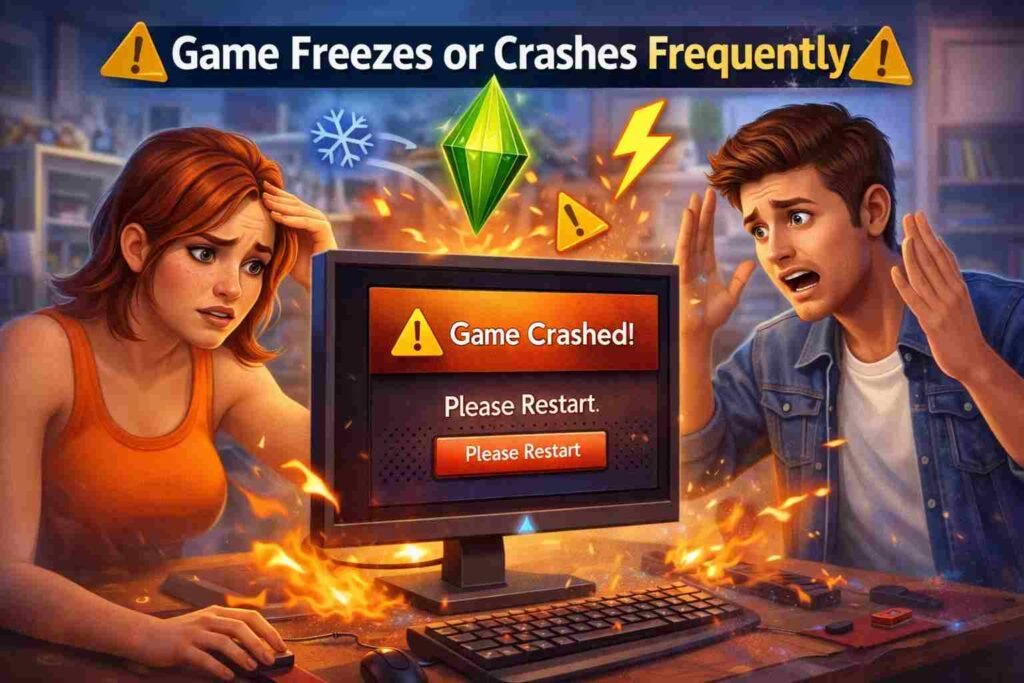
2. Game Freezes or Crashes Frequently
Problem:
Some players experience game freezes or crashes during gameplay, which disrupts the experience.
Fix:
- Adjust Graphics Settings: Lower the game’s graphics settings to reduce strain on your computer.
- Update Drivers: Make sure both graphics and audio drivers are updated.
- Clear Cache: Delete the cache files from the Sims 4 folder to resolve performance issues.
3. Sims 4 Lagging or Slow Performance
Problem:
Lagging and slow performance can hinder your gameplay, especially if you have a large household or high-level settings.
Fix:
- Lower Resolution: Decrease the game’s resolution in the settings.
- Disable Background Programs: Close unnecessary background applications to free up system resources.
- Use Mods Sparingly: Mods can significantly impact performance. Try disabling them to see if the game runs more smoothly.
4. Unable to Save Progress
Problem:
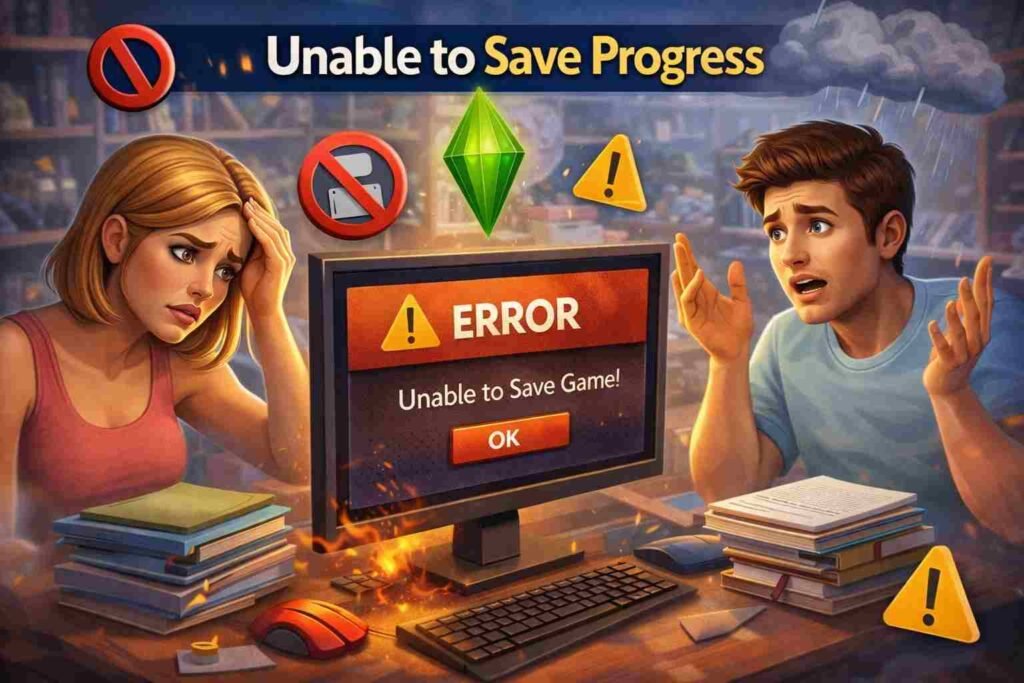
Sometimes, players may find that the game refuses to save their progress, which is frustrating after hours of gameplay.
Fix:
- Check Disk Space: Ensure that you have enough space on your hard drive to save the game.
- Run as Administrator: Try running Sims 4 as an administrator to avoid permission issues.
- Delete Old Save Files: Delete corrupted or old save files and create a new one.
Read Also : Simple & Easy Ways That How to Refund in Fortnite
5. Sims 4 Mod Issues
Problem:
Mods can cause glitches or even prevent the game from loading properly, especially after updates.
Fix:
- Update Your Mods: Ensure all your mods are compatible with the latest Sims 4 patch.
- Remove Corrupted Mods: Disable all mods to see if one of them is causing the problem. Enable them one by one to identify the culprit.
- Use the Mod Manager: Tools like Sims 4 Mod Manager can help organize and troubleshoot your mods.
Read Also : Simple & Easy Ways That How to Update Fortnite
6. The Sims Are Stuck or Frozen in Place
Problem:
Sims may get stuck in place or freeze during interactions, preventing gameplay progress.
Fix:
- Reset Sim: Use the cheat ResetSim [Sim’s Full Name] to unfreeze the Sim.
- Move Objects: Sometimes, objects in the way cause Sims to get stuck. Move them out of the way or use the build mode to adjust the environment.
- Reset the Lot: If all Sims are stuck, use the “Reset Lot” cheat.
Read Also : 14 Common Battlefield 6 Problems (With Fixes)
7. Missing Custom Content or Mods After Updates
Problem:
Custom content (CC) or mods may disappear after an update, leaving your Sims’ world without their favorite items.
Fix:
- Reinstall CC: Reinstall your custom content to ensure compatibility with the current patch.
- Check the Mods Folder: Ensure your custom content is in the correct Mods folder and is not conflicting with other files.
- Disable Mod/CC and Restart: Disable mods and custom content, then restart the game to see if the issue resolves.
8. No Audio in Sims 4
Problem:
Players may encounter a complete loss of sound, including music, voiceovers, and sound effects.
Fix:
- Check Audio Settings: Ensure that the audio settings within the game are correctly configured.
- Update Audio Drivers: Make sure your audio drivers are up-to-date.
- Reinstall Audio Drivers: Uninstall and reinstall your audio drivers if they are corrupt.
9. Sims 4 Stuck on Loading Screen
Problem:
When starting a new game or loading a save file, the game may get stuck on the loading screen.
Fix:
- Clear Cache Files: Delete the cache files from the Sims 4 folder to speed up loading.
- Repair the Game: Use the game repair function in the EA App or Origin.
- Check for Corrupted Saves: Move save files to a backup folder and try loading without them.
10. Sims 4 Glitchy or Broken Graphics
Problem:
Glitchy textures, flickering, or broken graphics can disrupt the visual experience of the game.
Fix:
- Lower Graphics Settings: Adjust the graphics settings in the options menu to see if it improves.
- Update Graphics Drivers: Ensure your GPU drivers are up-to-date to fix display issues.
- Disable Mods: Check if any mods are causing the graphical glitches.
11. Sims 4 Not Responding or Freezing After Installation
Problem:
After installing the game or an update, the game may freeze or become unresponsive.
Fix:
- Reinstall Sims 4: Uninstall and then reinstall the game to ensure a clean installation.
- Check System Requirements: Verify that your computer meets the minimum system requirements.
- Run the Game in Compatibility Mode: Try running the game in compatibility mode for an older version of Windows.
12. Unable to Connect to the Sims 4 Servers
Problem:
Players may face issues connecting to the online servers, which prevents them from accessing the gallery or other online features.
Fix:
- Check Your Internet Connection: Ensure that your internet connection is stable and working.
- Clear DNS Cache: Clear the DNS cache on your computer to avoid connectivity issues.
- Check Server Status: Sometimes, server downtime can cause connection issues. Check the Sims 4 server status for maintenance.
13. The Gallery Isn’t Working
Problem:
Players may find that they are unable to download or upload items from the Sims 4 Gallery.
Fix:
- Restart the Game: Exit and restart the game to refresh the connection to the gallery.
- Clear Cache Files: Delete the cache files to solve any temporary issues with the gallery.
- Log Out and Back In: Try logging out of your account and then logging back in to fix connectivity issues.
14. Sims 4 Error Code 533
Problem:
Error code 533 typically appears when there is a problem with the game’s server connection, preventing gameplay or downloads.
Fix:
- Check Server Status: Verify whether the Sims 4 servers are online or undergoing maintenance.
- Disable Firewall/Antivirus: Temporarily disable your firewall or antivirus software, as they may be blocking your connection.
- Reinstall the Game: If the error persists, uninstall and reinstall Sims 4 to resolve any underlying issues.
15. Sims 4 Missing or Unavailable Expansion Packs
Problem:
Sometimes, Sims 4 expansion packs or DLCs are not appearing in the game despite being installed.
Fix:
- Check Game Version: Ensure your game is updated to the latest version, as some packs require updates to function properly.
- Reinstall Expansion Packs: Uninstall and reinstall the missing expansion packs through Origin or the EA App.
- Verify Ownership: Check that the expansion pack is correctly linked to your account.
Conclusion
The Sims 4 is an amazing game, but like any complex game, it’s prone to a few issues.
Hopefully, the solutions provided above will help you resolve some of the most common problems faced by players.
If the issue persists, always consider reaching out to EA support or checking online forums for more personalized fixes. Happy Simming!
FAQs
1. Why won’t Sims 4 launch?
Ensure that your graphics drivers are up-to-date, repair the game files, and check your antivirus settings to ensure they aren’t blocking the game.
2. What can I do if Sims 4 keeps crashing?
Try lowering the game’s graphics settings, updating your drivers, and clearing the game’s cache.
3. How can I fix missing mods in Sims 4?
Ensure that your mods are compatible with the latest patch, and reinstall or disable mods to resolve any issues.
4. Why is my Sims 4 game lagging?
Lower your graphics settings, disable background programs, and reduce the use of mods to improve performance.
5. How do I resolve Sims 4 error code 533?
Check the server status, disable any firewall or antivirus software that may be blocking your connection, or reinstall the game.