PUBG (PlayerUnknown’s Battlegrounds) is one of the most popular battle royale games in the world, enjoyed by millions of players daily.
However, despite its popularity, many players often encounter various issues that can disrupt their gaming experience.
If you’re facing one of these problems, don’t worry. We’ve compiled a list of the 10 most common PUBG problems and their fixes to help you get back to your game without any hassle.
1. Game Crashing on Startup
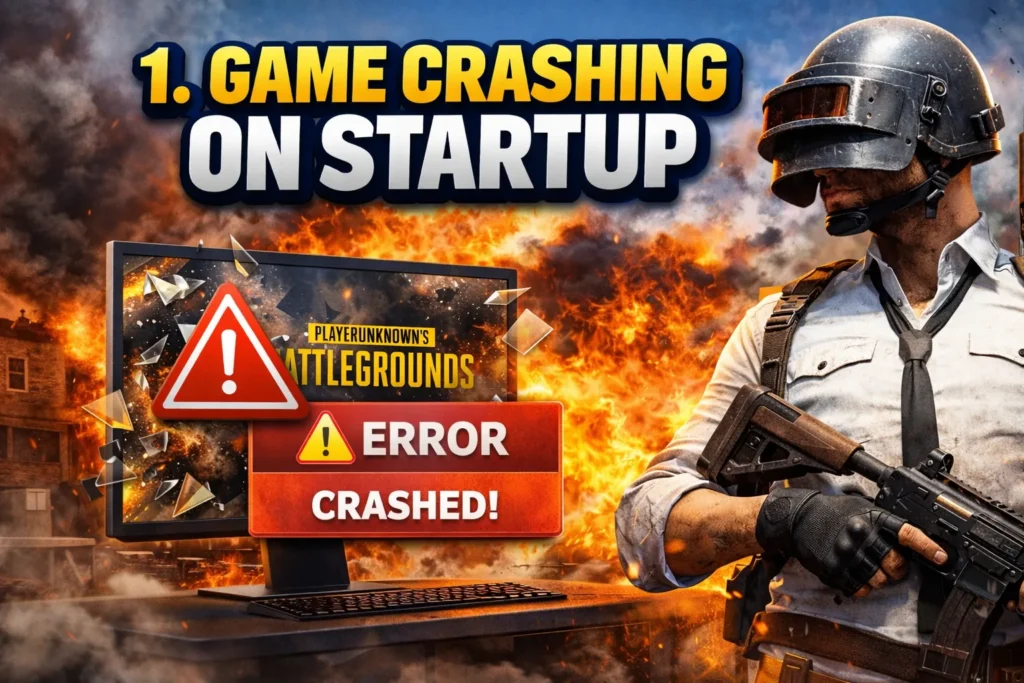
Problem: One of the most frustrating issues that PUBG players face is the game crashing as soon as it starts. This can happen for several reasons, including outdated graphics drivers, corrupted game files, or insufficient system resources.
Fix:
- Update Your Drivers: Ensure that your graphics drivers and system drivers are up-to-date. Visit the official website of your graphics card manufacturer (NVIDIA, AMD, Intel) and download the latest drivers.
- Verify Game Files: If you’re using Steam, right-click on PUBG in your library, go to Properties, then click on Verify Integrity of Game Files to check for any corrupt files.
- Close Background Applications: Close unnecessary applications running in the background to free up system resources.
Read Also : Common Anthem Game Problems (With Fixes)
2. Lag and Low FPS (Frames Per Second)
Problem: Lag and low FPS are common issues that significantly affect gameplay, especially in fast-paced games like PUBG. This can be caused by inadequate hardware, network issues, or high in-game settings.
Fix:
- Adjust Graphics Settings: Lower your graphics settings in the game to reduce the load on your system. Set the graphics to “Low” and disable features like shadows and anti-aliasing.
- Check Internet Connection: A weak or unstable internet connection can cause lag. Ensure you’re connected to a reliable network and consider using a wired connection instead of Wi-Fi.
- Close Background Applications: Background processes like web browsers or streaming apps can eat up valuable system resources. Close them to free up space for PUBG.
3. Stuck on Loading Screen
Problem: Players often find themselves stuck on the loading screen for a long time before they can enter a match. This can happen due to server issues, corrupt game files, or improper configuration.
Fix:
- Check Server Status: Visit the official PUBG website or check Twitter for updates on any ongoing server issues.
- Repair Game Files: If your game files are corrupted, verify and repair them through Steam or reinstall the game to fix any issues.
- Disable Anti-Virus and Firewall: Sometimes, your security software might block PUBG’s access to the game servers. Temporarily disable the antivirus/firewall and try again.
Read Also :Simple & Easy Ways That How to Refund in Fortnite
4. PUBG Not Launching
Problem: Many players encounter a situation where PUBG refuses to launch, even though the game is installed correctly. This could be due to compatibility issues, corrupted files, or a lack of administrator privileges.
Fix:
- Run as Administrator: Right-click on the PUBG shortcut and select Run as Administrator to grant the game proper permissions.
- Check System Requirements: Ensure your PC meets the minimum system requirements for running PUBG.
- Disable Full-Screen Optimization: Right-click the PUBG shortcut, go to Properties, select the Compatibility tab, and check the box that says Disable full-screen optimizations.
5. Audio Not Working in PUBG
Problem: PUBG players often complain of no sound or distorted sound, which can negatively affect gameplay, especially in battle situations.
Fix:
- Check Audio Settings: Go to the in-game audio settings and ensure that the sound is not muted. Increase the volume of the master and individual channels.
- Update Sound Drivers: Check for updates for your audio drivers through the Device Manager or the manufacturer’s website.
- Reconfigure Sound Settings: Go to Sound Settings on your computer, right-click on your default audio device, and select Set as Default Device.
6. PUBG Freezes Randomly
Problem: Random freezing can be a major annoyance while playing PUBG, especially if it happens in the middle of a match. Freezing can be caused by a variety of factors, including system overload or issues with game files.
Fix:
- Update Your Drivers: Ensure your graphics and system drivers are up to date.
- Lower In-Game Settings: Reducing settings like texture quality, shadows, and render distance can help prevent your system from freezing.
- Check for Overheating: Overheating can cause your system to freeze. Ensure your system is adequately cooled, and clean your computer’s internal fans if necessary.
7. PUBG Disconnecting from Servers
Problem: Frequent disconnections from PUBG’s servers can be extremely frustrating. This usually happens due to poor internet connection or server issues on PUBG’s end.
Fix:
- Check Internet Connection: Make sure your internet is stable. If you’re on Wi-Fi, consider switching to a wired connection.
- Select a Different Server: Try changing the server region in the game’s settings to one that’s closer to your location to improve connection stability.
- Restart Modem/Router: Restart your modem or router to refresh your internet connection.
8. Unable to Find Match
Problem: Another issue that PUBG players face is the inability to find a match. This can be due to server issues, incorrect matchmaking settings, or simply a lack of available players.
Fix:
- Check Server Health: PUBG’s servers might be experiencing downtime, so check the server status.
- Adjust Matchmaking Settings: You can adjust your matchmaking settings to match players in different regions or lower the required player count to find a match faster.
9. PUBG Stuttering
Problem: Stuttering, or micro-freezing, is a common problem that ruins the smooth flow of gameplay. This usually happens due to performance issues or system overload.
Fix:
- Enable V-Sync or Limit FPS: Turn on V-Sync in the settings to sync your FPS with your monitor’s refresh rate or limit your FPS to avoid performance overload.
- Update Your Graphics Drivers: Keeping your GPU drivers updated can fix performance issues.
- Disable Background Apps: Background applications use up CPU and RAM, which can cause stuttering in games.
10. PUBG Error Code: 0x00000001
Problem: This error code usually appears when launching PUBG and is related to missing or corrupted system files.
Fix:
- Verify and Repair Game Files: Use Steam’s Verify Integrity of Game Files feature to fix corrupted files.
- Check for Windows Updates: Make sure your operating system is up-to-date by checking for updates in the Windows Settings menu.
- Reinstall PUBG: If the problem persists, reinstall the game to ensure all necessary files are in place.
Conclusion:
PUBG, like many online multiplayer games, can have its fair share of issues. However, most problems can be fixed by following simple troubleshooting steps like updating drivers, adjusting settings, or checking the game files. If you’re facing any of the above problems, try these fixes to get back to enjoying the game. PUBG’s vast community is also a great resource for finding solutions to specific issues, so don’t hesitate to explore forums or seek help from others.
FAQs
1. Why is PUBG lagging on my PC?
Lag in PUBG can be caused by high graphics settings, insufficient system resources, or a weak internet connection. Lower the in-game settings, close background applications, and check your internet speed.
2. How do I fix PUBG crashes on startup?
To fix crashes on startup, update your graphics drivers, verify the integrity of the game files through Steam, and make sure your system meets the minimum requirements for PUBG.
3. What causes PUBG to freeze randomly?
PUBG freezing can be due to system overload, outdated drivers, or overheating. Try lowering your game settings, updating your drivers, and ensuring your system is properly cooled.
4. How can I fix PUBG server disconnection issues?
Check your internet connection, use a wired connection instead of Wi-Fi, and select a server region closer to your location to reduce server disconnections.
5. Why can’t I find a match in PUBG?
If you’re having trouble finding a match, try checking the server status for any ongoing issues or adjust your matchmaking settings to widen the pool of available players.