
Launching a new multiplayer hero shooter is never without its hurdles, and Marvel Rivals is no exception.
While the game delivers high-octane 6v6 action with iconic characters like Iron Man, Hulk, and Spider-Man, the experience hasn’t been seamless for everyone.
From crashing on startup to lagging servers and visual glitches, players have reported a variety of frustrating issues that can interrupt the fun.
If you are stuck staring at a black screen instead of assembling your team, don’t worry. Most of these errors have workarounds or simple solutions.
Whether you are playing on PC or console, troubleshooting these bugs can get you back into the fight faster.
In this guide, we break down 14 of the most common Marvel Rivals problems and provide step-by-step fixes to help you optimize your gameplay.
1. Game Crashes on Startup
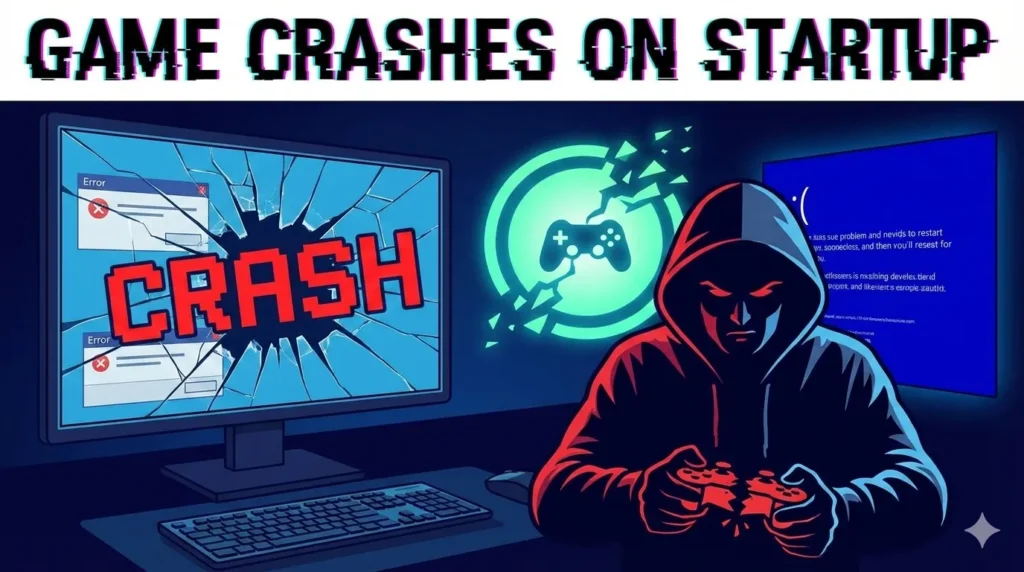
One of the most reported issues is the game crashing immediately upon launch. This often happens due to conflicting software, outdated drivers, or insufficient system permissions.
How to Fix:
- Run as Administrator: Right-click the game’s executable file (or the shortcut) and select “Run as administrator.” This gives the game the necessary permissions to access system files.
- Verify Game Files: If you are on Steam, right-click Marvel Rivals in your library, go to Properties > Installed Files, and click Verify integrity of game files. This replaces any corrupted or missing data.
- Disable Overlays: Apps like Discord, NVIDIA GeForce Experience, or Steam Overlay can sometimes cause crashes. Turn these off in their respective settings menus and try launching again.
Read Also : Common Anthem Game Problems (With Fixes)
2. “DirectX 12 is Not Supported” Error
This error usually pops up for players on older hardware or those with outdated operating systems. Marvel Rivals requires DirectX 12 to run its advanced graphical features.
How to Fix:
- Update Windows: Ensure your operating system is fully updated. Go to Settings > Update & Security > Windows Update and check for updates.
- Update GPU Drivers: Visit the website for your graphics card manufacturer (NVIDIA, AMD, or Intel) and download the latest drivers.
- Force DX11 (Temporary Fix): In Steam, go to Properties > General, and in the “Launch Options” box, type -d3d11. This forces the game to run on DirectX 11, which might bypass the error, though performance may vary.
Read Also :Simple & Easy Ways That How to Refund in Fortnite
3. Infinite Loading Screen
Getting stuck on the loading screen is a common annoyance in online multiplayer games. This is often a network-related issue or a problem with the game’s cache.
How to Fix:
- Check Server Status: Before troubleshooting your PC, check the official Marvel Rivals Twitter/X account or Discord to see if servers are down for maintenance.
- Switch to SSD: If the game is installed on a traditional HDD, load times can be excruciatingly slow. Moving the installation to an SSD can drastically improve performance.
- Flush DNS: Open the Command Prompt as an administrator and type ipconfig /flushdns. Press Enter. This clears your DNS cache and can resolve connectivity hang-ups.
4. Low FPS and Stuttering
Even with powerful hardware, some players experience frame rate drops and stuttering during intense team fights. This is often due to unoptimized settings.
How to Fix:
- Lower Graphics Settings: Turn down shadows, volumetric fog, and effects quality. These are resource-heavy and offer the biggest FPS boost when lowered.
- Enable DLSS/FSR: If your graphics card supports it, turn on NVIDIA DLSS or AMD FSR in the video settings. This renders the game at a lower resolution and upscales it, providing smoother performance without sacrificing too much visual quality.
- Close Background Apps: Web browsers (especially Chrome) and other applications eat up RAM. Close everything you don’t need while gaming.
5. “Failed to Connect to Server” Error
This error prevents you from logging in or kicks you out of the lobby. It is strictly a connectivity issue.
How to Fix:
- Use a Wired Connection: Wi-Fi is convenient but less stable than an Ethernet cable. Switching to a wired connection minimizes packet loss.
- Restart Router: Unplug your router for 30 seconds and plug it back in to refresh your internet connection.
- Change Server Region: Sometimes specific regional servers are overloaded. If the game allows, try manually selecting a different server region with acceptable ping.
6. Black Screen with Audio
You launch the game, you can hear the music and menu sounds, but the screen is completely black. This is usually a resolution conflict.
How to Fix:
- Alt+Enter: Pressing Alt+Enter forces the game to switch between Windowed and Fullscreen mode. This can often snap the display back to normal.
- Edit Config File: Navigate to the game’s installation folder and look for the configuration .ini file. Manually change the resolution to match your monitor’s native resolution (e.g., 1920×1080).
7. Controller Not Working on PC
Many players prefer using a controller for third-person shooters, but Marvel Rivals sometimes fails to recognize gamepads on PC.
How to Fix:
- Steam Input: Open Steam settings, go to Controller, and ensure “Enable Steam Input” is checked for your specific controller type (Xbox, PlayStation, etc.).
- Unplug Peripherals: Sometimes other USB devices (like flight sticks or steering wheels) can confuse the game. Unplug any unnecessary peripherals.
- Launch via Big Picture Mode: Launching the game through Steam’s Big Picture Mode can force controller compatibility.
8. Audio Cutting Out or Crackling
Sound is crucial for hearing enemy footsteps and ultimate cues. Audio glitches can be a major competitive disadvantage.
How to Fix:
- Change Sample Rate: Go to Windows Sound Settings > Device Properties > Additional device properties > Advanced. Change the Default Format to 24 bit, 48000 Hz. This is the standard for most games.
- Disable Spatial Sound: In the same menu, turn off “Windows Sonic for Headphones” or any other spatial sound enhancement, as it can conflict with the game’s audio engine.
9. Texture Popping and Blurry Graphics
If characters look like blurry blobs or textures take forever to load, it ruins the immersion.
How to Fix:
- Increase Texture Streaming Budget: Check the video settings for an option related to texture streaming or memory. Ensure it matches your GPU’s VRAM capacity.
- Repair Game Files: Corrupted texture packs can cause this. Run a file verification through your launcher (Steam/Epic).
- Update GPU Drivers: Outdated drivers often struggle to render new game assets correctly.
10. Mouse Lag and Input Delay
In a fast-paced shooter, input lag feels like moving through mud. You need your aim to be snappy and responsive.
How to Fix:
- Disable V-Sync: V-Sync synchronizes frame rate to your monitor’s refresh rate to prevent tearing, but it introduces significant input lag. Turn this off in the video settings.
- Turn Off Mouse Acceleration: Go to Windows Mouse Settings and uncheck “Enhance pointer precision.” This ensures your mouse movement is 1:1.
- NVIDIA Reflex: If you have an NVIDIA card, enable “NVIDIA Reflex Low Latency” in the game settings.
11. “Out of Video Memory” Error
This crash occurs when the game tries to use more VRAM than your graphics card possesses.
How to Fix:
- Lower Texture Quality: High textures consume the most VRAM. Drop this setting to Medium or Low.
- Close Browser Tabs: Browsers with hardware acceleration enabled can eat into your GPU’s VRAM. Close them while playing.
- Increase Page File: In Windows, you can increase your virtual memory (Page File) to act as an overflow for your RAM, which can sometimes prevent this crash.
12. Voice Chat Not Working
Communication is key in team-based shooters. If you can’t hear teammates or they can’t hear you, coordination falls apart.
How to Fix:
- Check Default Device: Go to Windows Sound Settings and ensure your headset microphone is set as the “Default Communication Device.”
- In-Game Settings: Open the Marvel Rivals audio settings. Ensure “Voice Chat” is enabled and the correct input/output devices are selected.
- Privacy Settings: Go to Windows Settings > Privacy > Microphone and ensure that “Allow desktop apps to access your microphone” is turned on.
13. Update Stuck at 0% or Not Downloading
Sometimes the launcher fails to download the latest patch, preventing you from playing online.
How to Fix:
- Clear Download Cache: In Steam, go to Settings > Downloads > Clear Download Cache. This restarts the Steam client and often fixes stuck downloads.
- Check Disk Space: Ensure you have enough free space on your drive for the update. The patching process often requires more space than the update size itself to unpack files.
- Temporarily Disable Firewall: Your firewall might be blocking the connection to the update server. Briefly disable it to see if the download starts.
14. Unreal Engine 5 Crashes
Marvel Rivals is built on Unreal Engine 5, which is powerful but can be unstable on certain configurations.
How to Fix:
- Underclock GPU: Sometimes factory-overclocked GPUs become unstable with UE5. Using software like MSI Afterburner to slightly lower your core clock speed (-50MHz) can stabilize the game.
- Disable XMP Profiles: In rare cases, unstable RAM overclocks (XMP/DOCP) in your BIOS can cause engine crashes. Try disabling them to test stability.
Get Back in the Game
Troubleshooting technical issues is never the highlight of a gaming session, but hopefully, these fixes have resolved your Marvel Rivals problems. The game is constantly being updated, and developers are likely aware of these common bugs. Keeping your system updated and your drivers fresh is the best defense against future crashes.
Now that your game is running smoothly, it’s time to squad up, pick your favorite hero, and dominate the battlefield.
Frequently Asked Questions (FAQs)
Is Marvel Rivals free to play?
Yes, Marvel Rivals is a free-to-play team-based shooter. You can download and play it without purchasing the base game, though it features optional microtransactions for cosmetics.
Can I play Marvel Rivals on a low-end PC?
While the game utilizes Unreal Engine 5 and has relatively high system requirements for max settings, it is scalable. By lowering resolution, using upscaling tech like FSR, and turning graphics to “Low,” many mid-range and budget PCs can run the game at playable framerates.
Does Marvel Rivals support cross-play?
As of the latest updates, Marvel Rivals supports cross-play between consoles (PS5 and Xbox Series X|S) and PC. However, ensure that cross-play is enabled in your gameplay settings to match with friends on other platforms.
Why does my ping spike only in Marvel Rivals?
If your internet is fine in other games, the issue might be your connection to the specific Marvel Rivals servers. Try using a wired connection or a VPN to route your connection differently, which can sometimes bypass bad hops to the game server.
Will reinstalling the game fix these bugs?
Reinstalling is the “nuclear option.” It takes time but can fix deep-rooted issues like corrupted files that “Verify Integrity” missed. Try the fixes listed above first; save reinstalling as a last resort.