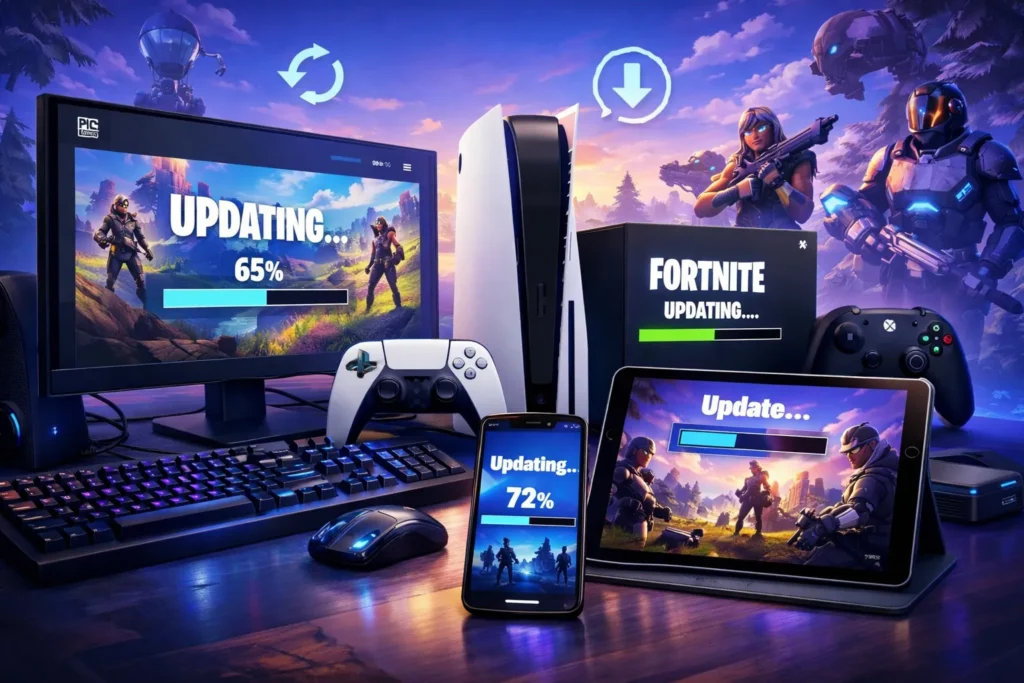
Fortnite is one of the most popular online games in the world, and it gets regular updates to add new features, skins, maps, weapons, and bug fixes. Keeping Fortnite updated is very important if you want smooth gameplay, fewer errors, and access to the latest content.
Many players face issues like the game not opening, update stuck, or version mismatch simply because Fortnite is not updated properly.
In this complete guide, you will learn simple and easy ways to update Fortnite on all major platforms including PC, PS4, PS5, Xbox, iPhone, and iPad. This article is written in simple English, step by step, so anyone can follow it easily.
Whether you are a beginner or a regular player, this guide will help you update Fortnite without confusion. We will also explain how to update Fortnite using the Epic Games Launcher and what to do if updates do not appear automatically. By the end, you will clearly understand how to keep Fortnite updated and ready to play at all times.
How to Update Fortnite on PC
Updating Fortnite on a PC is usually done through the Epic Games Launcher. Most updates install automatically, but sometimes manual steps are required.
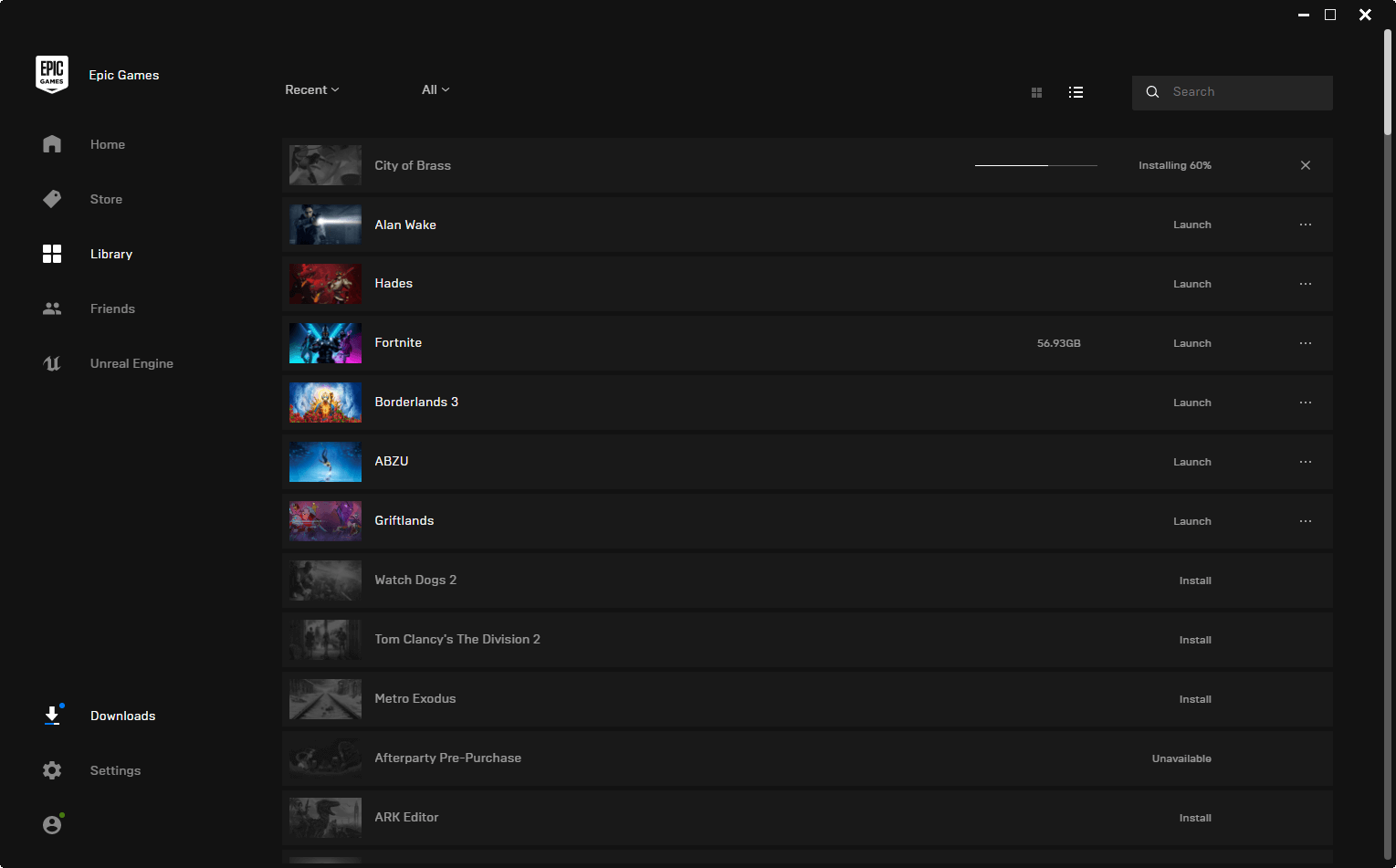
Step-by-Step Guide
- Open Epic Games Launcher
Click on the Epic Games Launcher icon on your desktop or search for it in the Start menu. - Log in to Your Account
Make sure you log in using the same Epic Games account you use to play Fortnite. - Go to Library
On the left side menu, click on Library. You will see Fortnite listed there. - Check for Update Button
If an update is available, you will see an Update button. Click it to start downloading. - Wait for Download to Finish
The launcher will download and install the update automatically. - Restart the Launcher if Needed
If you do not see an update, close the launcher and open it again.
Extra Tips
- Make sure your internet connection is stable.
- Keep enough free storage on your PC.
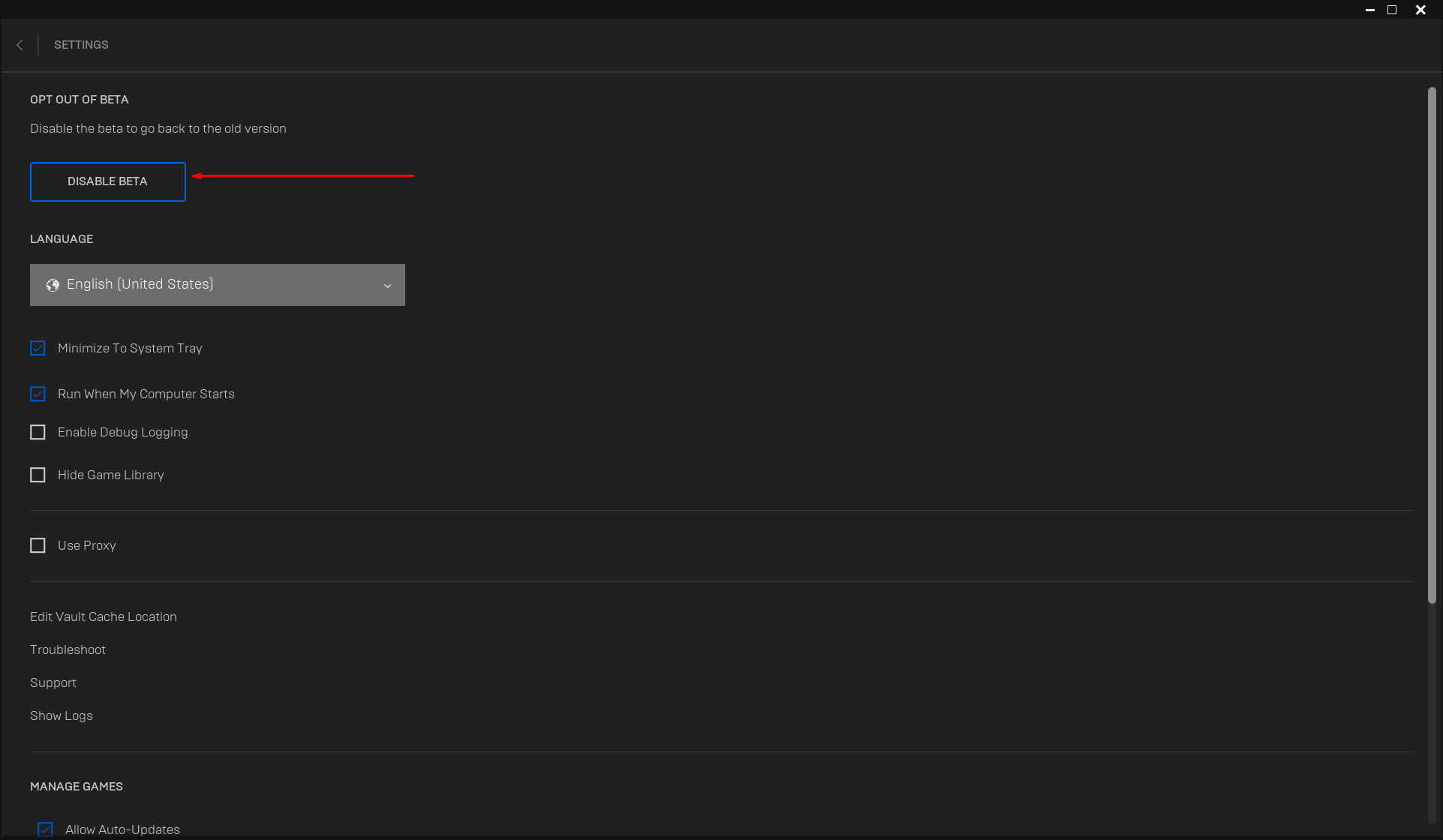
- Turn on automatic updates in Epic Games settings.
How to Update Fortnite on PS4
On PlayStation 4, Fortnite updates are mostly automatic, but you can also update it manually.

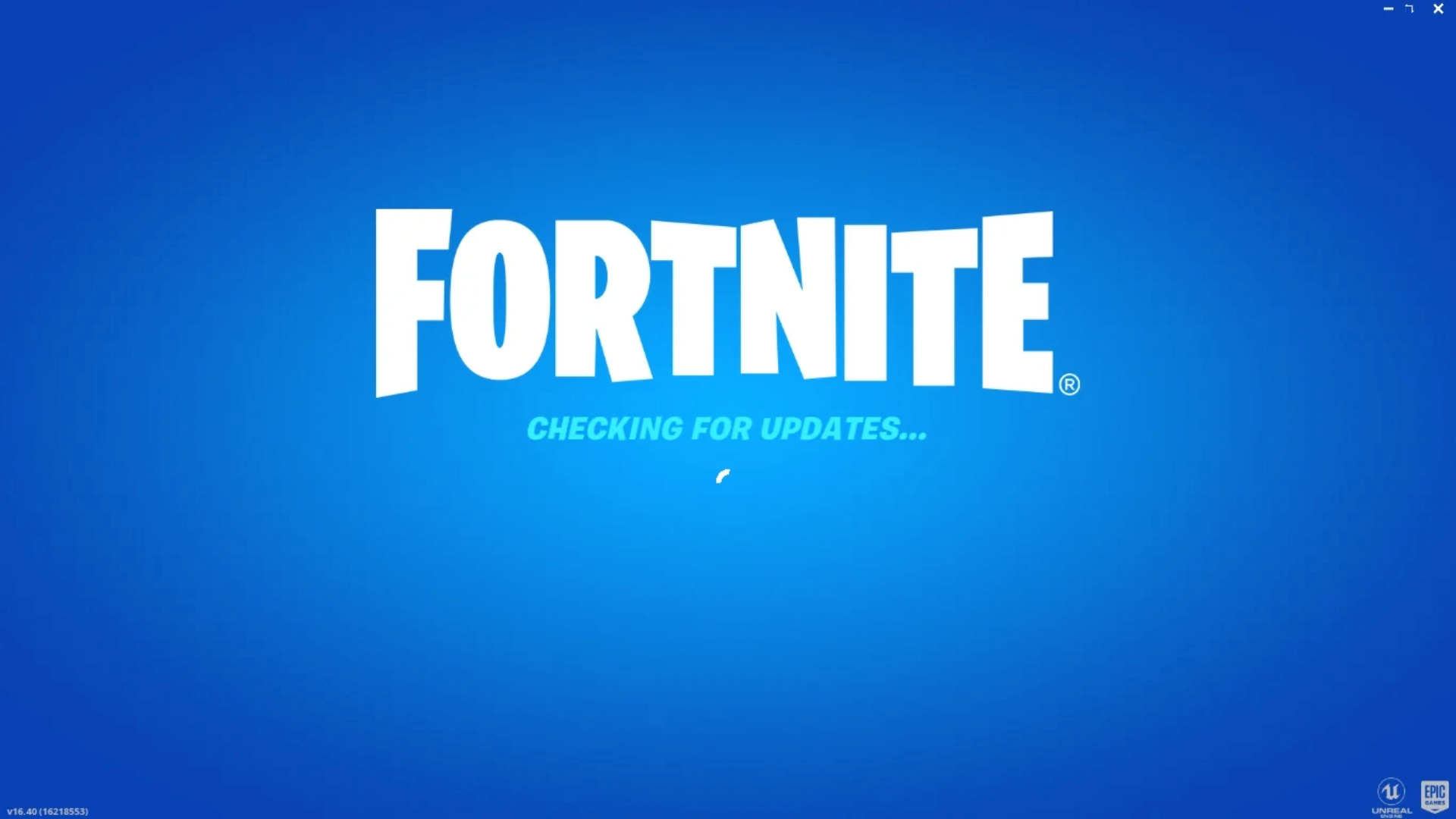
Step-by-Step Guide
- Turn On Your PS4
Go to the home screen where all games are shown. - Highlight Fortnite
Use your controller to select Fortnite but do not open it. - Press the Options Button
Press the Options button on your controller. - Select Check for Update
Choose Check for Update from the menu. - Download the Update
If an update is available, it will start downloading automatically. - Wait Until Installation Completes
Once done, you can open the game.
Extra Tips
- Enable automatic downloads in PS4 settings.
- Keep your console connected to the internet in rest mode.
How to Update Fortnite on PS5
Updating Fortnite on PS5 is fast and simple due to improved system features.


Step-by-Step Guide
- Go to PS5 Home Screen
Turn on your PS5 and go to the main menu. - Select Fortnite
Highlight Fortnite from your games list. - Press Options Button
Press the Options button on your controller. - Choose Check for Update
Select Check for Update. - Download and Install
The update will start downloading automatically. - Launch Fortnite
After installation, open the game and enjoy.
Extra Tips
- PS5 supports background downloads.
- Keep system software updated for best performance.
How to Update Fortnite on Xbox
Fortnite updates on Xbox consoles like Xbox One, Xbox Series S, and Xbox Series X are also easy.

Step-by-Step Guide
- Turn On Xbox Console
Go to the Xbox dashboard. - Open My Games & Apps
Navigate to My Games & Apps. - Find Fortnite
Locate Fortnite in your games list. - Press Menu Button
Press the Menu button on your controller. - Select Manage Game & Add-ons
Go to Updates section. - Download Update
If an update is available, it will start downloading.
Extra Tips
- Enable automatic updates in Xbox settings.
- Keep console storage free for smooth updates.
How to Update Fortnite on iPhone
Fortnite on iPhone is not available through the Apple App Store in many regions, but updates depend on the installation method.


Step-by-Step Guide
- Open the App Source
Open the app or platform from where Fortnite was installed. - Check for Updates
Look for an update option inside the app. - Download Latest Version
If available, download and install the update. - Restart the Game
After updating, restart Fortnite.
Extra Tips
- Keep iOS updated.
- Ensure enough storage space.
How to Update Fortnite on iPad
Updating Fortnite on iPad follows the same process as iPhone.


Step-by-Step Guide
- Open Installation Platform
Open the platform used to install Fortnite. - Check Update Section
Go to updates or downloads section. - Install Latest Update
Download the update if available. - Launch the Game
Open Fortnite after installation.
Extra Tips
- Use Wi-Fi for faster downloads.
- Close background apps during update.
How to Update Fortnite on Epic Games
The Epic Games Launcher is the main platform for Fortnite updates on PC.

Step-by-Step Guide
- Open Epic Games Launcher
Launch the Epic Games app. - Sign In to Account
Use your Epic Games credentials. - Go to Library Section
Find Fortnite in the Library. - Click Update
If an update is available, click Update. - Wait for Completion
The update will install automatically. - Restart Launcher if Needed
Restart if the update does not start.
Extra Tips
- Clear launcher cache if updates are stuck.
- Run launcher as administrator on Windows.
Conclusion
Keeping Fortnite updated is very important for smooth gameplay and access to the latest features.
No matter which device you use, the update process is simple if you follow the correct steps. PC players should always use the Epic Games Launcher, while console players can update directly from their system menus.
Mobile users should regularly check their installation source for updates. Always keep enough storage space, a stable internet connection, and enable automatic updates when possible. By following this guide, you will never miss an update and can enjoy Fortnite without errors or interruptions.
FAQs
Why is Fortnite not updating automatically?
This may happen due to poor internet, disabled auto-updates, or low storage space.
How long does a Fortnite update take?
It depends on update size and internet speed. Usually 10 to 40 minutes.
Can I play Fortnite without updating?
No, you must update to play online.
What should I do if Fortnite update is stuck?
Restart your device, check internet, and restart the launcher or console.
Are Fortnite updates free?
Yes, all Fortnite updates are completely free.