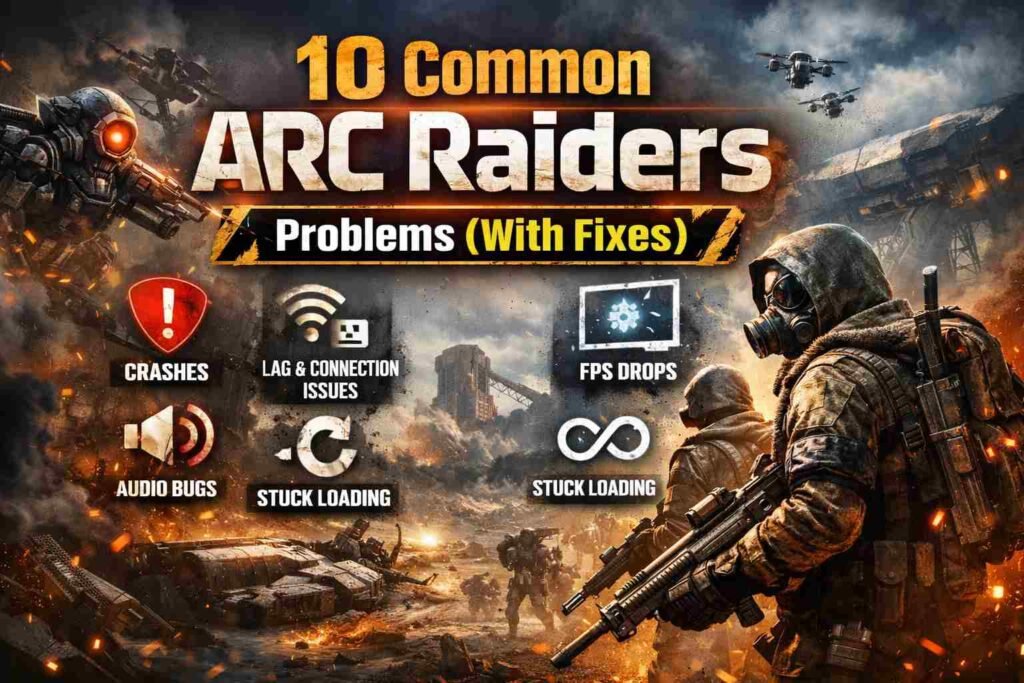
ARC Raiders is an exciting multiplayer third-person shooter that immerses players in a futuristic world of combat.
However, like many online games, players sometimes face technical issues and bugs.
If you’re experiencing problems with ARC Raiders, you’re not alone. In this article, we’ll cover the 10 most common ARC Raiders problems and offer effective solutions to get you back into the game.
1. Game Crashes on Startup
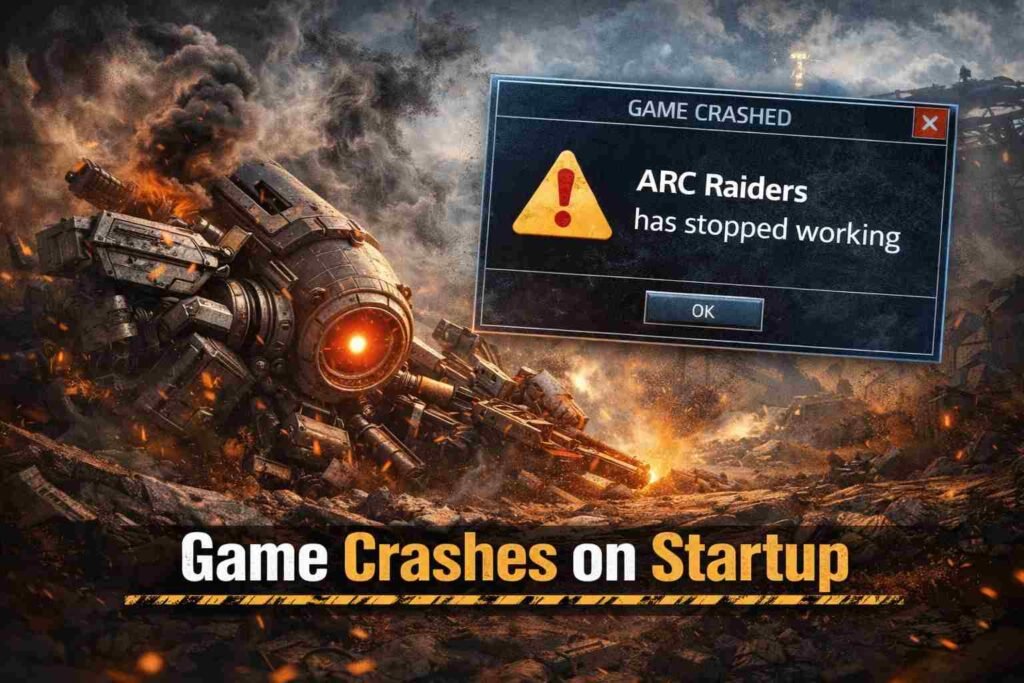
One of the most frustrating issues ARC Raiders players face is the game crashing during startup. This can be caused by a variety of factors such as outdated drivers, system compatibility issues, or corrupted game files.
Fixes:
- Update Graphics Drivers: Ensure that your GPU drivers are up-to-date by visiting the manufacturer’s website (NVIDIA, AMD, or Intel).
- Verify Game Files: On platforms like Steam, use the “Verify Integrity of Game Files” option to fix any corrupted files.
- Check System Requirements: Make sure your system meets the minimum requirements for running ARC Raiders smoothly.
2. Stuttering and Frame Freezing
Experiencing stuttering or frame freezing during gameplay can severely impact your experience. This problem is often linked to hardware performance or settings conflicts.
Fixes:
- Lower Graphics Settings: Reducing the in-game graphics settings can help improve performance. Lower shadow quality and texture settings.
- Enable V-Sync or Frame Rate Cap: Enabling V-Sync or setting a frame rate cap can eliminate stuttering caused by fluctuating frame rates.
- Close Background Applications: Close unnecessary applications running in the background to free up system resources.
Read Also : Simple & Easy Ways That How to Refund in Fortnite
3. Connectivity Issues and Lag
Online multiplayer games like ARC Raiders are heavily reliant on a stable internet connection. Lag and connectivity issues can affect both your gameplay and the game’s stability.
Fixes:
- Check Your Internet Connection: Ensure that you have a stable internet connection. Switch to a wired Ethernet connection if you’re using Wi-Fi.
- Select a Server with Lower Latency: In the game settings, choose a server closer to your location to reduce ping and lag.
- Restart Router: Sometimes, simply restarting your router can fix connectivity issues.
Read Also : Simple & Easy Ways That How to Update Fortnite
4. In-Game Audio Problems
Many players have reported issues with in-game sound, such as missing audio or distorted sound effects.
Fixes:
- Check Audio Settings: Make sure your audio settings in the game and on your device are properly configured.
- Update Audio Drivers: Ensure your sound card drivers are up-to-date to avoid conflicts with the game.
- Verify Audio Output Device: Check that the correct audio device (headphones, speakers, etc.) is selected in both the game settings and your system’s sound settings.
Read Also : 14 Common Battlefield 6 Problems (With Fixes)
5. Unable to Join Matches or Party
Another common issue is the inability to join a match or party, which can be frustrating when you’re eager to play with friends.
Fixes:
- Restart the Game and Client: Sometimes, restarting the game or the client (Steam, Epic Games) can resolve matchmaking issues.
- Check Party Permissions: Ensure that the party leader has set the correct permissions for others to join.
- Verify Server Status: Sometimes, matchmaking issues can occur due to server outages. Check the official social media channels for updates on server status.
6. Performance Drops During Intense Combat
Some players experience significant performance drops during heavy combat, causing a decrease in frame rates and gameplay fluidity.
Fixes:
- Lower Graphic Settings: Reducing the overall graphics settings, especially shadows and particle effects, can help prevent performance drops during combat.
- Optimize CPU Performance: Ensure that other heavy applications aren’t running in the background to free up CPU resources.
- Use Performance Mode on Consoles: If you’re playing on a console, ensure that you’re using the game’s performance mode settings to prioritize frame rates over visuals.
7. Black Screen or Flickering Issues
Some players experience black screens or flickering when launching or playing the game.
Fixes:
- Disable Full-Screen Optimizations: In some cases, disabling full-screen optimizations can resolve black screen issues. Right-click the game’s .exe file, go to Properties, and uncheck the “Full-Screen Optimizations” box.
- Adjust Display Resolution: Lowering the in-game resolution can resolve flickering issues.
- Check for External Monitors: If using multiple monitors, make sure the game is displayed on the correct screen.
8. Stuck on Loading Screen or Infinite Loading
Getting stuck on the loading screen or having an infinite loading loop is a common problem for ARC Raiders players.
Fixes:
- Restart the Game: Sometimes, a simple restart of the game client can resolve the issue.
- Clear Game Cache: Clear the cache files for the game from the platform you are using (Steam, Epic Games, etc.) and try relaunching.
- Reinstall the Game: As a last resort, uninstall and then reinstall the game to fix any corrupted files causing the infinite loading.
9. Character or Item Disappearing
Some players have reported that their character, gear, or items sometimes disappear while playing ARC Raiders.
Fixes:
- Check for Server-Side Issues: Sometimes, these problems are related to server-side issues. Check the official ARC Raiders social media pages for updates.
- Restore from Backup: If you have cloud save functionality enabled, restoring from a backup may help recover lost data.
- File a Support Ticket: If the issue persists, submit a support ticket to the ARC Raiders team to investigate further.
10. Game Not Responding to Inputs
A frustrating issue is when the game doesn’t register input from your mouse or keyboard, leading to unresponsive controls.
Fixes:
- Check Input Devices: Ensure that your mouse and keyboard are working properly in other applications.
- Rebind Controls: Try rebinding the game’s controls in case there is a conflict with your current keymap.
- Update Device Drivers: Make sure your input device drivers (keyboard, mouse) are up to date to avoid conflicts.
Conclusion
While ARC Raiders is a thrilling game to play, it’s not without its technical issues.
From crashes to connectivity problems, these issues can interrupt your gameplay and affect your overall experience.
However, with the fixes provided for each common problem, you can troubleshoot and get back to enjoying the game with minimal interruption.
FAQs
1. Why is my ARC Raiders game crashing on startup?
This could be due to outdated drivers or corrupted game files. Updating your drivers and verifying game files usually solves this issue.
2. How can I reduce lag in ARC Raiders?
You can reduce lag by ensuring a stable internet connection, choosing a server closer to your location, and using wired Ethernet instead of Wi-Fi.
3. What should I do if ARC Raiders isn’t responding to my inputs?
Check your input devices, try rebinding the controls, and ensure that your device drivers are up to date.
4. How can I fix performance drops during intense combat?
Lower your graphics settings and ensure that no heavy applications are running in the background to free up resources.
5. How do I restore lost items or characters in ARC Raiders?
Check for server-side issues, restore from a backup if you use cloud saves, or file a support ticket if the problem persists.