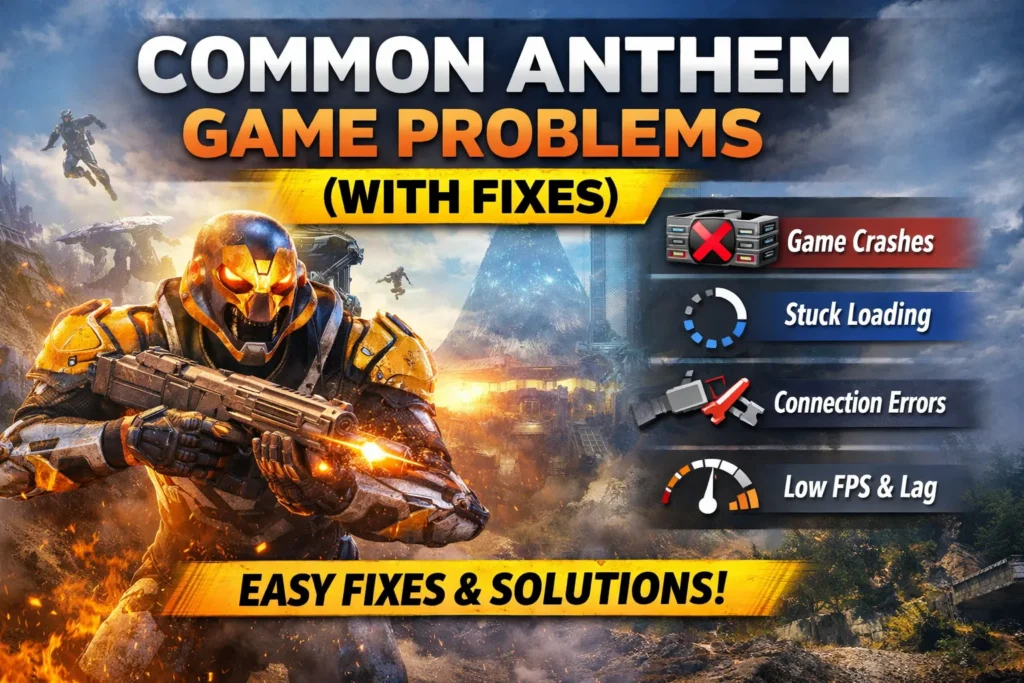
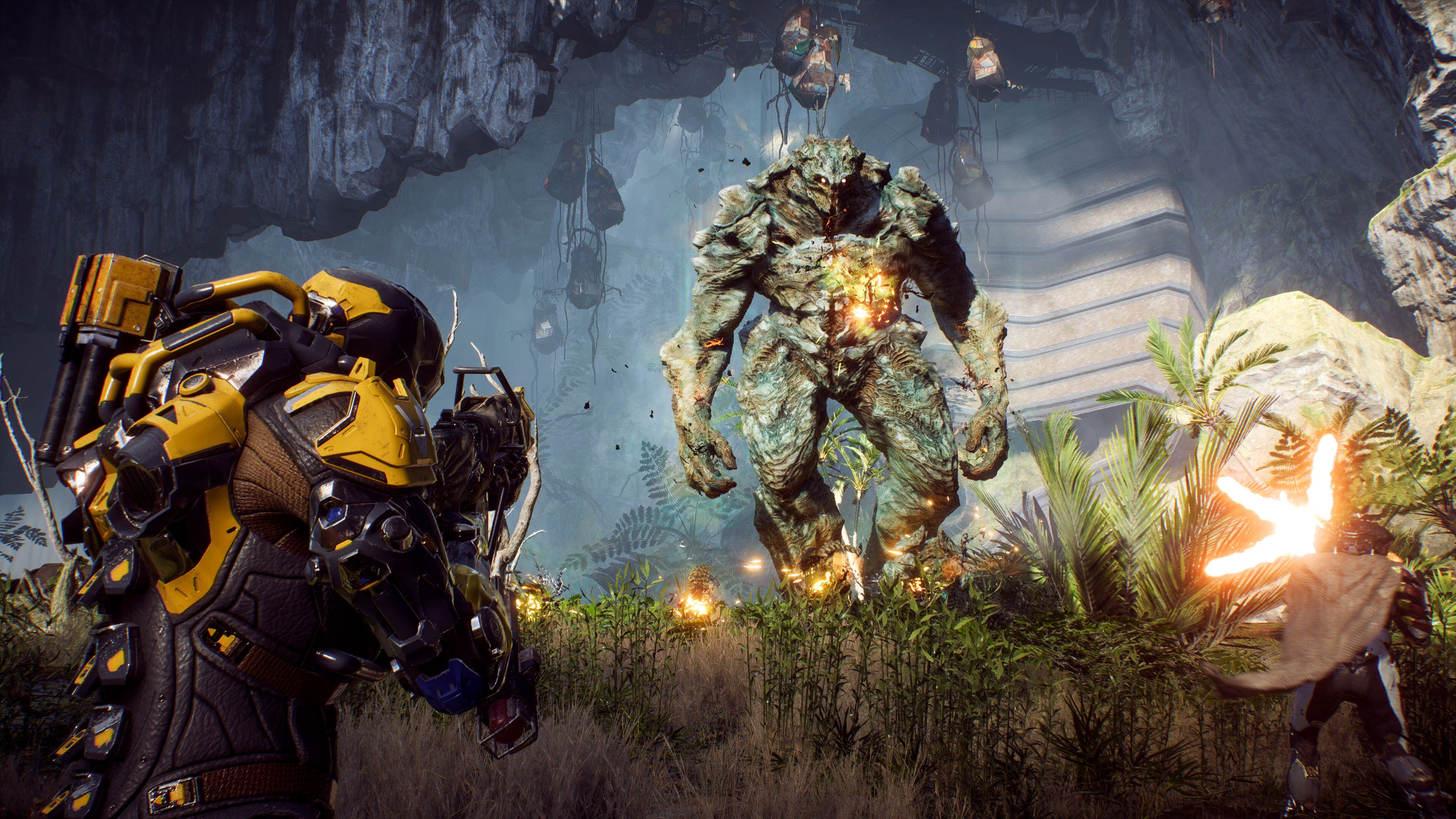
Anthem is a visually impressive online action RPG, but many players face technical and performance issues while playing it on PC, PlayStation, or Xbox.
These problems can range from simple login errors to serious crashes, lag, and infinite loading screens. Such issues often ruin gameplay, especially during missions or co-op sessions.
This article is written to help Anthem players fix the most common game problems in an easy, step-by-step way. Every problem is explained clearly, along with its causes and practical fixes that actually work.
You do not need advanced technical knowledge to follow these solutions. All methods are safe, beginner-friendly, and suitable for long-term fixes.
Whether Anthem is not launching, crashing randomly, lagging badly, or refusing to connect to servers, this guide covers everything. Follow the fixes in order, and in most cases, your game will start working smoothly again.
Common Anthem Game Problems (With Fixes) [Short Overview]
- Anthem may fail to launch due to corrupted files, permissions, or antivirus blocks
- Login and server errors often happen because of EA server issues or network problems
- Crashes and freezing are usually linked to drivers, overheating, or overlays
- Low FPS and stuttering are caused by wrong graphics settings or background apps
- Infinite loading screens and matchmaking issues are mostly network-related

4
Anthem Game Problems With Reasons and Fixes
1. Anthem Won’t Launch
Cause
- Corrupted game files
- EA App permission issues
- Antivirus blocking the game
- Overlay software conflict
Fixes
- Run EA App and Anthem as administrator
- Disable overlays like Discord, GeForce Experience, and Xbox Game Bar
- Add Anthem folder to antivirus exclusions
- Repair game files using EA App
- Restart your system and try again


2. Anthem Crashes on Startup
Cause
- Outdated or faulty graphics drivers
- Missing DirectX or Visual C++ files
- Overclocked CPU or GPU
Fixes
- Update graphics drivers (NVIDIA / AMD)
- Install latest DirectX and Visual C++ Redistributables
- Disable GPU or CPU overclocking
- Lower in-game graphics settings


3. Anthem Keeps Freezing During Gameplay
Cause
- System overheating
- Memory leaks
- Background applications
Fixes
- Check CPU and GPU temperature
- Close unnecessary background apps
- Lower texture quality and shadows
- Switch from Borderless to Fullscreen mode

4. Low FPS in Anthem
Cause
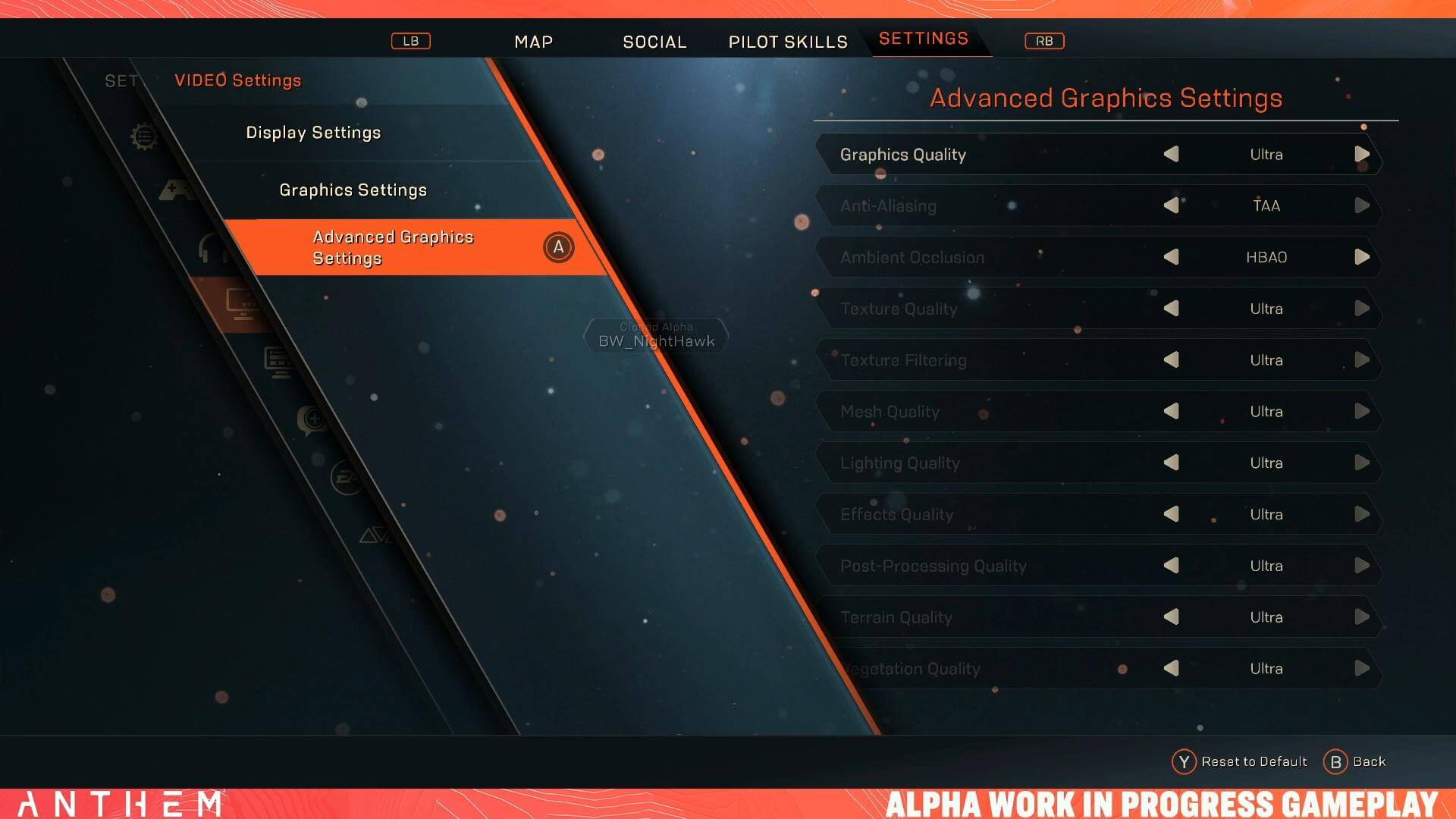
- High graphics settings
- Old GPU drivers
- Power saving mode enabled
Fixes
- Set graphics to Medium or Low
- Enable High Performance mode in Windows
- Update GPU drivers
- Disable V-Sync

5. Anthem Stuttering and Frame Drops
Cause
- Shader cache problems
- Background downloads
- HDD instead of SSD
Fixes
- Clear GPU shader cache
- Pause all downloads
- Install Anthem on SSD if possible
- Disable in-game motion blur
6. Infinite Loading Screen in Anthem
Cause
- Server sync failure
- Corrupted cache
- Network instability
Fixes
- Restart game and router
- Log out and back into EA App
- Change DNS to Google DNS
- Verify game files


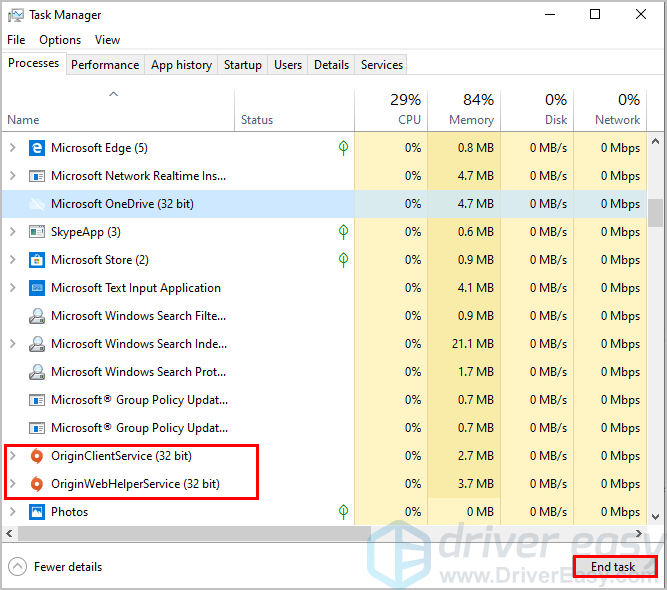
7. Anthem Login Error / Server Connection Failed
Cause
- EA server maintenance
- NAT type issues
- Firewall blocking connection
Fixes
- Check EA server status
- Set NAT type to Open
- Allow Anthem through firewall
- Restart modem and router
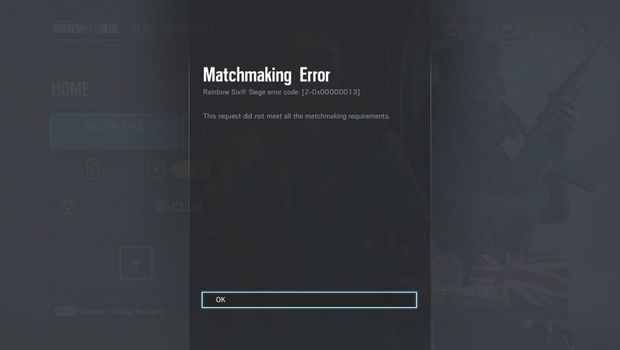
8. Matchmaking Not Working in Anthem
Cause
- Low player count in region
- Strict NAT
- Server lag
Fixes
- Change matchmaking region
- Enable Open NAT
- Play during peak hours
- Restart matchmaking queue
9. Anthem Lag and High Ping
Cause
- Slow internet
- Wi-Fi instability
- Background bandwidth usage
Fixes
- Use wired Ethernet connection
- Close streaming apps
- Restart router
- Change DNS
10. No Sound or Audio Glitches in Anthem
Cause
- Wrong audio output device
- Corrupted audio drivers
- In-game audio bug
Fixes
- Set correct audio device in system settings
- Update audio drivers
- Restart Anthem audio engine by restarting the game
11. Controller Not Working in Anthem (PC)
Cause
- Controller driver conflict
- Steam or third-party controller apps
Fixes
- Plug controller before launching Anthem
- Disable Steam Input
- Update controller drivers
- Use wired connection
Conclusion
Common Anthem game problems can be frustrating, but most of them are not permanent or serious. Issues like crashes, lag, low FPS, login errors, or infinite loading screens usually happen due to software conflicts, outdated drivers, or unstable internet connections. The good news is that these problems can be fixed easily by following the correct steps.
This guide explained each Anthem problem with its causes and fixes in a simple and practical way. You do not need advanced technical skills to apply these solutions. Always start with basic fixes like restarting the game, checking server status, and repairing files before moving to advanced steps.
Keeping your system updated, avoiding unnecessary background apps, and using stable internet will greatly improve your Anthem gameplay experience. By following this guide, you can enjoy smoother performance, fewer crashes, and better online connectivity in Anthem.
FAQs
What should I do if Anthem keeps crashing?
Update your drivers, disable overlays, repair game files, and lower graphics settings. These steps fix most crash issues.
Why is Anthem stuck on the loading screen?
This usually happens due to server sync or network problems. Restart the game, router, and verify game files.
How can I fix low FPS in Anthem?
Lower graphics settings, disable V-Sync, update GPU drivers, and enable high-performance mode.
Why can’t I connect to Anthem servers?
Check EA server status, restart your router, allow the game through firewall, and ensure Open NAT.
Does reinstalling Anthem fix problems?
Yes, reinstalling can fix deep file corruption, but try repair and cache clearing first.