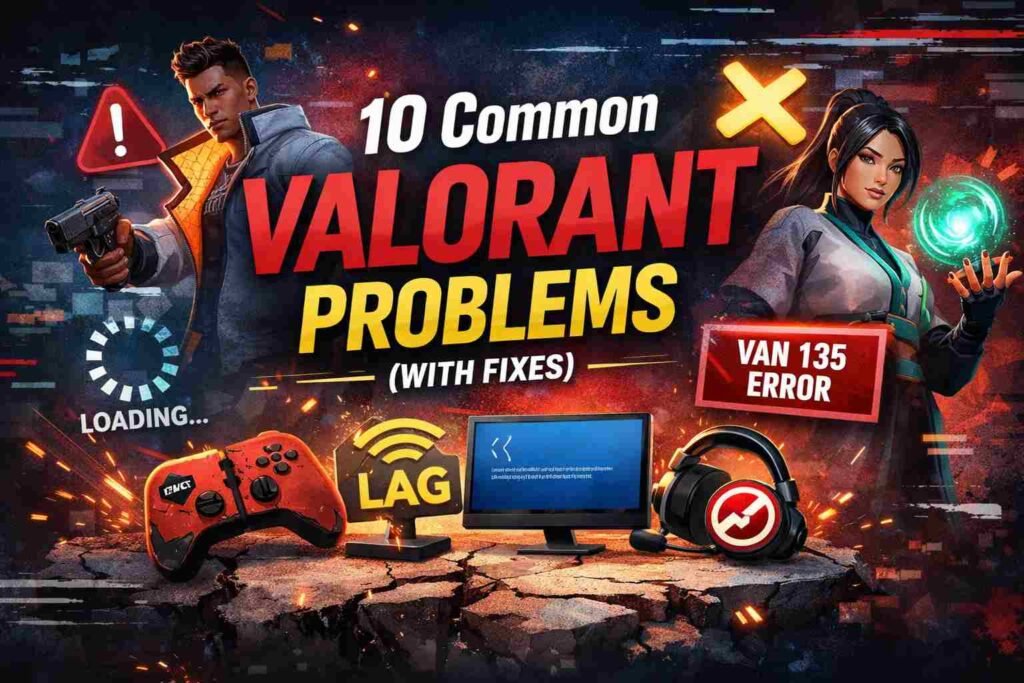
Valorant is a fast-paced tactical shooter that demands precision, strategy, and quick reflexes.
However, like any online game, players often face issues that disrupt their experience.
In this article, we’ll cover 10 common Valorant problems and provide step-by-step solutions to fix them.
1. Valorant Game Won’t Launch
Problem:
Players often face issues where the game fails to launch. This can be due to corrupt files, outdated drivers, or compatibility issues.
Fix:
- Verify Game Files: Use the Riot client to verify and repair the game files.
- Update Drivers: Ensure that your graphics and network drivers are up-to-date.
- Run as Administrator: Right-click the Valorant shortcut and select “Run as Administrator.”
- Disable Background Apps: Close unnecessary background applications to ensure Valorant has enough resources.
2. Valorant Stuttering or Low Frame Rates
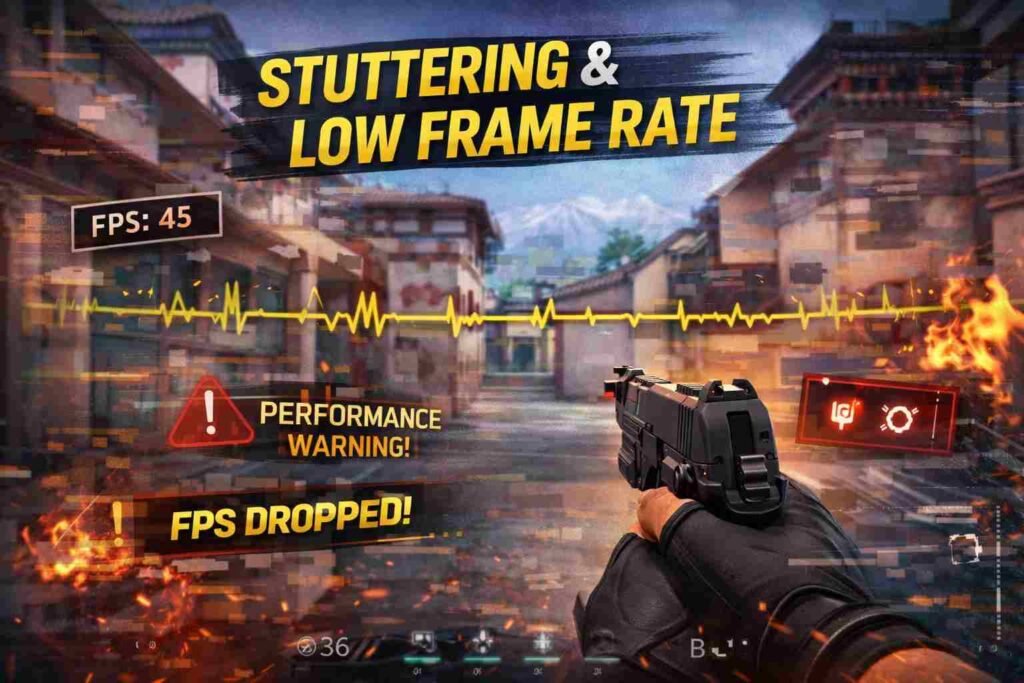
Problem:
Stuttering or low FPS can ruin the experience, especially in fast-paced games like Valorant.
Fix:
- Adjust Graphics Settings: Lower the resolution and turn off unnecessary visual effects.
- Update Graphics Drivers: Ensure your GPU drivers are up to date.
- Check System Performance: Ensure no background applications are consuming too much of your CPU and RAM.
3. Valorant Lag and High Ping
Problem:
High ping and lag can make the game unplayable, especially in competitive matches.
Fix:
- Switch Servers: Choose a server closer to your physical location for better performance.
- Close Background Apps: Close all bandwidth-consuming apps running in the background.
- Use Ethernet Connection: Switch from Wi-Fi to a wired Ethernet connection for a more stable connection.
- Use a VPN: If you’re experiencing regional server issues, use a VPN to select a better server region.
4. Valorant Crashes on Startup
Problem:
Valorant crashing during startup is a common problem, especially after an update or game patch.
Fix:
- Reinstall Valorant: Uninstall and reinstall the game to fix corrupted files.
- Update Operating System: Ensure your operating system is up to date with the latest patches.
- Check Anti-Virus Software: Disable or add Valorant to the exceptions list of your antivirus software.
Read Also : Simple & Easy Ways That How to Refund in Fortnite
5. Valorant Not Connecting to Servers
Problem:
Players often encounter problems when trying to connect to Valorant’s servers.
Fix:
- Check Server Status: Visit the Riot Games server status page to confirm whether the issue is server-side.
- Restart Router: Reboot your router to resolve any network connection issues.
- Flush DNS: Open Command Prompt and type ipconfig /flushdns to refresh your DNS settings.
Read Also : Simple & Easy Ways That How to Update Fortnite
6. Audio Issues in Valorant
Problem:
In-game sound issues, such as no sound or distorted audio, can ruin the immersive experience.
Fix:
- Update Audio Drivers: Ensure your audio drivers are up to date.
- Check Sound Settings: Make sure Valorant’s in-game sound settings are properly configured.
- Check Sound Device: Ensure your default audio output device is set correctly in your system settings.
Read Also : 14 Common Battlefield 6 Problems (With Fixes)
7. Valorant Screen Flickering or Black Screen
Problem:
Some players encounter a black screen or screen flickering when trying to play Valorant.
Fix:
- Disable Full-Screen Optimizations: Right-click on the Valorant icon, go to Properties > Compatibility, and check the “Disable Full-Screen Optimization” box.
- Adjust Display Settings: Lower your screen resolution or switch to a different display mode.
- Reinstall Graphics Drivers: A fresh installation of graphics drivers may solve the issue.
8. Valorant Error Code VAN 135
Problem:
The VAN 135 error often occurs when Valorant fails to detect an internet connection.
Fix:
- Restart Game: Close and restart Valorant to reset any temporary issues.
- Check Firewall/Antivirus: Ensure Valorant isn’t being blocked by your firewall or antivirus software.
- Update Windows: Ensure that your system is fully updated with the latest patches.
9. Valorant Voice Chat Not Working
Problem:
Players may face issues with in-game voice chat, such as no one being able to hear them or not being able to hear others.
Fix:
- Check Mic Settings: Ensure your microphone is properly set up in both the system settings and Valorant’s in-game settings.
- Adjust Push to Talk: If using push-to-talk, ensure that the keybind is properly configured.
- Verify Audio Devices: Make sure Valorant is using the correct audio input and output devices.
10. Valorant Ranked Matchmaking Issues
Problem:
Many players experience issues with ranked matchmaking, such as being paired with teammates of vastly different skill levels.
Fix:
- Play with Friends: Playing with friends of similar rank can reduce matchmaking frustrations.
- Report Bugs: If you believe there’s an issue with the matchmaking system, report it to Riot Games.
- Be Patient: Rank discrepancies may occur due to MMR resets or game updates, so it’s essential to be patient with the system.
Conclusion
Valorant offers an exciting and challenging experience, but like any online game, players are bound to run into issues.
By following the steps provided in this article, you should be able to fix the most common Valorant problems and get back to enjoying the game.
FAQs
Q1: How do I fix Valorant crashing on startup?
A1: Try reinstalling the game, updating your operating system, and checking if your antivirus is blocking the game.
Q2: How can I reduce lag in Valorant?
A2: Lower your graphics settings, switch to a wired connection, and ensure your server region is optimal for your location.
Q3: Why is Valorant stuttering?
A3: Stuttering may be caused by insufficient hardware, outdated drivers, or running too many background applications. Update your drivers and close unnecessary apps.
Q4: What does error code VAN 135 mean?
A4: VAN 135 indicates a network connectivity issue. Restart your game, check your firewall settings, and update Windows.
Q5: How can I improve Valorant’s voice chat?
A5: Ensure your microphone is working correctly, verify that voice chat settings are enabled, and check your default audio devices.