ROBLOX is one of the most popular gaming platforms in the world, providing a space for players to create, share, and enjoy games.
However, like any online platform, users occasionally face issues that can disrupt their experience.
In this article, we will cover 12 common ROBLOX problems along with their fixes.
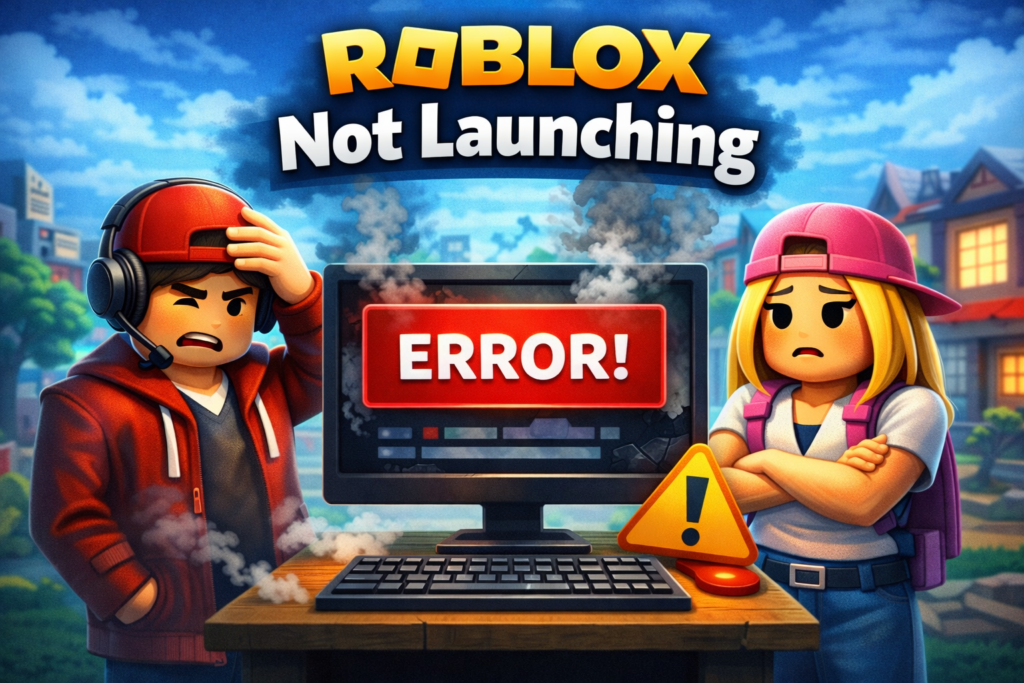
1. ROBLOX Not Launching
Problem:
One of the most common issues faced by players is when ROBLOX fails to launch. The game may load to a certain point and then freeze, or it may not open at all.
Fix:
- Check System Requirements: Ensure your device meets the minimum system requirements to run ROBLOX.
- Update ROBLOX: Make sure you’re running the latest version of the ROBLOX client.
- Disable Antivirus: Sometimes antivirus programs block ROBLOX. Temporarily disable your antivirus software and check if the game launches.
- Reinstall ROBLOX: If all else fails, reinstall ROBLOX. This often resolves any corrupted files.
2. ROBLOX Crashing on Startup
Problem:
Some users experience ROBLOX crashing as soon as they try to start the game.
Fix:
- Clear Cache: Go to your browser’s settings and clear the cache. This can fix crashing caused by corrupted data.
- Check for Conflicting Software: Some software like screen recording tools can cause issues. Try disabling unnecessary programs while playing.
- Update Graphics Drivers: Make sure your graphics drivers are up to date.
3. ROBLOX Login Issues
Problem:
Players may have trouble logging into ROBLOX, either because of incorrect credentials or other issues.
Fix:
- Reset Password: If you’ve forgotten your password, use the “Forgot Password” feature to reset it.
- Check Server Status: Sometimes login issues are related to server outages. Visit ROBLOX’s official Twitter or status page to check if there are any ongoing problems.
- Clear Cookies: In some cases, clearing your browser’s cookies can resolve login issues.
Read Also : Simple & Easy Ways That How to Refund in Fortnite
4. ROBLOX Lagging or Freezing
Problem:
Lag and freezing can disrupt the gaming experience, making ROBLOX unplayable.
Fix:
- Close Background Apps: Close any unnecessary applications running in the background.
- Check Your Internet Connection: A poor connection can cause lag. Check your Wi-Fi or switch to a wired connection if possible.
- Reduce Graphics Settings: Lower the graphics settings in the ROBLOX menu to improve performance.
5. ROBLOX Not Connecting to Server
Problem:
Players may find themselves unable to connect to a server, leading to frustration and interrupted gameplay.
Fix:
- Check Server Status: Check ROBLOX’s server status page for any known issues.
- Restart Your Router: Sometimes, a simple router restart can resolve connection problems.
- Try a Different Server: If one server is down, try switching to another one within the game.
6. ROBLOX Error Code 267
Problem:
Error Code 267 typically occurs when a user is kicked from a game, often due to violating the terms of service or other server issues.
Fix:
- Check ROBLOX Rules: Make sure you are not violating any ROBLOX rules, as this is a common reason for being kicked.
- Report the Error: If you believe the kick was a mistake, report it to ROBLOX support.
- Contact Support: If you continue to encounter the issue, reach out to ROBLOX customer service for assistance.
Read Also : Simple & Easy Ways That How to Update Fortnite
7. ROBLOX Audio Not Working
Problem:
Sometimes the audio in ROBLOX games doesn’t work, making the game experience less enjoyable.
Fix:
- Check Volume Settings: Ensure that the game volume is turned up both in-game and in your device’s audio settings.
- Clear Cache: In some cases, clearing your browser’s cache can fix audio issues.
- Check Sound Drivers: Make sure your device’s sound drivers are up to date.
Read Also : 10 Common Bubble Shooter Game Problems (With Fixes)
8. ROBLOX Avatar Not Loading
Problem:
Players may encounter issues where their avatar doesn’t load properly, either displaying as a default character or showing incorrect accessories.
Fix:
- Check ROBLOX Catalog: Sometimes, items in your avatar’s inventory may be unavailable or outdated. Check your inventory to ensure all items are active.
- Refresh Your Page: Try refreshing the page, or restart the game to see if the avatar loads properly.
- Clear Cache: Again, clearing your browser’s cache can help resolve issues with loading avatars.
9. ROBLOX Payment Issues
Problem:
Users may face difficulties with payment when trying to buy Robux or make in-game purchases.
Fix:
- Check Payment Information: Ensure your payment information is up to date.
- Clear Payment Methods: If there are any old payment methods saved, remove them and add a new one.
- Contact Support: If payments continue to fail, contact ROBLOX support for assistance.
10. ROBLOX Studio Crashing
Problem:
ROBLOX Studio is a popular tool for game developers, but it may crash unexpectedly while creating or editing games.
Fix:
- Update ROBLOX Studio: Ensure you’re using the latest version of ROBLOX Studio.
- Check System Requirements: Make sure your system meets the requirements to run ROBLOX Studio.
- Clear Cache and Reinstall: Like other ROBLOX programs, clearing the cache or reinstalling may resolve stability issues.
11. ROBLOX Account Banned or Suspended
Problem:
A ban or suspension can prevent you from playing games or accessing your account.
Fix:
- Check ROBLOX Rules: Review the terms of service and community guidelines to understand the reason behind your ban.
- Appeal: If you believe the ban or suspension was a mistake, you can appeal to ROBLOX support.
- Wait for Suspension to End: Suspensions are often temporary, so simply wait for the period to pass.
12. ROBLOX Item Not Showing Up
Problem:
Purchased items, such as clothes or accessories, may not show up in your inventory or on your avatar.
Fix:
- Refresh Your Avatar: Sometimes simply refreshing your avatar or the game page can make purchased items appear.
- Check Your Inventory: Make sure the item was actually purchased. If it wasn’t, check your transaction history.
- Contact Support: If the item still doesn’t show up, contact ROBLOX customer service.
Conclusion
ROBLOX provides a great platform for gamers of all ages, but like any online service, technical issues can arise. Whether it’s problems with login, lag, or audio issues, most ROBLOX problems can be resolved with simple fixes. Keep your software updated, check for server issues, and don’t hesitate to contact ROBLOX support if necessary.
FAQs
Why is ROBLOX not launching on my PC?
ROBLOX may not launch due to outdated software, system requirements, or conflicts with other programs. Ensure that your system meets the requirements and update ROBLOX to the latest version.
How do I fix lag in ROBLOX?
To reduce lag, close unnecessary background apps, check your internet connection, and lower the game’s graphics settings.
What should I do if I get error code 267?
Error code 267 usually occurs when you’re kicked from a game. Check if you’re violating any rules, and report the issue to ROBLOX if you believe it’s an error.
Why is my ROBLOX avatar not loading?
This could be due to issues with your avatar’s inventory or a cache problem. Refresh the page, check your inventory, or clear your browser’s cache.
How do I fix payment issues on ROBLOX?
Ensure your payment information is up to date, and clear any old payment methods. If problems persist, contact ROBLOX support for assistance.